
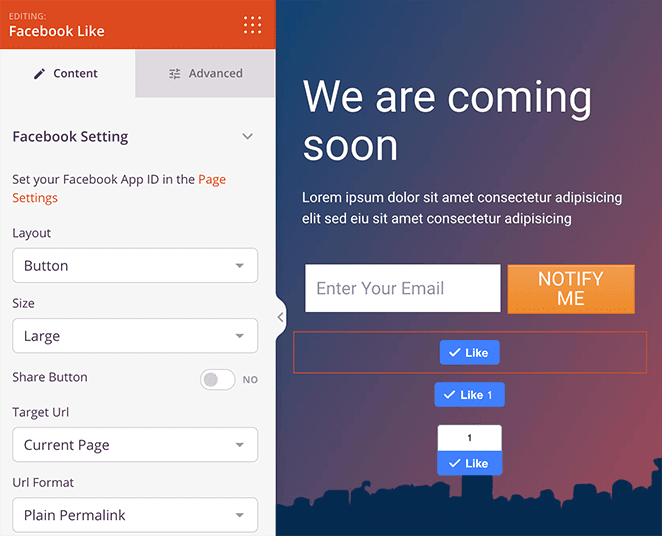
The Facebook Like block allows you to add a Facebook Like button to any SeedProd page, giving visitors a quick way to express their appreciation for your content and share it with their Facebook network.
With flexible layout options, size controls, and the ability to target any URL, the Facebook Like block is an easy way to boost social engagement directly from your landing pages, coming soon pages, or any other SeedProd-built page.
Adding the Facebook Like Block to Your Pages
Follow these steps to add a Facebook Like block to your SeedProd page:
Step 1: Add the Block
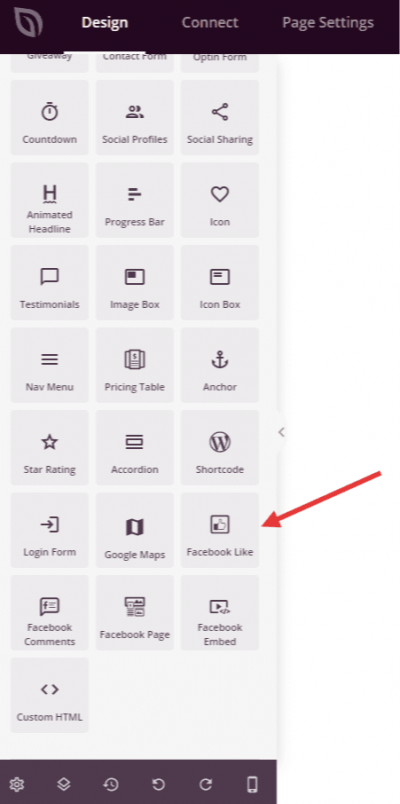
Under Design > Blocks, drag and drop the Facebook Like block into the desired section of your page.
Step 2: Configure Content Settings
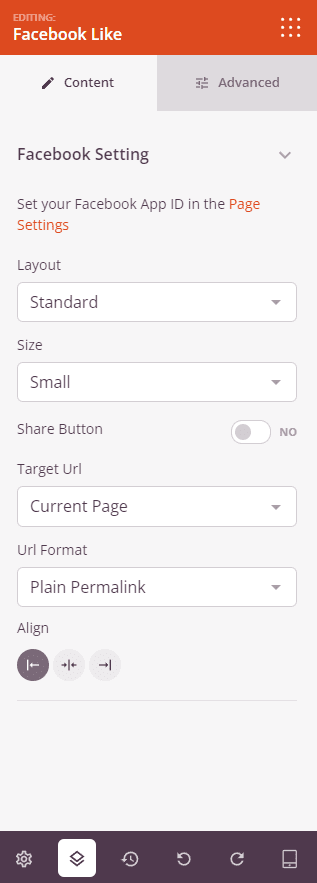
Once added, click on the Facebook Like block to open its settings. In the Content tab, configure how the Like button appears and which URL it targets.
Facebook Setting:
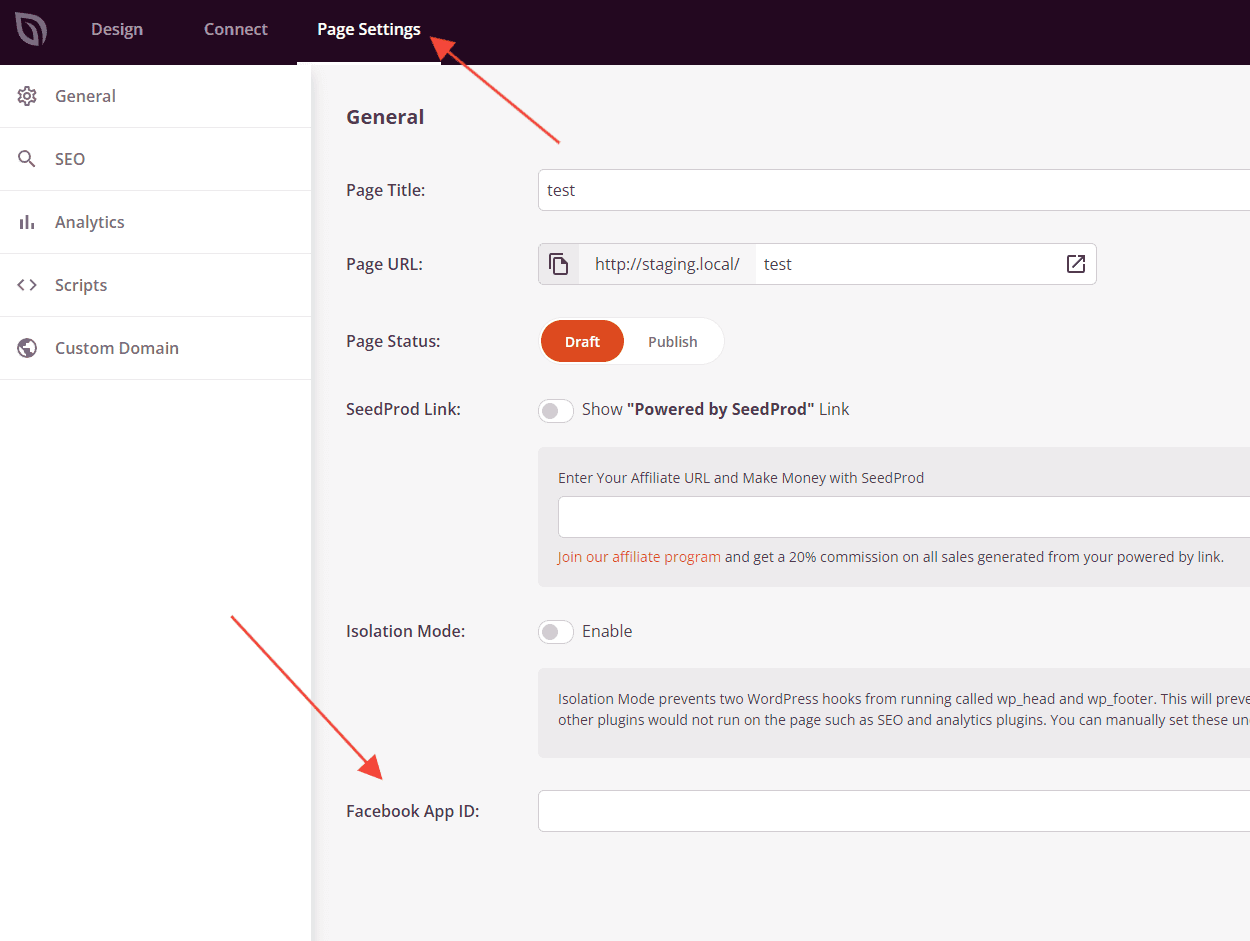
- Facebook App ID: Displays your connected Facebook App. If no App ID is configured yet, you’ll see a prompt to set it in Page Settings. Once connected, a Change App option appears to switch to a different app.
- Layout: Choose how the Like button is displayed — Standard (Like button with a social count and optional profile pictures), Button (a simple Like button with no count), Button Count (Like button with an inline count), or Box Count (Like button with a count displayed above it).
- Size: Set the size of the Like button — Small or Large.
- Share Button: Toggle on to add a Facebook Share button alongside the Like button, giving visitors an additional way to spread your content.
- Target URL: Choose which URL the Like button is associated with — Current Page to use the page the block is placed on, or Custom to specify a different URL.
- Link (visible when Target URL is set to Custom): Enter the specific URL you want visitors to like when they click the button.
- URL Format (visible when Target URL is set to Current Page): Choose between Plain Permalink or Pretty Permalink format for how the current page URL is passed to Facebook.
- Alignment: Set the horizontal alignment of the Like button — Left, Center, or Right.
Step 3: Customize the Design
In the Advanced tab, you can adjust the spacing and visibility of your Facebook Like block.
Spacing:
- Margin: Control the outer spacing around your Facebook Like block (Top, Right, Bottom, Left). Supports per-device values for desktop, tablet, and mobile.
- Padding: Adjust the inner spacing within your Facebook Like block (Top, Right, Bottom, Left). Supports per-device values for desktop, tablet, and mobile.
Attributes:
- CSS ID: Displays the auto-generated unique identifier for your Facebook Like block, created automatically by SeedProd for custom styling or JavaScript targeting.
- Custom Class: Add custom CSS classes to apply specific styles from your theme or custom CSS.
- Custom Attributes: Add any HTML attributes to the block wrapper element. Enter each attribute on a new line using the format: attribute-name|value.
Device Visibility:
- Hide on Desktop: Hide the Facebook Like block on desktop screens.
- Hide on Tablet: Hide the Facebook Like block on tablet devices.
- Hide on Mobile: Hide the Facebook Like block on mobile devices.
Animation Effects:
- Entrance Animation: Choose an animation effect that plays when the Facebook Like block scrolls into view, such as Bounce, Fade In, Zoom In, Rotate In, and many more.
Step 4: Save Your Changes
Once you have finished configuring the Facebook Like block and customizing its appearance, make sure to save your work.
You’ve successfully added a Facebook Like block to your page! This block makes it simple to invite visitors to engage with your content on Facebook without leaving your site. Make sure your Facebook App ID is configured so the Like button loads and functions correctly for all visitors.