
The Facebook Page block allows you to embed a live Facebook Page feed directly on any SeedProd page. Visitors can see your timeline, events, or messages content without leaving your website, helping you keep your audience engaged and up to date.
With options to control which tabs are displayed, adjust the header style, show or hide profile photos, and set the embed height, this block gives you full control over how your Facebook Page appears on your site.
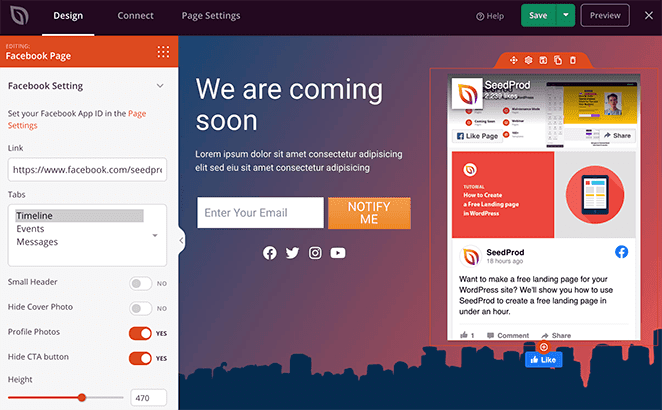
Adding the Facebook Page Block to Your Pages
Follow these steps to add a Facebook Page block to your SeedProd page:
Step 1: Add the Block
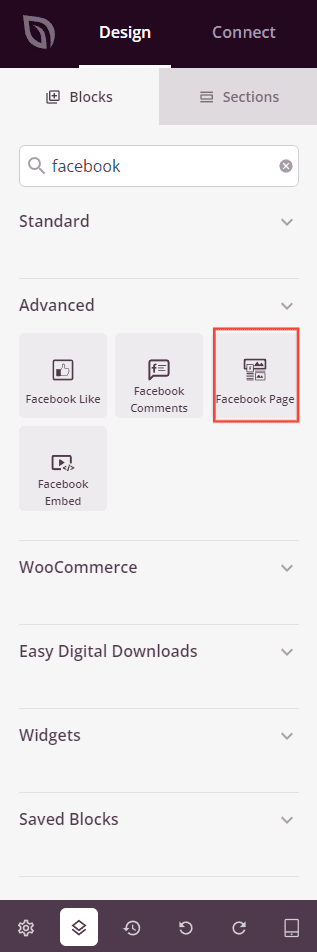
Under Design > Blocks, drag and drop the Facebook Page block into the desired section of your page.
Step 2: Configure Content Settings
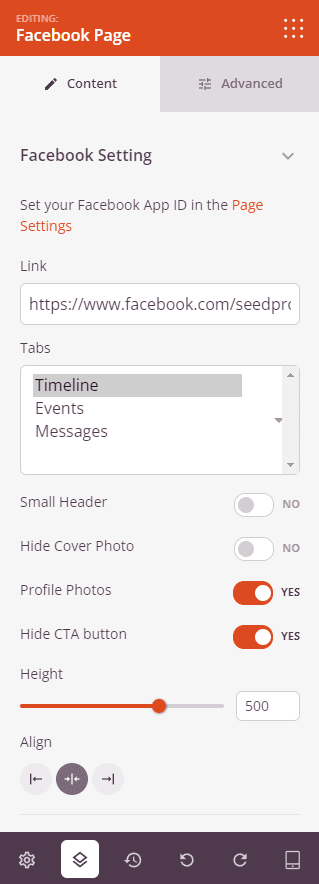
Once added, click on the Facebook Page block to open its settings. In the Content tab, configure which Facebook Page to display and how it should appear.
Facebook Setting:
- Facebook App ID: Displays your connected Facebook App. If no App ID is configured yet, you’ll see a prompt to set it in Page Settings. Once connected, a Change App option appears to switch to a different app.
- Link: Enter the full URL of the Facebook Page you want to embed (e.g., https://www.facebook.com/yourpage/).
- Tabs: Select which content tabs to display in the embedded page feed. You can choose one or more from Timeline, Events, and Messages. Timeline shows recent posts, Events shows upcoming events, and Messages opens a direct message option.
- Small Header: Toggle on to display a compact version of the Facebook Page header, saving vertical space in the embed.
- Hide Cover Photo: Toggle on to hide the page’s cover photo from the embedded feed.
- Profile Photos: Toggle on to show profile photos of friends who like the page alongside the embed.
- Hide CTA Button: Toggle on to hide the call-to-action button (such as Like or Follow) from the embedded page.
- Height: Set the height of the embedded Facebook Page feed in pixels, from 70 to 700px.
- Alignment: Set the horizontal alignment of the embedded page — Left, Center, or Right.
Step 3: Customize the Design
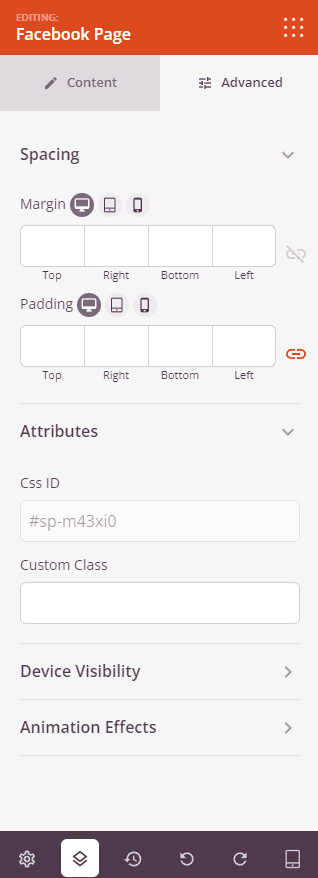
In the Advanced tab, you can adjust the spacing and visibility of your Facebook Page block.
Spacing:
- Margin: Control the outer spacing around your Facebook Page block (Top, Right, Bottom, Left). Supports per-device values for desktop, tablet, and mobile.
- Padding: Adjust the inner spacing within your Facebook Page block (Top, Right, Bottom, Left). Supports per-device values for desktop, tablet, and mobile.
Attributes:
- CSS ID: Displays the auto-generated unique identifier for your Facebook Page block, created automatically by SeedProd for custom styling or JavaScript targeting.
- Custom Class: Add custom CSS classes to apply specific styles from your theme or custom CSS.
- Custom Attributes: Add any HTML attributes to the block wrapper element. Enter each attribute on a new line using the format: attribute-name|value.
Device Visibility:
- Hide on Desktop: Hide the Facebook Page block on desktop screens.
- Hide on Tablet: Hide the Facebook Page block on tablet devices.
- Hide on Mobile: Hide the Facebook Page block on mobile devices.
Animation Effects:
- Entrance Animation: Choose an animation effect that plays when the Facebook Page block scrolls into view, such as Bounce, Fade In, Zoom In, Rotate In, and many more.
Step 4: Save Your Changes
Once you have finished configuring the Facebook Page block and customizing its appearance, make sure to save your work.
You’ve successfully added a Facebook Page block to your page! This block makes it easy to bring your live Facebook Page feed onto any SeedProd page, keeping visitors connected to your social presence without redirecting them away from your site. Make sure your Facebook App ID is configured so the embedded page loads correctly for all visitors.