


セールスページとは、特定の製品やサービスへの訪問者を顧客に転換させることを目的とした独立したウェブページのことです。メールアドレスの収集やウェビナーの宣伝など、あらゆる目標を達成できるランディングページとは異なります。
私は自分のサイトでランディングページを作成するためにSeedProdを使用していますが、このようなセールスページはテンプレートから公開まで約30分で作成できます。
このガイドでは、コードを書かずにWordPressでセールスページを作成する方法を順を追って説明します。
WordPressでセールスページを作成する方法
SeedProdは、専用のセールスページデザインを含む350以上のテンプレートを備えたドラッグ&ドロップ式のWordPressウェブサイトビルダーです。WordPressテーマを変更せずに独立したセールスページを作成できるため、お勧めします。
別の方法として、セールスページテーマを使用することもできます。これは、セールスページとして機能するように設計されたWordPressテーマです。
このアプローチの問題点は、すべてのページのデザインが変更されてしまうことです。ほとんどのビジネスでは単一のWordPressセールスページしか必要としないため、ページビルダーの方が理にかなっています。

SeedProdを使用すると、セールスページやスクイーズページから、サンキューページ、ウェビナーランディングページまで、あらゆる種類のランディングページを簡単に作成できます。
また、強力なWordPressテーマビルダーでもあり、コードを書いたりテーマファイルを操作したりすることなく、カスタムWordPressテーマを作成できます。
ビジュアルドラッグ&ドロップ式のランディングページビルダーを使用すると、数回のクリックでページのあらゆる要素をカスタマイズできます。さらに、開発者の助けを借りずに、希望通りの見た目にすることができます。
ステップ1. SeedProdのインストールと有効化
まず、ここをクリックしてSeedProdを開始し、プラグインをダウンロードしてください。次に、このWordPressプラグインのインストール方法に関するステップバイステップガイドに従ってください。
プラグインのインストールと有効化の後、WordPressダッシュボードのSeedProdアイコンをクリックして、SeedProdランディングページエリアを表示します。
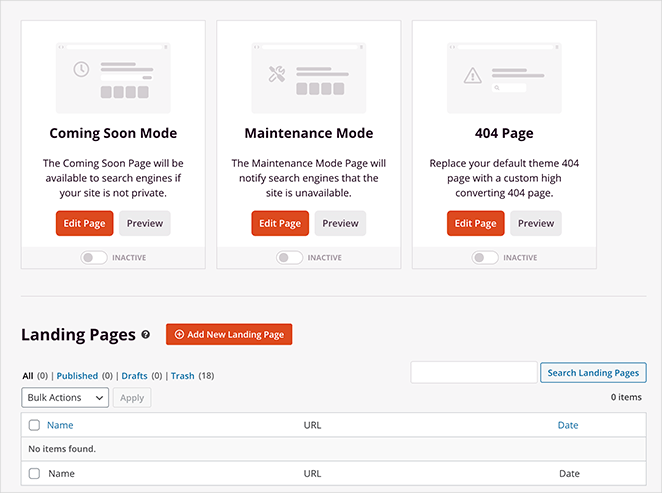
このページでは、近日公開ページ、404ページ、WordPressログインページを有効にし、WordPressをメンテナンスモードにすることができます。
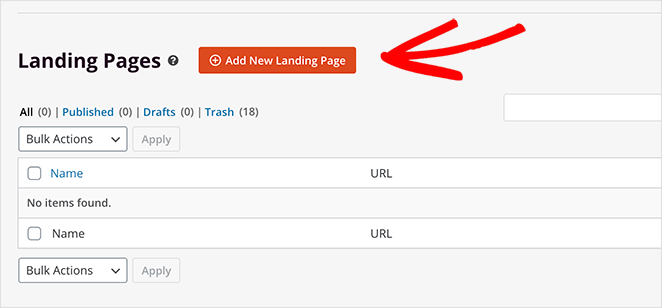
ただし、このチュートリアルではセールスページを作成したいので、開始するには+ 新規ランディングページ追加ボタンをクリックしてください。
ステップ2. セールスページテンプレートの選択
SeedProdは、350以上のランディングページテンプレートのライブラリを表示します。上部にあるオプションをクリックするか、検索ボックスに入力することで、テンプレートをフィルタリングできます。
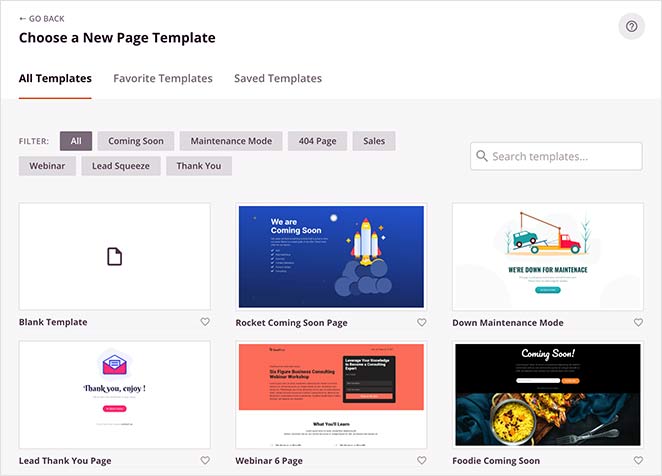
利用可能なテンプレートには以下が含まれます:
- 近日公開
- メンテナンスモード
- 404ページ
- セールス
- ウェビナー
- リード獲得
- ありがとうございます
- ログイン
最初から始めるために、空白のテンプレートを選択するオプションもあります。
WordPressのセールスページテンプレートをご希望の場合は、セールスオプションをクリックして表示してください。
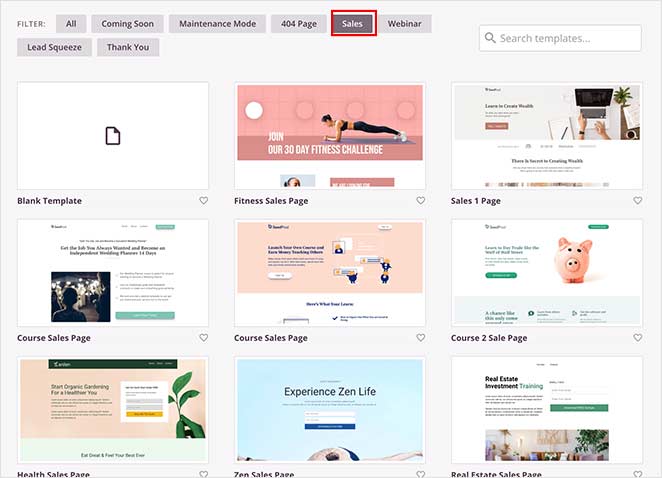
希望するデザインに最も近いテンプレートを選択します。次に、それを起動するには、サムネイル画像にマウスカーソルを合わせ、ティックアイコンをクリックします。このガイドでは、マスタークラスセールスページを選択します。
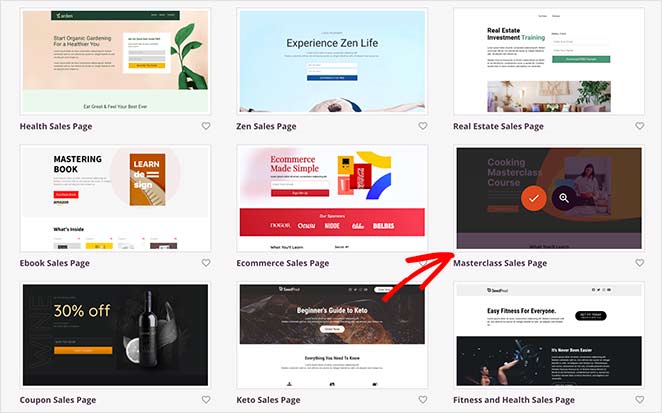
セールスページテンプレートを選択すると、ページ名とページURLを含むページ詳細を入力するように求めるライトボックスポップアップが表示されます。後でこれらの詳細を変更することもできます。
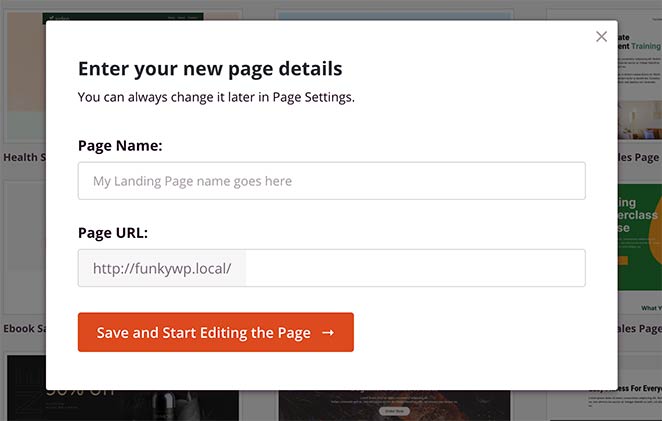
保存して編集を開始ボタンをクリックして、SeedProdsのビジュアルページビルダーでテンプレートを起動します。
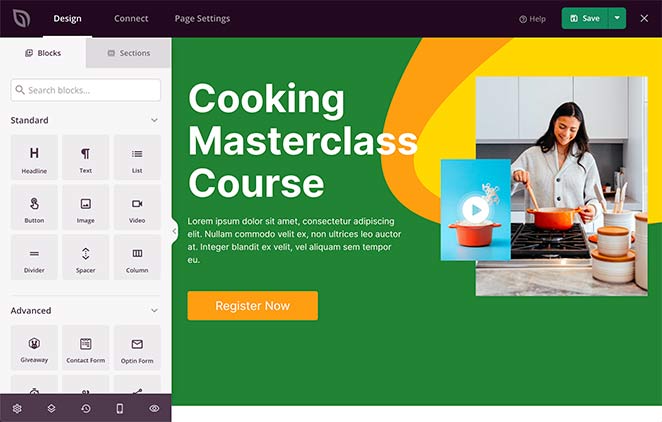
ステップ3. ヘッドラインとバリュープロポジションの追加
SeedProdのドラッグアンドドロップページビルダーは、WordPressサイトのセールスページをカスタマイズするためのさまざまな簡単な方法を提供します。
ページプレビューの任意の要素をクリックして、リアルタイムでコンテンツを編集できます。まず、ヘッドラインとバリュープロポジションを追加しましょう。
ヘッドラインは訪問者が最初に目にするものであり、読み続けるかどうかを決定します。バリュープロポジションは、製品またはサービスがなぜ彼らの時間を費やす価値があるのかを説明します。
ヘッドラインを追加するには、デモヘッドラインをクリックして左側の設定を開きます。次に、独自のテキストを入力します。
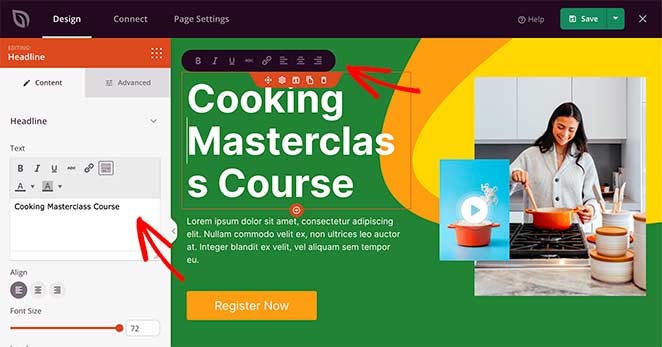
ヘッドラインを際立たせるためのヒントをいくつかご紹介します。
- 短く簡潔に: 明確で、簡潔で、インパクトのある5〜8語を目指しましょう。
- 機能ではなくメリットに焦点を当てる: 製品/サービスの技術的な側面だけでなく、提供する変革を強調します。
- 好奇心と興味をそそる: 質問、パワーワード、または予期しない声明を使用して興味を引きます。
- 検索エンジンに最適化する: ヘッドラインに自然に関連キーワードを含めます。
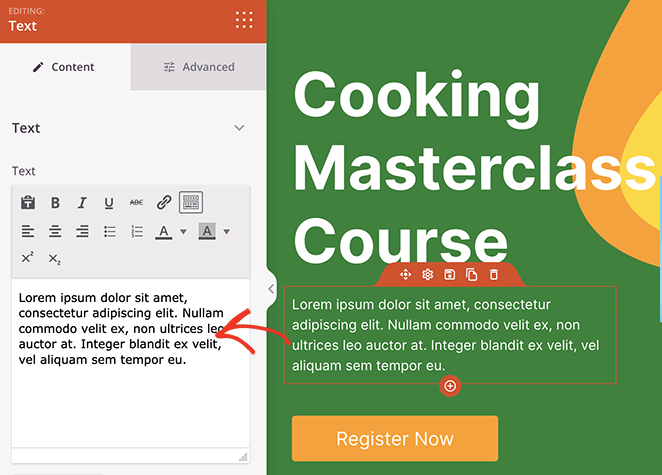
下のテキストブロックでこの手順を繰り返し、バリュープロポジションを追加します。製品またはサービスが解決する問題と、それを差別化するものを強調します。
ステップ4. ソーシャルプルーフで信頼を築く
ソーシャルプルーフは、特に初めて訪問するユーザーにとって、すぐに信頼を築きます。潜在的な顧客が本物の賞賛と成功事例を見ると、購入する可能性が高くなります。
私は常にセールスページに推薦文を追加しています。私の経験では、実際の顧客の声があるページは明らかにコンバージョン率が高くなります。インスピレーションが必要な場合は、信頼を築く推薦文ページを作成する方法はこちらです。
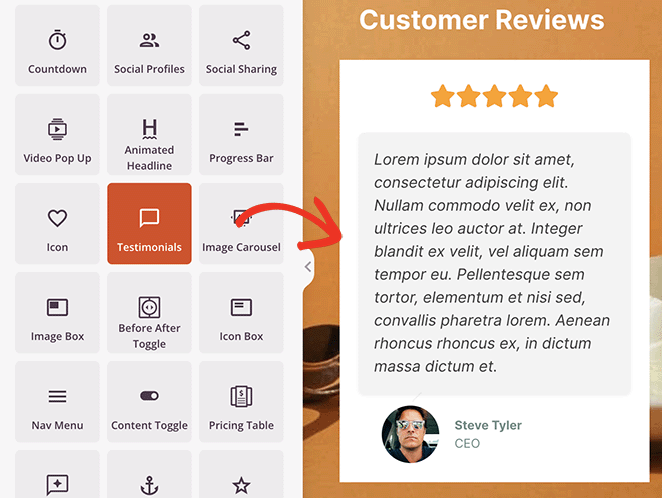
SeedProdの推薦文ブロックを使用すると、セールスページに推薦文を簡単に追加できます。ブロックを左側のパネルからドラッグして、右側のライブページプレビューにドロップするだけです。
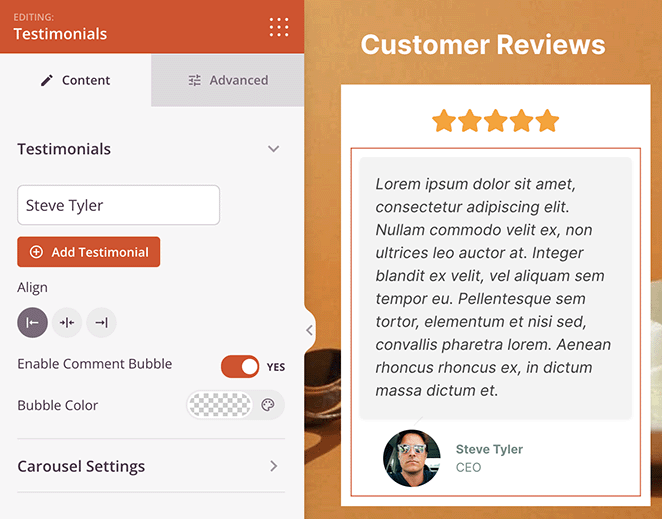
ブロックを追加した後、レビュー担当者の写真、カスタムテキストバブル、カルーセルなどで推薦文をカスタマイズします。
ステップ5. よくある懸念事項に対処する
最も魅力的なセールスページでさえ、一般的な反論という形で障害に直面することがあります。これらを予測し、対処することが、不満を抱いた訪問者と満足した顧客の違いを生む可能性があります。
ここでは、直面する可能性のある最も一般的な反論と、それに対処するためのヒントをいくつか紹介します。
1. 「高すぎる。」
価格だけでなく、価値に焦点を当ててください。競合製品と比較して、製品/サービスが提供する長期的なメリットとコスト削減を強調してください。柔軟な支払いオプションや期間限定の割引を提供することも検討してください。
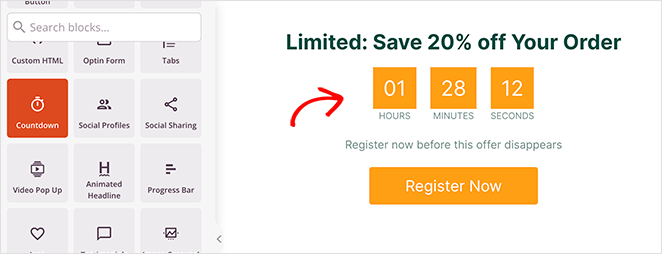
カウントダウンタイマーブロックは、これを実現するのに最適な方法です。ユーザーが取引を獲得するのにかかる時間を視覚的に示し、今すぐ行動するように促します。
2. 「自分に合っているかどうかわからない。」
同様の課題を持つ顧客からの明確なユースケースと証言を提供してください。無料トライアルまたはデモを提供して、製品を直接体験できるようにしてください。
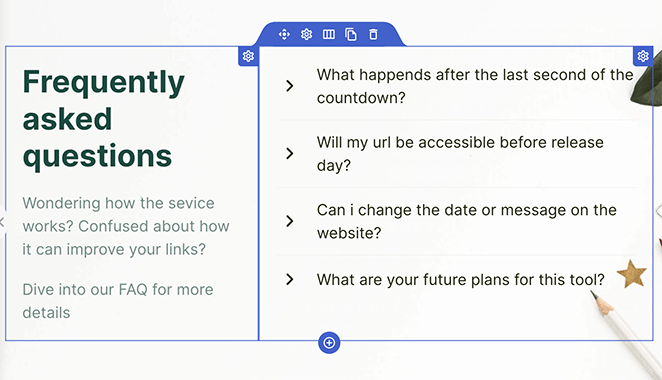
FAQや詳細な製品情報で特定の懸念に対処することもできます。SeedProdのセクションは、これに最適です。ブロックサイドバーの[セクション]タブをクリックすると見つけることができます。
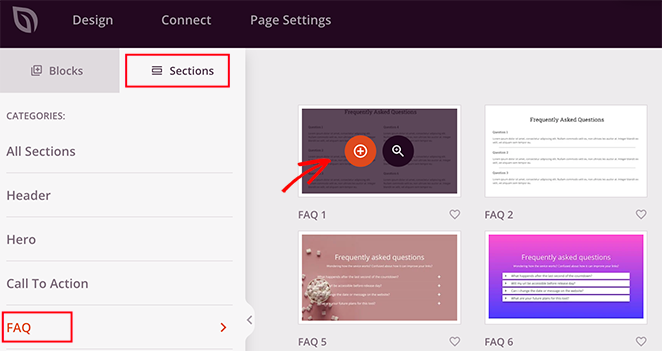
各セクションには、プロフェッショナルなヘッダー、行動喚起、サービスエリア、さらにはFAQセクションに必要なすべての要素が含まれています。
3. 「現在のソリューションに満足している。」
独自のセールスポイントを強調してください。現在のソリューションでは対処できない特定の問題をどのように解決できるかを示してください。限定機能やより良い価値などのインセンティブを提供して切り替えを促してください。
4. 「あなたを信頼できますか?」
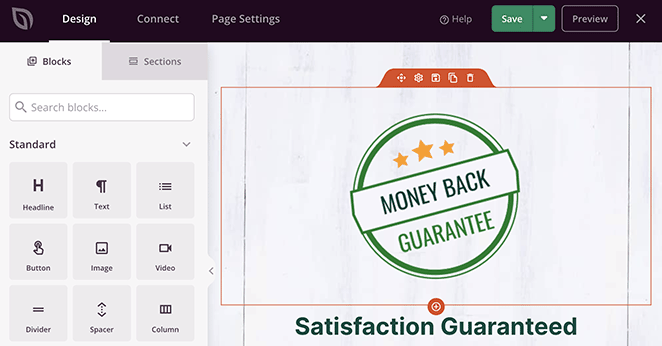
証言、ケーススタディ、肯定的なレビューを通じてソーシャルプルーフを示してください。セキュリティバッジや保証などの信頼シグナルを表示してください。会社とその背景について透明性を保ってください。
5. 「今すぐ購入する準備ができていない。」
リードを育成し、常に意識してもらうために、電子書籍、ウェビナー、コンサルティングなどの価値ある無料リソースを提供してください。期間限定オファーや希少性で緊急性を生み出してください。
今後のアップデートのために、ニュースレターに登録したり、ソーシャルメディアでフォローしたりしやすくしてください。

すべての反論に対処した後、満足のいく見た目になるまでセールスページのカスタマイズを続けてください。
例のセールスページの色合いと背景画像を完全に変更しましたが、わずか数分で完了しました。
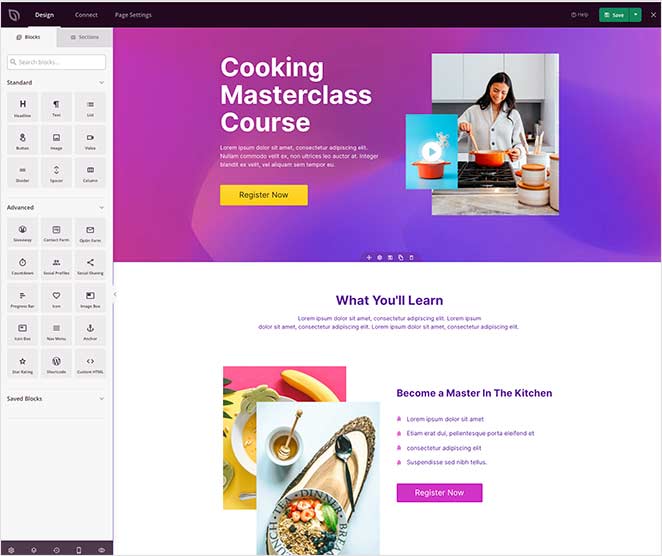
変更に満足したら、画面右上にある[保存]ボタンをクリックしてください。
ステップ6. メールマーケティングサービスをWordPressに接続する
リードと売上を追跡し、メールリストを簡単に増やすために、お好みのメールマーケティングサービスを接続する必要があります。
SeedProdは、以下を含むさまざまなメールサービスと統合されています。
- ActiveCampaign
- AWeber
- キャンペーンモニター
- Constant Contact
- ConvertKit
- Drip
- GetResponse
- iContact
- Mad Mimi
- Mailchimp
- Sendy
また、Google AnalyticsのトラッキングとRecaptchaスパム保護を設定したり、Zapier経由で数千もの他のアプリと接続したりすることもできます。
まず、画面上部にある[接続]タブをクリックします。次に、お好みの統合を選択し、指示に従ってアカウントを接続します。
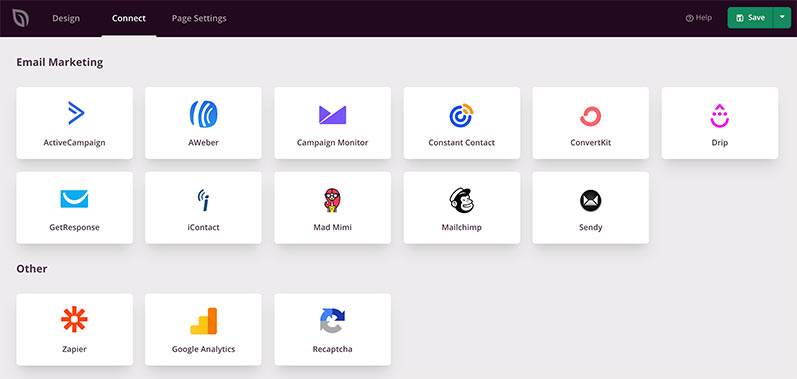
その後、ページで使用するサインアップフォームにメールリストをリンクできます。
SeedProdインテグレーションのドキュメントを確認して、特定のメールプロバイダーとの接続方法を学んでください。
ステップ7. セールスページ設定の構成
次のステップのためにページの基本設定を行う必要がありますので、画面上部のページ設定タブをクリックしてください。
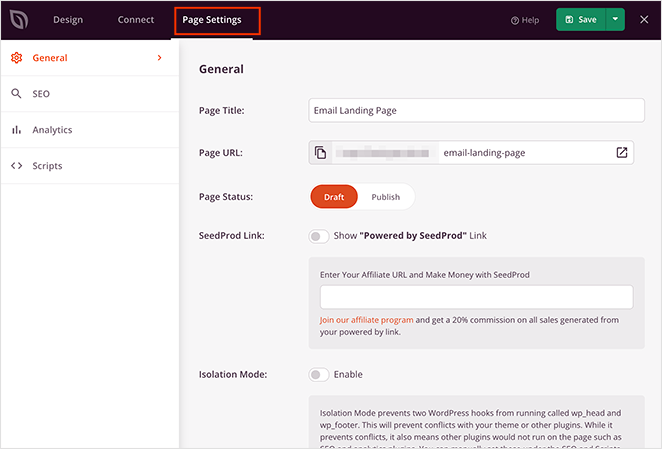
このページで、一般設定、SEO設定、アナリティクス設定を設定できます。また、Facebookトラッキングピクセルを含む、ヘッダー、ボディ、フッター領域にカスタムスクリプトを追加することもできます。
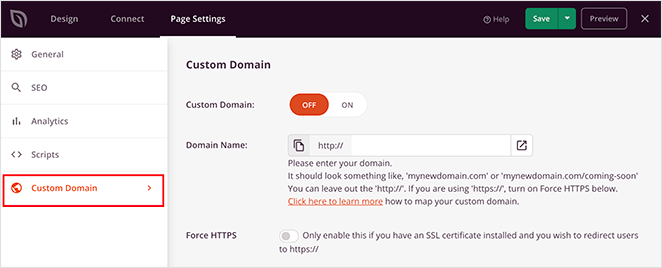
ページにカスタムドメイン名を付けたい場合は、カスタムドメインセクション(有料プランのみ)で設定できます。この機能を使用すると、ランディングページを既存のウェブサイトとは完全に別のマイクロサイトのように見せることができます。
設定が完了したら、保存をクリックします。
ステップ8. WordPressでセールスページのプレビューと公開
SeedProdを使用すると、WordPressでセールスページを簡単に公開できます。保存ボタンの横にある下向き矢印をクリックし、公開をクリックするだけです。
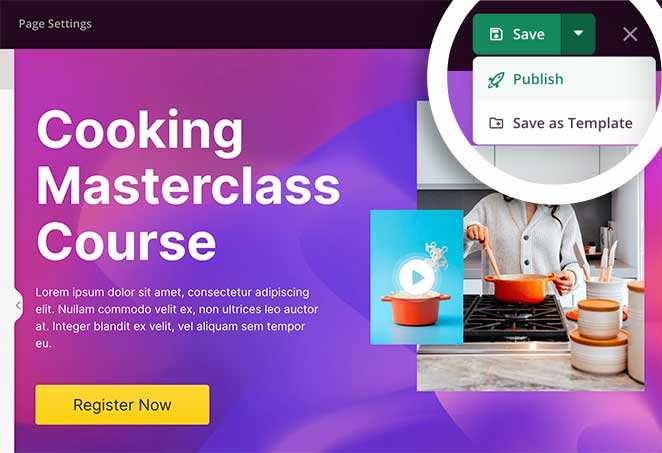
次に、ページが公開されたことを通知するメッセージが表示されます。その後、ライブページを表示ボタンをクリックして、すべてがどのように表示されるかを確認できます。
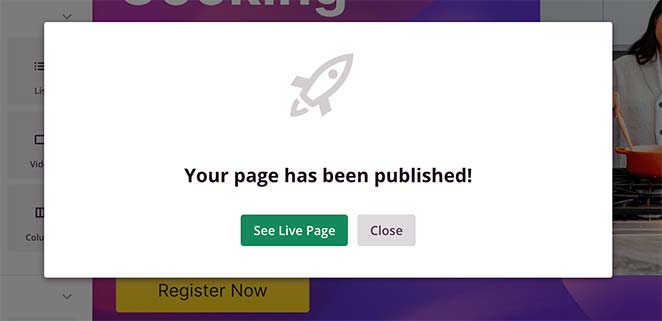
おめでとうございます!WordPressウェブサイト用の新しいセールランディングページを作成しました。これで完了です。セールスページは公開され、準備が整いました。

WordPressセールスページのベストプラクティス
- 明確なヘッドラインから始める
- 高品質なビジュアルを使用する
- シンプルでメリット中心のコピーを書く
- お客様の声と信頼のシグナルを含める
- CTAを簡単に見つけられるようにする
WordPressブロックエディターで無料のセールスページを作成する方法
ページビルダーに投資する準備ができていない場合は、無料のWordPressブロックエディターを使用して基本的なセールスページを作成できます。私は、フルビルダーが不要なクイックプロジェクトでこの方法を使用しました。
4つのステップで実行する方法は次のとおりです。
- 新しいページを作成します。WordPressダッシュボードで「ページ」>「新規追加」に移動します。ページに「特別オファー」や製品名のような名前を付けます。
- フル幅テンプレートを設定します。ページ設定サイドバーで、「フル幅」または「サイドバーなし」テンプレートを探します。これにより、セールスページにより多くのスペースが生まれます。
- ブロックでコンテンツを追加します。ヘッドラインには見出しブロック、コピーには段落ブロック、製品写真には画像ブロック、CTAにはボタンブロックを使用します。列ブロックは、横並びのレイアウトを作成するのに役立ちます。
- 公開してレビューします。公開をクリックしてから、デスクトップとモバイルでページを表示します。ページがバランス良く見えるまで、スペーシングとレイアウトを調整します。
ブロックエディターはシンプルなセールスページには機能しますが、限界があります。セールスに特化したテンプレート、カウントダウンタイマー、お客様の声カルーセルは利用できません。これらの機能については、SeedProdのようなページビルダーを使用すると、より柔軟性が得られます。
セールスページのプロモーション戦略
ページの作成は仕事の半分にすぎません。訪問者を顧客に転換させる必要もあります。私が効果的だと見てきた4つの戦略を次に示します。
ソーシャルメディアの使用
ソーシャルメディアは、ターゲットトラフィックを販売ページに誘導できます。魅力的なキャプションでページリンクを共有し、有料広告を実行して潜在的なバイヤーにリーチし、フォロワーに応答して信頼を築きましょう。
販売ページのSEO
販売ページをSEO向けに最適化することで、オーガニックトラフィックを引き付けることができます。関連キーワードを使用し、画像を最適化し、メタディスクリプションを記述します。WordPress SEOガイドでは、プロセス全体を説明しています。
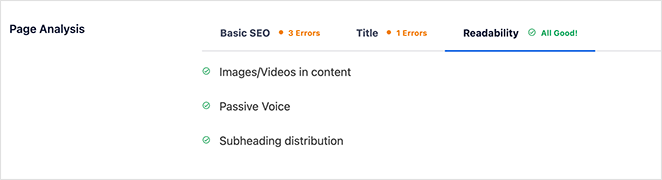
私はすべてのWordPressサイトでAIOSEOを使用しています。初心者でも、オンページSEOを簡単にできます。
Eメールマーケティング
Eメールマーケティングは、販売ページに多くのトラフィックを誘導できます。明確な行動喚起(CTA)を含むニュースレターを送信し、購読者に限定オファーを提供し、顧客の行動に基づいてリストをセグメント化します。
インフルエンサーとのコラボレーション
業界のインフルエンサーと協力しましょう。フォロワーがターゲット層と一致するインフルエンサーを選ぶことで、製品のニッチにすでに興味を持っている関連性の高い潜在顧客のオーディエンスにリーチできます。

販売ページの作成方法に関するFAQ
販売ページとは何ですか?
販売ページとは、訪問者に製品の購入やサービスの登録などの1つのアクションを実行させるために構築されたスタンドアロンのウェブページです。ビジネス全体を示すホームページとは異なり、販売ページは、ターゲットを絞ったコピー、ソーシャルプルーフ、明確な行動喚起(CTA)を備えた単一のオファーに焦点を当てています。
ホームページと販売ページの違いは何ですか?
ホームページは訪問者を迎え入れ、ショップ全体を紹介しますが、販売ページは個々の商品をスポットライトで照らし、購入を促します。どちらも重要ですが、購入ジャーニーの異なる部分に焦点を当てています。
販売ページとランディングページの違いは何ですか?
販売ページはランディングページの一種ですが、すべてのランディングページが販売ページであるわけではありません。ランディングページは、メールアドレスの収集やウェビナーの宣伝など、あらゆる目標に対応できます。販売ページには1つの特定の目的があります。それは、訪問者に購入してもらうことです。
販売ページはどのくらいの長さであるべきですか?
製品の価格とオーディエンスの認知度によって異なります。短い販売ページ(1,000語未満)は、購入者がすでに欲しいものを知っている50ドル未満の低価格商品に適しています。長い販売ページ(2,000語以上)は、最初に信頼を築く必要がある高価格商品に適しています。
販売ページをどのように書けばよいですか?
読者の問題を呼びかける見出しから始めます。次に、製品を解決策として提示します。実際のストーリーと証拠でメリットを示し、限定オファーで緊急性を追加し、「今すぐ購入」ボタンを見逃せないようにします。ページは焦点を絞り、スキャン可能に保ちます。
ウェブサイトなしで販売ページを作成する方法は?
ホストされたプラットフォームやFacebookなどのソーシャルメディアを使用して、スタンドアロンの販売ページを作成できます。ただし、最初にウェブサイトを作成することをお勧めします。WordPressサイトを使用すると、ページデザイン、SEO、メール統合を完全に制御できます。
最終的な考え
WordPressで販売ページを作成することは、複雑である必要はありません。SeedProdを使用すると、プロセス全体で約30分かかり、コードを1行も触る必要はありません。
以下のガイドも役立つかもしれません:
- コンバージョンを向上させるための最高のセールスページ事例
- ランディングページ vs セールスページ:どちらがあなたに適していますか?
- WooCommerce向けの最高のセールスファネルビルダーとプラグイン
- 驚異的なコンバージョン率のためのランディングページベストプラクティス
お読みいただきありがとうございます!皆様のご意見をお聞かせいただければ幸いです。お気軽に会話にご参加ください YouTube, X および Facebook で、ビジネスを成長させるための役立つアドバイスやコンテンツをさらにご覧ください。




