

WooCommerceでは、商品情報は「商品説明」と「短い商品説明」の2つのフィールドに保存されます。これらはWordPress管理画面から追加・取得できるほか、PHPの$product->get_description()を使用したり、SeedProdのようなページビルダーでストアのレイアウトをカスタマイズしたりすることも可能です。
この記事では、WooCommerceで商品情報を取得・表示する方法について、以下の内容を含めて解説します。
WooCommerceの商品説明はなぜ重要なのか?
訪問者がオンラインストアを訪れる理由はいくつかあります。
- 提供している商品について調べるため
- 特定の商品を探しているため
- 競合他社と比較検討するため
- ウィンドウショッピング
訪問者が必要な情報を簡単に見つけられない場合、購入前にサイトを離れてしまう可能性があります。しかし、ユニークで詳細な商品情報を提供することで、訪問者は探しているものを素早く見つけることができます。
WooCommerceの商品説明は、潜在顧客にクリックを促し、商品についてさらに詳しく知りたいと思わせることもできます。
例えば、ショップページに短い商品説明が表示されている場合、ユーザーはクリックして詳しい商品説明を読むかもしれません。そこから、ユーザーは以下のことができます。
- 価格を知る
- 商品画像を見る
- 商品の仕様を調べる
- レビューや評価を読む
これらの情報によって、ユーザーはその場で商品を購入する決断をするかもしれません。
次に気になるのは、「WooCommerceに商品情報を追加するにはどうすればよいか?」ということでしょう。その答えを見つけるために、読み進めてください。
PHPでWooCommerceの商品情報を取得する方法
WooCommerceでは、商品情報をプログラムで取得するために2つのPHPメソッドが用意されています。商品説明全体にはget_description()、短い商品説明にはget_short_description()を使用します。これらはカスタムテンプレート、子テーマのfunctions.php、またはフックで使用します。
以下は、任意の商品に関する両方の説明を取得するための完全なコードです。
// Get the WooCommerce product object
$product = wc_get_product( $product_id );

// Get the full product description
$description = $product->get_description();

// Get the short product description
$short_description = $product->get_short_description();
どちらのメソッドもHTML文字列を返します。
例:<p>ここに説明文を入力</p>。
WooCommerceはWordPressエディタを通じて説明を保存します。テンプレート内でecho $descriptionを使用して直接出力してください。ここではesc_html()を使用しないでください。これはHTMLタグをレンダリングするのではなく、文字通りに出力してしまいます。
ループ内や$productグローバル変数がすでに利用可能なフック内で作業している場合は、wc_get_product()を使用せずにこれらのメソッドを直接呼び出すことができます。上記のパターンは、商品IDを使用してループ外で説明を取得する場合のものです。
WooCommerceの商品説明を追加する方法(ステップバイステップ)
WordPressダッシュボードからWooCommerceの商品説明を追加するには、WooCommerce » Productsに移動してください。
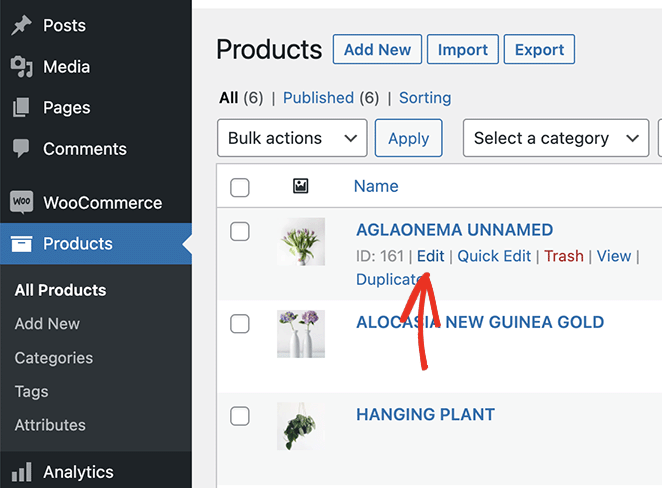
次に、新しい商品を追加するか、既存の商品エントリーを編集できます。
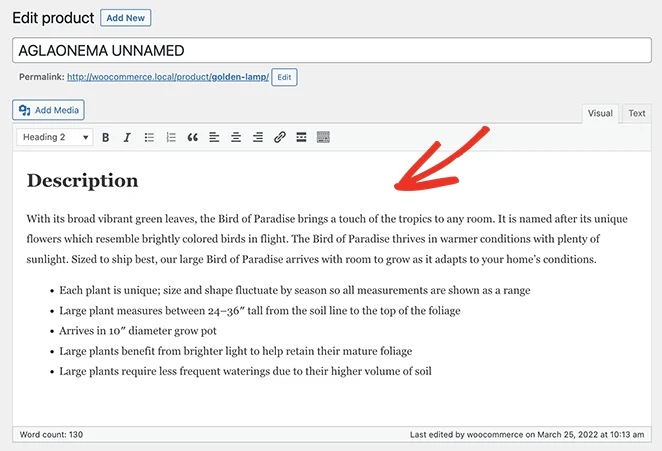
メインのWordPressエディターに商品概要を入力できます。これはストアで商品の完全な説明として表示されます。
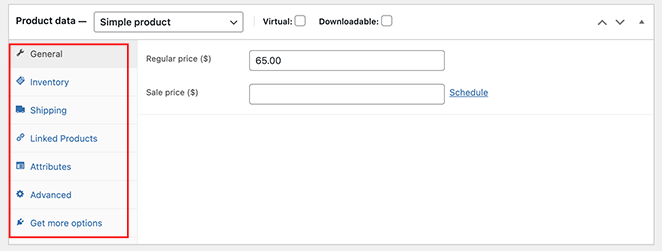
次に、下にスクロールして、商品データセクションに以下を含む商品詳細を入力します。
- 商品タイプ
- 通常価格とセール価格
- 在庫
- 配送
- 関連商品
- 属性
- 高度な設定
そのセクションの下には商品概要があります。これは、ユーザーのクリックを促すために表示できる、完全な商品概要の短いバージョンです。
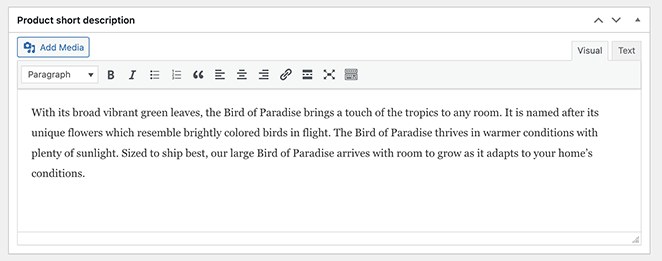
商品カテゴリを追加し、商品の画像をアップロードすることを忘れないでください。その後、更新または公開をクリックして変更を反映させることができます。
WooCommerceの商品説明のショートコードはありますか?
WooCommerceには、サイトのどこにでも商品の短い説明を表示できるショートコードが含まれています:[product_short_description id="YOUR_PRODUCT_ID"]。YOUR_PRODUCT_IDを商品の数値IDに置き換えてください。これは、wp-adminで商品を編集する際のURLで見つけることができます。
たとえば、ページまたは投稿内に商品ID42の短い説明を表示するには、次のようにします:[product_short_description id="42"]。これにより、ショートコードを配置した場所に短い説明フィールドがHTMLとして出力されます。
知っておくべきこと:WooCommerceは、デフォルトではショップページ、商品カテゴリページ、またはアーカイブページに短い説明または完全な説明を表示しません。ショートコードは、各ページに手動で配置する個々のページの問題を解決します。すべてのページにショートコードを貼り付けることなく、ショップレイアウト全体で機能するソリューションについては、以下のセクションを参照してください。
SeedProdを使用してWooCommerceで商品情報を取得して表示する方法
SeedProdを使用すると、WooCommerceにカスタム商品情報を簡単に追加できます。

SeedProdは、WordPress向けの最高のウェブサイトビルダーおよびランディングページプラグインです。コードなしでカスタムWordPressテーマ、WooCommerceサイト、および柔軟なウェブサイトレイアウトを作成できます。
180以上のランディングページテンプレートと25以上の既製のWordPressテーマで簡単に始めることができます。SeedProdのドラッグアンドドロップビジュアルページビルダーで各デザインをカスタマイズできます。
SeedProdのカスタマイズ可能なブロックとセクションを使用すると、オンラインストアのカスタマイズがすぐに完了します。WooCommerceテンプレートタグを使用してWooCommerceの商品を簡単に表示し、ポイントアンドクリックでカスタマイズできます。
SeedProdを使用して、ユニークな商品ページ、ショッピングカート、チェックアウト、アーカイブ、ショップページを備えた完全なeコマースサイトを作成することもできます。このプラグインは非常に高速でブロートフリーであり、ウェブサイト訪問者のためにサイトが迅速に実行されることを保証します。
WooCommerceで商品情報を取得し、SeedProdで表示するには、以下の手順に従ってください。
ステップ 1. SeedProd ウェブサイトビルダーをインストールする
まず、SeedProdプラグインファイルをコンピューターにダウンロードします。
注意:SeedProdには無料版がありますが、WooCommerce機能にはSeedProd Eliteプランを使用します。
次に、WordPressサイトにSeedProdをインストールして有効化します。ヘルプが必要な場合は、WordPressプラグインのインストールに関するこのガイドに従ってください。
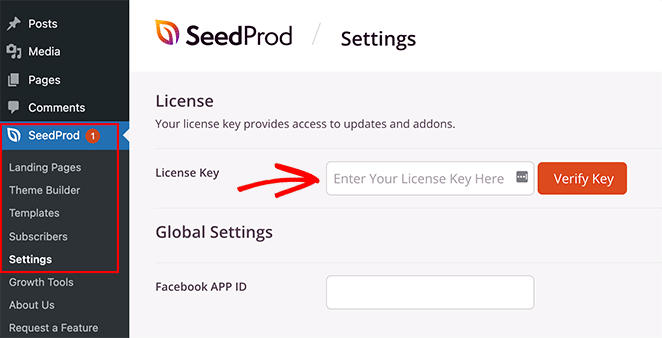
SeedProdをインストールしたら、SeedProd » 設定に移動してライセンスキーを入力します。
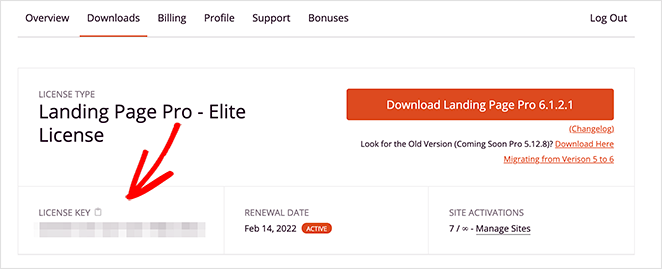
ライセンスキーは、SeedProdアカウントにログインしてダウンロードタブをクリックすることで見つけることができます。
次に、テキストフィールドにキーを入力し、キーを確認ボタンをクリックします。
ステップ2.カスタムWooCommerceテーマを作成する
SeedProdのWooCommerce機能を使用するには、SeedProdで新しいWordPressテーマを作成する必要があります。これにより、既存のテーマがカスタムデザインに置き換えられます。初心者でも簡単にできます。
これを行うには、SeedProd » テーマビルダーに移動し、テーマボタンをクリックします。
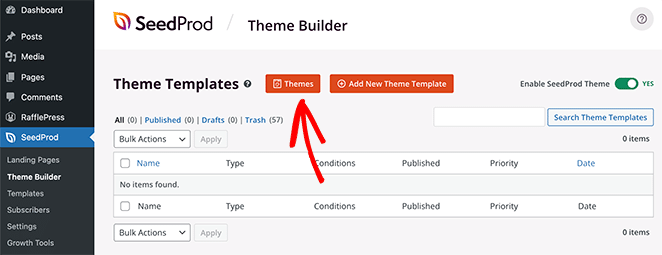
次に、SeedProdの既製のウェブサイトテンプレートライブラリが表示されます。気に入ったテンプレートを見つけたら、カーソルを合わせてチェックマークアイコンをクリックします。
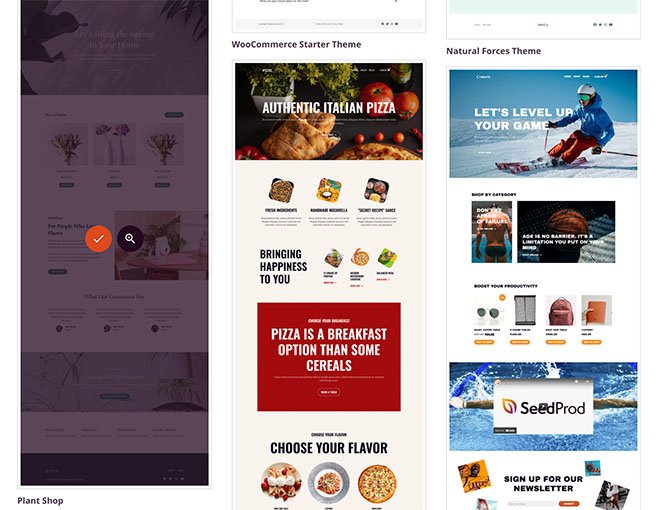
テーマをインポートすると、SeedProdはテーマデモのすべてのパーツを作成します。
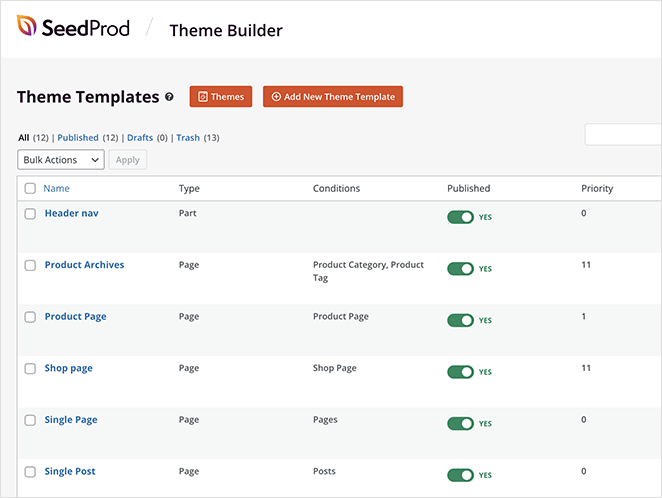
注意: テーマの個々のパーツを「テンプレート」と呼びます。
各テンプレートをクリックすると、SeedProdのドラッグアンドドロップエディターで開かれ、コンテンツとデザインをカスタマイズできます。
このチュートリアルで最初に編集するテンプレートは、商品ページです。訪問者がショップで商品をクリックすると、その商品の詳細が表示される商品ページが表示されます。
ステップ3.商品ページテンプレートの編集
商品ページをカスタマイズするには、商品ページテンプレートの上にカーソルを合わせて、デザインを編集リンクをクリックします。
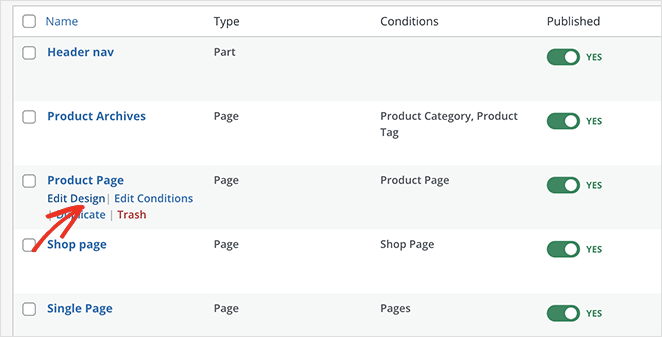
テンプレートがSeedProdのビジュアルドラッグアンドドロップエディターで開かれ、デザインとレイアウトをポイントアンドクリックで変更できます。
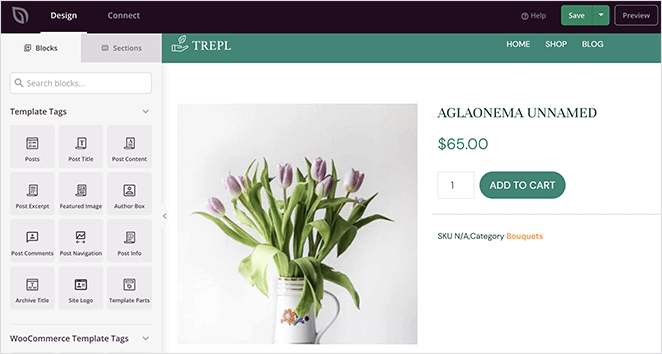
まず、ページに短い商品説明を追加する方法を見てみましょう。
画面左側にあるWooCommerceテンプレートタグセクションを見つけ、短い説明ブロックをデザインにドラッグします。
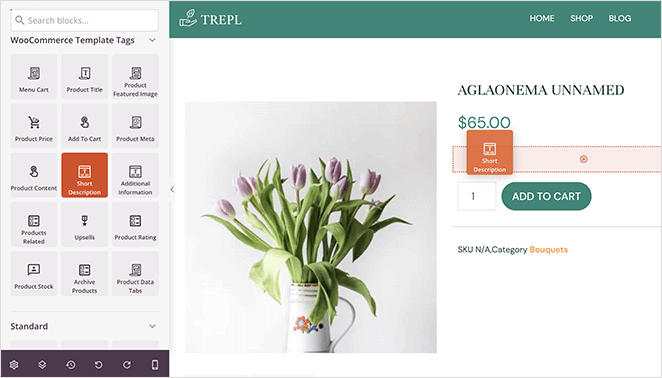
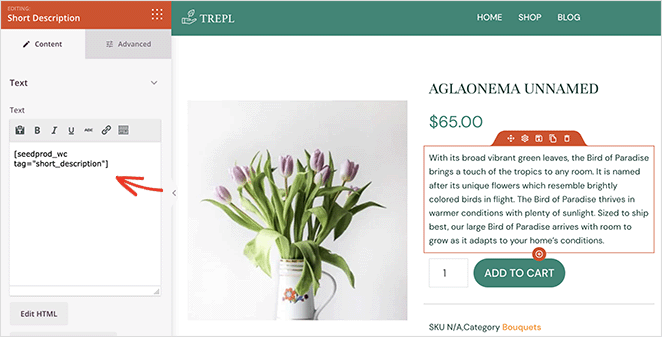
このブロックのWooCommerce出力はデフォルトで短い説明タグになりますが、ストアのニーズに合わせてカスタマイズできます。ブロック設定で説明の外観をカスタマイズすることもできます。
たとえば、説明の配置、フォントサイズを変更したり、動的なテキストを挿入したりできます。
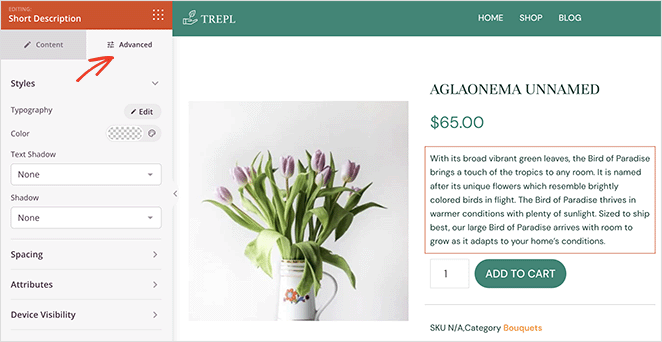
高度なタブでは、色、フォント、スペーシングなど、ブロックのスタイルをカスタマイズできます。
商品ページに長い説明を追加するには、同様の手順に従います。左側のパネルから商品コンテンツブロックをドラッグして配置するだけです。
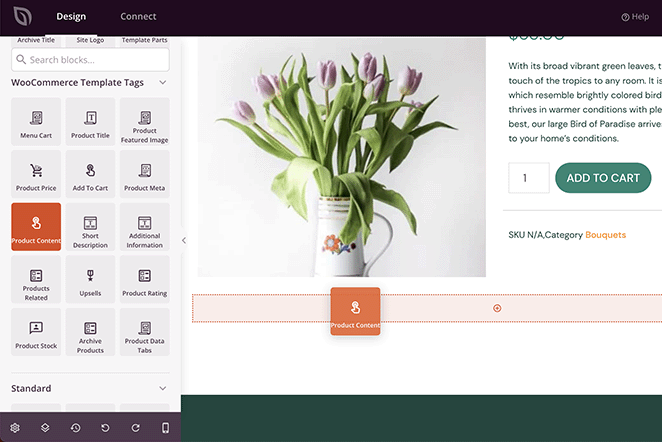
以前と同様に、数回のクリックでコンテンツ、スタイル、色をカスタマイズできます。
注意:ライブエディターでは、商品コンテンツブロックのプレビューは表示されません。
ステップ4.その他のWooCommerceサイトのカスタマイズ
ページに商品情報を追加したら、ストアの他の部分のカスタマイズを続けることができます。テンプレートのデザイン編集リンクをクリックするだけで、表示されるコンテンツとその見た目を変更できます。
たとえば、次のことができます:
完了すれば、完全にカスタムされたWooCommerceストアが完成し、買い物客を顧客に変える準備が整います。
ステップ5:WooCommerceウェブサイトを公開する
新しいデザインに満足したら、公開する時です。
そのためには、SeedProd » テーマビルダーページに移動し、右上隅にあるSeedProdテーマを有効にするトグルをクリックして「オン」の位置にします。
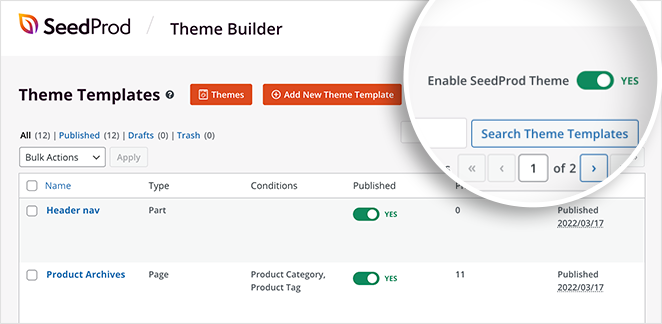
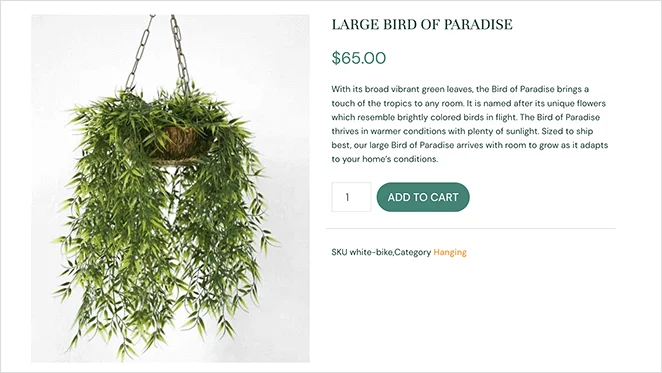
これで、サイト上の任意の商品のプレビューで、ショート説明とロング説明が機能していることを確認できます。
ショート説明は次のように表示されます:
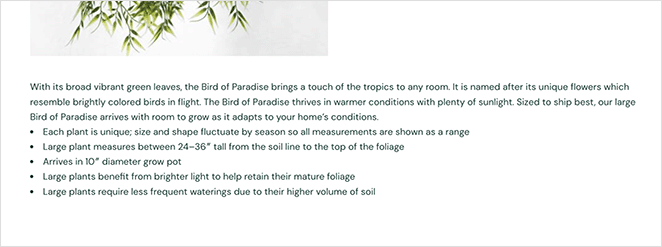
レイアウトによって、ロング説明は次のように表示されます:
WooCommerceショップページに商品説明を表示する方法
WooCommerceでは、デフォルトでショップページ、カテゴリページ、またはアーカイブページにショート説明またはフル説明は表示されません。これらのページに説明を表示するには、3つのオプションがあります。
オプション1:SeedProd(ノーコード)
SeedProdの商品アーカイブテンプレートを使用すると、ビジュアルエディターでショップページとカテゴリページをカスタマイズできます。
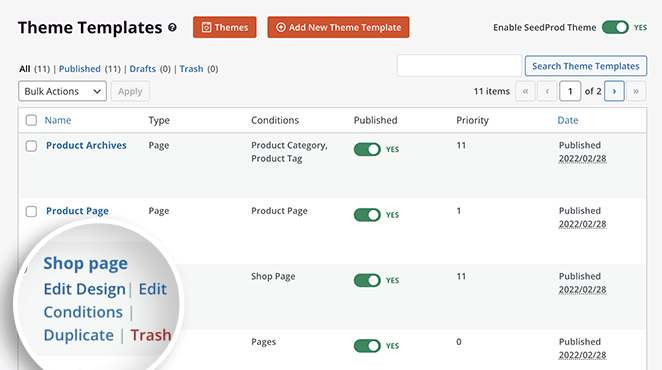
ショップページテンプレートにショート説明ブロックを追加すると、グリッド内の各商品の下に表示され、コードは不要です。
これは、SeedProdセクションで説明したのと同じアプローチで、シングル商品ページではなくアーカイブページテンプレートに適用されます。
オプション2:WooCommerce商品説明ショップページプラグイン
WooCommerce Product Description on Shop Pageプラグインは、ショップページ設定に説明表示オプションを追加する無料のWordPressプラグインです。インストールして有効化し、商品グリッドに表示する説明タイプを構成します。
オプション3:PHPフック(開発者向けアプローチ)
コードベースのソリューションを好む場合は、次のスニペットがショップページの商品タイトルの下にショート説明を追加します。このアプローチを使用する前に、WordPressにコードスニペットを追加する方法をよく理解するか、コードスニペットプラグインを使用して安全に追加してください。
/**
 * SeedProd - Add short description to products listing on shop page (only)
 */
add_action( 'woocommerce_after_shop_loop_item_title', 'sp_wc_add_short_description' );
function sp_wc_add_short_description() {
    if( is_shop() ){
        global $product;
        ?>
        <div class="woocommerce-loop-product-description">
            <?php echo apply_filters( 'woocommerce_short_description', $product->get_short_description() ) ?>
        </div>
        <?php
    }
}
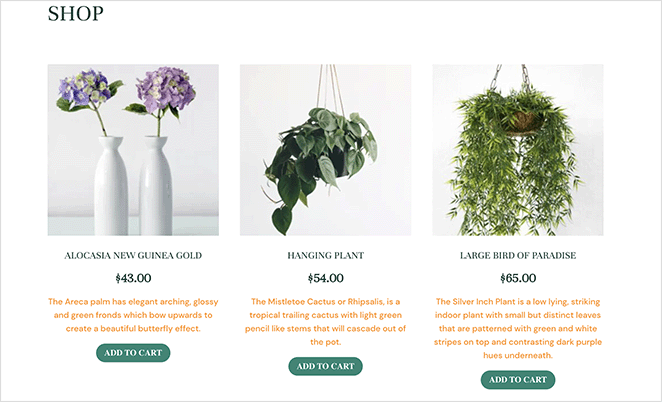
WooCommerceショップページのプレビューでは、商品説明がカートに追加ボタンの上に表示されます。
トラブルシューティング:WooCommerceで商品説明が表示されない
商品説明が期待どおりに表示されない場合、最も一般的な原因は次のとおりです。
- 間違った説明タイプを使用している(フル説明とショート説明は異なる場所に表示されます)
- WooCommerceのデフォルトのテンプレートファイルをオーバーライドするテーマ
- WooCommerceのデフォルトの動作(ショート説明はシングル商品ページにのみ表示され、ショップページやカテゴリページには標準では表示されません)。
商品エディタでどの説明を入力したかを確認し、表示されると予想される場所と比較してください。
カスタムテーマを使用している場合は、woocommerce_short_description アクションフックまたは .woocommerce-product-details__short-description コンテナが単一商品テンプレートに含まれているか確認してください。
WooCommerceをカスタマイズするその他の方法
WooCommerce で商品をどのように表示するかをカスタマイズする方法は他にもたくさんあります。その他の WooCommerce カスタマイズについては、以下のガイドを参照してください。
- WooCommerce追加情報タブをカスタマイズする方法
- WooCommerceカートページをカスタマイズする方法
- WooCommerceショップページを簡単にカスタマイズする方法
- WooCommerceの商品ページに星評価を追加する方法
- WooCommerceで商品カテゴリとタグを表示する方法
- WooCommerceのカート表示が機能しない問題を修正する方法
- WooCommerceで在庫切れの商品を非表示にする方法
WooCommerce 商品説明 FAQ
WooCommerce の商品概要と短い概要の違いは何ですか?
WooCommerce には 2 つの説明フィールドがあります。完全な商品説明は、商品タイトルの下のメインエディタタブに表示され、単一商品ページで専用のタブまたはセクションに表示されます。短い概要は、[商品の短い概要] フィールドに入力された簡単な要約です。デフォルトでは、商品タイトルと「カートに追加」ボタンの間に表示されます。プラグイン、コード、または SeedProd のようなページビルダーで追加しない限り、ショップページやカテゴリページには表示されません。
WooCommerce ショップページに商品概要を表示するにはどうすればよいですか?
WooCommerce では、デフォルトでショップページに説明が表示されません。3 つのオプションがあります。SeedProd の商品アーカイブテンプレートを使用して、コードなしでショップページレイアウトに短い概要ブロックを追加する、WooCommerce Product Description on Shop Page プラグインをインストールする、または woocommerce_after_shop_loop_item_title アクションと $product->get_short_description() を使用して PHP フックを追加する。
WooCommerce の商品概要が表示されないのはなぜですか?
最も一般的な理由は次のとおりです。間違った説明フィールドに入力した(完全な概要と短い概要は異なる場所に表示されます)、テーマが WooCommerce のデフォルトテンプレートをオーバーライドしている、または WooCommerce がデフォルトで表示しないページに説明が表示されることを期待している。入力したフィールドを確認し、そのフィールドが表示されるべき場所を確認し、テーマが出力を抑制していないことを確認してください。
以上です!
この記事が、WooCommerce で商品概要を取得し、顧客に表示する方法を学ぶのに役立ったことを願っています。
SeedProd には、WordPress ウェブサイトや WooCommerce ストアのあらゆる部分をカスタマイズするために必要なすべてが含まれています。SeedProd を使用して、このケーススタディのように Mustard Seed がクライアントのウェブサイトを立ち上げたように、クライアントのウェブサイトを立ち上げることもできます。
お読みいただきありがとうございます!皆様のご意見をお聞かせいただければ幸いです。お気軽に会話にご参加ください YouTube, X および Facebook で、ビジネスを成長させるための役立つアドバイスやコンテンツをさらにご覧ください。



