
This page covers the most common issues encountered with SeedProd and how to resolve them quickly. If your issue is not listed here, see the SeedProd support team for further assistance.
Pages Not Showing At All or Returning a 404
Clear your cache. If you have a caching plugin active, use its Purge or Clear Cache option after making changes. Many web hosts also maintain a server-side cache — contact your host’s support team if you are unsure how to clear it.
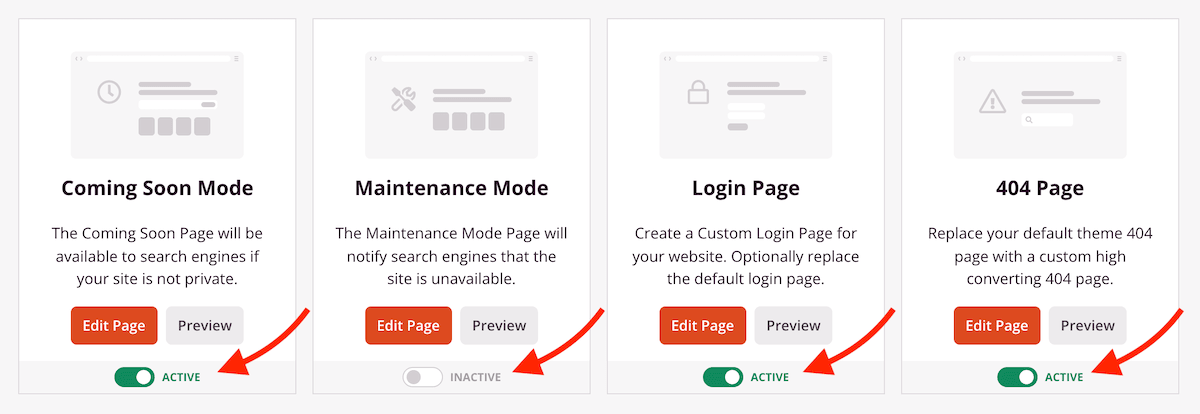
Check that the page is set to Active. For Coming Soon, Maintenance Mode, Login, and 404 pages, the page must be toggled to Active before it will display to visitors.
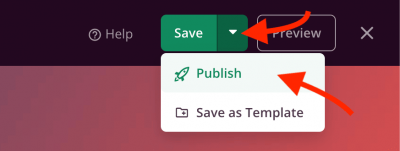
Check that your landing page is published. If a landing page is not visible to logged-out visitors, it may still be in draft. Click the Save dropdown arrow in the editor and select Publish to make it live.
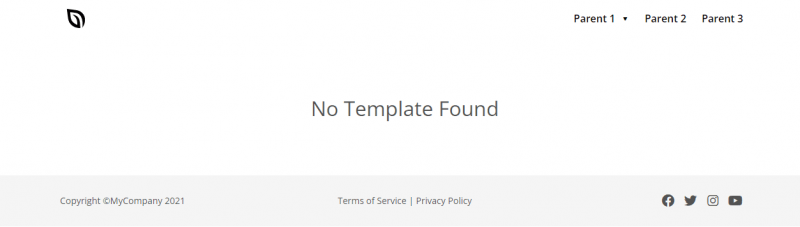
“No Template Found” Message on a Page
If you see a No Template Found message when visiting a page, it means no Website Builder template is currently assigned to that page.
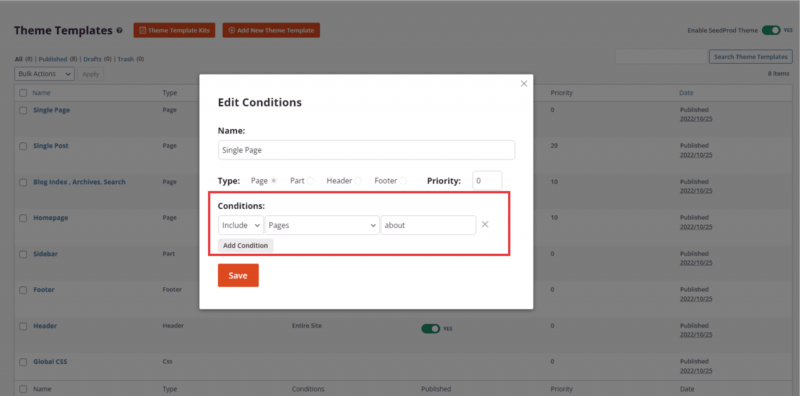
Go to SeedProd > Website Builder and check the Conditions for the relevant template. Make sure the conditions are set to include the page where the template should appear.
Pages Not Displaying Correctly
If a page looks broken or is styled incorrectly on the frontend, a third-party plugin or theme may be injecting conflicting styles. Try enabling Isolation Mode to rule this out:
- Open the page in the SeedProd editor.
- Go to Page Settings > General.
- Toggle Isolation Mode to Enable.
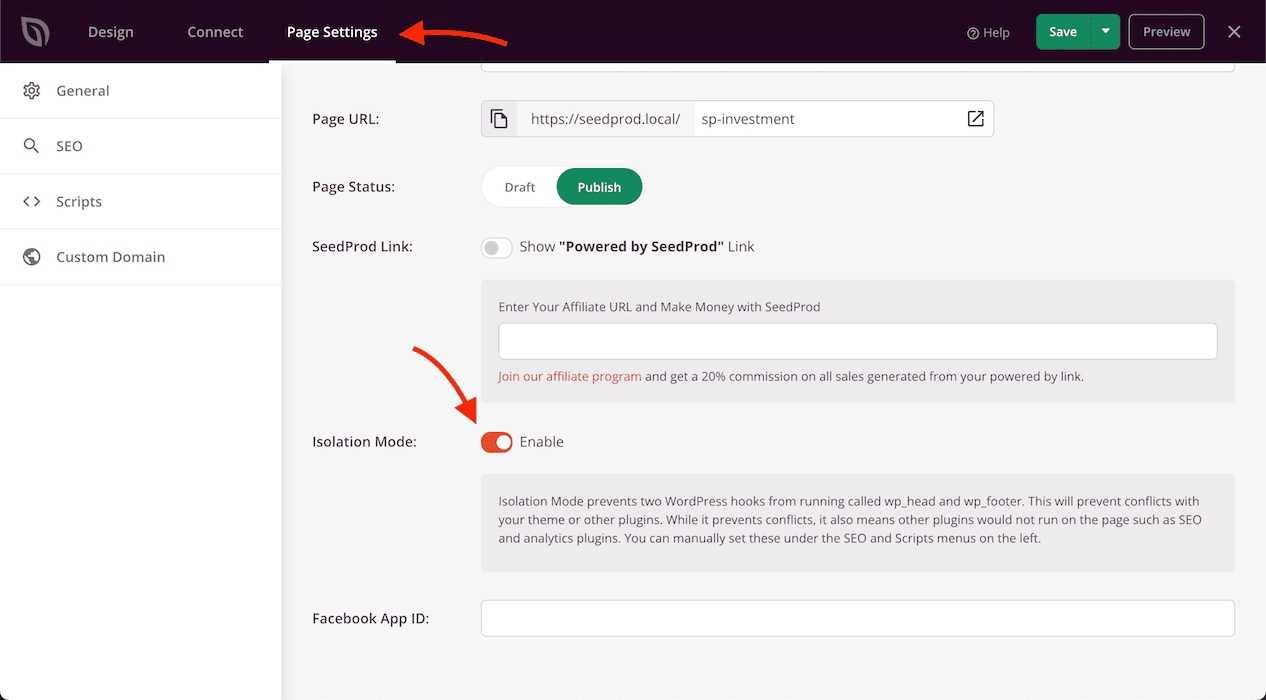
If the page displays correctly with Isolation Mode enabled, a third-party plugin or theme stylesheet is causing the conflict. Deactivate plugins one at a time to identify the source.
Builder Not Working or Features Broken
If the SeedProd builder is not functioning correctly — for example, images cannot be inserted or certain features are unresponsive — enable Builder Debug Mode to help diagnose the issue:
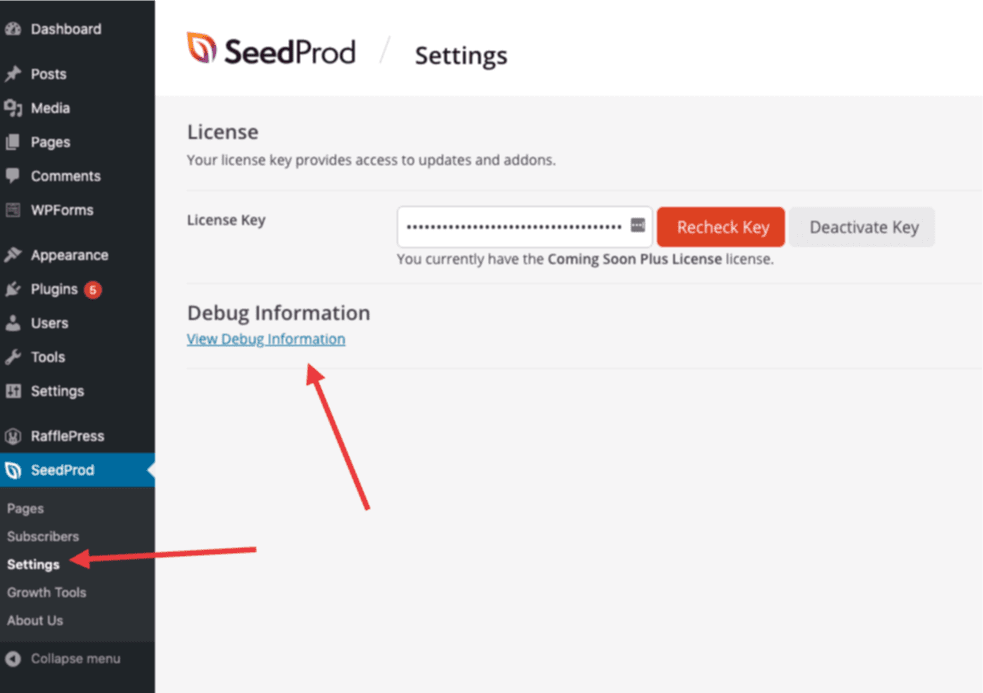
- Go to SeedProd > Settings.
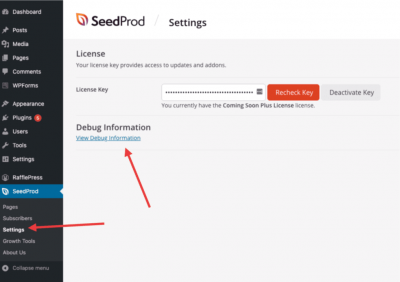
- Click the View Debug Information link.
- Check the Enable Builder Debug box and click Save Changes.
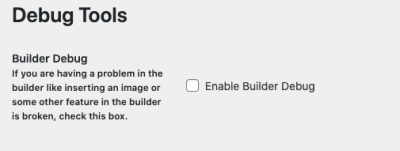
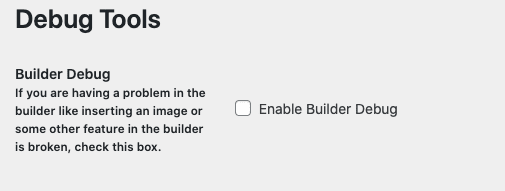
With debug mode enabled, open the builder and reproduce the issue. Any error messages shown will help the support team identify the cause. Share these details when submitting a support request.
Resetting a Page
If a Coming Soon, Maintenance Mode, Login, or 404 page is behaving unexpectedly and you need to reset it to its default state, follow these steps:
- Go to SeedProd > Settings.
- Click the View Debug Information link.
- Check the reset option for the page you want to reset and click Save Changes.
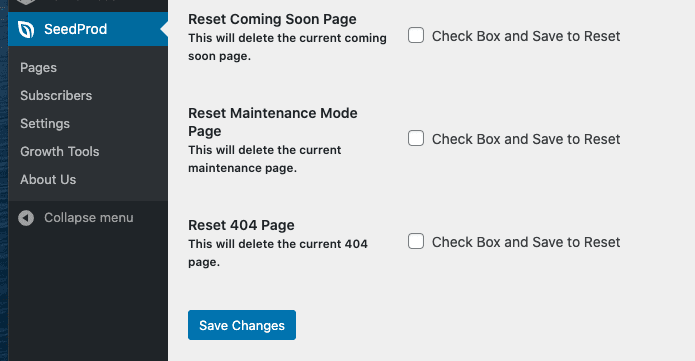
If none of the steps above resolve your issue, the SeedProd support team is available to help. You may also find answers in the related troubleshooting articles linked below this page.