

Ihr WordPress-Blog-Archiv zeigt vollständige Beiträge an, wo Sie kurze Vorschauen erwartet haben. Ich habe gesehen, dass dies viele Benutzer verwirrt. Es handelt sich normalerweise um eine Theme-Einstellung oder eine fehlende Option im Beitragseditor, und es ist einfach zu beheben, sobald Sie wissen, wo Sie suchen müssen.
Diese Anleitung führt Sie durch vier Methoden, von einem schnellen Umschalter im Beitragseditor bis hin zu einer Code-Korrektur für Themes, die Auszüge überhaupt nicht unterstützen.
TL;DR: Beheben Sie, dass der WordPress-Beitrags-Auszug nicht angezeigt wird
WordPress-Blog-Archive zeigen vollständige Beiträge anstelle von kurzen Vorschauen, wenn Auszüge nicht aktiviert sind. Hier sind 4 Methoden, um dies zu beheben:
- Bildschirmoptionen – Aktivieren Sie das Feld „Auszug“ im WordPress-Beitragseditor (Sidebar des klassischen oder Block-Editors).
- Theme-Einstellungen – Aktivieren Sie „Beitrags-Auszug“ im WordPress Customizer, wenn Ihr Theme dies unterstützt.
- SeedProd – Verwenden Sie den Umschalter „Auszug anzeigen“ im Theme Builder, um die Länge und den Text für „Weiterlesen“ zu steuern.
- Manueller Code – Ersetzen Sie the_content() durch the_excerpt() in der Vorlagendatei Ihres Themes.
Was sind WordPress-Beitrags-Auszüge?
Ein WordPress-Beitrags-Auszug ist eine kurze Zusammenfassung oder Vorschau eines Blogbeitrags. Er wird oft auf Ihren Blog-Archiv-, Homepage- oder Kategorieseiten verwendet, um Lesern einen Einblick in Ihre Inhalte zu geben, bevor sie auf „Weiterlesen“ klicken.
Warum Auszüge in WordPress verwenden?
Die Verwendung von Beitrags-Auszügen anstelle des vollständigen Inhalts hat mehrere Vorteile, sowohl für Ihre Website-Besucher als auch für die Gesamtleistung.
Vorteile der Anzeige von Auszügen:
- Schnellere Ladezeiten: Nur ein Teil jedes Beitrags wird auf Archivseiten geladen, was Ihre Website beschleunigt.
- Verbesserte Lesbarkeit: Benutzer können mehrere Beiträge schnell überfliegen, ohne den vollständigen Inhalt durchscrollen zu müssen.
- Höheres Engagement: Kurze Vorschauen in Verbindung mit einem „Weiterlesen“-Link ermutigen Benutzer, Beiträge anzuklicken.
- Sauberere Blog-Layouts: Besonders hilfreich auf Ihrer Homepage, Kategorie- oder Suchergebnisseiten.
- Bessere SEO: Eine organisierte Inhaltsstruktur verbessert die Crawlbarkeit und Benutzererfahrung.
Standardmäßig zeigt WordPress vollständige Beiträge auf Archivseiten an. Viele Themes ermöglichen es Ihnen jedoch, über den WordPress Customizer oder die Theme-Einstellungen zu Auszügen zu wechseln. Wenn Ihr Theme diese nicht unterstützt, machen Sie sich keine Sorgen, ich zeige Ihnen als Nächstes, wie Sie das beheben können.
So beheben Sie, dass WordPress-Beitrags-Auszüge nicht angezeigt werden
Es kann mehrere Gründe geben, warum WordPress-Auszüge auf Ihrer Website nicht angezeigt werden. Dies hängt weitgehend davon ab, wie Sie Ihre Website eingerichtet haben, welches Theme Sie verwenden und ob Ihr Theme Auszüge unterstützt.
Wir führen Sie unten durch mehrere Lösungen, damit Sie das Problem, dass der WordPress-Beitrags-Auszug nicht angezeigt wird, schnell beheben können.
Aktivieren Sie das Feld „Auszug“ im WordPress-Editor
Der schnellste Weg, um Auszüge in WordPress zu aktivieren, ist über den Beitragseditor. Wenn Sie den klassischen Editor verwenden, klicken Sie auf die Registerkarte Bildschirmoptionen in der oberen rechten Ecke eines beliebigen Beitrags und aktivieren Sie dann das Kontrollkästchen Auszug. Das Feld für den Auszug wird unter dem Editor angezeigt.
Wenn Sie den Block-Editor verwenden, befindet sich das Bedienfeld „Auszug“ in der rechten Seitenleiste unter der Registerkarte Beitrag. Wenn Sie es nicht sehen, klicken Sie auf das Optionenmenü (⋮) in der oberen rechten Ecke, gehen Sie zu Einstellungen » Dokumenteinstellungen und aktivieren Sie Auszug.
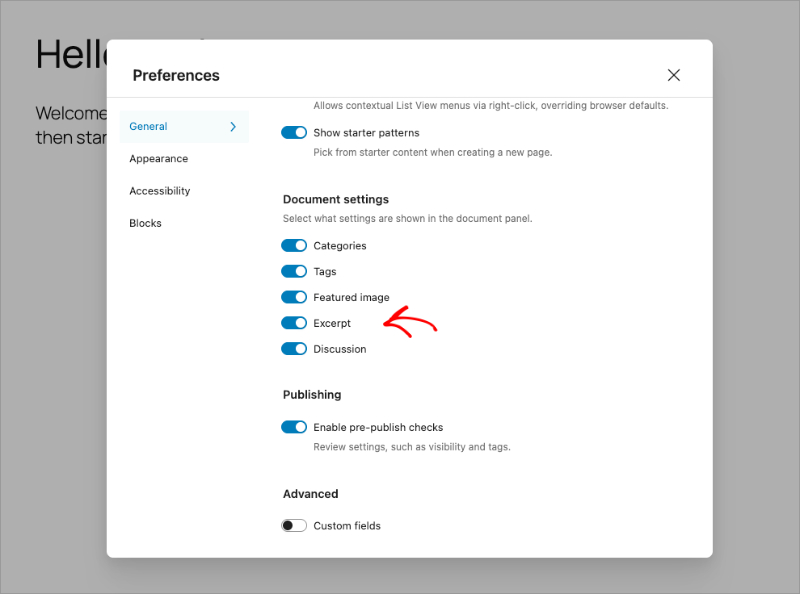
Ich würde hier anfangen, bevor ich irgendwelche Theme-Dateien anfasse. Was auch immer Sie in dieses Feld eingeben, überschreibt jeden automatisch generierten Auszug, den Ihr Theme möglicherweise anzeigt.
Stellen Sie sicher, dass Ihr WordPress-Theme Auszüge unterstützt
Lassen Sie uns zuerst sehen, ob Ihr aktuelles WordPress-Theme Auszüge unterstützt.
Die meisten beliebten WordPress-Themes verfügen über integrierte Einstellungen zur Anzeige benutzerdefinierter Auszüge. Sie finden die Einstellungen, indem Sie Ihre Theme-Einstellungen überprüfen oder den WordPress Customizer-Bereich besuchen.
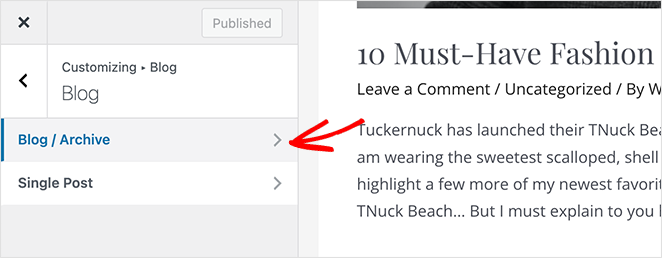
Gehen Sie dazu zu den Einstellungen Design » Customizer und suchen Sie die Überschrift für Ihr Blog. Wir verwenden das Astra-Theme, daher heißt die Überschrift „Blog“.
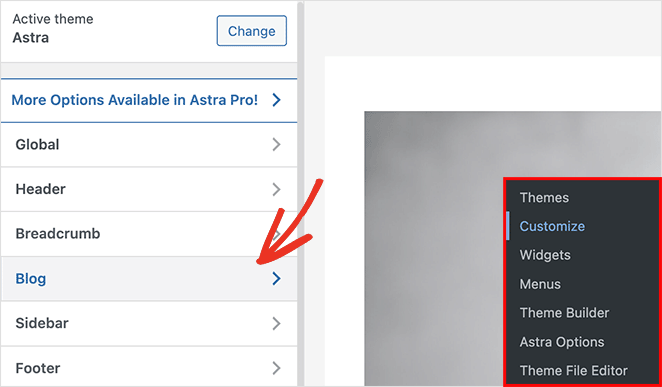
Auf dem nächsten Bildschirm können Sie zwischen den Einstellungen für Ihr Blog und Archiv oder den Einstellungen für Einzelbeiträge wählen. Klicken Sie auf die Überschrift Blog / Archiv.
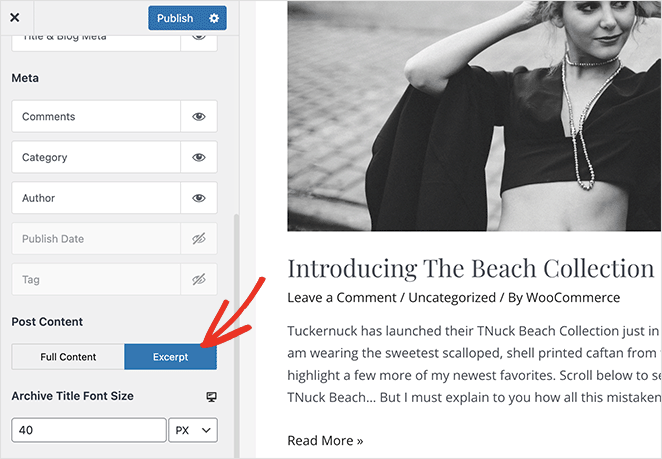
Scrollen Sie als Nächstes nach unten zur Überschrift „Beitragsinhalt“ und stellen Sie sicher, dass die Schaltfläche Beitragsauszug aktiviert ist.
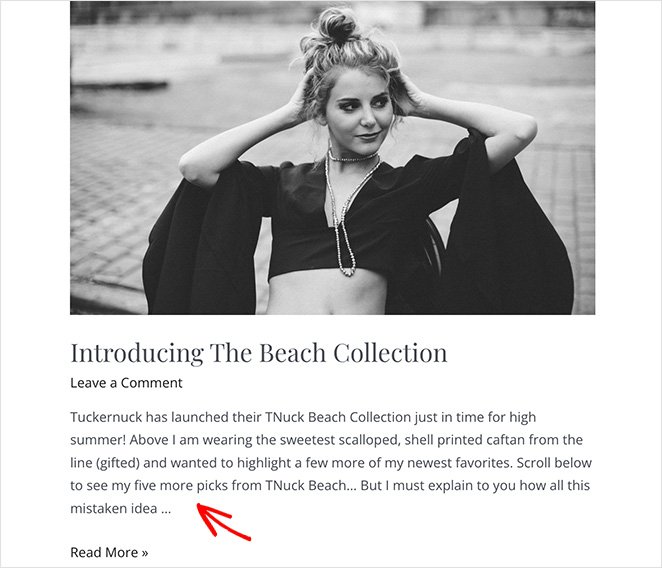
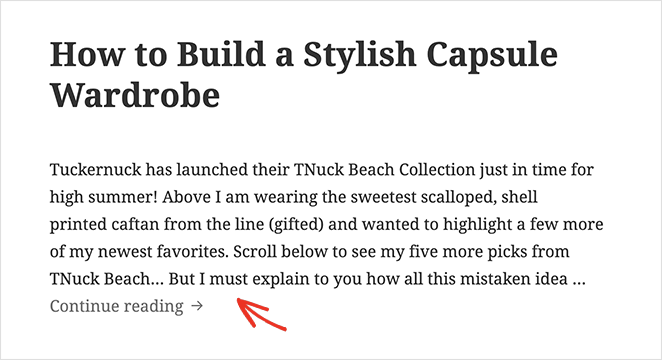
Nachdem Sie auf die Schaltfläche Veröffentlichen klicken, um Ihre Änderungen zu speichern, zeigen Ihre Blogbeiträge ein Auszugfeld anstelle des vollständigen Beitragsinhalts an.
Die meisten beliebten WordPress-Themes haben ähnliche Einstellungen im WordPress Customizer. Wenn Ihr aktuelles Theme jedoch keine Auszüge unterstützt, gefällt Ihnen vielleicht die nächste Lösung.
Beitragsauszüge mit einem benutzerdefinierten WordPress-Theme hinzufügen
Eine weitere Möglichkeit, das Problem zu beheben, dass WordPress-Beitragsauszüge nicht angezeigt werden, ist die Erstellung eines benutzerdefinierten WordPress-Themes mit allen benötigten Funktionen.
Früher war das schwierig und teuer, da man Code lernen oder einen Entwickler beauftragen musste. Die Einführung von Page-Builder-Plugins hat dies jedoch geändert und ermöglicht es jedem, unabhängig von seinen technischen Fähigkeiten, ganz einfach beeindruckende Websites zu erstellen.

Ein solches Plugin ist SeedProd, der beste Website-Builder für WordPress. Es ermöglicht Ihnen, WordPress-Themes von Grund auf neu zu erstellen und alle benutzerdefinierten Funktionen hinzuzufügen, die Sie für Ihre geschäftliche Website benötigen, einschließlich:
- Hochkonvertierende Landing Pages
- Benutzerdefinierte Seitenleisten
- Benutzerdefinierte Beitragsauszüge
- Anpassbare Produktseiten
- Lead-Generierungsformulare
- Countdown-Timer
- Bald verfügbar und Wartungsmodus
- Und mehr.
Das Beste an SeedProd ist, dass es keinen Code, kein Design und keine technischen Kenntnisse erfordert. Das Plugin generiert automatisch alle Theme-Vorlagendateien, sodass Sie Ihr Theme mit seinem Drag-and-Drop-Editor visuell anpassen können.
Folgen Sie dieser Schritt-für-Schritt-Anleitung, um mit SeedProd ein benutzerdefiniertes WordPress-Theme zu erstellen. Folgen Sie anschließend dieser Anleitung, um Ihrem neuen Theme anpassbare Auszüge hinzuzufügen.
Beitrags-Auszüge mit SeedProd anzeigen
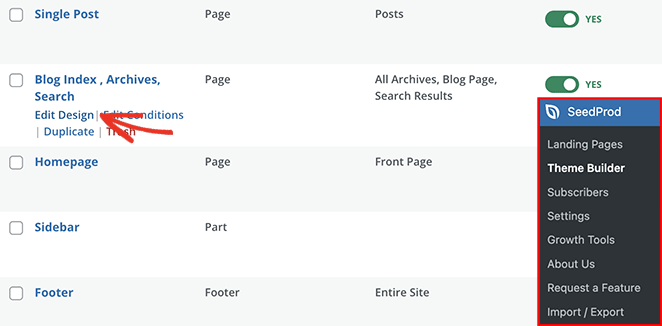
Navigieren Sie zuerst im WordPress-Dashboard zu SeedProd » Theme Builder . Finden Sie als Nächstes die Vorlagendatei Blog, Index, Archiv, Suche und klicken Sie auf den Link „Design bearbeiten“.
Auf dem folgenden Bildschirm sehen Sie den visuellen Drag-and-Drop-Seitenersteller von SeedProd.
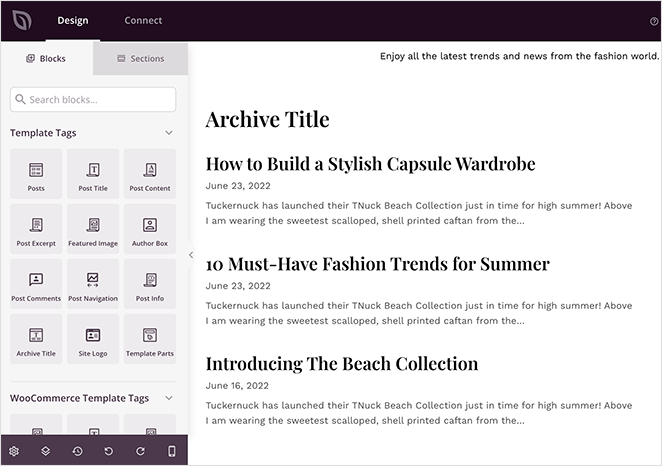
Hier können Sie Ihre Blog-Archivseite anpassen, zusätzliche Funktionen hinzufügen und das Layout ändern. Darüber hinaus sehen Sie alle Änderungen sofort in der Live-Vorschau auf der rechten Seite.
Das Design Ihrer Blog-Seite hängt von den Einstellungen ab, die Sie bei der Erstellung Ihres benutzerdefinierten Themas wählen. SeedProd enthält jedoch standardmäßig die folgenden Elemente in Blog-Seitenvorlagen:
- Überschrift
- Archivtitel
- Beiträge
Klicken Sie auf das Element Beiträge in Ihrer Vorschau, um die verfügbaren Anpassungsoptionen im linken Bereich anzuzeigen.
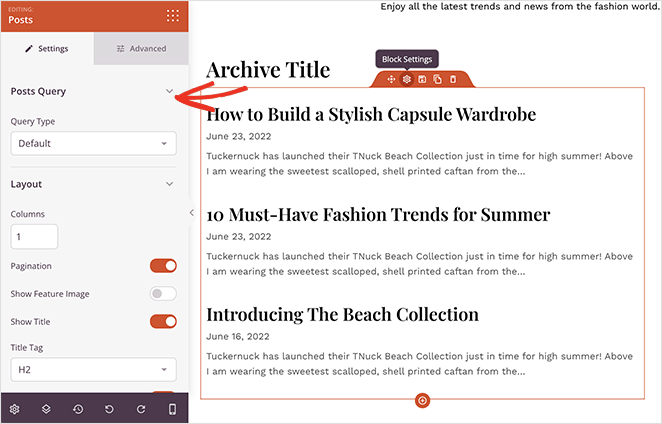
Hier steuern Sie, welche Informationen die Besucher Ihres Blogs sehen, wie zum Beispiel:
- Beitragsabfrage (Beitragstyp)
- Layout
- Paginierung
- Hervorgehobenes Bild
- Meta-Beschreibungen
- Autor
- Kommentare
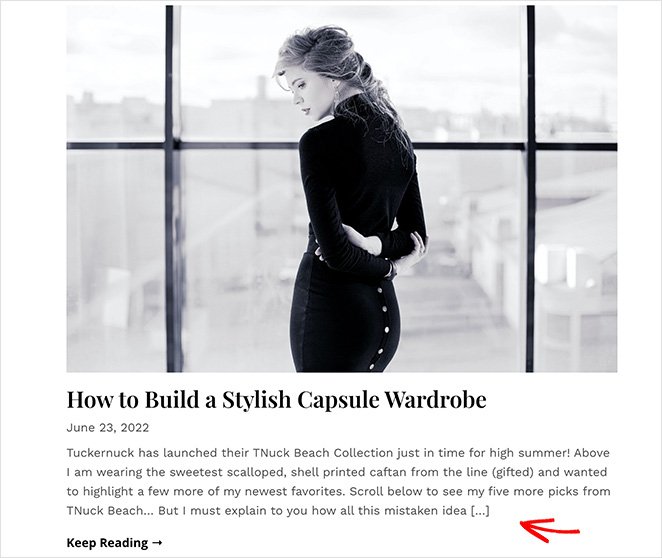
Im selben Bereich können Sie auch Beitragszusammenfassungen anzeigen oder ausblenden. Scrollen Sie einfach zum Ende des Bereichs und stellen Sie den Schalter Auszug anzeigen auf „Ein“.
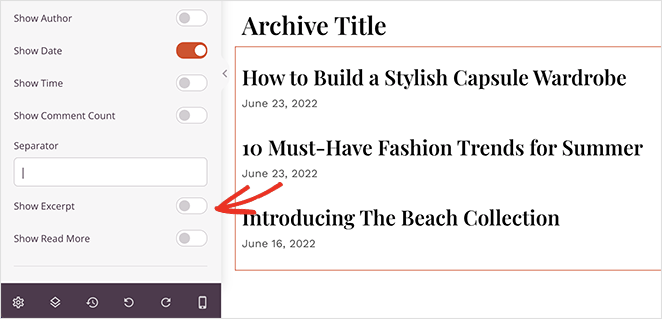
Danach sehen Sie zusätzliche Einstellungen, mit denen Sie die Länge des Auszugs ändern, einen „Weiterlesen“-Link aktivieren und den Text des „Weiterlesen“-Links anpassen können.
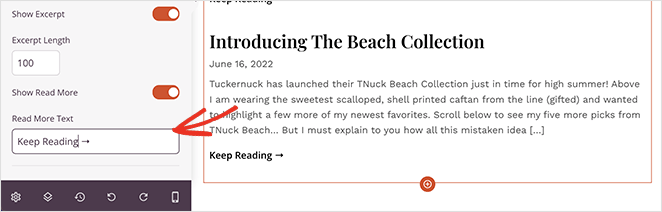
Jetzt müssen Sie nur noch auf die Schaltfläche Speichern in der oberen rechten Ecke klicken und Ihre Blog-Seite überprüfen, um Ihre Beitragszusammenfassungen anzuzeigen.
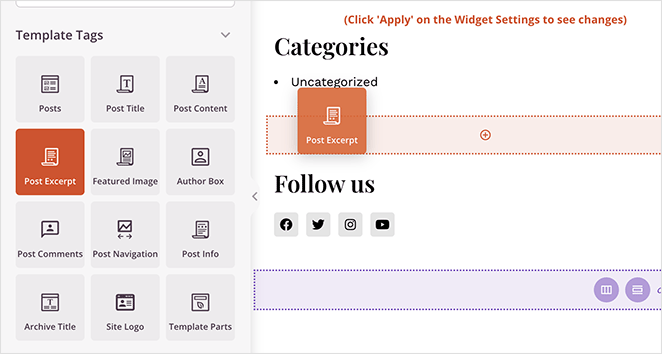
Profi-Tipp: Sie können Beitragszusammenfassungen zu jedem Beitrag, jeder Seite oder benutzerdefinierten Sidebar mit SeedProd hinzufügen. Ziehen Sie einfach den Block „Beitragszusammenfassung“ aus dem Blockbereich und legen Sie ihn auf Ihrem Website-Design ab.
Manuell Beitrags-Auszüge zu WordPress hinzufügen
Wenn Sie kein benutzerdefiniertes Theme erstellen möchten oder Ihr Theme keine Auszüge unterstützt, ist eine weitere Möglichkeit, Beitragszusammenfassungen in WordPress zu beheben, das Hinzufügen von benutzerdefiniertem Code.
Diese Methode beinhaltet die Anpassung Ihrer Theme-Dateien. Daher empfehlen wir, zuerst ein Child-Theme zu erstellen. Auf diese Weise verlieren Sie die vorgenommenen Änderungen nicht, wenn Sie Ihr Theme aktualisieren.
Nachdem Sie Ihr Child-Theme erstellt haben, müssen Sie die Vorlagendatei finden, die Ihre Blog-Archive anzeigt. Bei vielen Themes hat die Datei den Namen:
- home.php
- content.php
- archive.php
- category.php
Sehen Sie sich diese WordPress-Anleitung zur Vorlagenhierarchie an, wenn Sie Hilfe bei der Auswahl der richtigen Vorlage benötigen.
Nachdem Sie die relevante Vorlagendatei geöffnet haben, suchen Sie die folgende Codezeile:
<?php the_content(); ?>
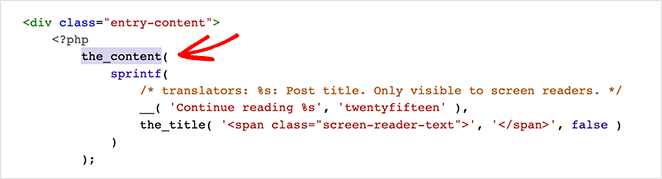
Ersetzen Sie sie dann durch das Auszugs-Tag:
<?php the_excerpt(); ?>
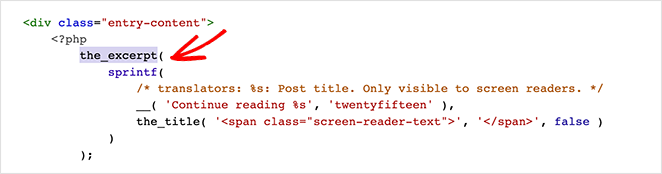
Sie können die Datei jetzt aktualisieren und Beitragszusammenfassungen anstelle des vollständigen Beitragsinhalts anzeigen.
Häufig gestellte Fragen (FAQ)
Kann ich Beitragszusammenfassungen hinzufügen, wenn mein aktuelles Theme sie nicht unterstützt?
Ja. Sie haben zwei Möglichkeiten. Erstellen Sie ein benutzerdefiniertes WordPress-Theme mit SeedProd, das einen Schalter zum Anzeigen von Auszügen mit Kontrolle über Länge und „Weiterlesen“-Text enthält. Oder bearbeiten Sie die Vorlagendatei Ihres Themes und ersetzen Sie the_content() durch the_excerpt(), um Auszüge anstelle von vollständigen Beiträgen anzuzeigen.
Wie kann ich manuell Beitragszusammenfassungen zu WordPress hinzufügen?
Erstellen Sie zuerst ein Child-Theme, um Ihre Änderungen vor zukünftigen Updates zu schützen. Finden Sie dann die Blog-Archiv-Vorlagendatei Ihres Themes (normalerweise home.php, content.php oder archive.php) und ersetzen Sie the_content() durch the_excerpt(). Speichern Sie die Datei und Ihre Archivseiten zeigen Beitragszusammenfassungen anstelle vollständiger Beiträge.
Was ist ein Child-Theme und warum sollte ich eines erstellen, bevor ich manuell Beitragszusammenfassungen hinzufüge?
Ein Child-Theme erbt alles von seinem Parent-Theme, speichert Ihre Änderungen aber separat. Wenn Sie das Parent-Theme aktualisieren, bleiben Ihre Bearbeitungen erhalten. Ohne ein Child-Theme überschreibt ein Theme-Update alle Code-Änderungen, die Sie an Vorlagendateien vorgenommen haben.
Nächste Schritte
In diesem Beitrag haben Sie gelernt, wie Sie das Problem beheben, dass die WordPress-Beitragszusammenfassung nicht angezeigt wird. Möglicherweise gefällt Ihnen auch dieser Leitfaden zum Ausblenden von Bildern in der mobilen Ansicht in WordPress.
Bereit, Ihre Beitragszusammenfassungen mit einem benutzerdefinierten WordPress-Theme zu beheben?
Starten Sie noch heute mit SeedProd.
Danke fürs Lesen! Wir würden uns freuen, Ihre Gedanken zu hören. Treten Sie also gerne der Unterhaltung auf YouTube, X und Facebook bei, um weitere hilfreiche Ratschläge und Inhalte für das Wachstum Ihres Unternehmens zu erhalten.



