
Constant Contact is an email marketing platform that lets you manage email campaigns and grow your subscriber list. This guide walks you through connecting Constant Contact to the SeedProd Optin Form block so new subscribers are automatically added to your Constant Contact account.
Step 1: Open the Connect Page
In your WordPress admin, go to the SeedProd Dashboard and click Connect.

Step 2: Select Constant Contact
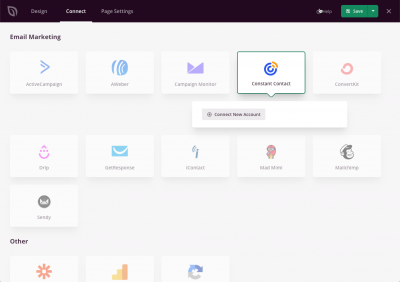
From the list of available email integrations, select Constant Contact and click Connect New Account.
Step 3: Connect to Constant Contact
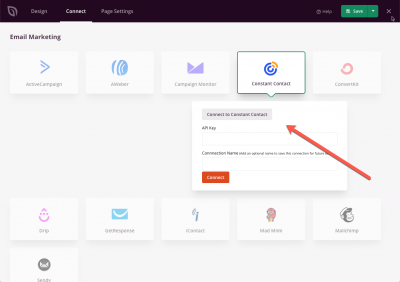
Click the Connect to Constant Contact button to open your Constant Contact account and authorize the connection.
Step 4: Find Your API Key
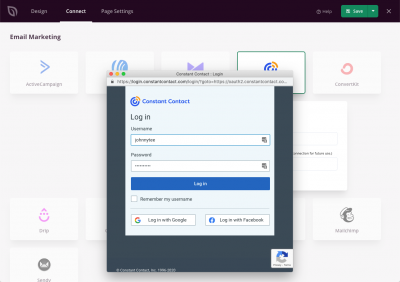
In your Constant Contact account, locate your API Key. Copy it for use in the next step.
Step 5: Paste Your API Key and Connect
Back in SeedProd, paste your API Key into the field provided and click Connect.
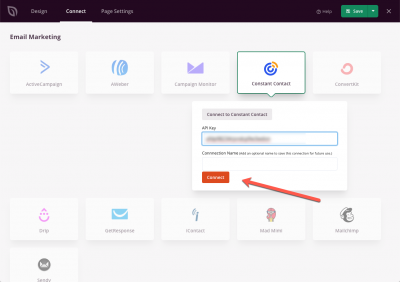
Constant Contact is now connected to SeedProd. You can select your Constant Contact list in the Optin Form block settings so subscribers are automatically added when visitors submit the form on your page.