
Zapier allows you to connect SeedProd to over 500 services and automate your workflows. Using the SeedProd Zapier integration, you can capture names and emails submitted through your Optin Form block and send them to any platform Zapier supports.
Before getting started, you will need to add the SeedProd app to your Zapier account. Click the link below to accept the invitation:
Click here to add and use SeedProd on Zapier
Step 1: Add the Optin Form Block
In the SeedProd editor, drag and drop the Optin Form block onto your desired page section and customize it to your preferences.
Step 2: Open the Zapier Integration Settings
Click on the Connect tab in the Optin Form block settings, then click the Zapier integration’s Connect button to open the Zapier integration settings.
Step 3: Create a New Zap in Zapier
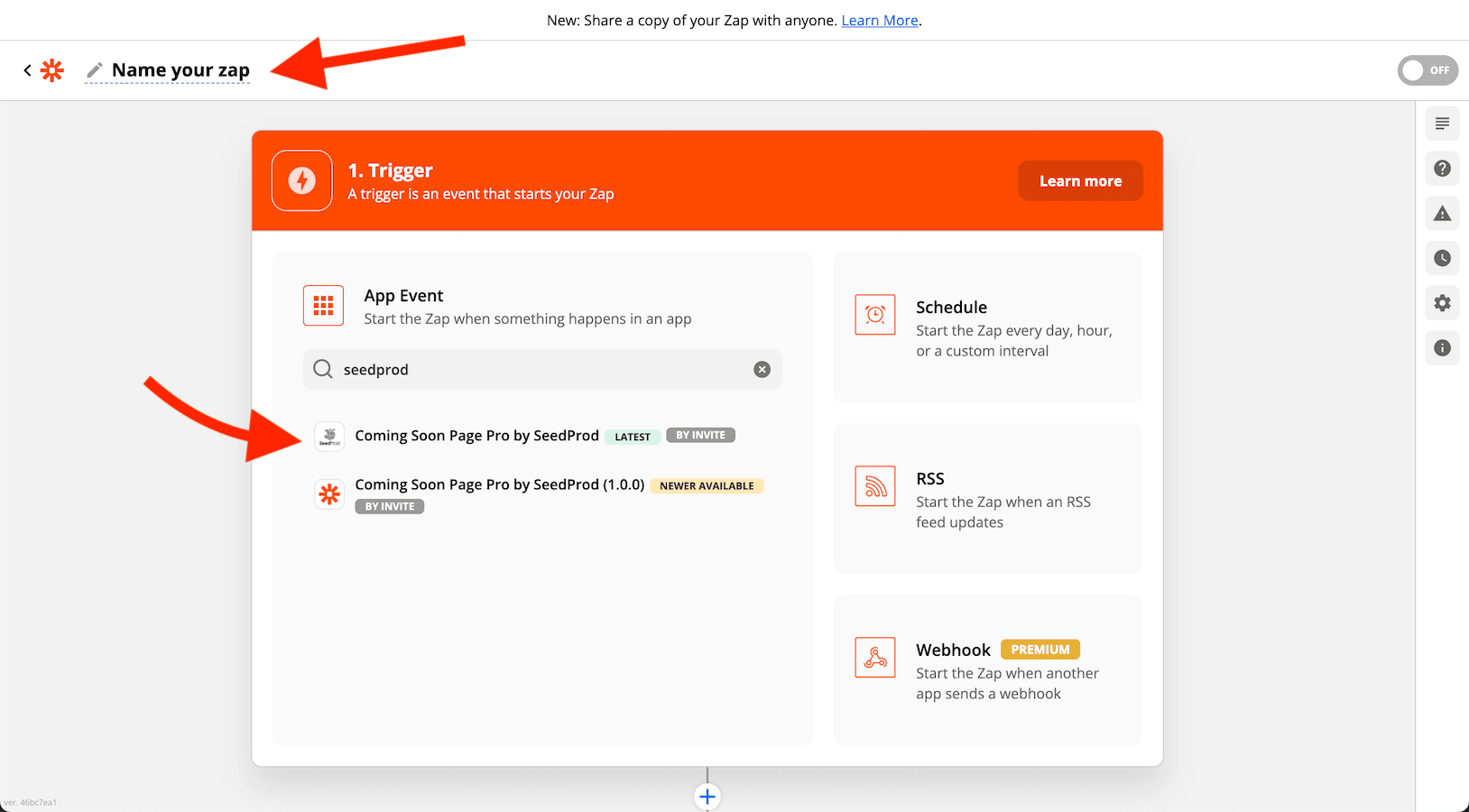
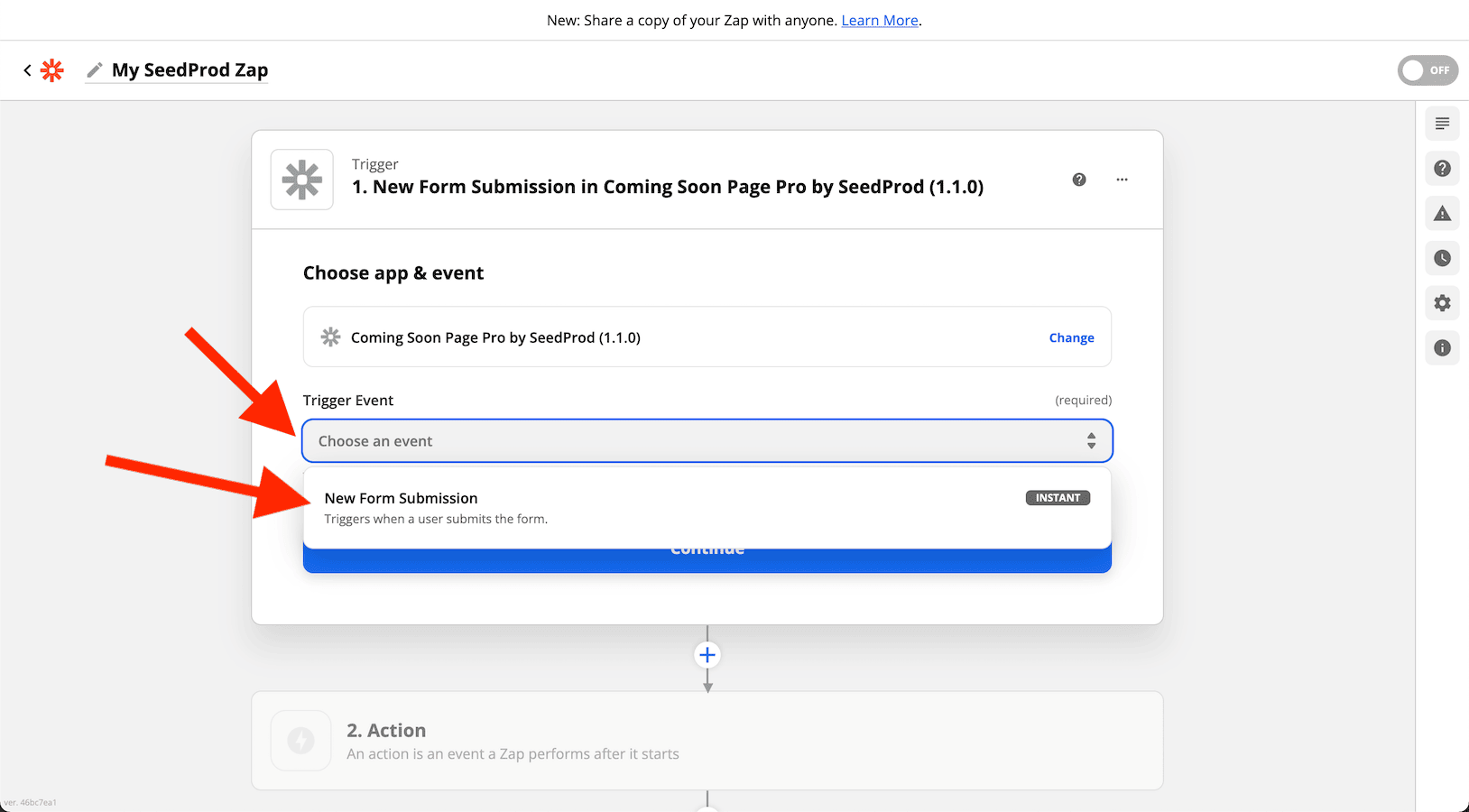
In your Zapier dashboard, create a new Zap and select the SeedProd app as your trigger. From the Trigger Event dropdown, choose New Form Submission and click Continue.
Step 4: Copy the Webhook URL into SeedProd
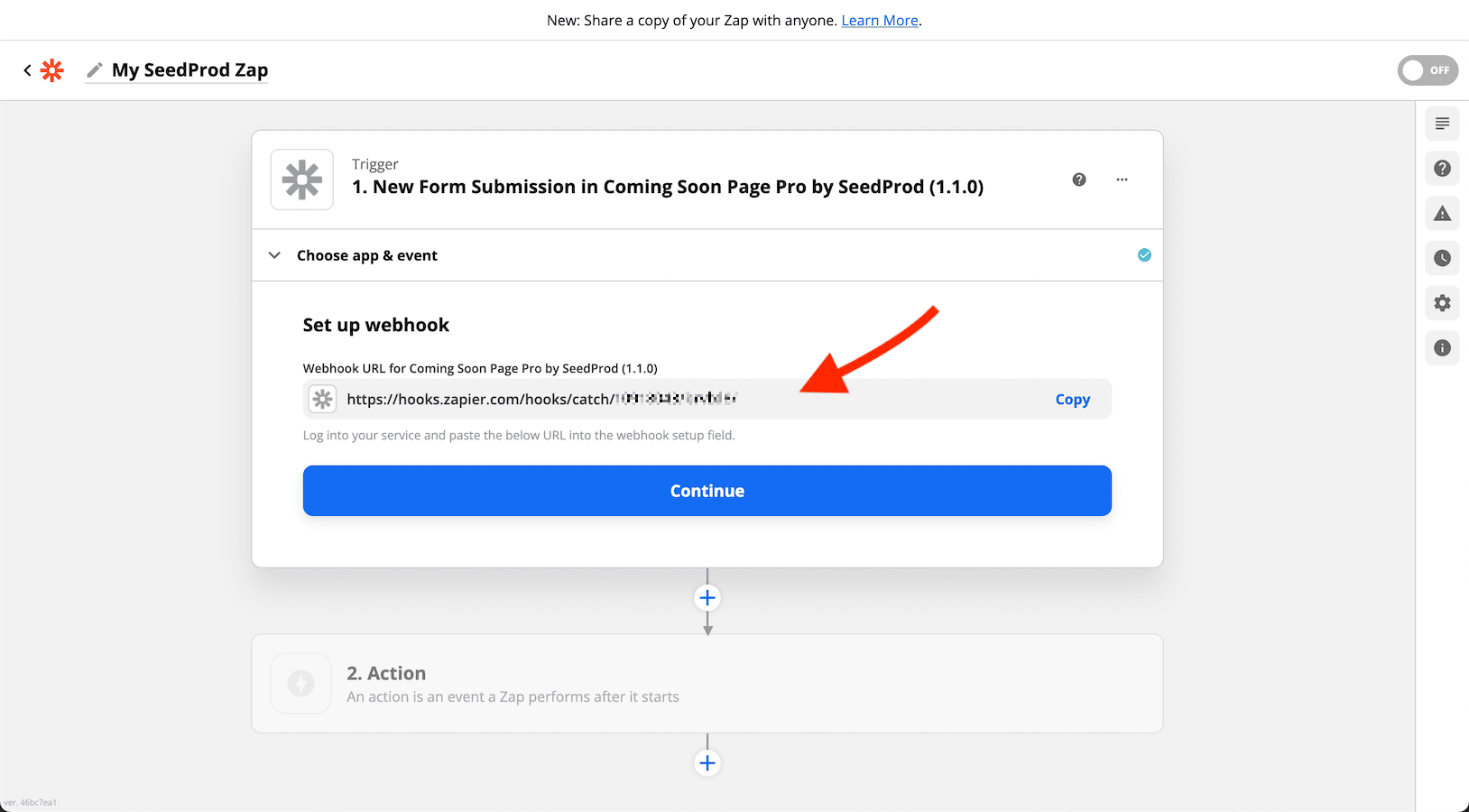
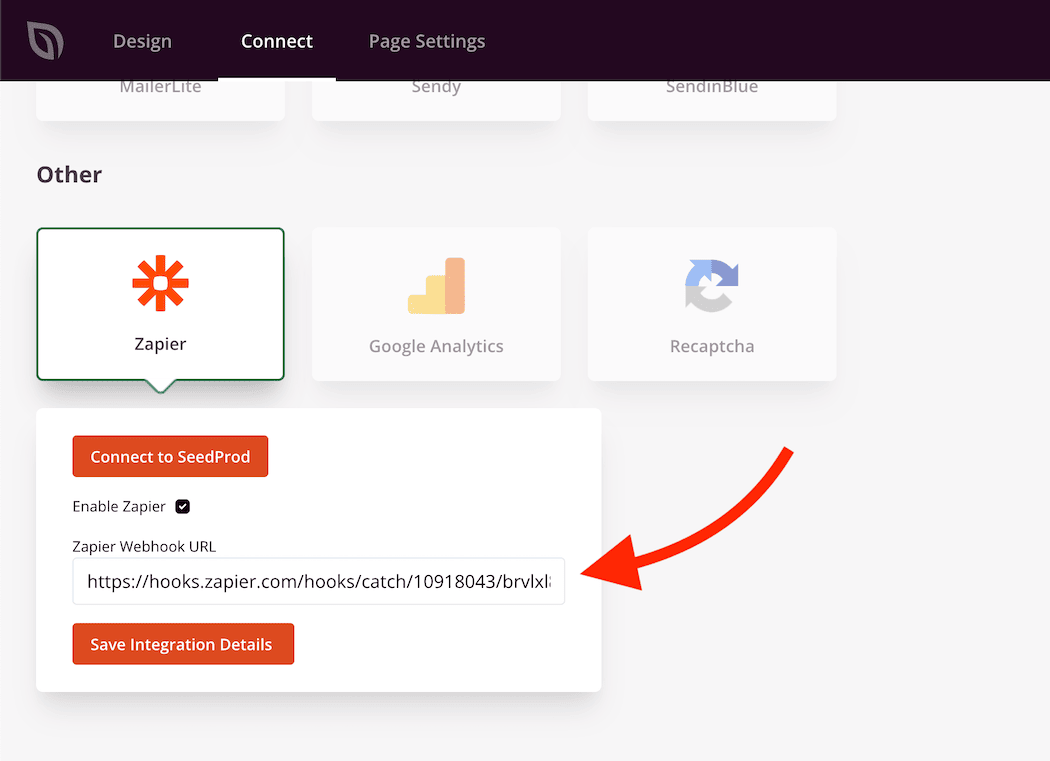
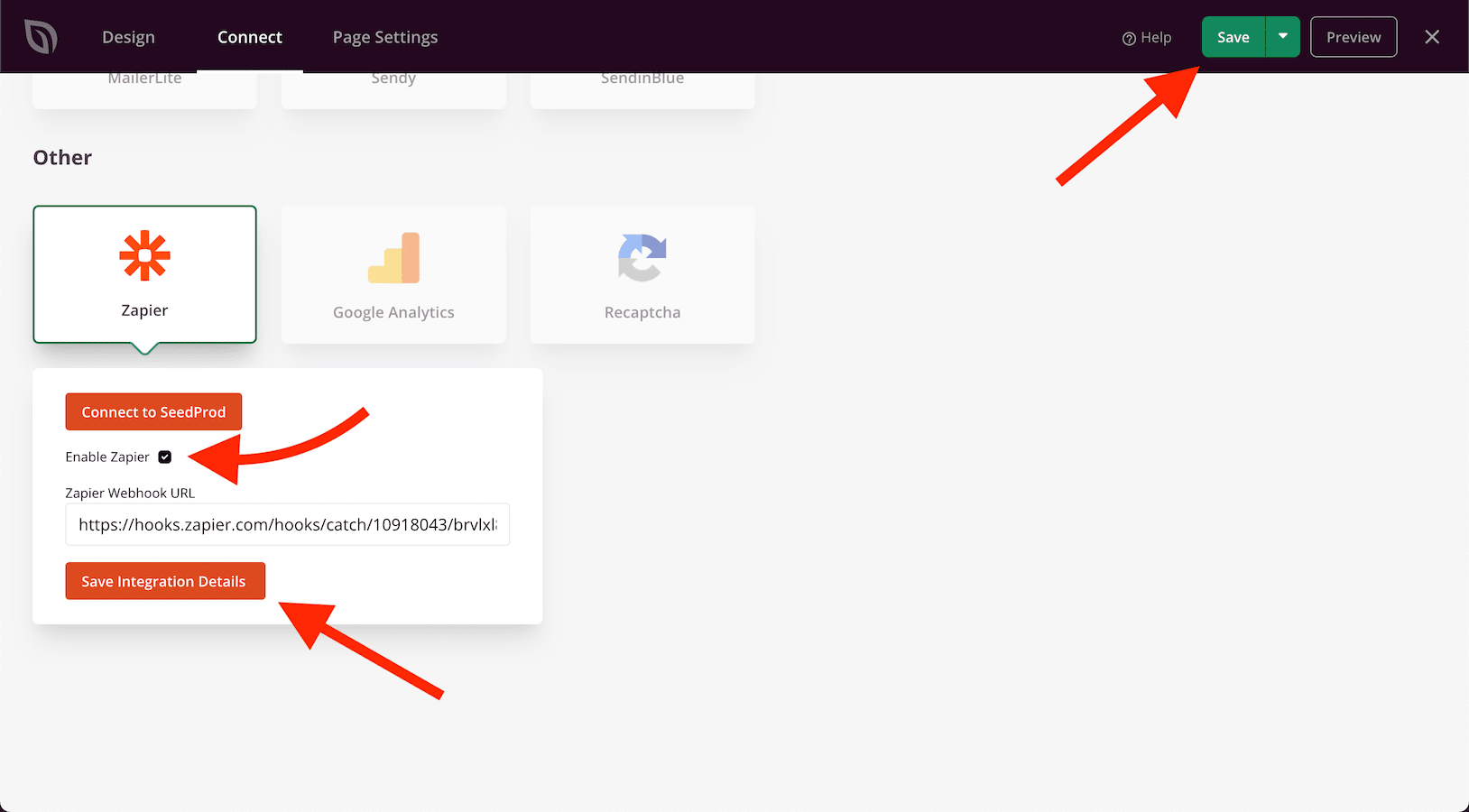
Zapier will provide a Webhook URL. Copy this URL and paste it into the Zapier Webhook URL field in your SeedProd page’s Zapier integration settings.
Step 5: Enable the Integration and Save
Check the Enable Zapier checkbox and click Save Integration Details. Then save your entire page by clicking the Save button at the top right of the builder.
Step 6: Test Your Trigger and Complete the Zap
Back in Zapier, test your trigger to confirm the connection is working, then continue setting up your action steps to send form submissions to the platform of your choice.
Your Zapier integration is now active. Every time a visitor submits the Optin Form block on your page, their name and email will be automatically sent to your connected Zapier action — giving you the flexibility to route subscriber data to any of the hundreds of platforms Zapier supports.