


TL;DR: How to Make a Click to Call Link in WordPress
Three ways to add a clickable phone number in WordPress, each taking under 5 minutes with no coding required.
- Plugin method – Install WP Call Button, enter your phone number, and choose sticky (scrolling) or static button styles.
- HTML method – Add a Custom HTML block with a tel: link, like
<a href="tel:+15555551212">Call Us</a>. - Menu method – Go to Appearance > Menus, add a Custom Link, and use tel:+1XXXXXXXXXX as the URL.
- SeedProd landing pages – Add a Button block in SeedProd and set the link to tel:+1XXXXXXXXXX for a dedicated tap-to-call page.
- Local SEO tip – Wrap your tel: link in LocalBusiness schema to help Google show your phone number in local search results.
Your phone number is buried at the bottom of your contact page, and mobile visitors aren’t scrolling that far. A click to call link in WordPress puts it one tap away, right where your visitors already are.
In this guide, I’ll walk you through three methods to add a click to call link in WordPress: using a plugin, a simple HTML snippet, or your navigation menu. You won’t need any tech skills to follow along, and if you’re building with SeedProd, I’ll show you how to add a call button directly to your landing pages too.
Methods to add a click to call link:
Why Make Phone Numbers Clickable in WordPress?
Most businesses now communicate with customers online through live chat, support tickets, email, and contact forms. But when people have specific questions or need help, they often prefer to speak to a human being. That human connection makes them feel listened to on a personal level and can increase customer satisfaction.
So from a user’s point of view, being able to quickly tap to call saves them a heap of time. Instead of having to send emails back and forth, they can speak to someone almost instantly.
How Does Click to Call Work?
Click-to-call, which is sometimes known as click-to-talk, refers to when a user clicks a button or text to connect with someone else in real-time. So when you enter your number to connect a call, a go-between service uses the tel protocol to dial the business you’re trying to reach in order to start a conversation.
You also don’t need to download any software to use click-to-call technology. You simply use the device you have to hand.
How do You Hyperlink a Phone Number?
For businesses just starting out, it’s worth checking out a few business phone services. That way, you can tap into a whole host of features, including:
- 通話転送
- Number sharing
- Answer calls from anywhere
- Track call usage statistics
- VoIP services
始めましょう!
How to Add a Click-to-Call Button in WordPress (Plugin Method)
This option makes use of a WordPress phone number plugin to add clickable call links to your site. The WP Call Button plugin is easy to use and allows you to add call buttons to the following areas of WordPress:
- Posts and pages using both the classic and block editor in WordPress.
- Sidebars and widget-ready areas with the built-in widget.
- Anywhere else on your site with floating buttons that scroll with the user.
With this in mind, let’s look at the steps involved to get set up.
Step 1: Install the WP Call Button plugin
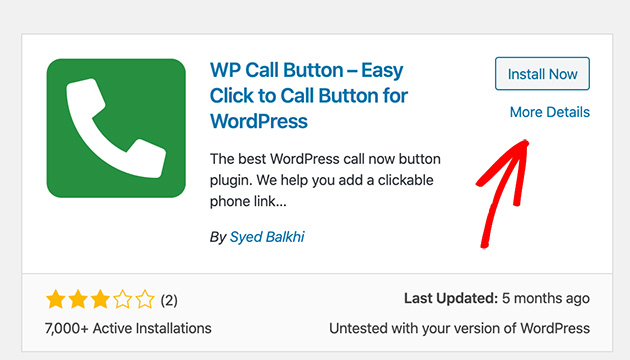
The first thing to do is download the WP Call Button plugin and upload it to your WordPress website.
If you’re not familiar with how to do this, check out this step-by-step guide for installing WordPress plugins.
Step 2: Set Up Sticky or Static Call Buttons
With the plugin installed and activated, head to Settings » WP Call Button to begin configuring the plugin settings.
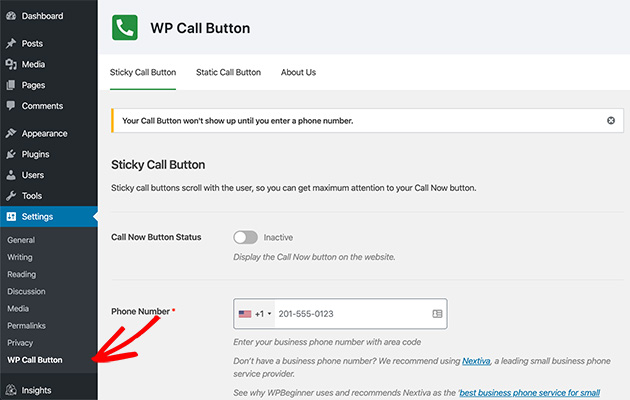
There are 2 ways to display your phone number buttons with this plugin which include Sticky Call Buttons and Static Call Buttons. The sticky buttons scroll as users scroll down your site, while static buttons stay in one place.
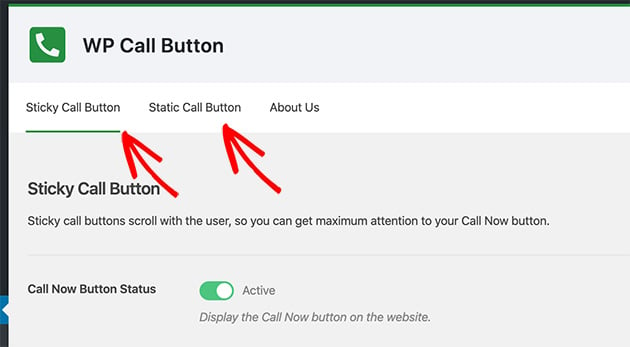
The default settings page includes the following common settings for creating a Sticky Call Button:
- Call Button Text – What your hyperlinked phone number will display as.
- Button Position – How the sticky call button appears on your site.
- Call Button Color – Choose a color for your call button.
- Visibility – Choose to hide the button on certain pages.
There’s also the possibility to only show your call button on mobile devices, which is useful for sites wanting to optimize their mobile user experience.
To make use of these settings, enter your phone number into the text field indicated at the top of the page.
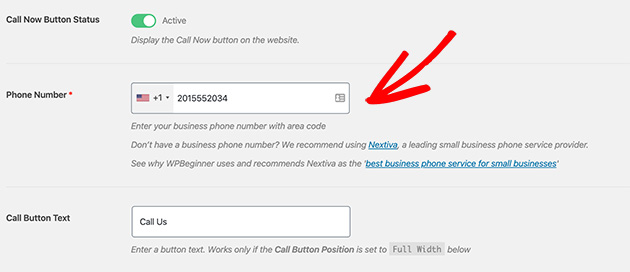
The smartphone field lets you choose your country from a dropdown list and will automatically add your country code in the correct format.
Then go ahead and set the button placement, color, and visibility settings.
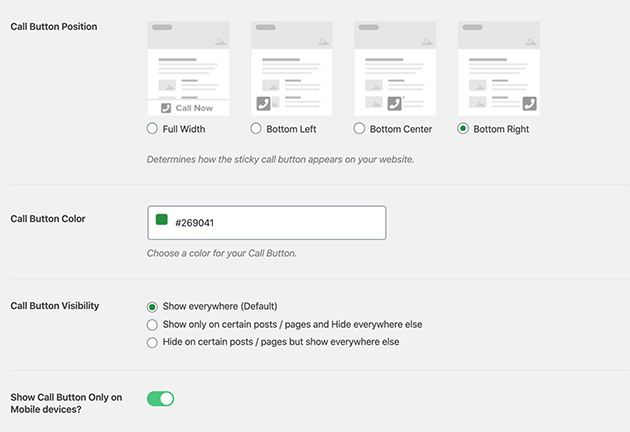
By default, a click-to-call button is added to all pages on your website. But as we mentioned above, you can select specific pages for it to show or for the button to display on mobile pages only.
When you’re happy with your settings, set the Call Now Button Status to Active and click Save Changes. You’ll then see your call now button live on your website.

Step 3: Customize Button Text, Color, and Visibility
If you’d like to include static click-to-call buttons in WordPress, choose the Static Call Button option from the settings page. Here you can again set the button text and color, as well as choose to hide the phone icon from the button.
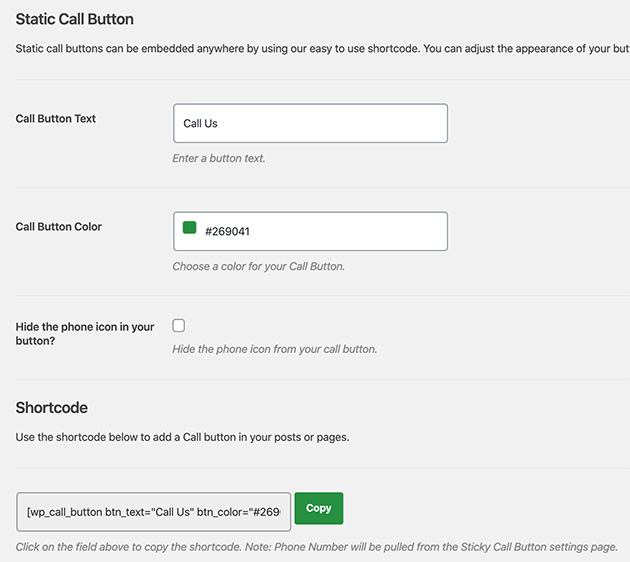
Where these settings differ, however, is with how you publish the button on your site. Users of the classic WordPress editor can copy a generated shortcode and paste it into a post, page, or widget.
While with the modern WordPress editor, you can use the built-in WordPress block.
Step 4: Add the Click-to-Call Button to a Page or Post
Let’s take a look at how to publish your click-to-call button using a WordPress Block.
First, open up the post or page where you’d like to add the phone number or choose Pages » Add New from the WordPress admin area.
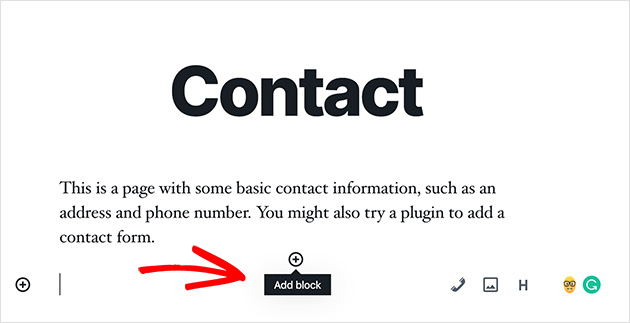
Then click the plus icon to add a new WordPress block to your page.
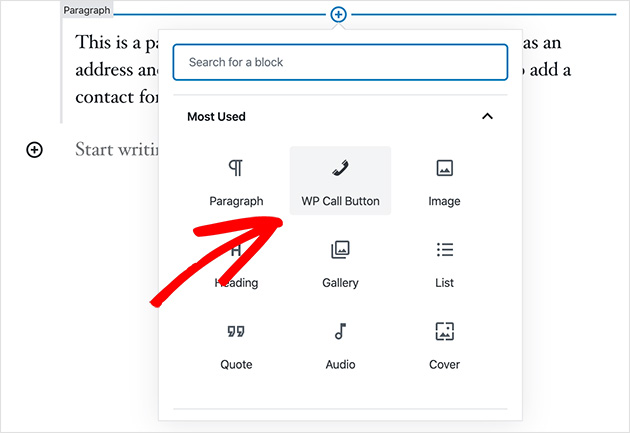
Next, select WP Call Button to add it to the page.
When you click it, you’ll see options on your right-hand side for changing the button color, font size, position, and more.
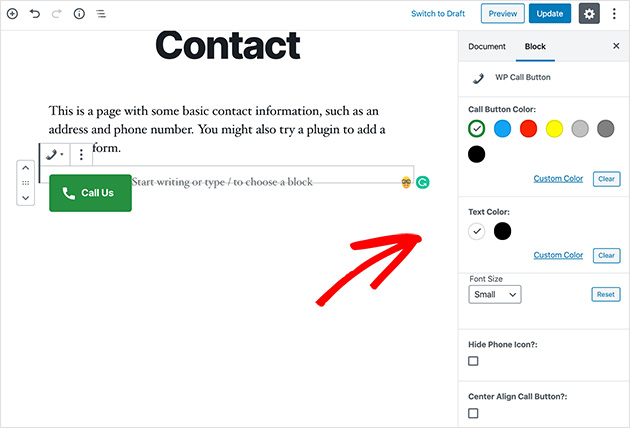
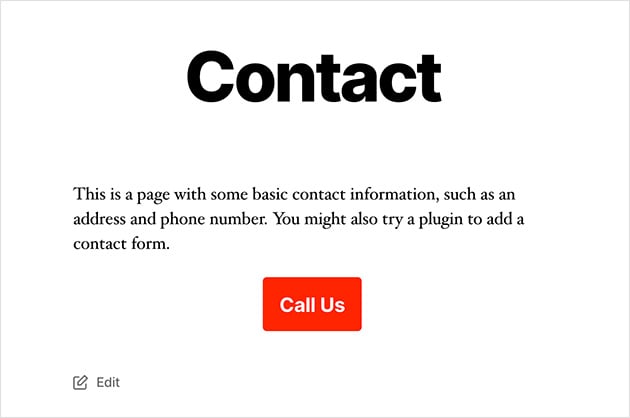
Click Publish when you’re satisfied with the layout. Then when you navigate to that page, it will look similar to the example below.
Step 5: Place Your Call Button in a Sidebar Widget
The last step is for site owners who want to add a clickable phone number to widget-ready areas in WordPress.
To do this, head to Appearance » Widgets. Then choose a sidebar area, click the plus (+) icon to search for the WP Call Button widget, and click to add it to your sidebar.
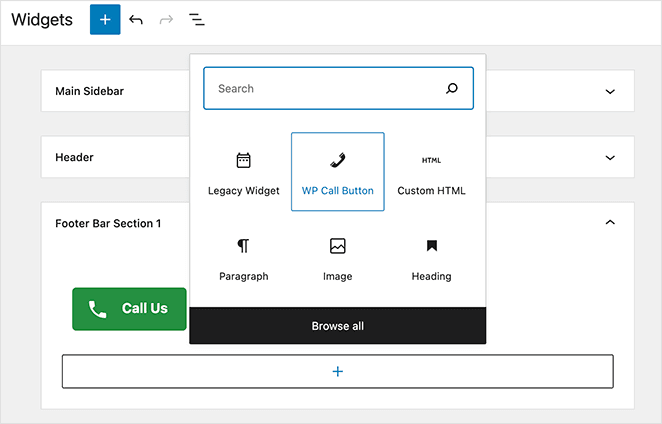
Then edit the title, description, button color, etc.
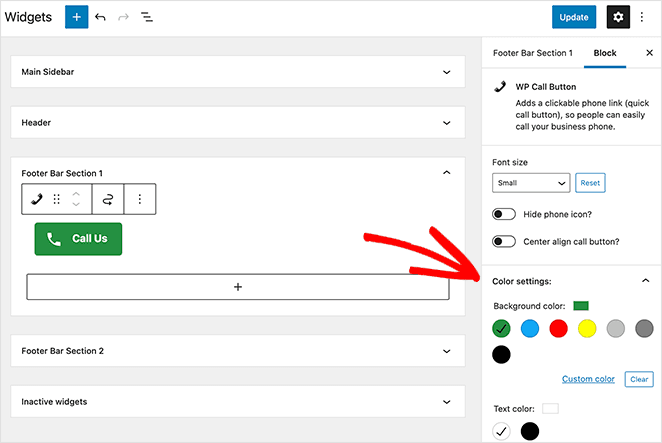
Save your settings and click Done. And when you navigate to your site, it’ll look similar to the image below:

As you can see, using this WordPress plugin is one of the easiest ways to allow site visitors to click and call you from web and mobile browsers. Not only is it 100% free, but it also seamlessly integrates with Google Analytics.
Then you can connect it with MonsterInsights to track the number of people who click to call you, as well as which pages bring in the most leads. Plus, all of this can be done without having to leave your WordPress dashboard.
But what if you want to make use of this technology without having to use WordPress plugins? The next option explains how.
How to Add a Phone Link in WordPress Using HTML
To manually add clickable telephone numbers and links to your WordPress website can be as simple as copying and pasting a simple code snippet.
This option uses an HTML code snippet that opens phone links on mobile apps, mobile devices, PCs, and Mac computers. On a Mac, the link will open in Facetime, while in Windows 10, it will open on Skype.
First, open the post or page where you’d like to add your phone number. For this example, we’ll use an existing post which we’ll edit.
If you’re using the new WordPress editor, add a new HTML block.
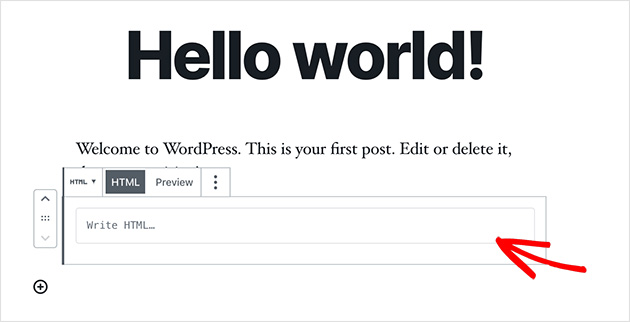
Then copy the following code snippet and paste it into the HTML block.
<!-- Works on Android and iPhone. Desktop users may see a calling app open, or nothing if no app is connected. -->

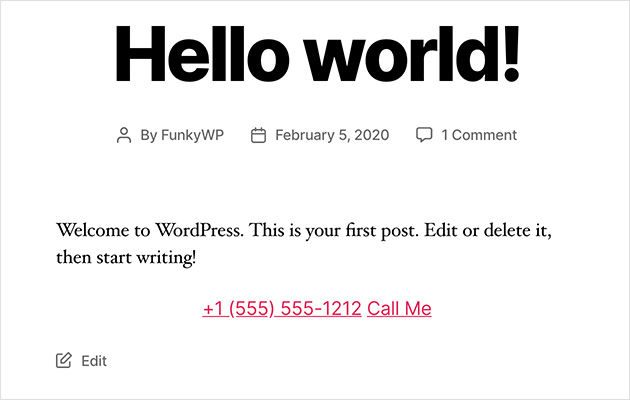
<a href="tel:+15555551212">+1 (555) 555-1212</a>
<a href="tel:+15555551212">Call Me</a>
Always include the + and your country code before the number, like tel:+15555551212. The + prefix ensures the link works correctly across devices and internationally.
If your business uses phone extensions, you can include them using the pause code format: tel:+15555551212p123. The letter p tells the dialer to pause briefly before entering the extension, which gives automated systems time to connect.
<a href="tel:+15555551212p123">Call Us (Ext. 123)</a>Then click Publish and navigate to the live post to see the results.
Adding LocalBusiness Microdata to Your Phone Link
If your site serves a local area, you can wrap your tel: link in Schema.org LocalBusiness microdata. Google uses this markup to display your phone number directly in local search results.
<div itemscope itemtype="https://schema.org/LocalBusiness">
  <span itemprop="name">Your Business Name</span>
  <a href="tel:+15555551212" itemprop="telephone">+1 (555) 555-1212</a>
</div>
Add the itemprop=”telephone” attribute to your tel: link and wrap it in a LocalBusiness container. Use the same +country code format as your standard tel: link.
Your tel: link inherits your theme’s default link styles. To customize the appearance, use the a[href^=”tel:”] CSS selector to target only phone links.
a[href^="tel:"] {
  color: #0073aa;
  text-decoration: none;
  font-weight: bold;
}
Add this to your theme’s Additional CSS (Appearance » Customize » Additional CSS) or use a code snippets plugin. Adjust the color and style to match your site’s design.
How to Add a Click to Call Link in the Header or Menu
It’s also fairly easy to add your phone link in the WordPress header or navigation menu.
To do this, go to Appearance » Menus and click Custom Links from the right-hand column.
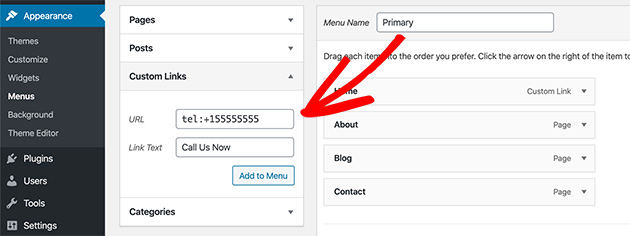
Then in the URL field, add your phone number in the following format:
tel:+15555551212
And in the Link Text field, type the label you’d like to give your call link. Then click the Add to Menu button and Save Menu to make it live on your website.
Here’s an example of what the call link in your header will look like:

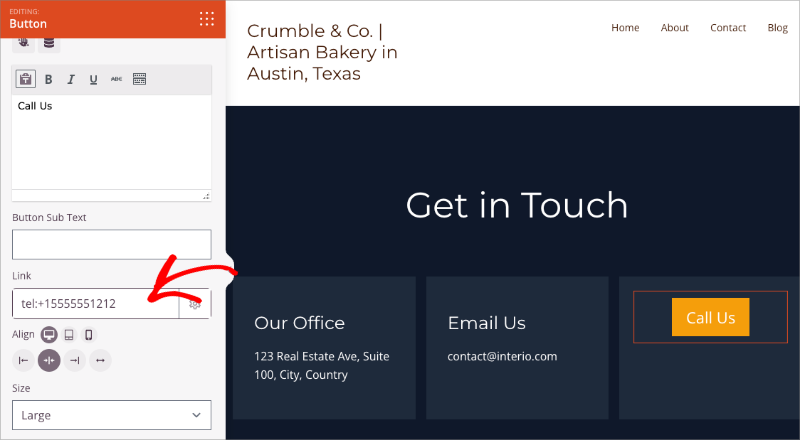
How to Add a Click-to-Call Button on a SeedProd Landing Page
If you’re using SeedProd to build landing pages, you can add a tap-to-call button directly in the visual drag-and-drop editor. I use this on dedicated contact and quote pages, where a phone call is the main action I want visitors to take.
A landing page call button works differently from the site-wide sticky button the WP Call Button plugin creates. When someone lands on a page already primed for action, a prominent call button removes the last step between intent and a real conversation.
Open your landing page in SeedProd and click the plus (+) icon to add a new block. Search for the Button block, then drag it into your layout where you want the call button to appear.
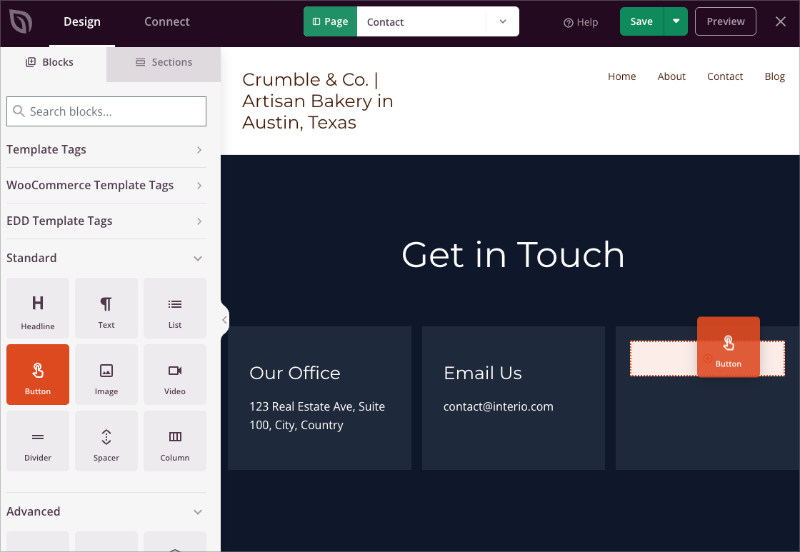
Click the button to open its settings, then set the button link to your phone number in tel: format, for example: tel:+15555551212. Replace the number with your own, including the + and country code, then save the page and publish.
FAQs on Creating a WordPress Click-to-Call Button
How do I make a phone number clickable in WordPress?
The simplest way is to add an HTML block to your post or page and use a tel: link: <a href=”tel:+15555551212″>Call Us</a>. Replace the number with your own, including the + country code prefix. If you want a styled button instead of a plain link, install the WP Call Button plugin or use the Button block in SeedProd.
What is a click to call link?
A click to call link is a hyperlink that dials a phone number automatically when a visitor taps or clicks it. It uses the tel: protocol, which tells the device to open the phone dialer with the number pre-filled. On mobile, this happens instantly. On desktop, it opens whatever calling app is set as the default, such as Skype or FaceTime.
Will click to call links work on desktop?
Yes, but the result depends on the device setup. On mobile, the link opens the phone dialer right away. On desktop, it opens a calling app like Skype or FaceTime, or does nothing if no app is configured. WP Call Button lets you show the button on mobile only if you prefer.
How do I add a clickable phone number to a WordPress menu?
Go to Appearance » Menus and click Custom Links. In the URL field, enter your number in tel: format, like tel:+15555551212. Add a label in the Link Text field, then click Add to Menu and save. The phone link will appear in your navigation and open the dialer when clicked on mobile devices.
Can I track clicks on my call button in WordPress?
Yes. The WP Call Button plugin integrates with Google Analytics and MonsterInsights, so you can track how many people click your call button and which pages generate the most calls. In MonsterInsights, call button clicks appear as events in your dashboard without any extra setup beyond enabling the integration.
Adding a click to call link in WordPress is one of the easiest ways to make your site more mobile-friendly and customer-focused. Whether you use a plugin, a line of HTML, or a simple menu link, the setup takes just minutes.
If you want to go even further, tools like WP Call Button and SeedProd make it easy to place your call buttons exactly where they matter most. No coding, no confusion.
Looking for more ways to connect with your visitors? Check out these next steps below.
お読みいただきありがとうございます!皆様のご意見をお聞かせいただければ幸いです。お気軽に会話にご参加ください YouTube, X および Facebook で、ビジネスを成長させるための役立つアドバイスやコンテンツをさらにご覧ください。




