SeedProd Documentation

Documentation, Reference Materials, and Tutorials for SeedProd

How to Create a Maintenance Mode Page

A Maintenance Mode page lets you temporarily hide your site from visitors while you make updates, without taking it completely offline. When Maintenance Mode is active, SeedProd automatically returns a 503 status code to search engines — as recommended by Google — signalling that the site is temporarily unavailable and they should check back later. Logged-in users continue to see the regular site.


Step 1: Open the Maintenance Mode Setup

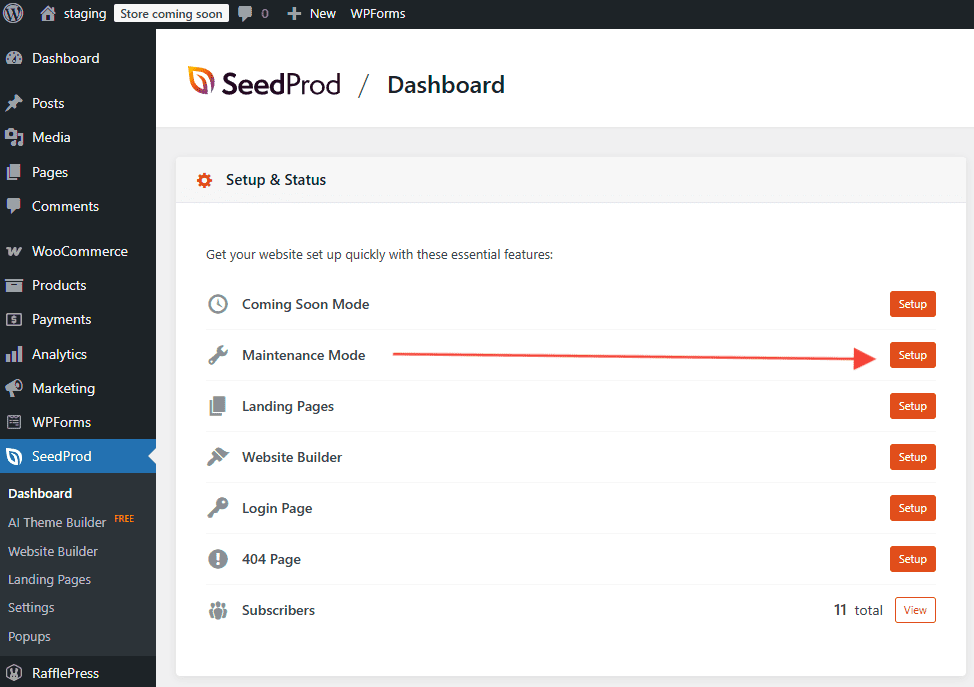
In your WordPress admin, go to the SeedProd Dashboard and click the Set Up a Maintenance Mode Page button next to the Maintenance Mode toggle.

SeedProd Dashboard with the Maintenance Mode setup button highlighted

Step 2: Choose a Template

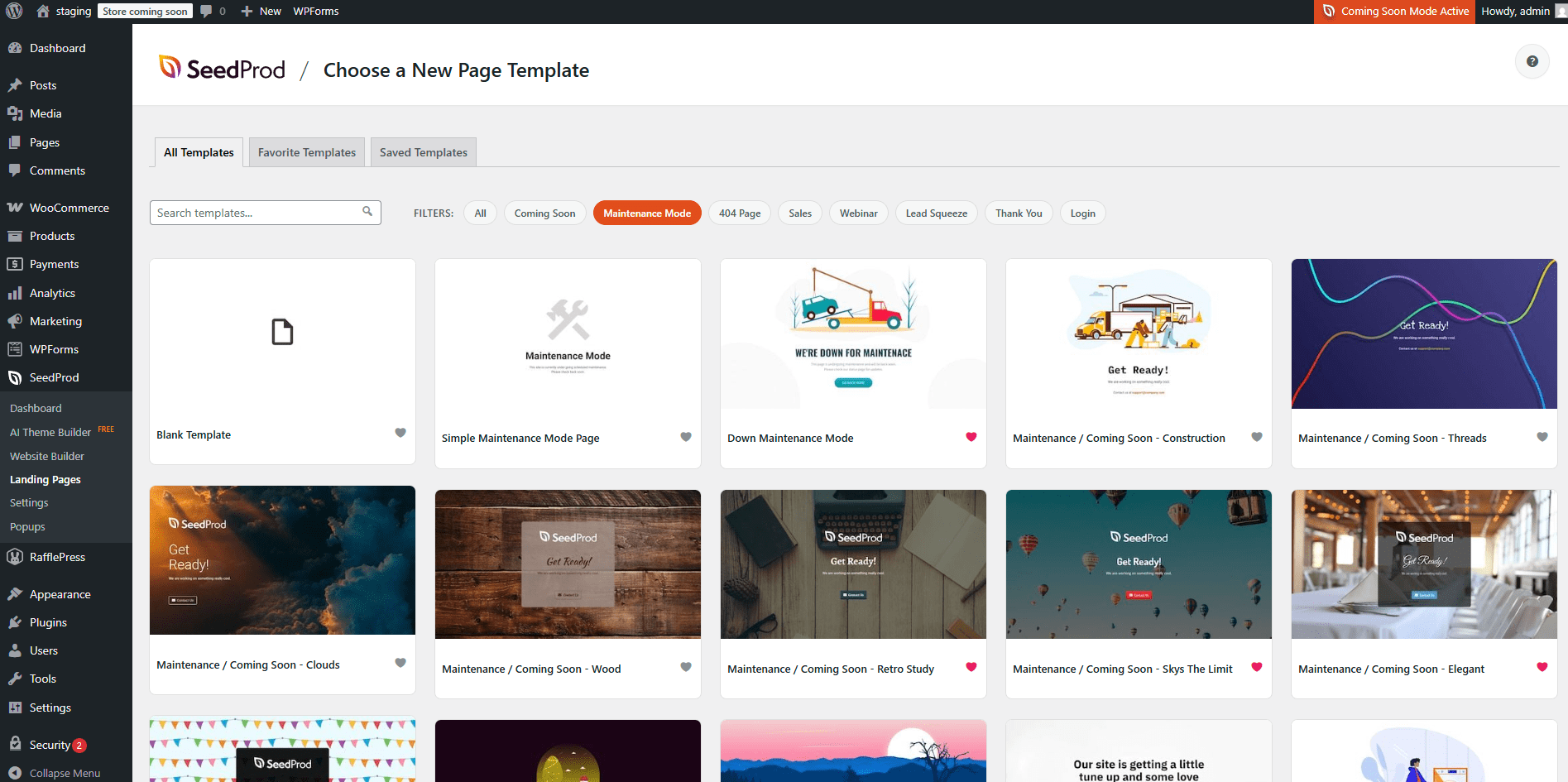
Browse the available Maintenance Mode templates and click one to import it. You can also choose a blank template to start from scratch.

Maintenance Mode page template selection screen in SeedProd

Step 3: Design Your Maintenance Mode Page

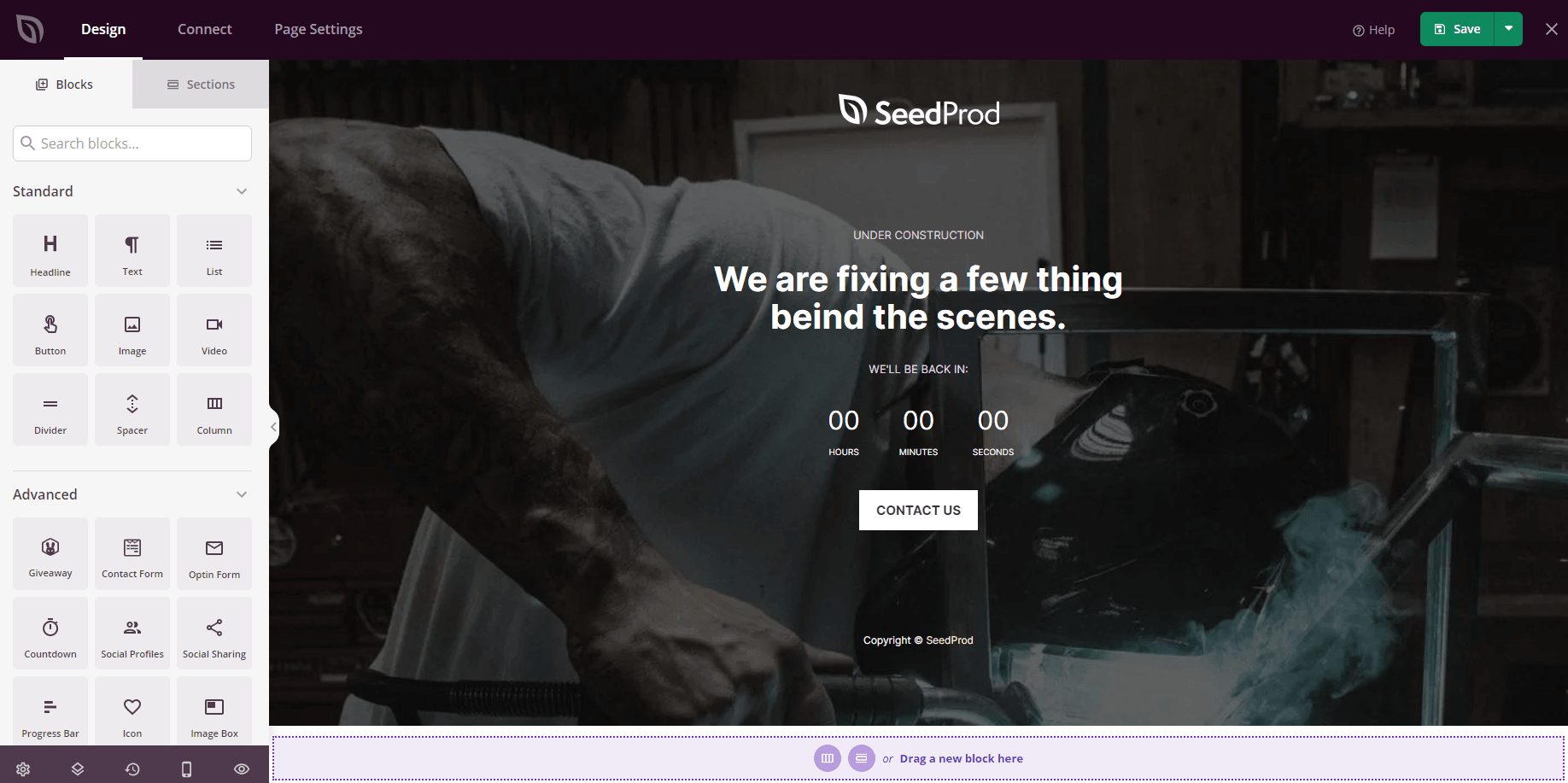
Customize your Maintenance Mode page in the SeedProd drag-and-drop builder. Add your branding, an estimated return time, a contact form, or any other content that helps visitors understand when the site will be back. When you are satisfied with the design, click Save.

Maintenance Mode page being designed in the SeedProd builder

Step 4: Activate Maintenance Mode

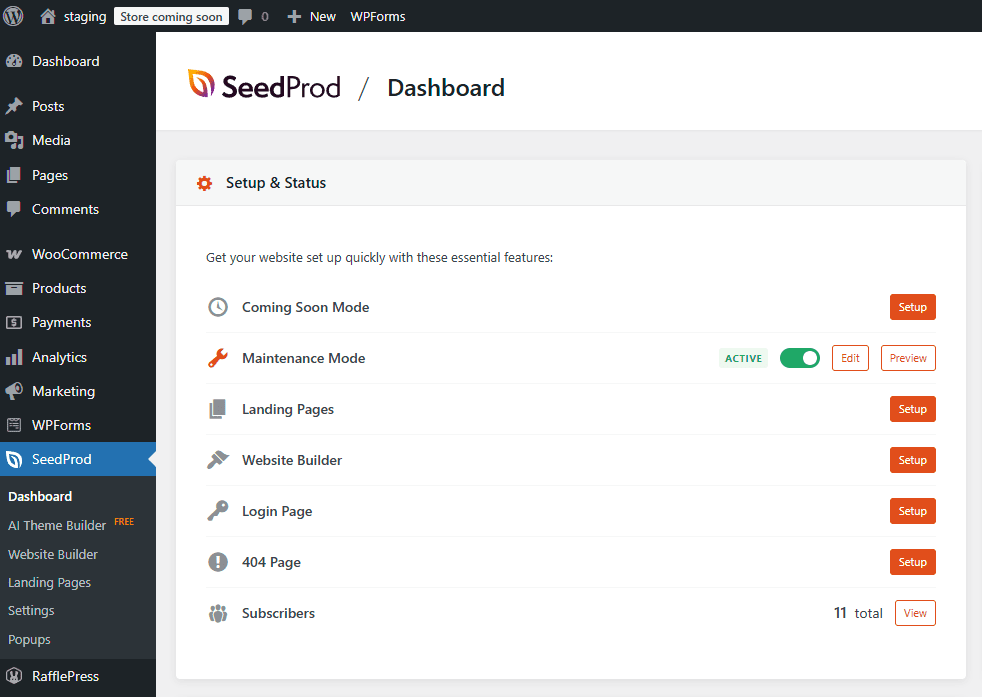
Return to the SeedProd Dashboard and toggle the Maintenance Mode switch to the active position. Your Maintenance Mode page will immediately go live for all visitors who are not logged in to WordPress.

Maintenance Mode toggle switched to active on the SeedProd Dashboard

Including or Excluding Specific Pages

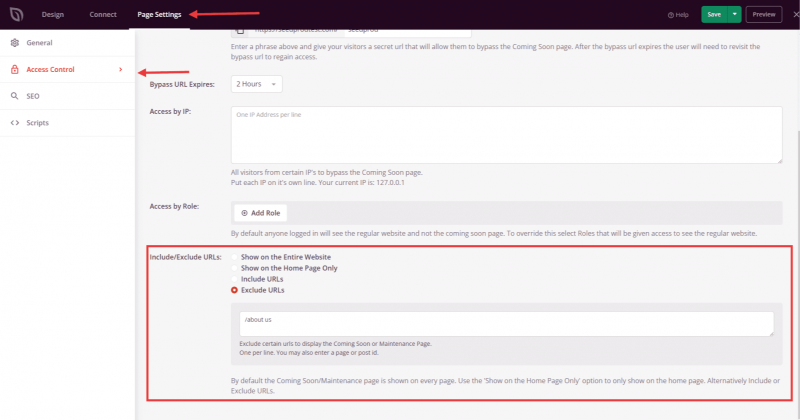
If you need certain pages to remain accessible — or to be hidden — while Maintenance Mode is active, you can control this from the page’s settings. Go to Page Settings > Access Controls > Include/Exclude URLs and configure the URLs you want to include or exclude from Maintenance Mode.

Include/Exclude URLs settings in SeedProd Page Settings Access Controls

Your Maintenance Mode page is now live. You can continue updating your site — logged-in users will see the regular website while visitors see the Maintenance Mode page. When your updates are complete, return to the SeedProd Dashboard and toggle Maintenance Mode off to bring the site back online.

Related Articles