
SeedProd では、セクション内の列のサイズを変更する方法が 2 つあります。レイアウトナビゲーションパネルで正確な幅を設定する方法と、列のサイズ変更ハンドルを使用してキャンバス上で直接列の区切り線をドラッグする方法です。どちらの方法も、単一列または複数列のレイアウトで使用できます。
方法 1: レイアウトナビゲーションパネルを使用する
レイアウトナビゲーションパネルを使用すると、列の設定に直接値を入力して、列の正確な幅を設定できます。
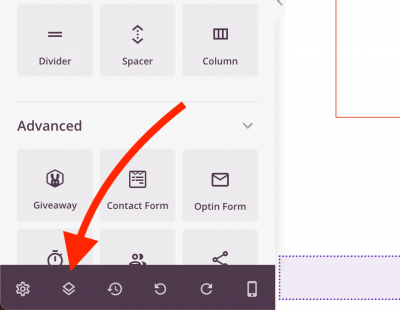
- ビルダーの左側サイドバーの下部にあるアイコンをクリックして、レイアウトナビゲーションパネルを開きます。
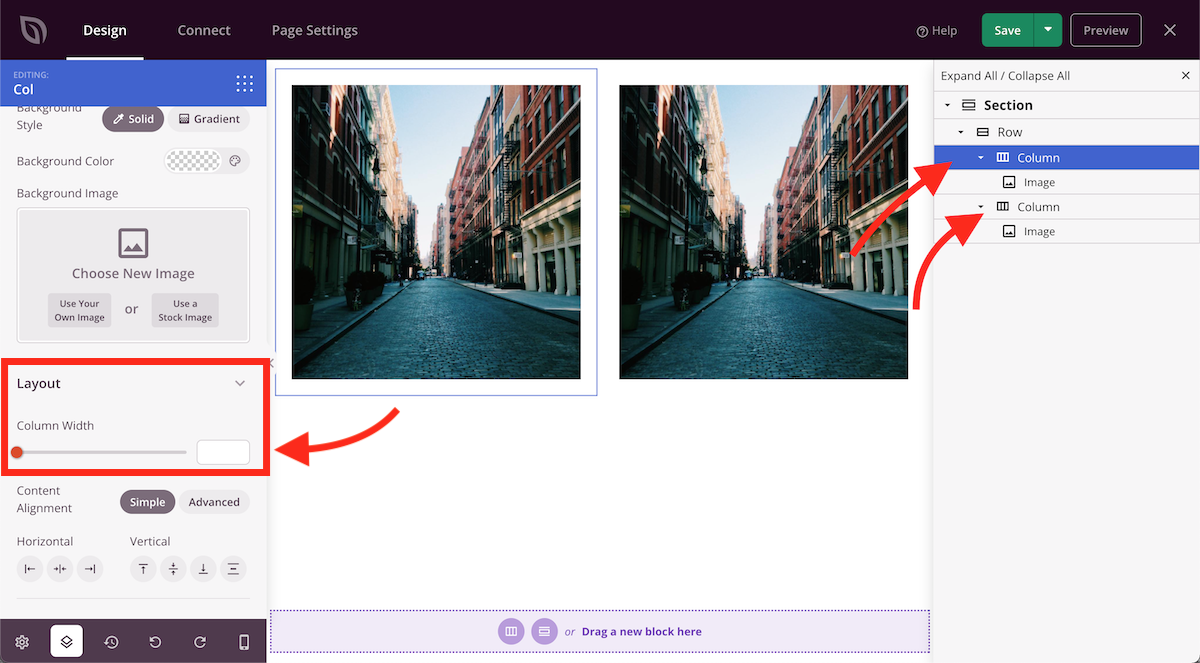
- レイアウトナビゲーションパネルで、調整したい列をクリックします。設定がパネルに表示され、列の幅オプションが表示されます。適用したい幅を入力します。
- 保存をクリックし、ページをプレビューして結果を確認してください。
方法 2: 列のサイズ変更ハンドルを使用する
列のサイズ変更ハンドルを使用すると、キャンバス上で直接列を任意のサイズにドラッグできます。これは、迅速な視覚調整を行う場合に便利です。
- サイズを変更したい列が含まれるセクション内のどこかにカーソルを合わせます。行のハンドルオプションが青色で表示され、列のサイズ変更オプションが含まれます。
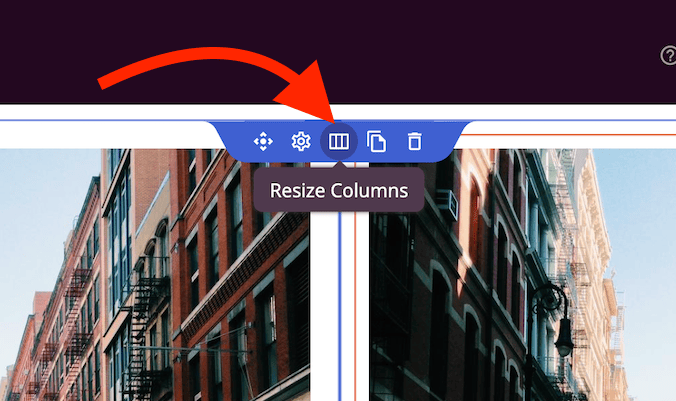
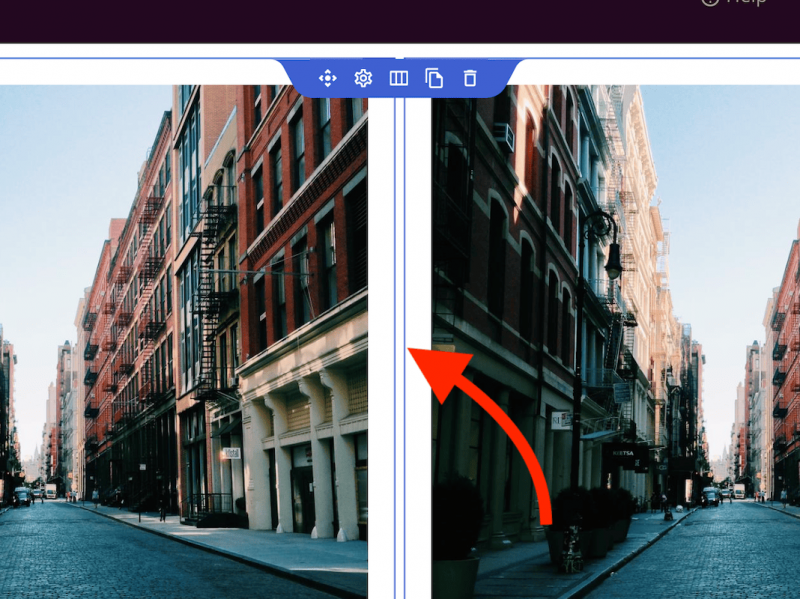
- 列のサイズ変更をクリックして列のサイズ変更モードに入ります。次に、2つの列の間にあるガターをクリックしてドラッグし、サイズを比例して調整します。
- 保存をクリックし、ページをプレビューして結果を確認してください。
ページのどのセクションでも、どちらかの方法を使用できます。特定の幅が必要な場合はレイアウトナビゲーションパネルを使用し、キャンバス上で直接視覚的に調整したい場合は列のサイズ変更ハンドルを使用します。