SeedProd Documentation

Documentation, Reference Materials, and Tutorials for SeedProd

How to Nest a Column Inside Another Column using a Global Parts Template

SeedProd’s column blocks cannot be nested directly inside one another in the builder. However, you can achieve the same effect by creating a Global Part template that contains your inner column layout, then inserting it into any column on any page using the Template Part block. This approach also means your nested layout stays in sync automatically wherever it is used.

Requirements: The Global Parts feature is available in the Pro and Elite license plans.


Step 1: Create a Global Part Template

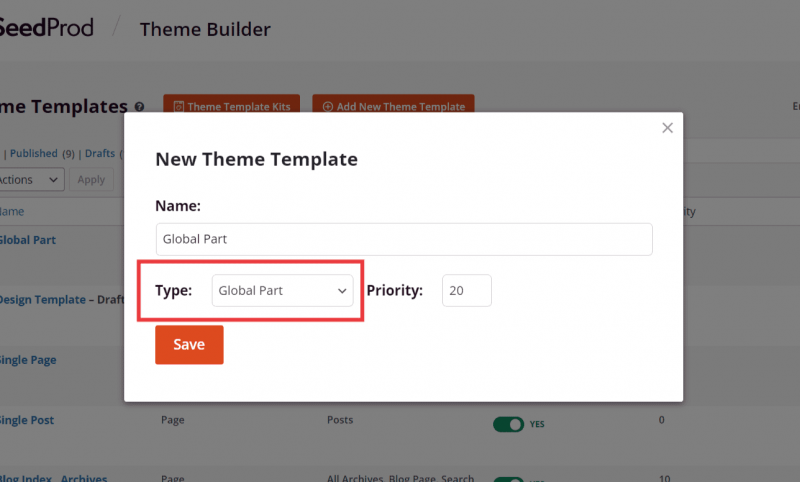
Go to SeedProd > Website Builder and click Add New Template. In the popup, select Template Part as the type, give it a name, and click Create Template. For full instructions on setting up a Global Part template, see Creating Global Part Templates for Site-Wide Consistency.

New Theme Template popup with Template Part selected as the type

Step 2: Build Your Inner Column Layout

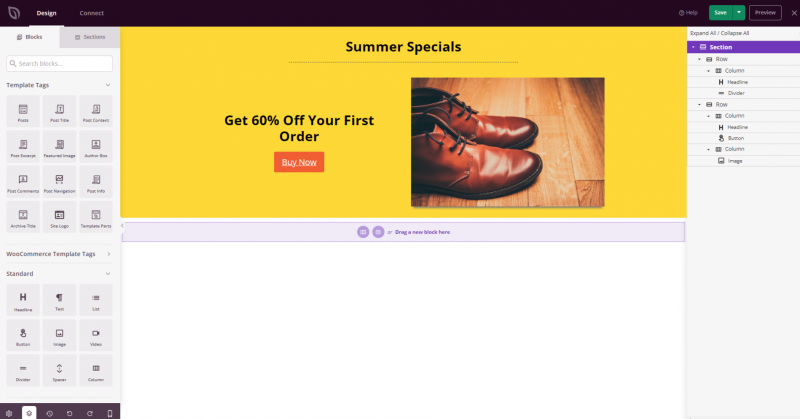
Inside the Global Part template editor, design the column layout you want to nest. Add a Column block and configure it with the number of columns and content you need. When your design is complete, click Save.

Column layout built inside a Global Part template in the SeedProd builder

Step 3: Insert the Global Part into a Column

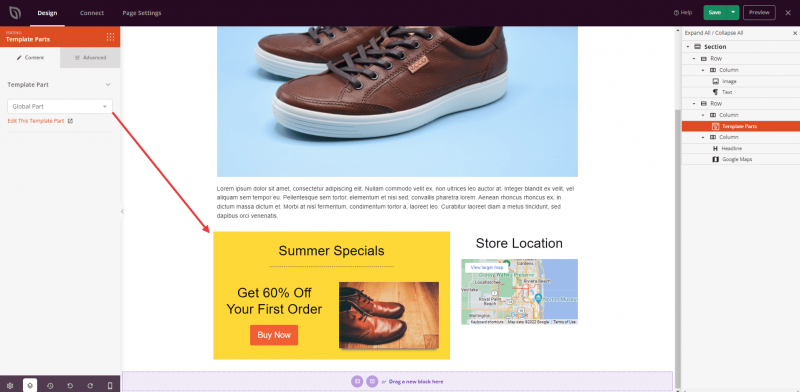
Open the page or template where you want the nested column to appear. In the block panel, find the Template Part block and drag it into the column where you want the nested layout to display. In the block settings, select the Global Part template you created.

Template Part block being dragged into a column in the SeedProd builder

Step 4: Save Your Changes

Click Save to apply your changes. The Global Part template will render inside the column, creating the nested column effect on your page.


Your nested column layout is now in place. Because it uses a Global Part template, any changes you make to the inner layout are applied automatically everywhere the Template Part block is used — making it easy to maintain consistent nested designs across multiple pages.

Related Articles