SeedProd Documentation

Documentation, Reference Materials, and Tutorials for SeedProd

How To Create A Single Post Template

A Single Post template in the SeedProd Website Builder lets you design a custom layout for your WordPress blog posts. Because it is a dynamic template, it pulls each post’s content from the database automatically — displaying the correct title, content, and metadata for whichever post a visitor is viewing. You can also create multiple Single Post templates with different display conditions to apply different designs to different posts or categories.

Important: The Post Content block must be included in your Single Post template. Without it, post content will not display on the frontend.


Step 1: Add a New Single Post Template

In your WordPress admin, go to SeedProd > Website Builder and click Add New Template.


Step 2: Configure the Template Settings

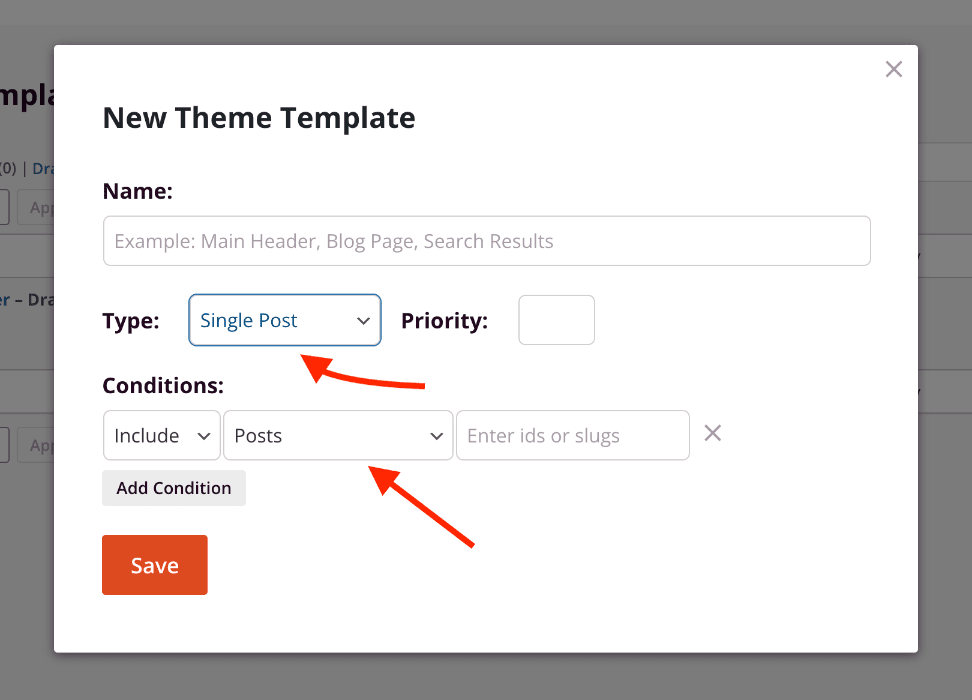
In the New Theme Template popup, configure the following settings before creating the template:

  • Type: Select Single Post from the dropdown.
  • Name: Enter a name to identify this template.
  • Conditions: Set the display conditions to control which posts this template applies to — for example, all posts, posts in a specific category, or an individual post.
  • Priority: Set a priority number to manage which template applies when conditions overlap. A higher number takes precedence over a lower one.
New Theme Template popup with Single Post selected as the type and conditions configured

Click Save to open the template in the SeedProd builder.


Step 3: Design Your Single Post Template

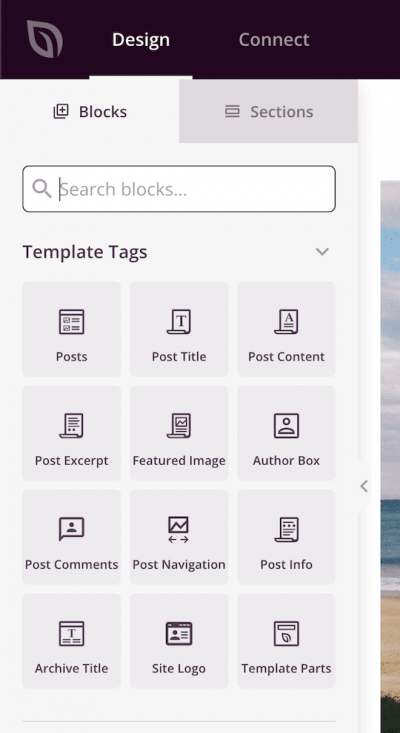
Design your post layout in the builder. Use Template Tag blocks to pull in dynamic post data. The most commonly used template tags for a single post layout include:

  • Post Title — displays the post’s title
  • Post Content — displays the post’s body content (required)
  • Post Info — displays metadata such as the author, date, and categories
  • Featured Image — displays the post’s featured image
  • Post Navigation — adds previous/next post links
Template tag blocks panel in SeedProd builder showing available tags for a single post template

Step 4: Publish the Template

When your design is complete, click the dropdown arrow on the Save button and select Publish. Your Single Post template will immediately begin applying to the posts that match its display conditions.


Your Single Post template is now live. You can return to SeedProd > Website Builder at any time to edit the template, adjust its conditions, or create additional Single Post templates for different post types or categories. For more on available template tags, see the Dynamic Tags documentation.

Related Articles