
Campaign Monitorは、メールキャンペーンの管理や購読者リストの拡大を可能にするEメールマーケティングプラットフォームです。このガイドでは、Campaign MonitorをSeedProdのOptin Formブロックに接続する方法を説明します。これにより、新しい購読者は自動的にCampaign Monitorアカウントに追加されます。
ステップ1:接続ページを開く
WordPress管理画面で、SeedProdダッシュボードに移動し、接続をクリックします。

ステップ2: Campaign Monitorを選択
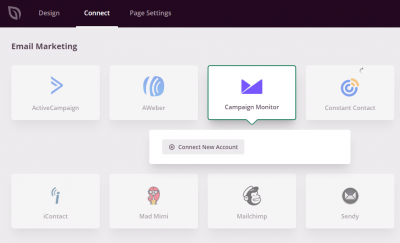
利用可能なメール統合のリストから、Campaign Monitorを選択し、新しいアカウントを接続をクリックします。
ステップ3: Campaign Monitorアカウントを開く
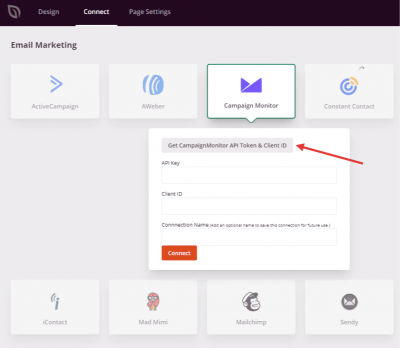
Campaign Monitor APIトークンとクライアントIDを取得ボタンをクリックして、Campaign Monitorアカウントを開きます。次のステップで、ここで認証情報を取得します。
ステップ4: APIキーとクライアントIDを見つける
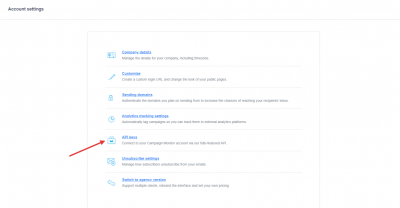
Campaign Monitorアカウントで、アカウント設定 > APIキーに移動します。このページからAPIキーとクライアントIDをコピーします。
ステップ5: 認証情報を貼り付けて接続する
SeedProdに戻り、対応するフィールドにAPIキーとクライアントIDを貼り付けて、接続をクリックします。
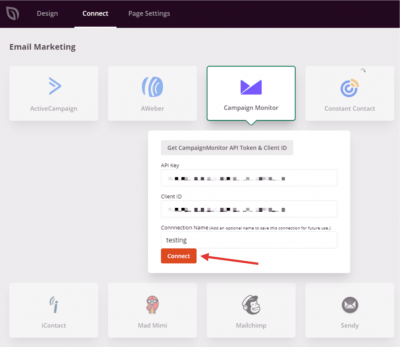
Campaign MonitorがSeedProdに接続されました。Optin Formブロックの設定でCampaign Monitorリストを選択すると、訪問者がページでフォームを送信したときに購読者が自動的に追加されます。