
The Bypass URL feature lets you share a secret URL that allows specific people — such as clients or teammates — to view your site normally while your Coming Soon or Maintenance Mode page is active. You can also add a password form directly to your Coming Soon or Maintenance page so visitors can enter a passphrase to access the site.
How the Bypass URL Works
When someone uses a Bypass URL, SeedProd logs them in as a generic user with no privileges. This approach is used because heavily cached hosting environments and caching plugins typically do not cache content for logged-in users, allowing the bypass to work correctly even on cached sites.
Setting Up the Bypass URL
Follow these steps to configure a Bypass URL for your Coming Soon or Maintenance page:
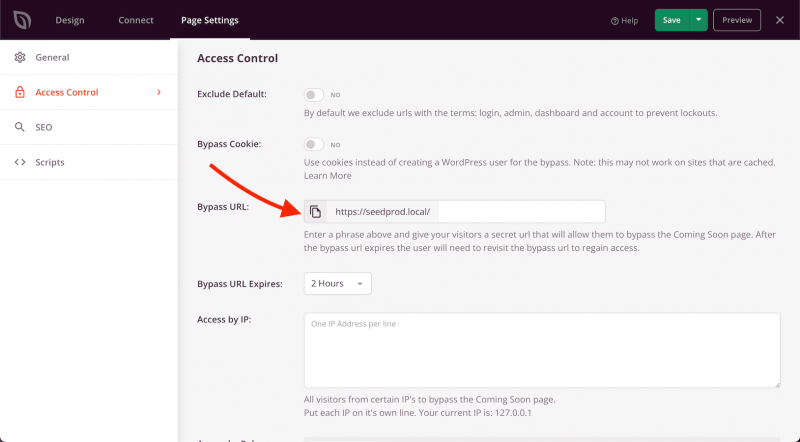
- While editing your Coming Soon or Maintenance page in SeedProd, go to Page Settings > Access Controls.
- In the Bypass URL field, enter a secret phrase. This phrase will be appended to your site URL to create the bypass link.
- SeedProd will generate the complete bypass URL below the field. Copy this URL and share it with anyone who needs to view the site while it is in Coming Soon or Maintenance mode.
- Click Save to apply your changes.
Adding a Password Form to Your Page
You can also let visitors unlock your Coming Soon or Maintenance page by entering a passphrase directly on the page. Add the [seed_bypass_form] shortcode to any text block in your page design. The passphrase used in the Bypass URL field above doubles as the password for this form.
The shortcode accepts the following optional attributes to customize the form:
- msg — Sets the placeholder text inside the password input field.
- button-txt — Sets the label on the submit button.
- return — Sets the URL visitors are redirected to after successfully entering the password.
Here is an example shortcode with all attributes configured:
[seed_bypass_form msg="Enter passcode" button-txt="Login" return="https://yourwebsite.com/welcome"]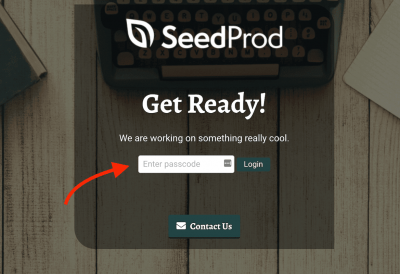
The Bypass URL and password form give you flexible options for letting the right people access your site during development or maintenance. Remember to save your page after configuring either feature.