
SeedProd gives you two ways to resize columns within a section: by setting an exact width through the Layout Navigation panel, or by dragging the column divider directly on the canvas using the Resize Columns handle. Both methods work on any single-column or multi-column layout.
Method 1: Using the Layout Navigation Panel
The Layout Navigation panel lets you set a precise column width by entering a value directly in the column settings.
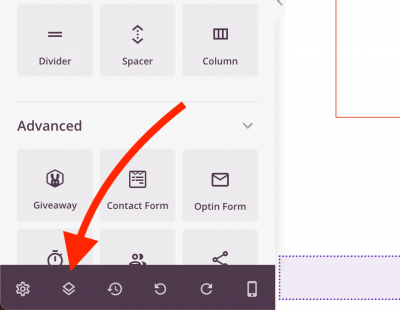
- Open the Layout Navigation panel by clicking its icon at the bottom of the left sidebar in the builder.
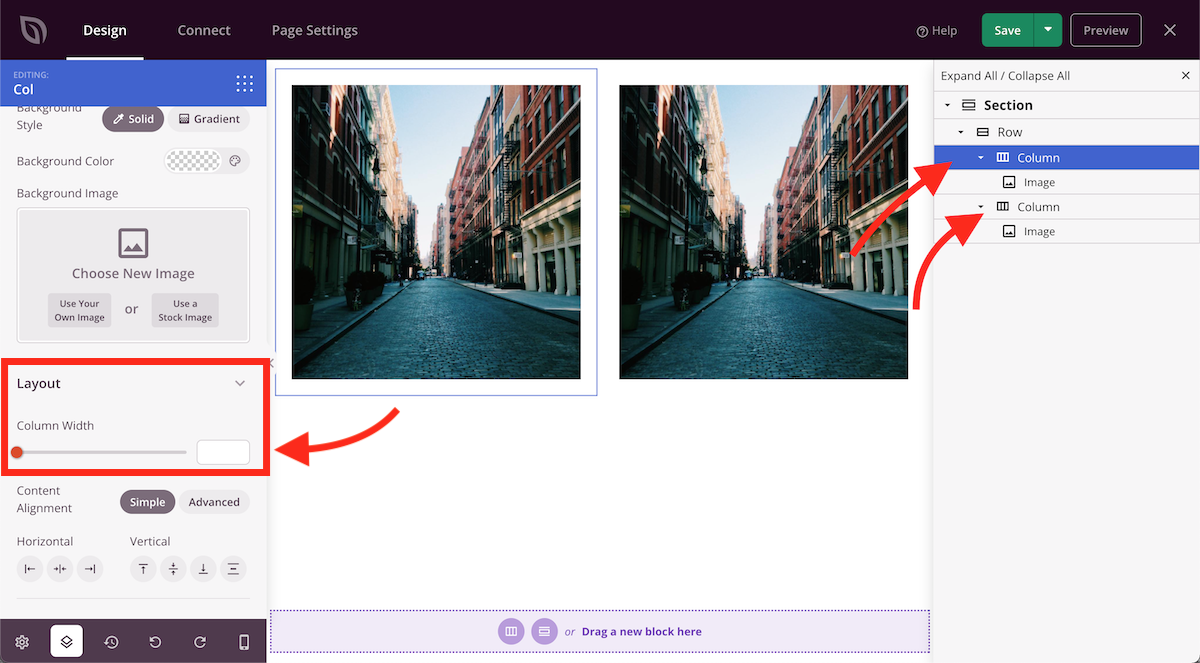
- In the Layout Navigation panel, click the column you want to adjust. Its settings will open in the panel, showing a Column Width option. Enter the width you want to apply.
- Click Save and preview the page to confirm the result.
Method 2: Using the Resize Columns Handle
The Resize Columns handle lets you drag columns to any size directly on the canvas — useful for making quick visual adjustments.
- Hover anywhere inside the section containing the columns you want to resize. The row’s handle options will appear in blue, including the Resize Columns option.
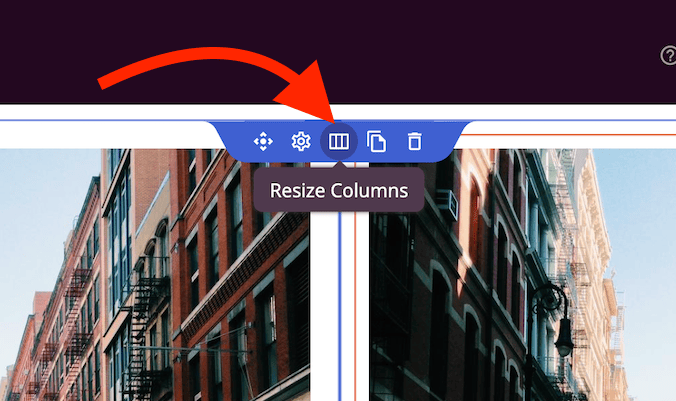
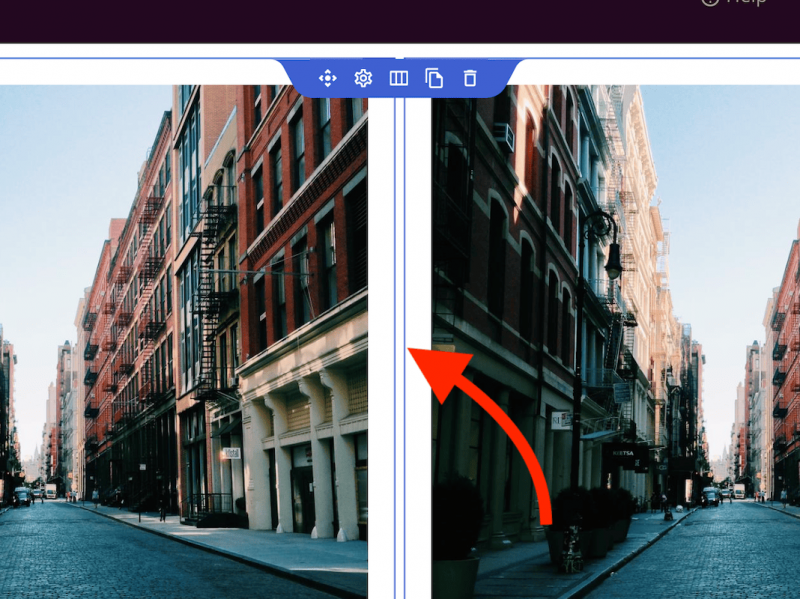
- Click Resize Columns to enter column resize mode. Then click and drag the gutter between any two columns to adjust their sizes proportionally.
- Click Save and preview the page to confirm the result.
You can use either method on any section of your page. Use the Layout Navigation panel when you need a specific width, and the Resize Columns handle when you prefer to adjust by eye directly on the canvas.