
SeedProd includes a set of EDD Template Tag blocks that let you build custom single product templates for the Easy Digital Downloads (EDD) Downloads post type. Each block dynamically pulls data from the current download being viewed — such as its title, price, and featured image — and displays it in the layout you design.
Step 1: Create a Single Template for the Downloads Post Type
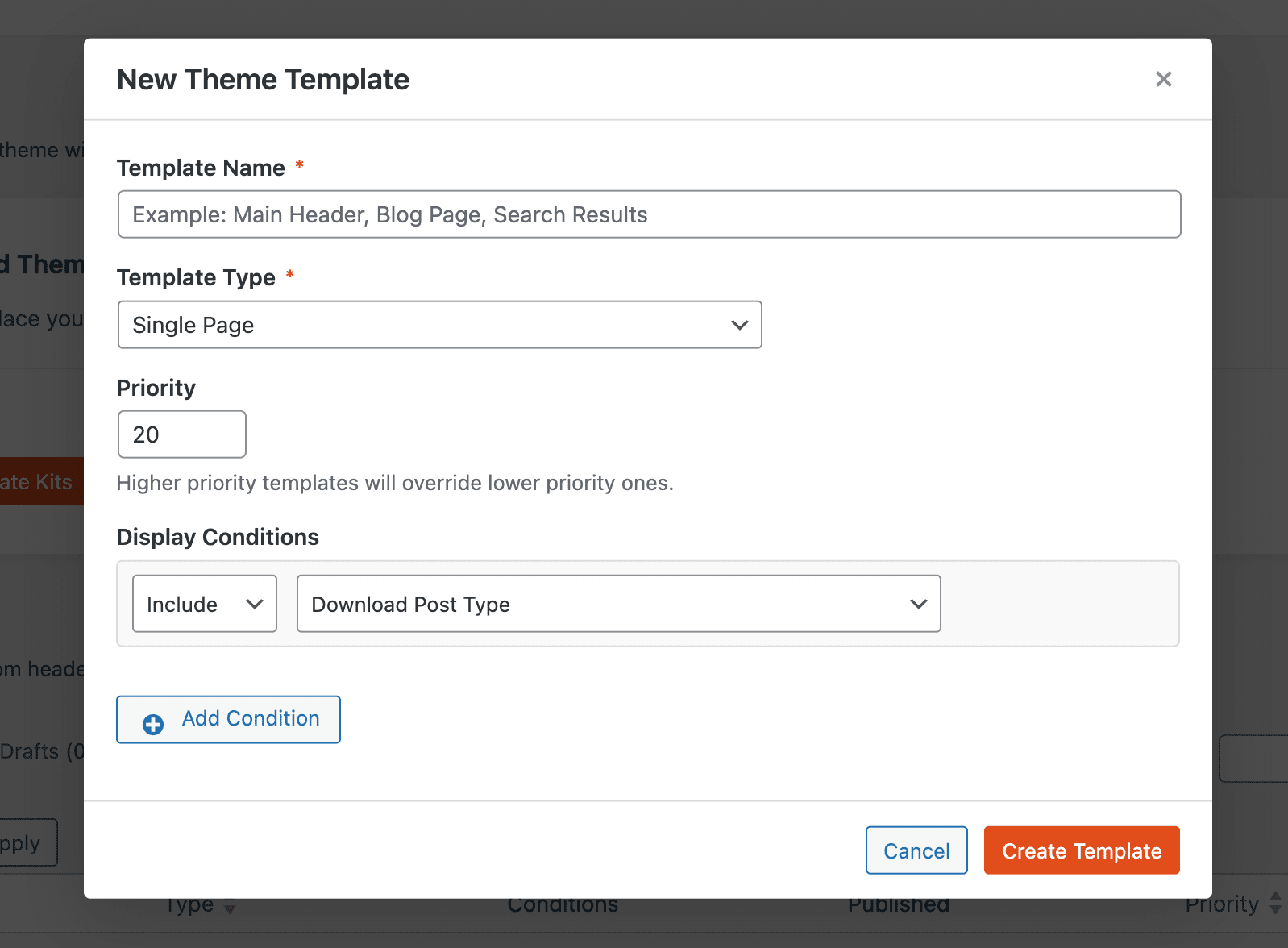
Go to SeedProd > Website Builder and click Add New Template. In the popup, configure the following settings:
- Name: Enter a name to identify this template.
- Type: Select Single Page.
- Conditions: Set the condition to include the Download post type so the template applies to all your EDD download product pages.
Click Create Template to open the template in the SeedProd builder.
Step 2: Add EDD Template Tag Blocks to Your Layout
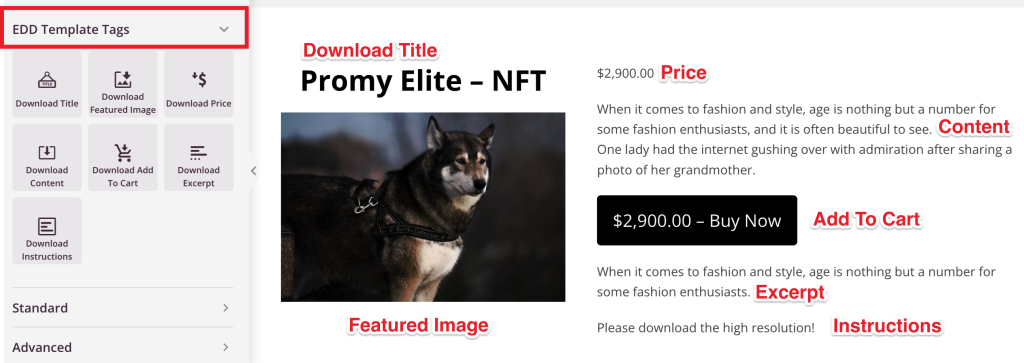
In the builder’s left panel, find the EDD Template Tags block group. Drag and drop the blocks you need into your template layout to build your download product page design.
Available EDD Template Tag Blocks
The following blocks are available in the EDD Template Tags group:
- Download Title: Displays the title of the current download dynamically.
- Download Image: Displays the featured image of the current download dynamically.
- Download Content: Displays the full content body of the current download dynamically.
- Download Excerpt: Displays the excerpt of the current download dynamically.
- Download Instructions: Displays the purchase instructions of the current download dynamically.
- Download Price: Displays the price of the current download dynamically.
- Download Add to Cart: Adds an Add to Cart button for the current download.
Step 3: Publish the Template
When your layout is complete, click the dropdown arrow on the Save button and select Publish. Your EDD download template will immediately begin applying to all download product pages that match the template conditions.
Your EDD download template is now live. Each download product page on your site will use this template and display the correct product data dynamically. You can return to SeedProd > Website Builder at any time to edit the layout or adjust the template conditions.