
Una página de Próximamente te permite trabajar en tu sitio web en privado mientras muestras una página de marcador de posición a los visitantes. Cuando el modo Próximamente está activo, los usuarios conectados ven el sitio normal, mientras que los visitantes ven tu página de Próximamente.
Paso 1: Abrir la configuración de la página de Próximamente
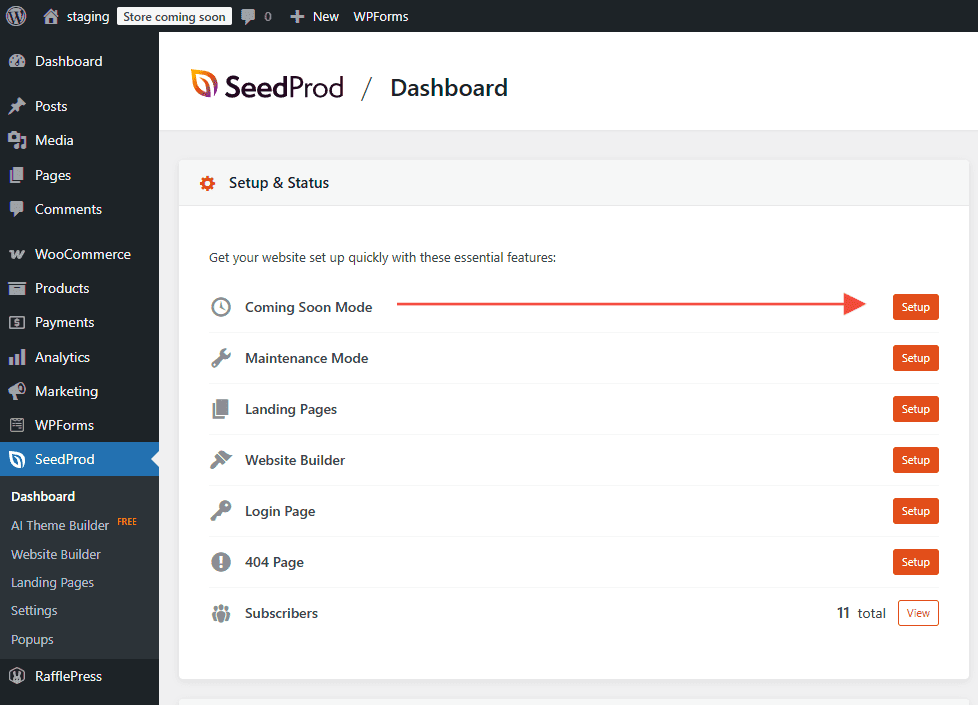
En tu administrador de WordPress, ve al Panel de control de SeedProd y haz clic en el botón Configurar una página de Próximamente junto al interruptor del modo Próximamente.
Paso 2: Elige una plantilla
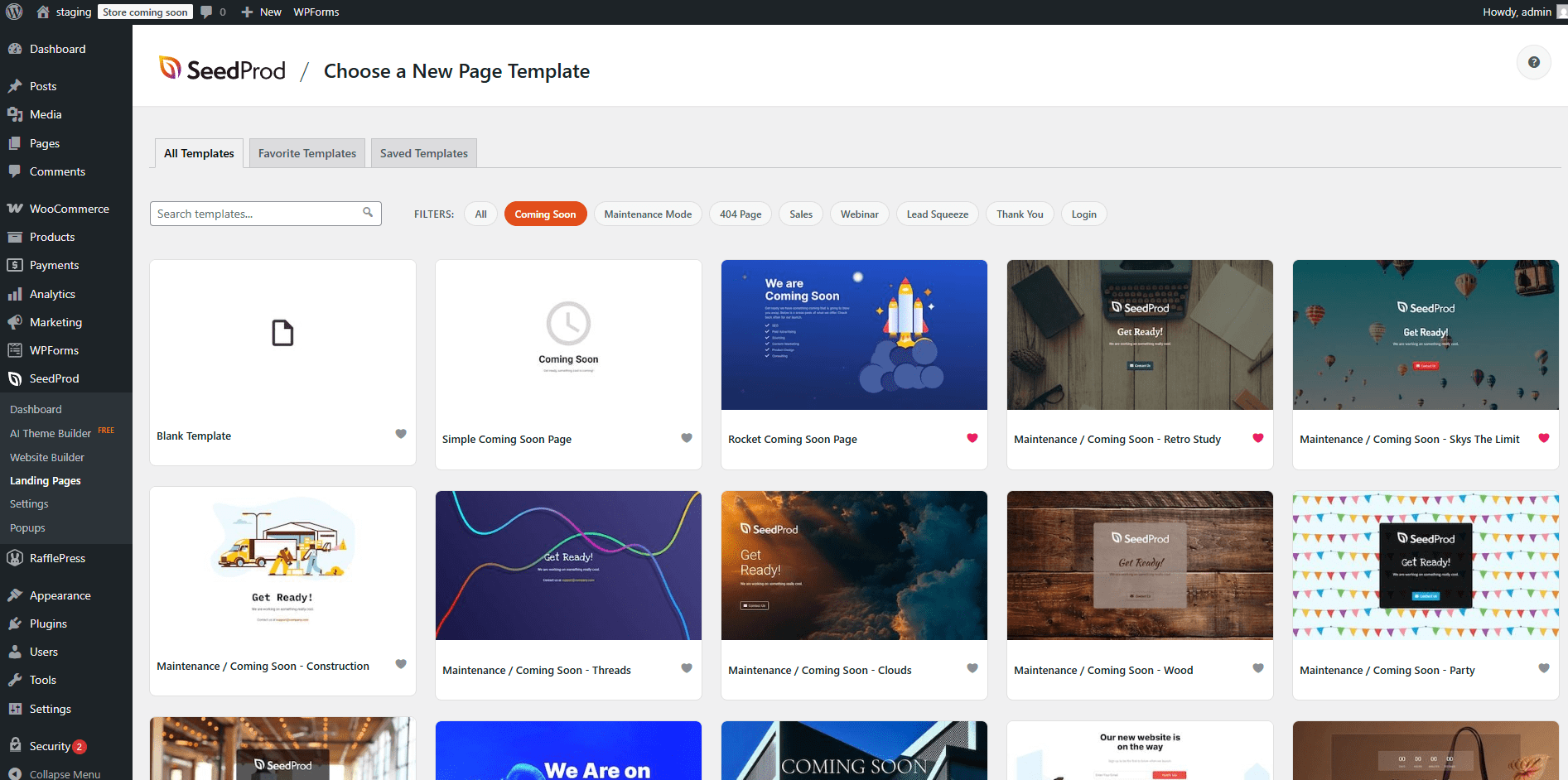
Explora las plantillas de página de Próximamente disponibles y haz clic en una para importarla. También puedes elegir una plantilla en blanco para empezar desde cero.
Paso 3: Diseñar tu página de Próximamente
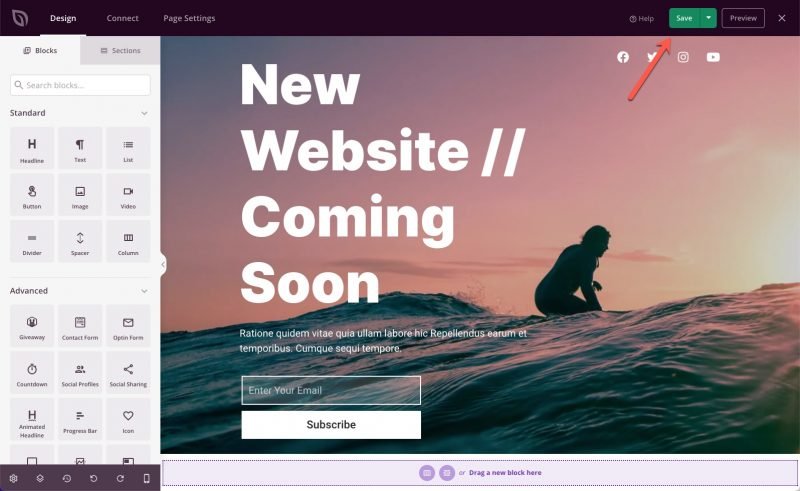
Personaliza tu página de Próximamente en el constructor de arrastrar y soltar de SeedProd. Añade tu marca, un temporizador de cuenta atrás, un formulario de suscripción por correo electrónico o cualquier otro bloque que necesites. Cuando estés satisfecho con el diseño, haz clic en Guardar.
Paso 4: Activar el modo Próximamente
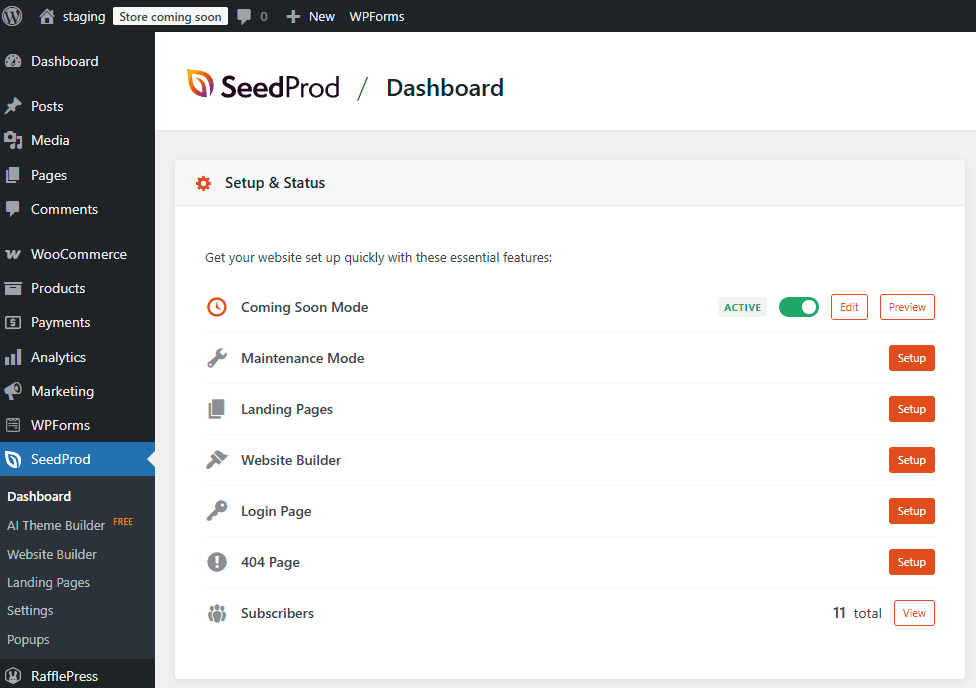
Vuelve al Panel de control de SeedProd y cambia el interruptor del modo Próximamente a la posición activa. Tu página de Próximamente se publicará inmediatamente para todos los visitantes que no hayan iniciado sesión en WordPress.
Tu página de Próximamente ya está en línea. Puedes seguir construyendo tu sitio en privado: los usuarios conectados verán el sitio web normal, mientras que los visitantes verán la página de Próximamente. Para desactivarla cuando tu sitio esté listo para lanzarse, vuelve al Panel de control de SeedProd y desactiva el modo Próximamente. Para un tutorial completo con consejos adicionales, consulta el tutorial completo sobre cómo crear una página de Próximamente en WordPress.