
Moosend es una popular plataforma de marketing por correo electrónico para gestionar campañas y hacer crecer tu lista de suscriptores. Esta guía te muestra cómo conectar Moosend al bloque Formulario de suscripción de SeedProd para que los nuevos suscriptores se añadan automáticamente a tu cuenta de Moosend.
Paso 1: Abrir la Página de Conexión
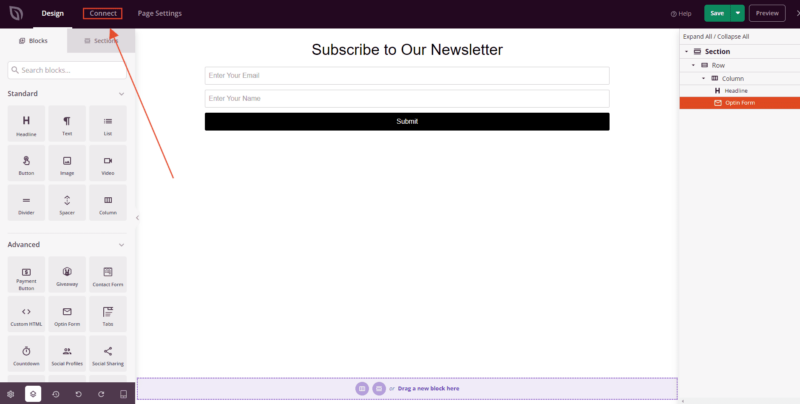
En el editor de SeedProd, haz clic en el enlace Conectar en la barra superior para abrir la sección de Integraciones de correo electrónico.
Paso 2: Seleccionar Moosend
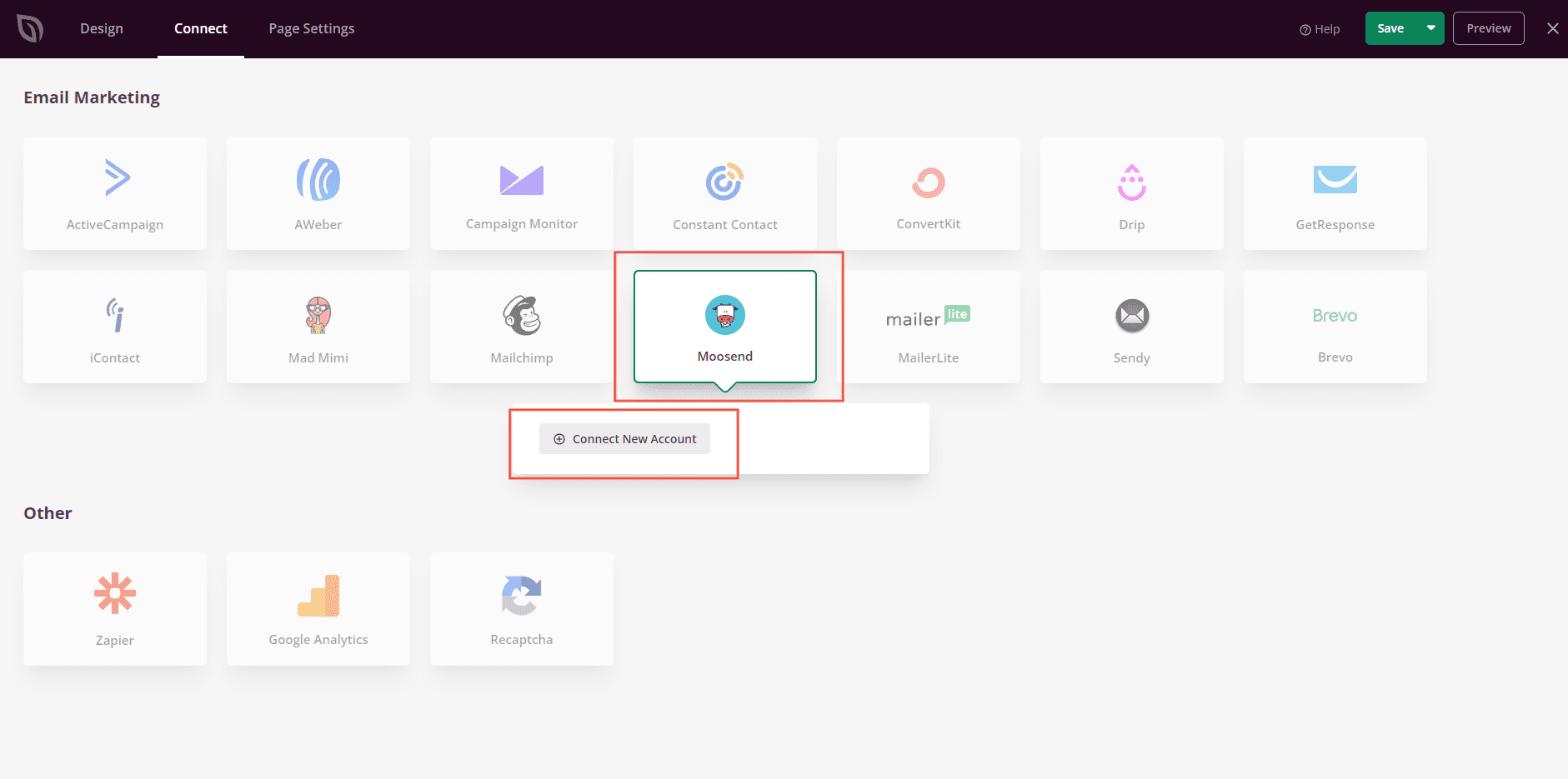
De la lista de integraciones de correo electrónico disponibles, selecciona Moosend y haz clic en Conectar nueva cuenta.
Paso 3: Introduce tu clave API y conecta
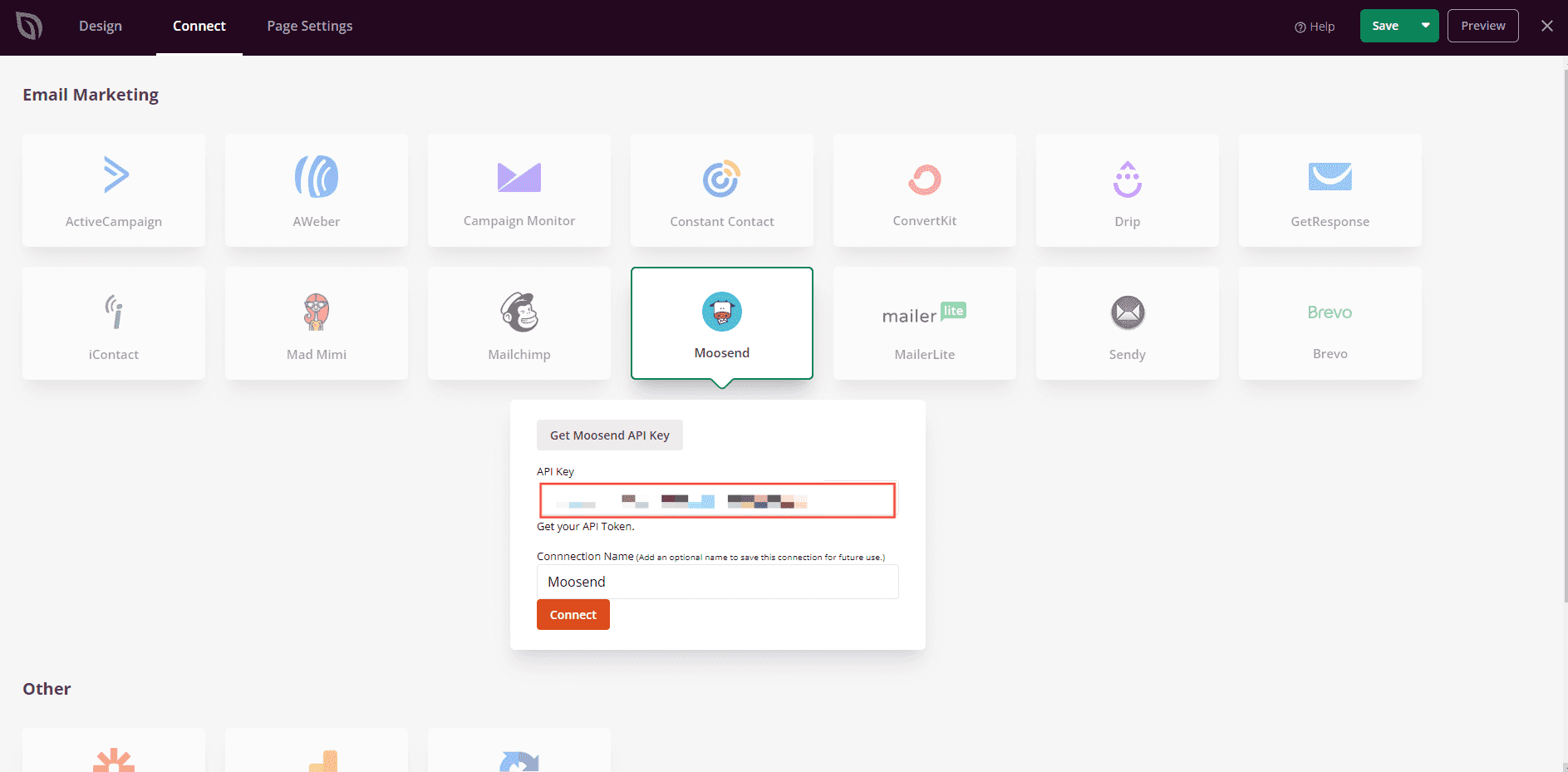
En la configuración de tu cuenta de Moosend, copia tu Clave API y pégala en el campo Clave API en SeedProd. Luego haz clic en el botón Conectar.
Paso 4: Selecciona tu lista y guarda
Selecciona la lista de Moosend donde deseas guardar tus contactos y, a continuación, haz clic en Guardar detalles de la integración.
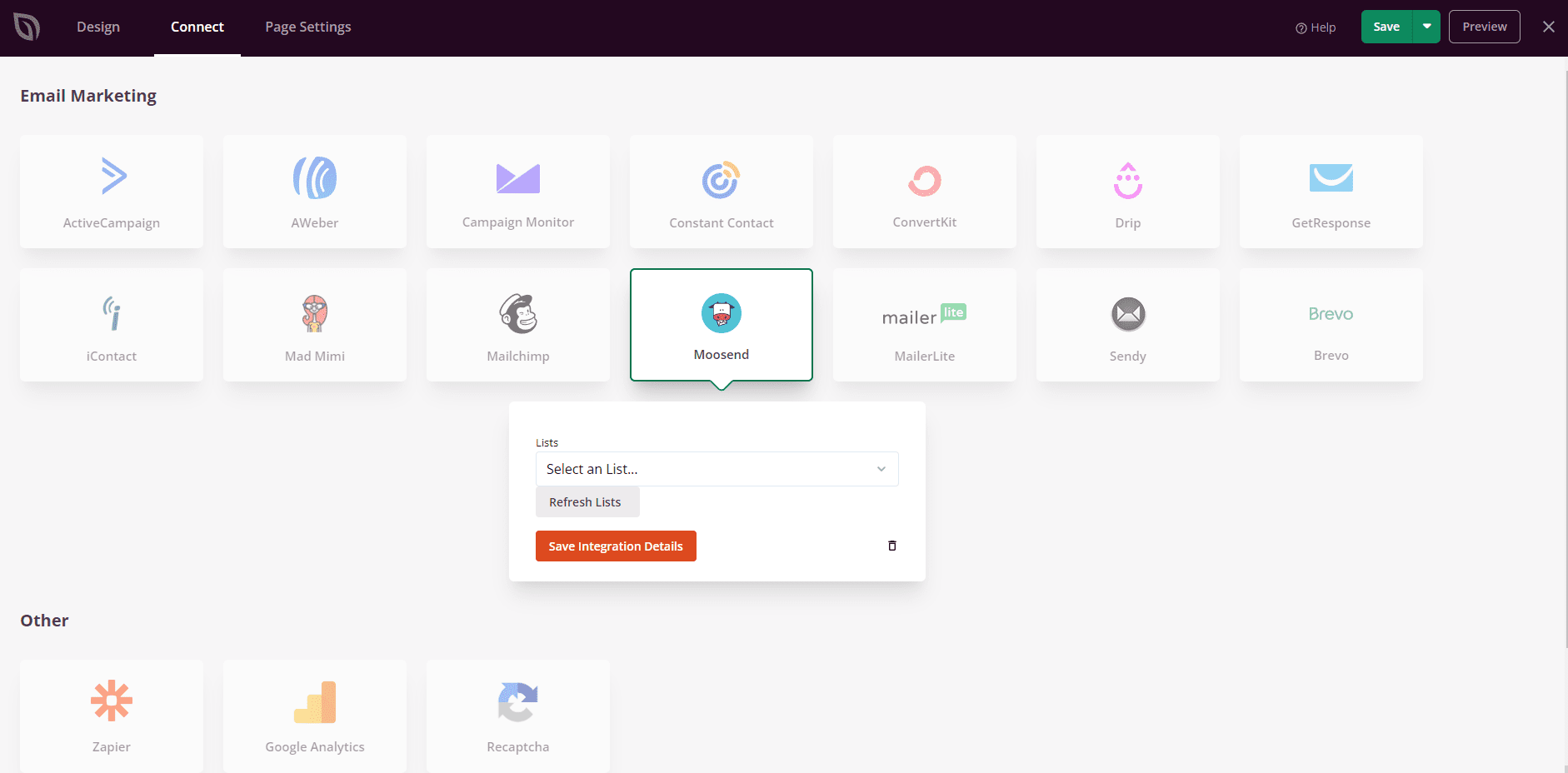
Moosend ya está conectado a SeedProd. Cada vez que un visitante envíe el Formulario de suscripción en tu página, sus datos se añadirán automáticamente a tu lista de Moosend seleccionada.