
Die Funktion Revisionen speichert automatisch frühere Versionen Ihrer Seite, während Sie arbeiten. Sie können den Versionsverlauf durchsuchen, um zu sehen, wann und von wem Änderungen vorgenommen wurden, eine gespeicherte Version in der Vorschau anzeigen und Ihre Seite bei Bedarf in einen früheren Zustand wiederherstellen.
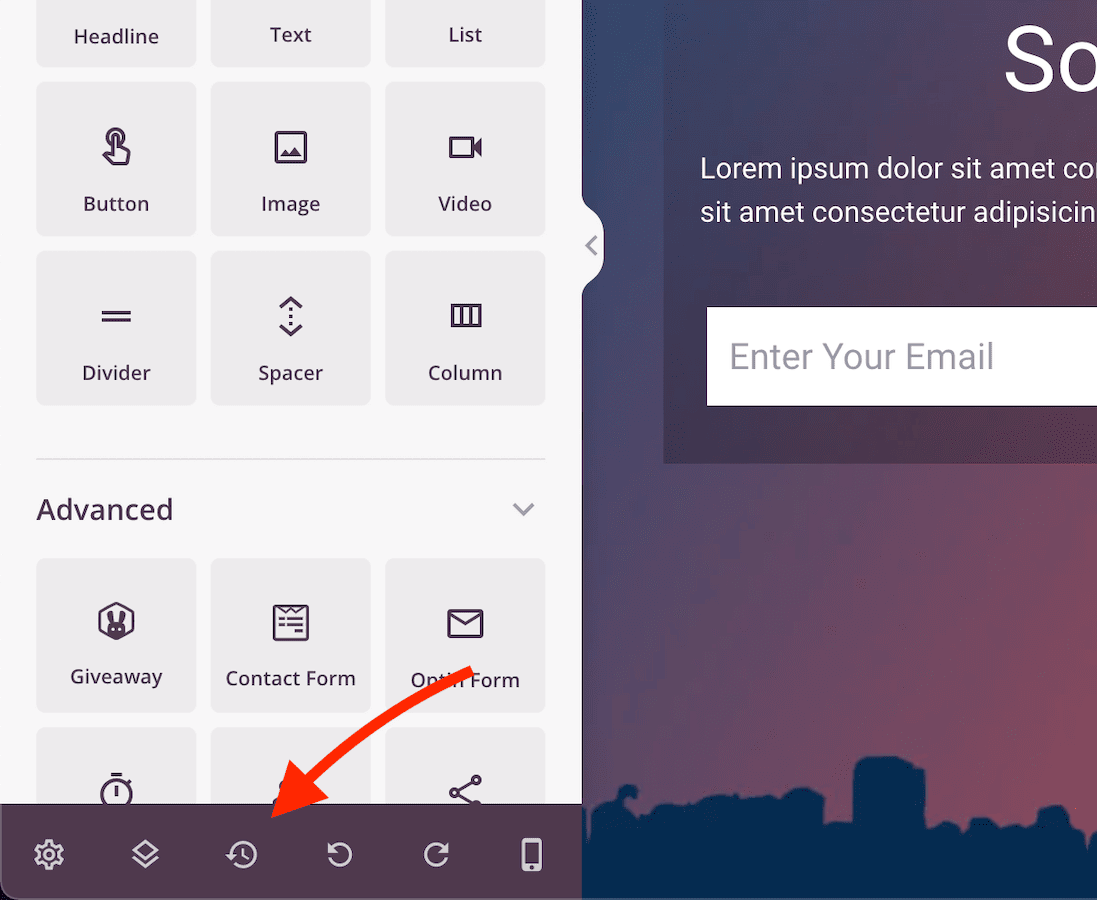
Zugriff auf den Revisionsverlauf
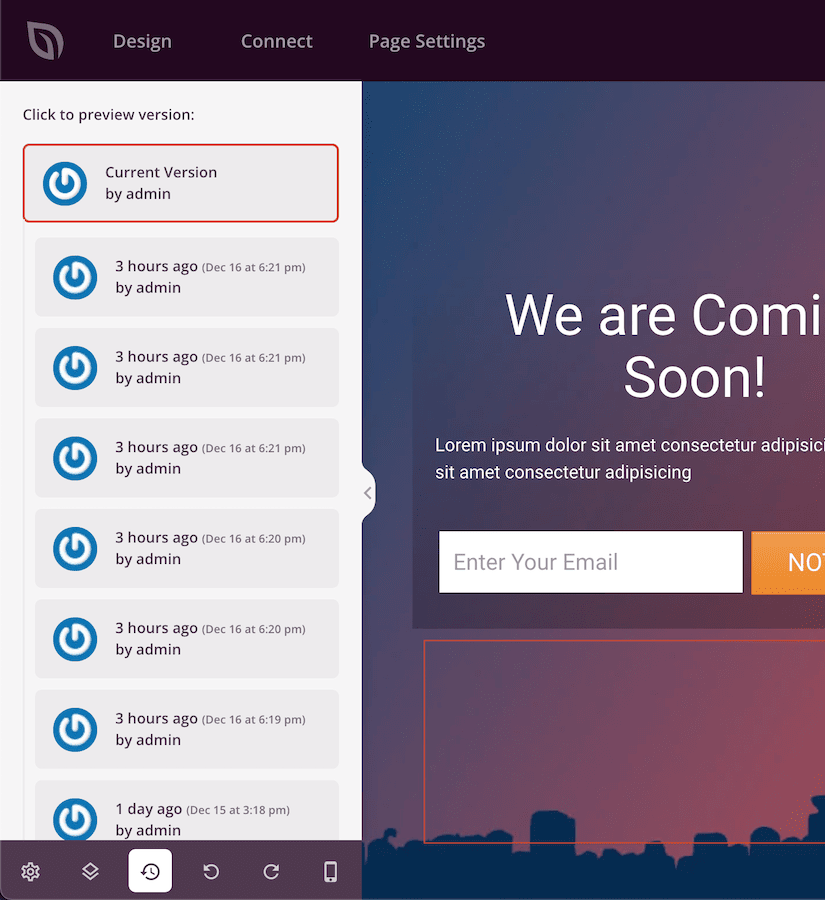
Um den Revisionsverlauf während der Bearbeitung einer Seite zu öffnen, klicken Sie auf das Revisionssymbol unten in der linken Seitenleiste des SeedProd-Builders. Das Revisionsverlaufsfenster wird geöffnet und listet alle gespeicherten Versionen mit Zeitstempeln und dem Benutzer auf, der jede Änderung vorgenommen hat.
Vorschau und Wiederherstellung einer Revision
Klicken Sie auf eine beliebige Version in der Liste, um eine Vorschau Ihrer Seite anzuzeigen, wie sie zu diesem Zeitpunkt aussah. Wenn die Version korrekt aussieht, können Sie von dort aus weiter bearbeiten – Ihre Seite wird in diesen gespeicherten Zustand zurückversetzt und Sie können bei Bedarf weitere Änderungen vornehmen.
Revisionen werden automatisch gespeichert, sodass Sie mit Änderungen experimentieren können, in dem Wissen, dass Sie jederzeit zu einer früheren Version zurückkehren können. Denken Sie daran, nach der Wiederherstellung einer Revision auf Speichern zu klicken, um Ihre wiederhergestellte Version zu behalten.