
Der Block „Bestseller-Produkte“ ermöglicht es Ihnen, Ihre beliebtesten WooCommerce-Produkte in einem durchsuchbaren Raster anzuzeigen. Indem Sie Ihre Top-Seller hervorheben, geben Sie neuen Besuchern ein sofortiges Social-Proof-Signal – dies sind die Produkte, die Ihre Kunden bereits lieben und am häufigsten kaufen.
Sie können steuern, wie viele Produkte angezeigt werden und wie sie sortiert werden, indem Sie die Abfrage-Steuerelemente verwenden. Der Tab „Erweitert“ gibt Ihnen die volle Kontrolle über Typografie, Schaltflächenstile und die Darstellung der Produktbilder des Rasters, um sie an das Branding Ihres Shops anzupassen.
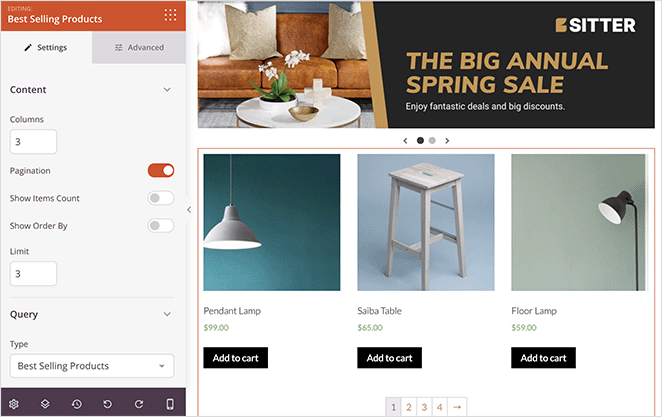
Hinzufügen des Blocks „Bestseller-Produkte“ zu Ihren Seiten
Befolgen Sie diese Schritte, um einen Block „Bestseller-Produkte“ zu Ihrer SeedProd-Seite hinzuzufügen:
Schritt 1: Block hinzufügen
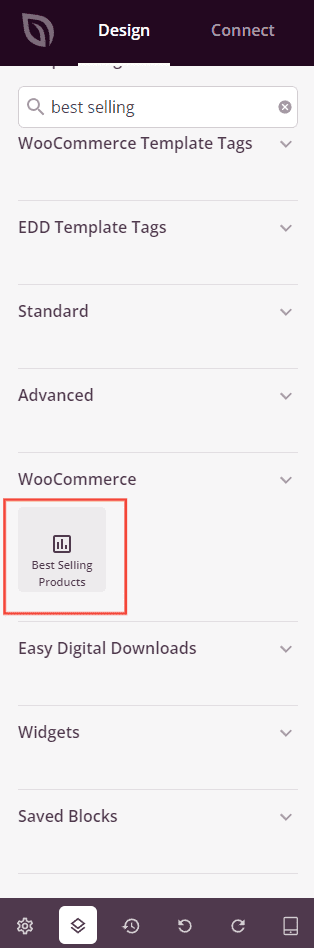
Ziehen Sie unter Design > Blöcke > WooCommerce den Block Bestseller-Produkte per Drag & Drop in den gewünschten Bereich Ihrer Seite.
Schritt 2: Einstellungen konfigurieren
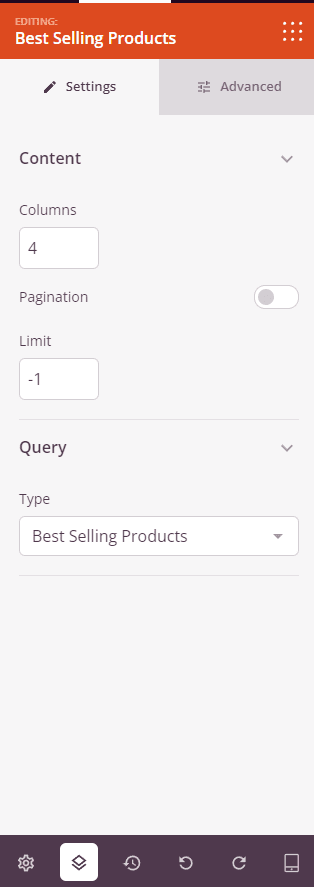
Sobald der Block hinzugefügt wurde, klicken Sie auf den Block „Bestseller-Produkte“, um seine Einstellungen zu öffnen. Im Tab Einstellungen sind die Einstellungen in zwei Abschnitte unterteilt.
Inhalt:
- Spalten: Legen Sie die Anzahl der Produktspalten fest, die im Raster angezeigt werden sollen.
- Paginierung: Schalten Sie diese Option ein, um die Paginierung zu aktivieren und das Produkt-Raster auf mehrere Seiten aufzuteilen.
- Anzahl der Elemente anzeigen: Schalten Sie diese Option ein, um die Gesamtzahl der angezeigten Produkte anzuzeigen.
- Sortierung anzeigen: Schalten Sie diese Option ein, um ein Dropdown-Menü zur Sortierung anzuzeigen, damit Besucher Produkte nach Kriterien wie Preis, Beliebtheit oder Bewertung neu ordnen können.
- Limit: Legen Sie die maximale Anzahl der anzuzeigenden Produkte fest. Verwenden Sie
-1, um alle passenden Bestseller-Produkte anzuzeigen (Standard).
Abfrage:
- Typ: Wählen Sie aus, welche Produkte angezeigt werden sollen – Alle Produkte, Vorgestellte Produkte, Angebote, Bestseller-Produkte, Neueste Produkte oder Top-Bewertete Produkte. Dieser Block zeigt standardmäßig Bestseller-Produkte an.
- Sortieren nach: Legen Sie fest, wie Produkte sortiert werden – nach Datum, Titel, Preis, Beliebtheit, Bewertung, Zufällig oder Menüreihenfolge.
- Reihenfolge: Legen Sie die Sortierrichtung fest – ASC (aufsteigend) oder DESC (absteigend).
Schritt 3: Design anpassen
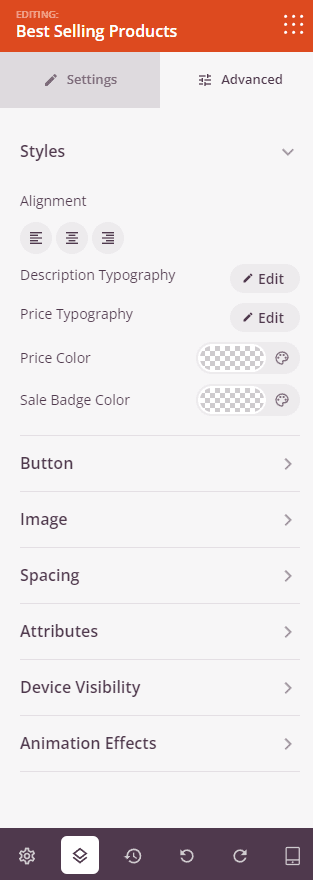
Im Tab Erweitert können Sie das visuelle Erscheinungsbild Ihres Blocks „Bestseller-Produkte“ anpassen. Die Einstellungen sind in drei Abschnitte unterteilt.
Stile:
- Ausrichtung: Legen Sie die horizontale Ausrichtung des Produkt-Rasters fest – Links, Mitte oder Rechts – mit geräteabhängigen Steuerelementen für Desktop, Tablet und Mobilgerät.
- Typografie der Beschreibung: Legen Sie Schriftfamilie, Größe, Zeilenhöhe, Buchstabenabstand, Schriftschnitt, Stil und Groß-/Kleinschreibung für den Text der Produktbeschreibung fest.
- Schriftart für Preise: Legen Sie Schriftfamilie, Größe, Zeilenhöhe, Buchstabenabstand, Schriftschnitt, Stil und Groß-/Kleinschreibung für den Produktpreis fest.
- Farbe für Preise: Legen Sie die Farbe des regulären Produktpreises fest.
- Farbe für Angebote: Legen Sie die Farbe des Angebotspreises fest, wenn ein Produkt reduziert ist.
Schaltfläche:
- Button-Stil: Wählen Sie einen visuellen Stil für die Schaltfläche „In den Warenkorb“ – Flach, 2D, Vintage, Ghost oder Link.
- Button-Farbe: Legen Sie die Hintergrundfarbe der Schaltfläche „In den Warenkorb“ fest.
- Schriftart für Buttons: Legen Sie Schriftfamilie, Größe, Zeilenhöhe, Buchstabenabstand, Schriftschnitt, Stil und Groß-/Kleinschreibung für den Button-Text fest.
- Button-Größe: Wählen Sie eine voreingestellte Button-Größe – Klein, Mittel, Groß, X-Groß oder XX-Groß.
- Abgerundete Ecken: Passen Sie die Rundung der Ecken der Schaltfläche „In den Warenkorb“ mit einem Schieberegler an.
Bild:
- Schatten: Wenden Sie einen Schatten auf Produktbilder an, indem Sie vordefinierte Größen verwenden – Keine, Haarlin, Klein, Mittel, Groß, X-Groß, 2X-Groß oder Schatten unten.
- Rahmenstil: Legen Sie den Rahmenstil von Produktbildern fest – Durchgezogen, Gepunktet oder Gestrichelt.
- Bildrahmenfarbe: Legen Sie die Farbe des Produktbildrahmens fest.
- Rahmenbreite des Bildes: Legen Sie die Rahmenstärke auf jeder Seite (Oben, Rechts, Unten, Links) des Produktbildes fest.
- Leerraum-Abstand des Bildes: Fügen Sie einen inneren Abstand um Produktbilder innerhalb ihres Rahmens hinzu.
Abstand:
- Abstand: Legen Sie den äußeren Abstand um den Block auf allen vier Seiten fest, mit unabhängigen Steuerelementen für Desktop, Tablet und Mobilgerät.
- Innenabstand: Legen Sie den inneren Abstand innerhalb des Block-Wrappers auf allen vier Seiten fest, mit geräteabhängigen Steuerelementen.
Attribute:
- Benutzerdefinierte Klasse: Fügen Sie dem Block-Wrapper eine oder mehrere benutzerdefinierte CSS-Klassen für gezieltes Styling hinzu.
- CSS-ID: SeedProd generiert automatisch eine eindeutige CSS-ID für diesen Block. Sie können diese verwenden, um den Block in benutzerdefiniertem CSS oder JavaScript zu referenzieren.
- Benutzerdefinierte Attribute: Fügen Sie dem Block-Wrapper-Element benutzerdefinierte HTML-Attribute hinzu. Geben Sie jedes Attribut in einer neuen Zeile im Schlüssel|Wert-Format ein.
Gerätesichtbarkeit:
- Auf Desktop ausblenden: Umschalten, um den Block auf Desktop-Bildschirmen auszublenden.
- Auf Tablet ausblenden: Umschalten, um den Block auf Tablet-Bildschirmen auszublenden.
- Auf Mobilgeräten ausblenden: Umschalten, um den Block auf Mobilgeräten auszublenden.
Animationseffekte:
- Scrolleffekt: Wenden Sie eine scrollgesteuerte Animation auf den Block an, einschließlich Optionen für vertikales und horizontales Scrollen mit Steuerelementen für Richtung, Geschwindigkeit und Ansichtsfensterversatz.
- Mauseffekt: Wenden Sie einen Parallax-Effekt auf den Block an, der durch Mausbewegungen gesteuert wird.
Schritt 4: Speichern Sie Ihre Änderungen
Nachdem Sie die Konfiguration des Blocks „Bestseller-Produkte“ und die Anpassung seines Erscheinungsbilds abgeschlossen haben, stellen Sie sicher, dass Sie Ihre Arbeit speichern.
Sie haben erfolgreich einen Block „Bestseller-Produkte“ zu Ihrer Seite hinzugefügt! Ihre Top-Seller in den Vordergrund zu stellen, ist eine der einfachsten Möglichkeiten, die Konversionsrate zu steigern – Käufer vertrauen darauf, was andere Kunden bereits gekauft haben. Erwägen Sie, diesen Block mit einem Werbebanner oder einem Abschnitt mit vorgestellten Produkten zu kombinieren, um ein überzeugendes Einkaufserlebnis zu schaffen, das Besucher fesselt.