
The Video block allows you to embed video content directly on any SeedProd page. You can embed a YouTube video using its URL, or paste a custom embed code from any platform — including Vimeo, Wistia, and others — giving you the flexibility to use whichever video host your content lives on.
Video is one of the most effective tools for increasing engagement and conversions on landing pages. Use this block to showcase product demos, testimonials, explainer videos, or any multimedia content that helps tell your story and keep visitors on your page longer.
Adding the Video Block to Your Pages
Follow these steps to add a Video block to your SeedProd page:
Step 1: Add the Block
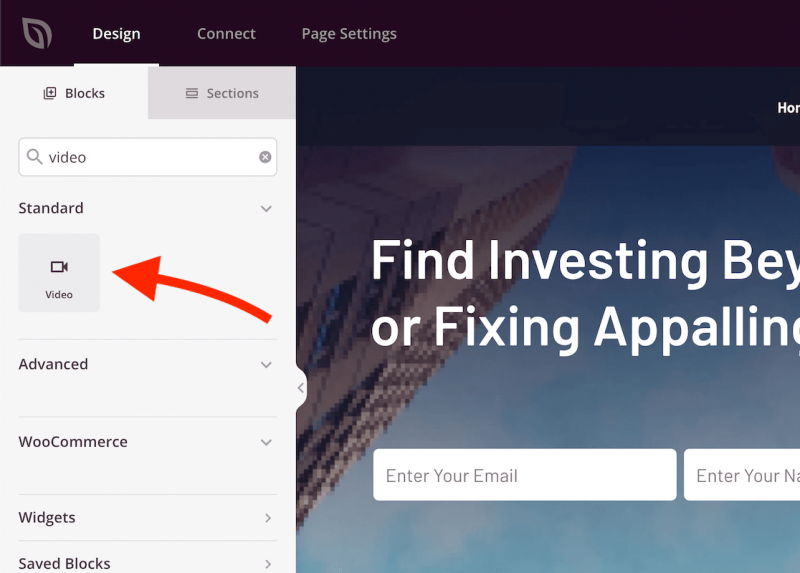
Under Design > Blocks, drag and drop the Video block into the desired section of your page.
Step 2: Configure Content Settings
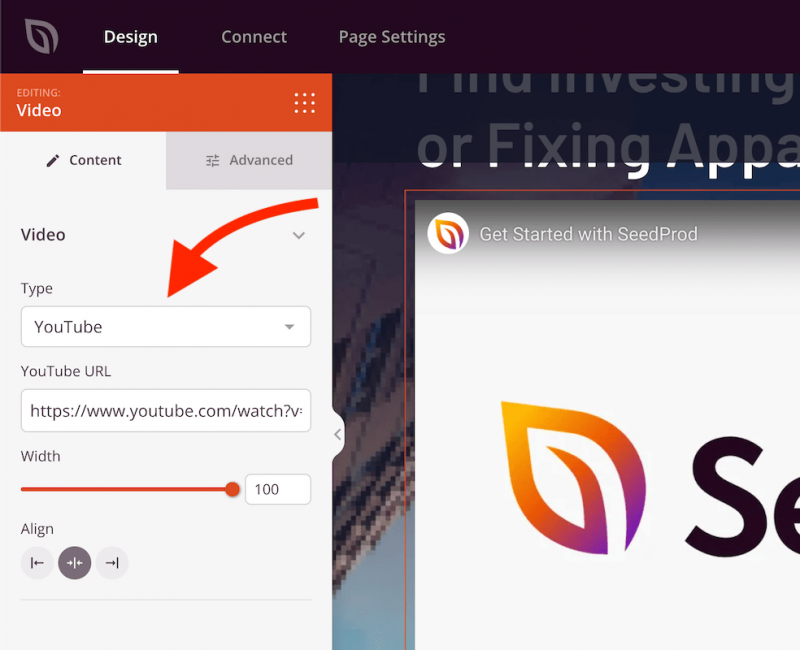
Once added, click on the Video block to open its settings. In the Content tab, you’ll find the following options under the Video section:
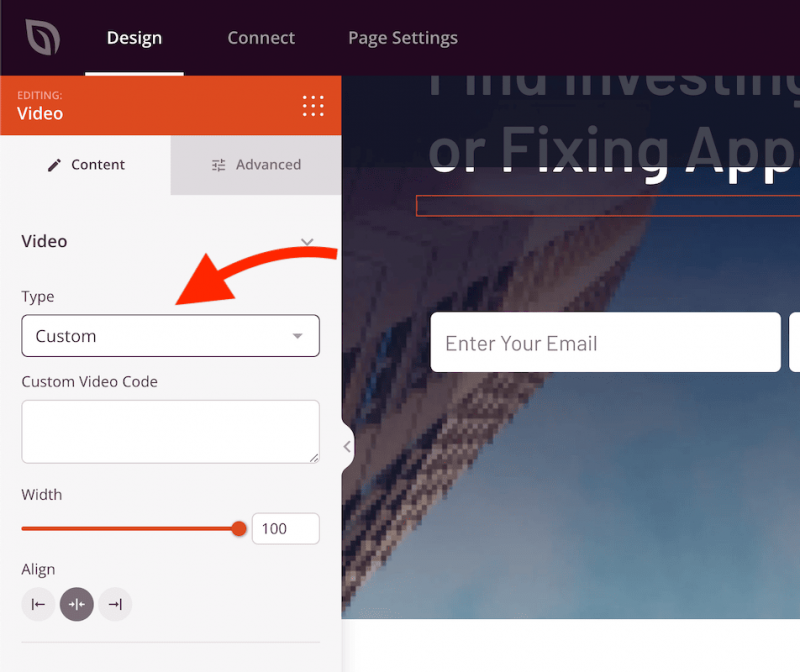
- Type: Choose between YouTube to embed a video by URL, or Custom to paste an embed code from any video platform such as Vimeo, Wistia, or others.
- YouTube URL (YouTube type only): Enter the full URL of the YouTube video you want to embed (e.g.,
https://www.youtube.com/watch?v=MUXoqm3VpRo). - Custom Video Code (Custom type only): Paste the full iframe embed code provided by your video hosting platform.
- Width: Set the width of the video player as a percentage of its container using a slider (default: 100%).
- Alignment: Set the horizontal alignment of the video player — Left, Center, or Right — with per-device controls for desktop, tablet, and mobile.
Step 3: Customize the Design
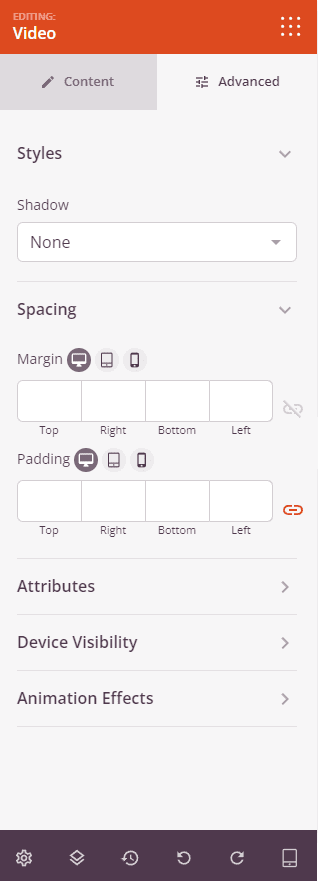
In the Advanced tab, you can customize the visual appearance of your Video block.
Styles:
- Shadow: Apply a box shadow to the video player using preset sizes — None, Hairline, Small, Medium, Large, X Large, or 2X Large.
Spacing:
- Margin: Set the outer spacing around the block on all four sides, with independent controls for desktop, tablet, and mobile.
- Padding: Set the inner spacing inside the block wrapper on all four sides, with per-device controls.
Attributes:
- Custom Class: Add one or more custom CSS classes to the block wrapper for targeted styling.
- CSS ID: SeedProd automatically generates a unique CSS ID for this block. You can use it to reference the block in custom CSS or JavaScript.
- Custom Attributes: Add custom HTML attributes to the block wrapper element. Enter each attribute on a new line using the key|value format.
Device Visibility:
- Hide on Desktop: Toggle to hide the block when viewed on desktop screens.
- Hide on Tablet: Toggle to hide the block when viewed on tablet screens.
- Hide on Mobile: Toggle to hide the block when viewed on mobile screens.
Animation Effects:
- Scrolling Effect: Apply a scroll-triggered animation to the block, including Vertical Scroll and Horizontal Scroll options with direction, speed, and viewport offset controls.
- Mouse Effect: Apply a mouse movement-driven parallax effect to the block.
Step 4: Save Your Changes
Once you have finished configuring the Video block and customizing its appearance, make sure to save your work.
You’ve successfully added a Video block to your page! Whether you’re embedding a YouTube video or a custom player from another platform, video content is a powerful way to communicate your message and increase time-on-page. Use the width, alignment, and shadow settings to seamlessly integrate your video into any page layout.