
テキストブロックを使用すると、SeedProdの任意のページに本文を追加および編集できます。使いやすいエディタでテキストコンテンツの作成とフォーマットを行うことができ、段落、説明、またはページ上のあらゆる文章コンテンツに最適なブロックです。
このブロックには、ビジュアルWYSIWYGエディタと、マークアップを完全に制御するための直接HTMLエディタが含まれています。配置、フォントサイズ、文字色、タイポグラフィを調整したり、オプションで動的なテキストタグを挿入して、訪問者ごとにコンテンツをパーソナライズしたりできます。
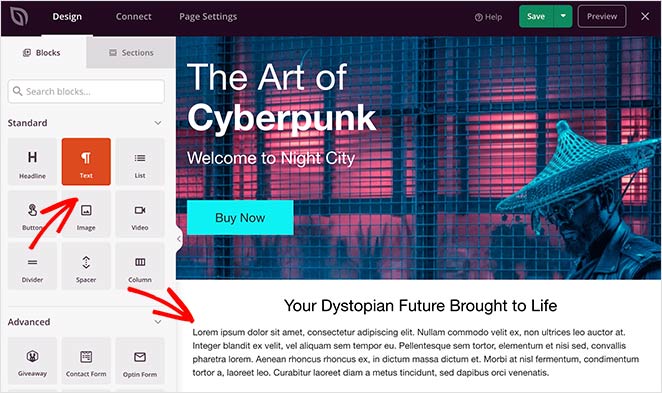
テキストブロックをページに追加する
次の手順に従って、SeedProdページにテキストブロックを追加します。
ステップ1:ブロックを追加する
デザイン > ブロックの下で、テキストブロックをページの目的のセクションにドラッグアンドドロップします。
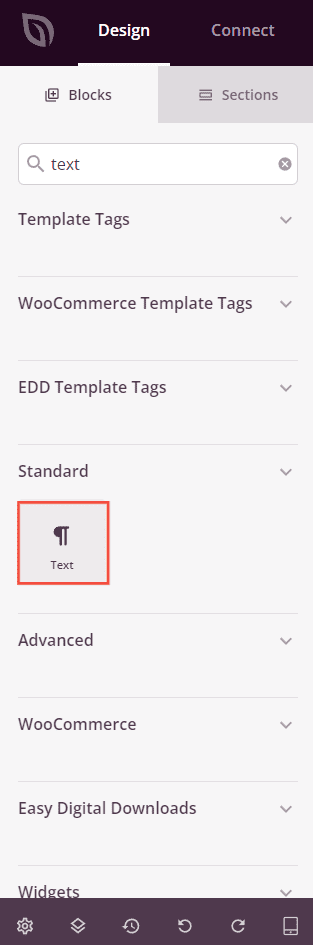
ステップ2:コンテンツ設定を構成する
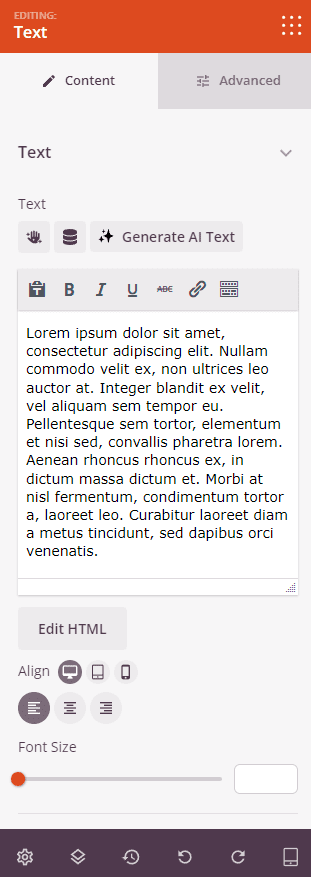
追加したら、テキストブロックをクリックして設定を開きます。コンテンツタブには、次のオプションがあります。
- テキストエディタ: ビジュアルエディタ(WYSIWYG)を使用してテキストコンテンツを入力およびフォーマットするか、HTMLの編集に切り替えてマークアップを直接記述します。ビジュアルエディタは、太字、斜体、リンク、リストなどの標準的なフォーマットオプションをサポートしています。
- テキストの配置: テキストの水平方向の配置(左揃え、中央揃え、右揃え、均等割り付け)を、デスクトップ、タブレット、モバイルごとにデバイス別に設定します。
- フォントサイズ: スライダーを使用して、テキストブロックの基本フォントサイズを調整します。
- 動的テキストの挿入: (訪問者の名前、場所、URLパラメータなど)パーソナライズされた動的タグをテキストに挿入して、訪問者ごとにカスタマイズされたコンテンツを表示します。
ステップ3:デザインをカスタマイズする
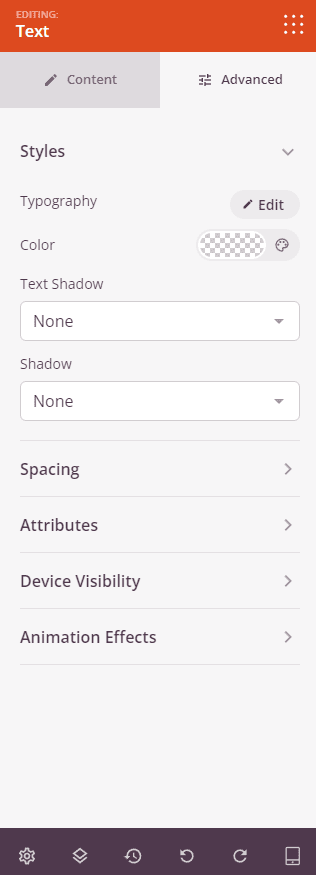
高度な設定タブでは、テキストブロックの視覚的な外観をカスタマイズできます。
スタイル:
- タイポグラフィ: フォントファミリー、サイズ、太さ、スタイル、行の高さ、文字間隔、文字の大文字/小文字を設定します。
- 色: テキストの色を選択します。
- テキストシャドウ: 事前定義されたサイズ(なし、細線、小、中、大、特大、2倍特大)を使用して、テキストに影を適用します。
- ボックスシャドウ: 事前定義されたサイズを使用して、ブロックコンテナに影を適用します。
間隔:
- マージン: ブロックの外側のスペーシングを4つの側面すべてに設定します。デスクトップ、タブレット、モバイルで個別に制御できます。
- パディング: ブロックラッパーの内側のスペーシングを4つの側面すべてに設定します。デバイスごとに制御できます。
属性:
- カスタムクラス: ブロックラッパーに1つ以上のカスタムCSSクラスを追加して、ターゲットを絞ったスタイリングを行います。
- CSS ID: SeedProdは、このブロックに一意のCSS IDを自動的に生成します。カスタムCSSまたはJavaScriptでブロックを参照するために使用できます。
- カスタム属性: ブロックラッパー要素にカスタムHTML属性を追加します。キー|値の形式で、各属性を新しい行に入力します。
デバイス表示:
- デスクトップで非表示: デスクトップ画面で表示されたときにブロックを非表示にするには、トグルします。
- タブレットで非表示: タブレット画面で表示されたときにブロックを非表示にするには、トグルします。
- モバイルで非表示: モバイル画面で表示されたときにブロックを非表示にするには、トグルします。
アニメーション効果:
- スクロールエフェクト: ブロックにスクロールでトリガーされるアニメーションを適用します。方向、速度、ビューポートオフセット制御を備えた垂直スクロールおよび水平スクロールオプションが含まれます。
- マウスエフェクト: マウスの動きによって駆動されるパララックス効果をブロックに適用します。
ステップ4:変更を保存
テキストブロックの設定と外観のカスタマイズが完了したら、必ず作業を保存してください。
これで、ページにテキストブロックが正常に追加されました!明確で適切にフォーマットされたコピーは、効果的なページの最も重要な要素の1つです。タイポグラフィ、色、スペーシングを試して、読みやすく、ブランドに完全に一致するテキストセクションを作成してください。