
検索フォームブロックを使用すると、SeedProdページに完全に機能する検索ボックスを追加でき、訪問者は探しているコンテンツをすぐに見つけることができます。ブログ、ランディングページ、またはウェブサイト全体を構築する場合でも、検索フォームを追加することで、関連コンテンツをすばやく表示し、ユーザーエンゲージメントを維持し、手間を軽減できます。
このブロックは柔軟な設定を提供します。アイコンボタンまたはテキストボタンを選択し、カスタムプレースホルダーを設定し、フォームの高さと幅を制御し、検索入力とボタンの両方の色を微調整できます。フォームを任意の場所に配置し、すべての画面サイズでクリーンで一貫したレイアウトになるようにスペーシングを調整できます。
ページに検索フォームブロックを追加する
次の手順に従って、SeedProdページに検索フォームブロックを追加します。
ステップ1:ブロックを追加する
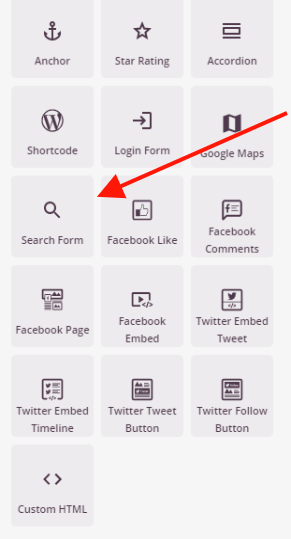
デザイン > ブロックの下で、検索フォームブロックをページの目的のセクションにドラッグアンドドロップします。
ステップ2:コンテンツ設定を構成する
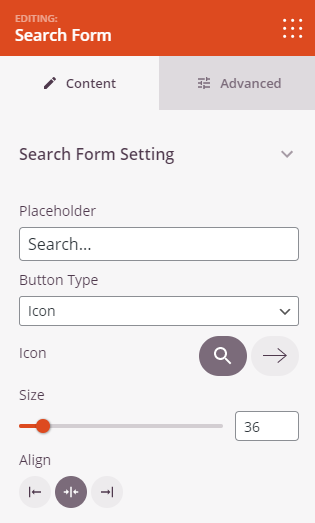
追加したら、検索フォームブロックをクリックして設定を開きます。コンテンツタブの検索フォーム設定セクションで、プレースホルダーテキスト、ボタンのスタイル、フォームのサイズ、配置を設定できます。
- プレースホルダー:訪問者が入力を開始する前に検索入力フィールド内に表示されるヒントテキスト(例:「検索…」または「何をお探しですか?」)を入力します。これにより、ユーザーは何を検索できるかがわかります。
- ボタンタイプ:検索送信ボタンの表示方法を選択します。アイコンはコンパクトなアイコンボタン(虫眼鏡または矢印を選択)を表示し、テキストは完全なテキストラベルボタンを表示します。テキストを選択すると、テキストフィールドが表示され、ボタンのラベル(例:「検索」または「移動」)を設定できます。
- アイコン:(ボタンタイプがアイコンに設定されている場合に表示)検索ボタンに使用するアイコンのスタイルを選択します。円形の虫眼鏡アイコンまたは矢印アイコン。
- サイズ:スライダー(30〜80px)を使用して検索フォーム全体の高さを設定します。これにより、入力フィールドとボタンがページに表示される際の高さが決まります。
- 配置:検索フォームの水平方向の配置を設定します。左、中央、または右。
ステップ3:デザインをカスタマイズする
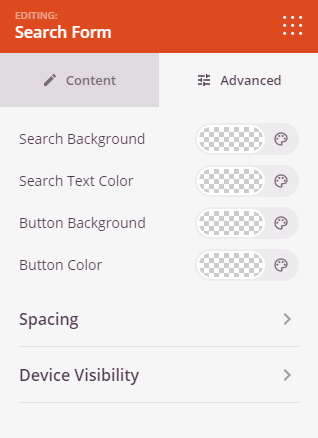
詳細設定タブでは、検索フォームの色と寸法を微調整し、デバイス全体でのスペーシングと表示を制御できます。
色と幅:
- 検索背景:検索入力フィールドの背景色を設定します。
- 検索テキストの色:検索入力フィールドに入力されたテキストの色、およびプレースホルダーテキストの色を設定します。
- ボタンの背景:検索送信ボタンの背景色を設定します。
- ボタンの色:検索送信ボタンのアイコンまたはテキストの色を設定します。
- 幅: 検索フォーム全体の幅を、コンテナのパーセンテージ(10〜100%)で設定します。値を小さくするとフォームが狭くなり、100%に設定するとフル幅の検索バーになります。
間隔:
- マージン: 検索フォームブロックの外側の余白(上、右、下、左)を制御します。これにより、フォームとページ上の周囲の要素との間にどれだけのスペースが表示されるかが決まります。
- パディング: 検索フォームブロックの内側の余白(上、右、下、左)を調整します。これにより、検索フォームとブロックの端の間に十分なスペースが生まれます。
属性:
- CSS ID: 検索フォームブロックの自動生成された一意の識別子を表示します。このIDは、カスタムスタイリングやJavaScriptのターゲット指定のためにSeedProdによって自動的に作成されます。
- カスタムクラス: テーマまたはカスタムCSSから特定のスタイルを適用するためにカスタムCSSクラスを追加します。
- カスタム属性: ブロックのラッパー要素に任意のHTML属性を追加します。各属性を新しい行に、属性名|値の形式(例: data-search|enabled)で入力します。
デバイス表示:
- デスクトップで非表示: デスクトップ画面で検索フォームブロックを非表示にします。
- タブレットで非表示: タブレットデバイスで検索フォームブロックを非表示にします。
- モバイルで非表示: モバイルデバイスで検索フォームブロックを非表示にします。
アニメーション効果:
- 表示アニメーション: 検索フォームブロックがビューにスクロールインしたときに再生される、さまざまなアニメーション効果から選択します。オプションには、バウンス、フェードイン、ズームイン、ローテートインなどがあります。
ステップ4:変更を保存
検索フォームブロックの設定が完了し、外観のカスタマイズが終わったら、必ず作業内容を保存してください。
検索フォームブロックをページに追加しました!適切に配置された検索フォームは、訪問者がサイトを離れることなく必要なものを正確に見つけられるようにすることで、ナビゲーションを改善し、エンゲージメントを維持します。ボタンのスタイル、入力フィールドの色、幅の設定を試して、ページのデザインにシームレスにフィットする検索エクスペリエンスを作成してください。