
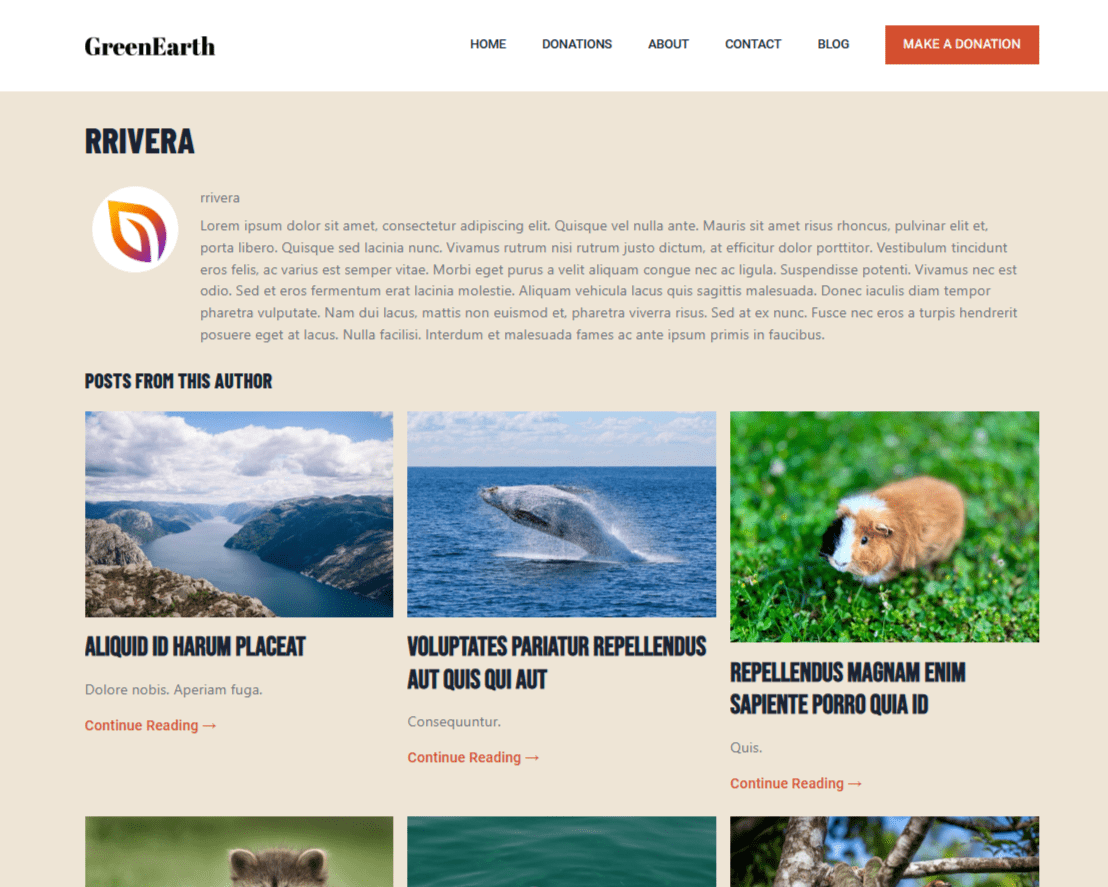
An Author template in the SeedProd Website Builder lets you design a custom layout for author archive pages — the pages that display a list of posts written by a specific author along with their biography and profile details.
Step 1: Add a New Author Template
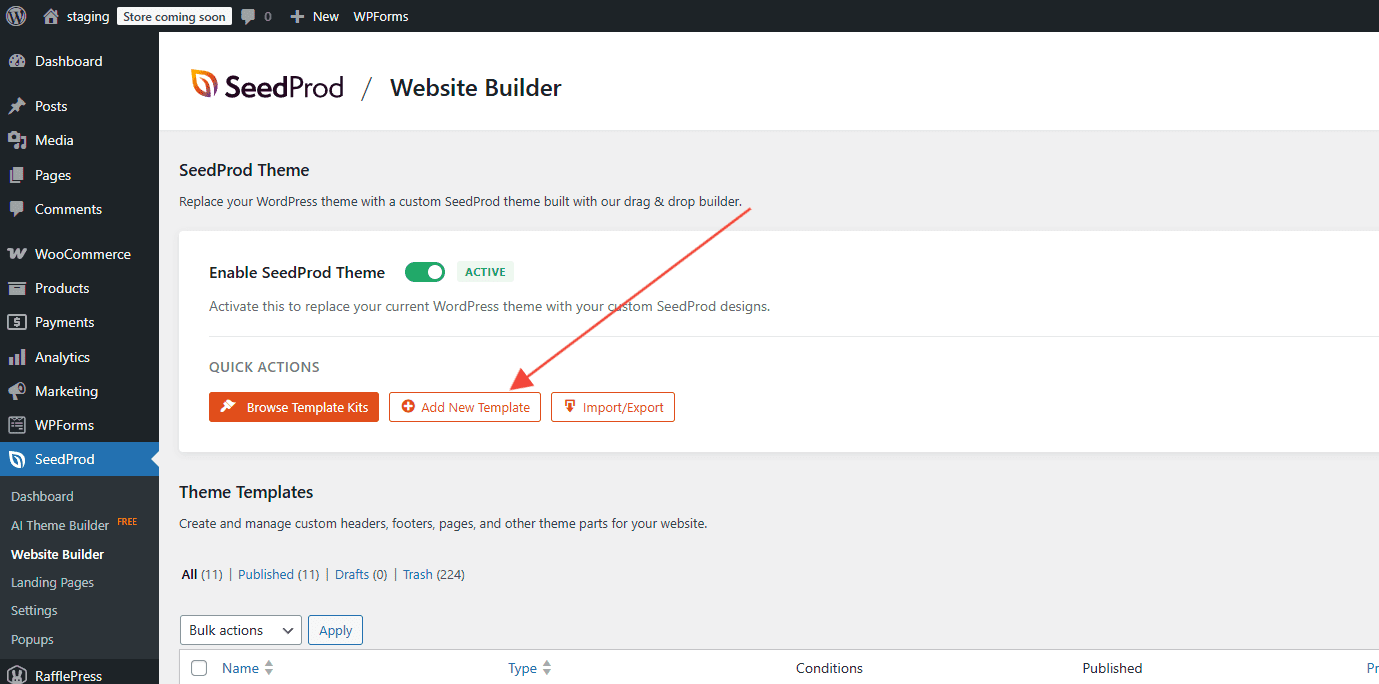
In your WordPress admin, go to SeedProd > Website Builder and click Add New Template.
Step 2: Configure the Template Settings
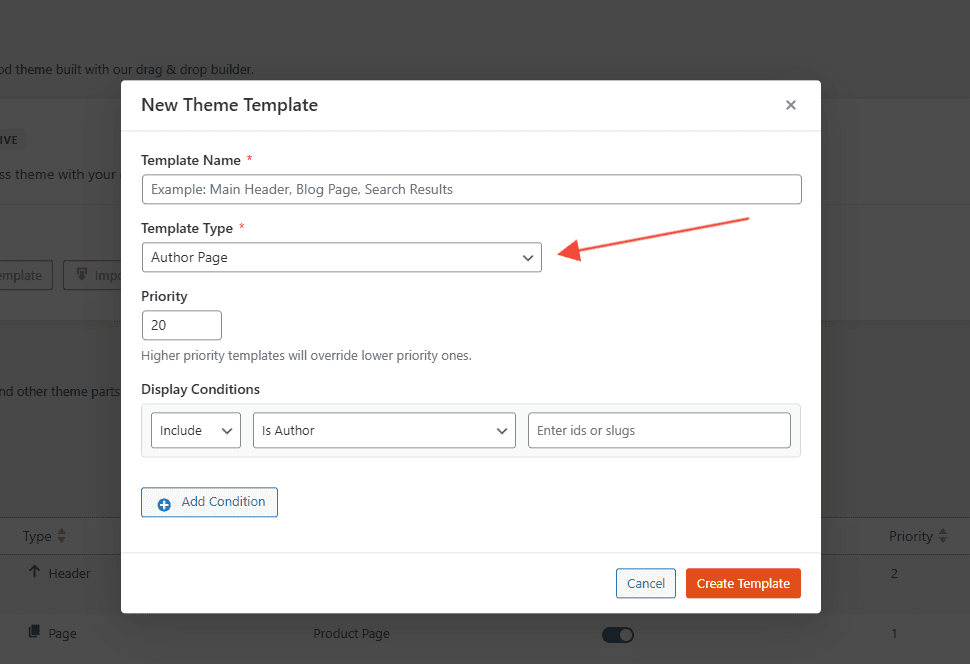
In the New Theme Template popup, configure the following settings:
- Name: Enter a name to identify this template.
- Type: Select Author Page from the dropdown.
- Conditions: Set the display conditions — for example, include all authors or target a specific author.
- Priority: Set a priority number to manage which template applies when conditions overlap.
Click Create Template to open the template in the SeedProd builder.
Step 3: Add Author Information Blocks
Inside the builder, add blocks to display the author’s information. SeedProd offers two options depending on how much detail you want to show:
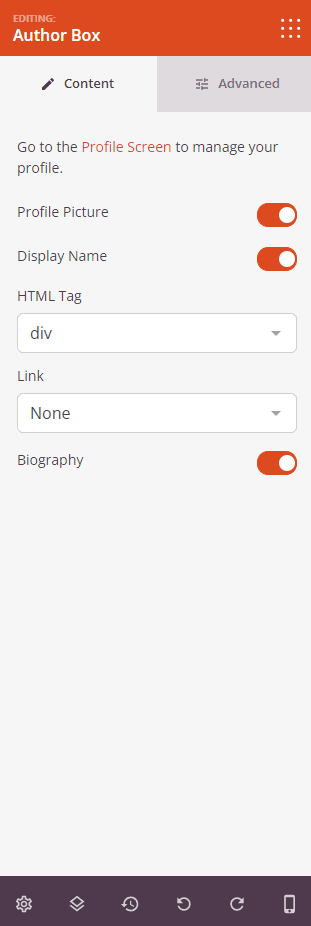
Author Box — displays the author’s profile image, name, and bio all in one block. Drag it from the block panel into your template layout.
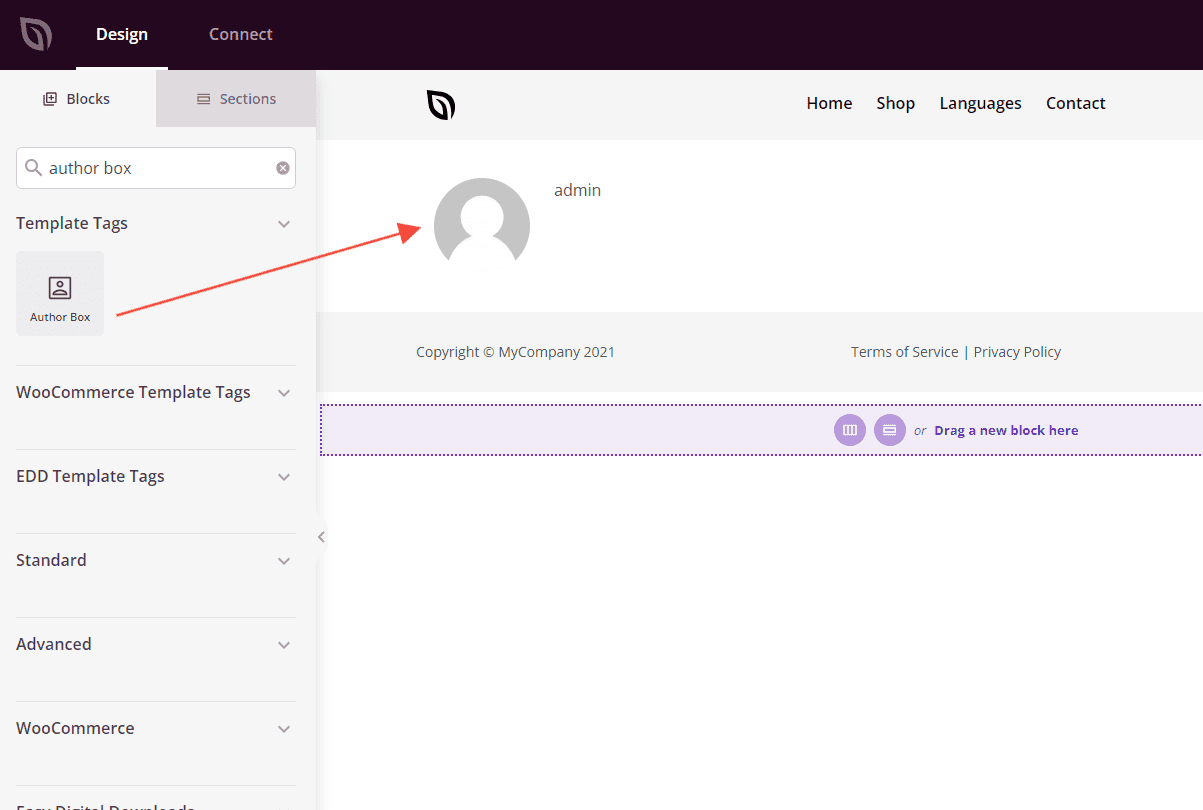
The Author Box block includes settings to customize how the author’s details are displayed.
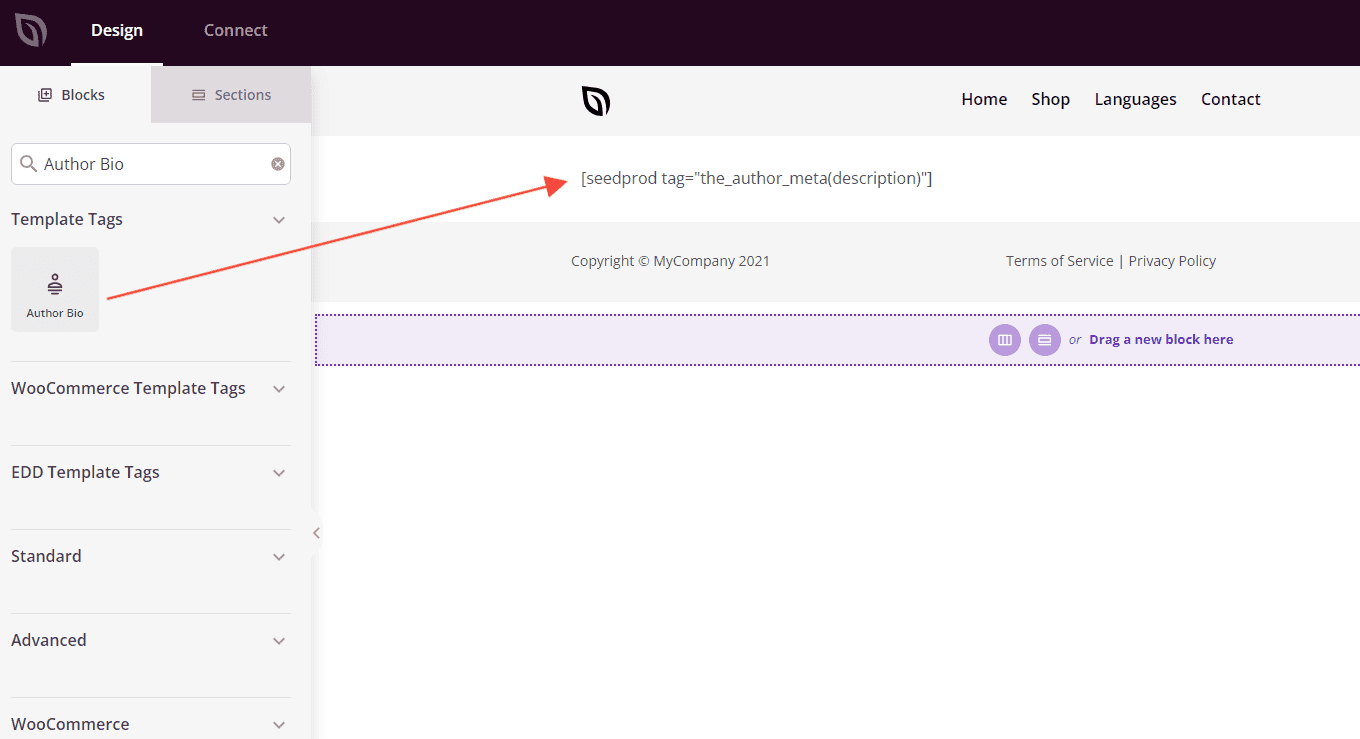
Author Bio — displays only the author’s bio text without the profile image or name. Use this if you prefer a simpler presentation or want to arrange author details independently.
Step 4: Add the Posts Block to Display Author Posts
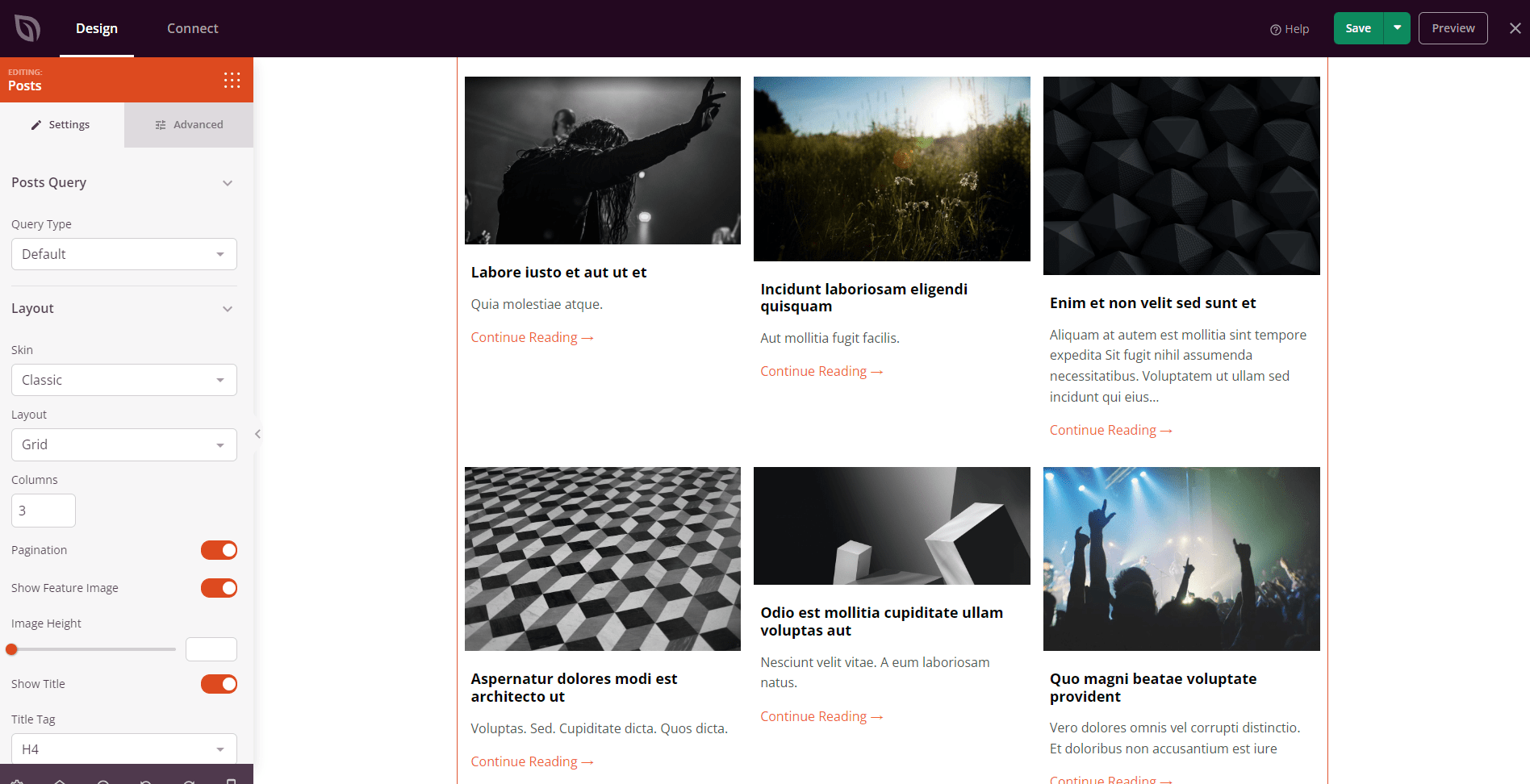
Drag the Posts block into your template to display the list of posts written by the current author. In the block settings, set the Query Type to Default — this ensures the block automatically shows only the posts belonging to the author being viewed.
Step 5: Publish the Template
When your layout is complete, click the dropdown arrow on the Save button and select Publish. Your Author template will immediately begin applying to the author archive pages that match its display conditions.
Your Author template is now live. Visitors who click on an author’s name will see your custom layout with their bio and posts displayed automatically. You can return to SeedProd > Website Builder at any time to edit the template or adjust its conditions.