
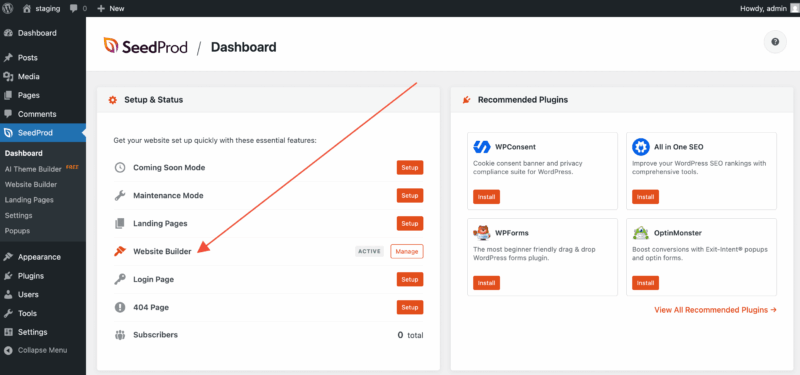
SeedProdウェブサイトビルダーを使用すると、1行のコードも触れることなく、完全なWordPressテーマをデザインおよび構築できます。ドラッグアンドドロップインターフェイスを使用して、ヘッダー、フッター、ページテンプレート、投稿テンプレート、アーカイブページなど、サイトのすべての部分をWordPress内で作成できます。
WordPressテーマとは?
WordPressテーマは、ウェブサイト全体のルックアンドフィール(レイアウト、タイポグラフィ、色、およびさまざまなページタイプの表示方法)を制御します。従来のテーマは、ヘッダー、フッター、サイドバー、シングル投稿レイアウト、アーカイブレイアウトなどのテンプレート部分を定義するPHP、CSS、およびJavaScriptファイルで構成されています。
SeedProdウェブサイトビルダーを使用すると、これらのすべてのテンプレート部分をドラッグアンドドロップで視覚的に構築および管理できます。テーマファイルの編集は不要です。
はじめに:既製のテーマ
始めるための最も簡単な方法は、SeedProdの既製のテーマのいずれかを使用することです。これらのすぐに使えるデザインは、さまざまな業界や機会に対応しており、新しいテーマも定期的に追加されています。
スターターテーマ
スターターテーマは、クリーンでミニマルなテーマで、ホームページテンプレート、ヘッダー、フッター、サイドバー、シングル投稿テンプレート、シングルページテンプレート、アーカイブテンプレートなど、すべての必須テンプレートパーツが含まれています。アーカイブテンプレートは、デフォルトでブログページ、検索結果、およびサイト上の他のすべてのアーカイブページに使用されます。
スターターテーマをロードしたら、すぐにSeedProdビルダー内でサイトのカスタマイズを開始できます。
テーマテンプレートの作成
サイトの任意のパーツの個別のテーマテンプレートをゼロから作成できます。SeedProdのテンプレートタグ機能を使用すると、投稿タイトル、アイキャッチ画像、投稿コンテンツ、ナビゲーションなどの動的な投稿データをテンプレートに直接取り込むことができます。
ステップ1:新しいテンプレートを追加する
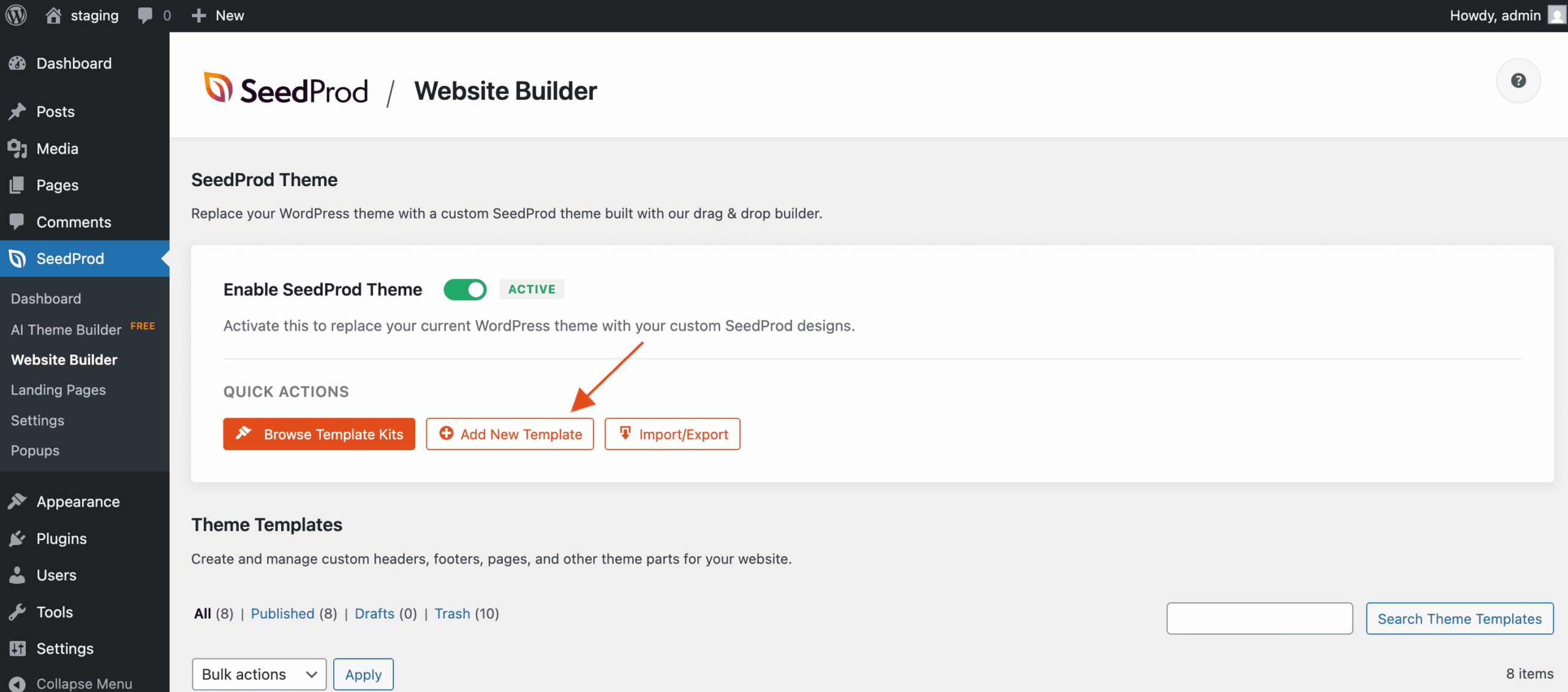
WordPress管理画面でSeedProd > Website Builderに移動し、ページの上部にあるAdd New Templateボタンをクリックします。
ステップ2:テンプレートタイプを選択し、条件を設定する
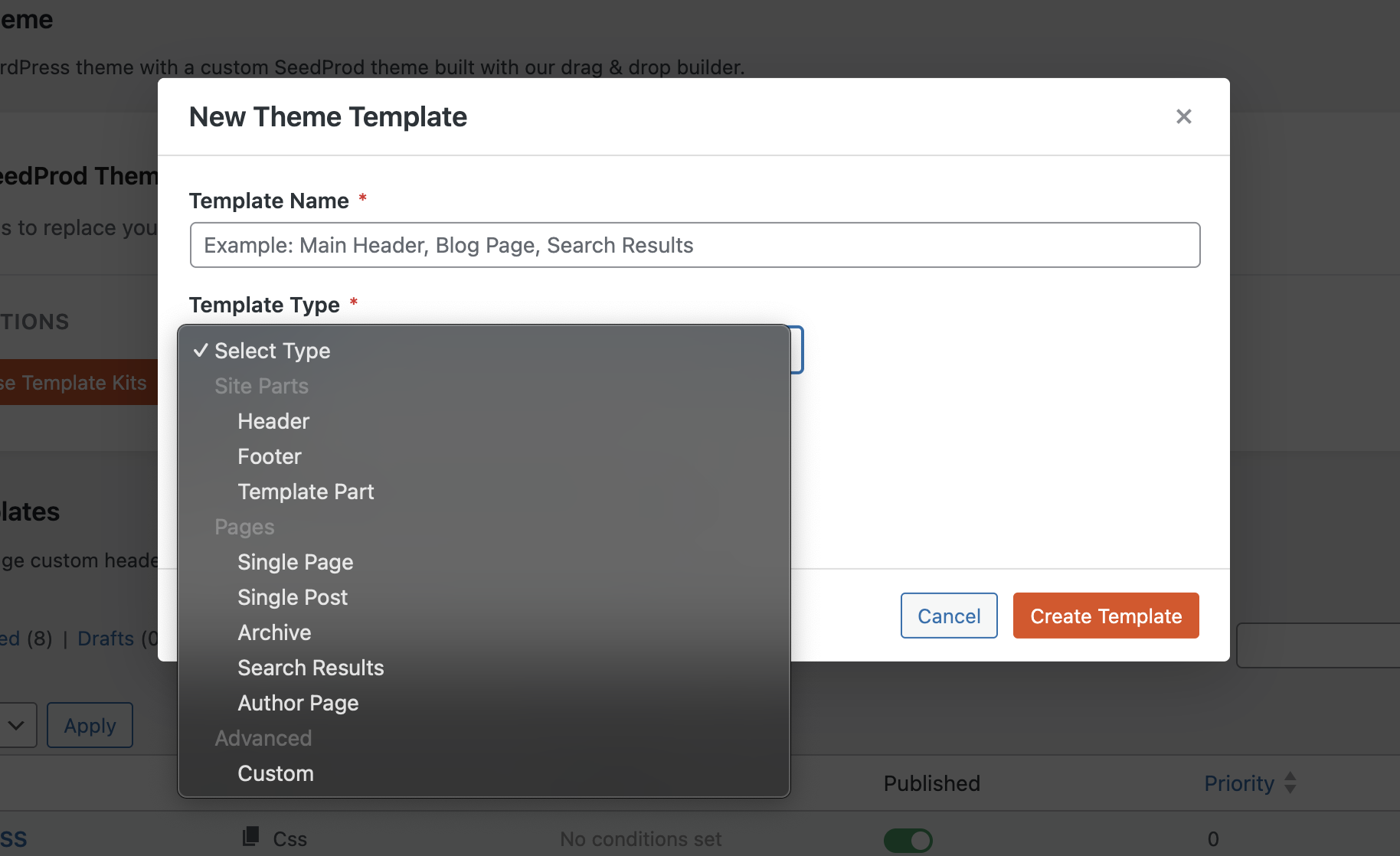
New Templateモーダルで、作成したいテンプレートタイプを選択し、サイトのどこに表示されるかを制御するテンプレート条件を設定します。
ステップ3:ビルダーでデザインする
Create TemplateをクリックしてSeedProdページビルダーを開き、デザインを開始します。事前に構築されたセクションをカスタムテンプレートデザインの開始点として使用できます。
利用可能なテンプレートタイプ
ヘッダー
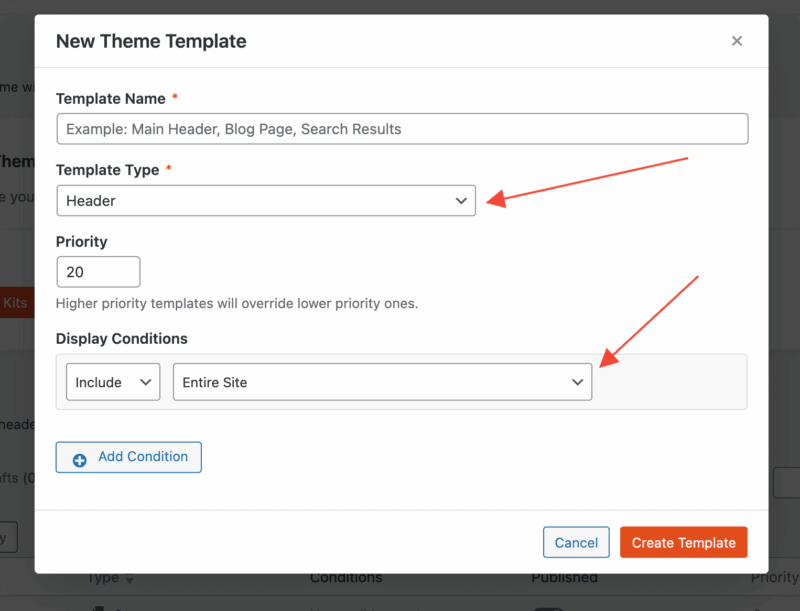
ヘッダーテンプレートを作成するには、新しいテーマテンプレートモーダルでHeaderタイプを選択します。ヘッダーが表示されるタイミングと場所を制御するためにテンプレート条件と優先度を設定し、Saveをクリックしてビルダーでのデザインを開始します。
フッター
フッターテンプレートを作成するには、フッタータイプを選択します。条件と優先順位を設定してから、保存をクリックしてビルダーでフッターのデザインを開始します。
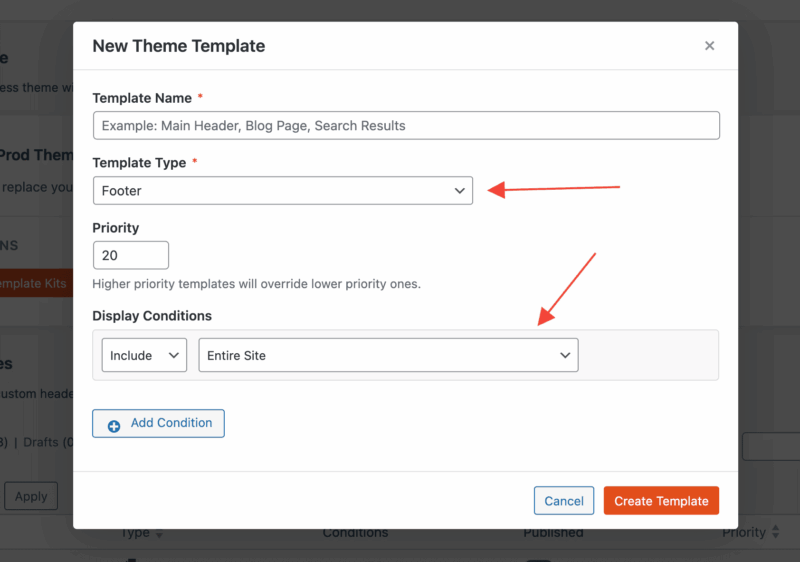
シングル投稿テンプレート
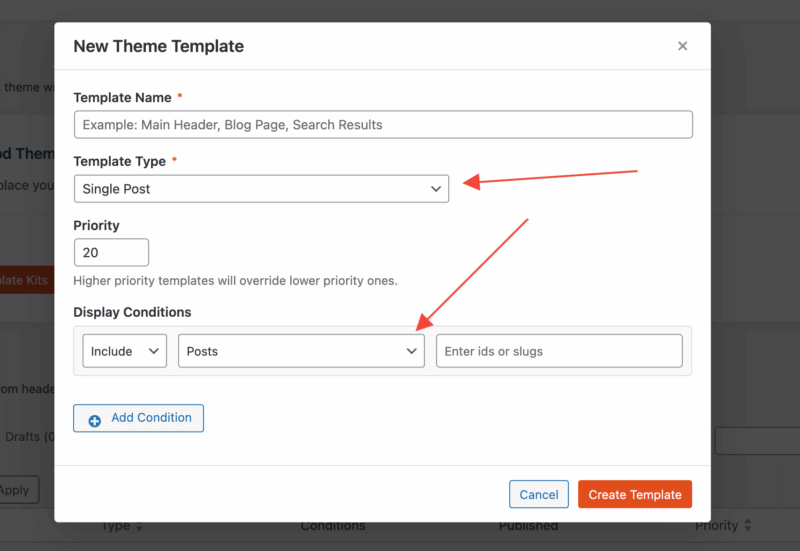
個々のブログ投稿用の動的テンプレートを作成するには、シングル投稿タイプを選択します。テンプレートの条件を設定してから、保存をクリックしてデザインを開始します。
シングルページテンプレート
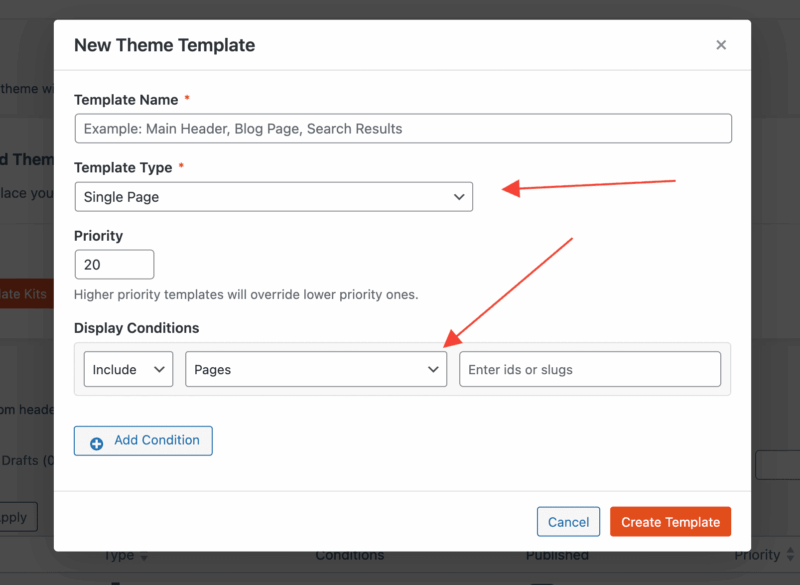
個々のページ用の動的テンプレートを作成するには、シングルページタイプを選択します。テンプレートの条件を設定してから、保存をクリックしてデザインを開始します。
アーカイブテンプレート
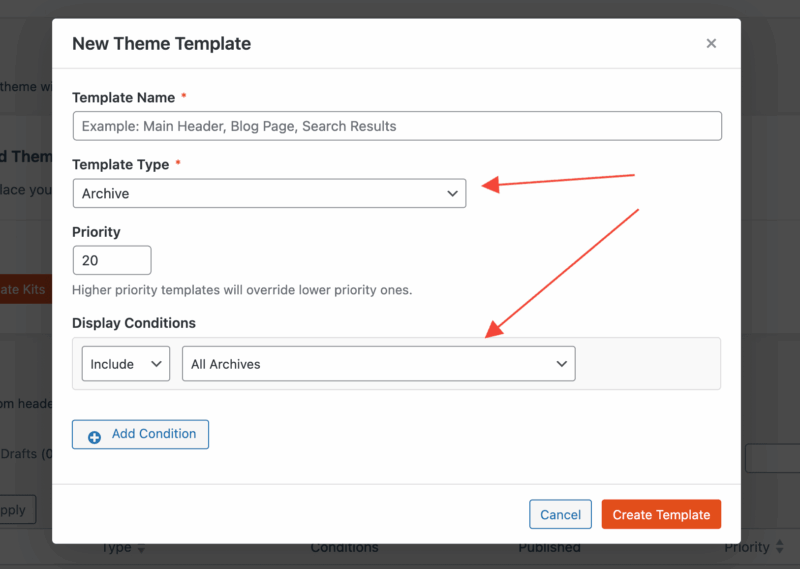
アーカイブテンプレートは、指定されたタクソノミーまたはタームの投稿リストを表示します。通常、ブログページ、カテゴリ、タグ、カスタム投稿タイプアーカイブに使用されます。アーカイブタイプを選択し、テンプレート条件を設定して、保存をクリックしてデザインを開始します。
検索結果ページテンプレート
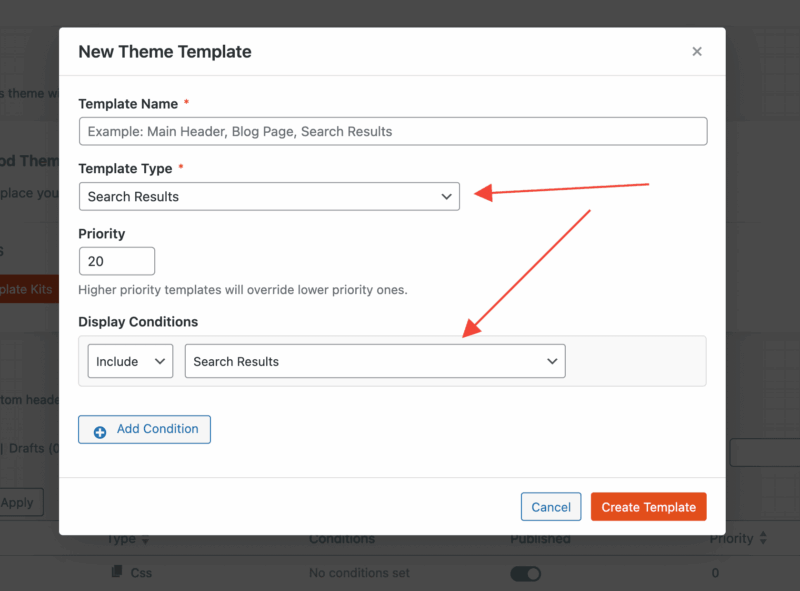
検索結果テンプレートは、アーカイブテンプレートの作成と同じプロセスに従います。検索結果タイプを選択し、テンプレート条件を含める | 検索結果に設定します。保存をクリックして検索結果ページのデザインを開始します。
WooCommerceテンプレートの作成
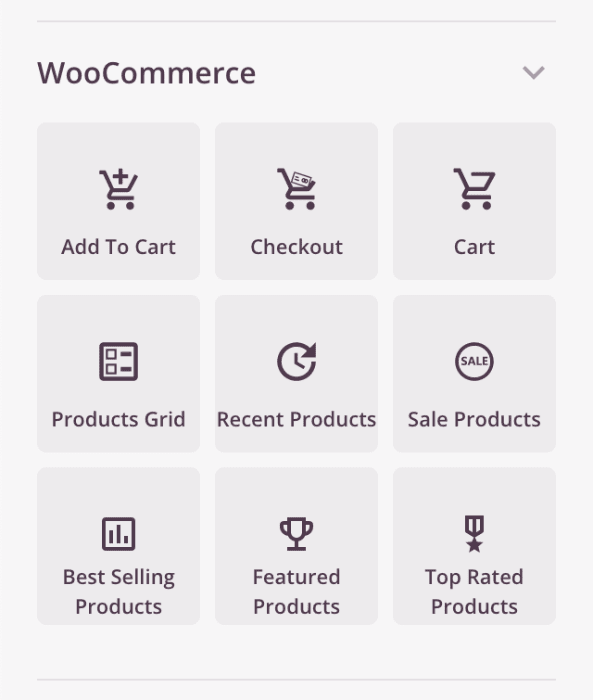
WooCommerceページは、商品価格、数量、カート追加ボタンなどのeコマース機能に特別なセクションと機能を使用します。SeedProdは、専用のWooCommerceブロックを使用して、ショップページ、商品アーカイブページ、カートページ、チェックアウトページのカスタムテンプレートをサポートしています。
商品アーカイブテンプレート
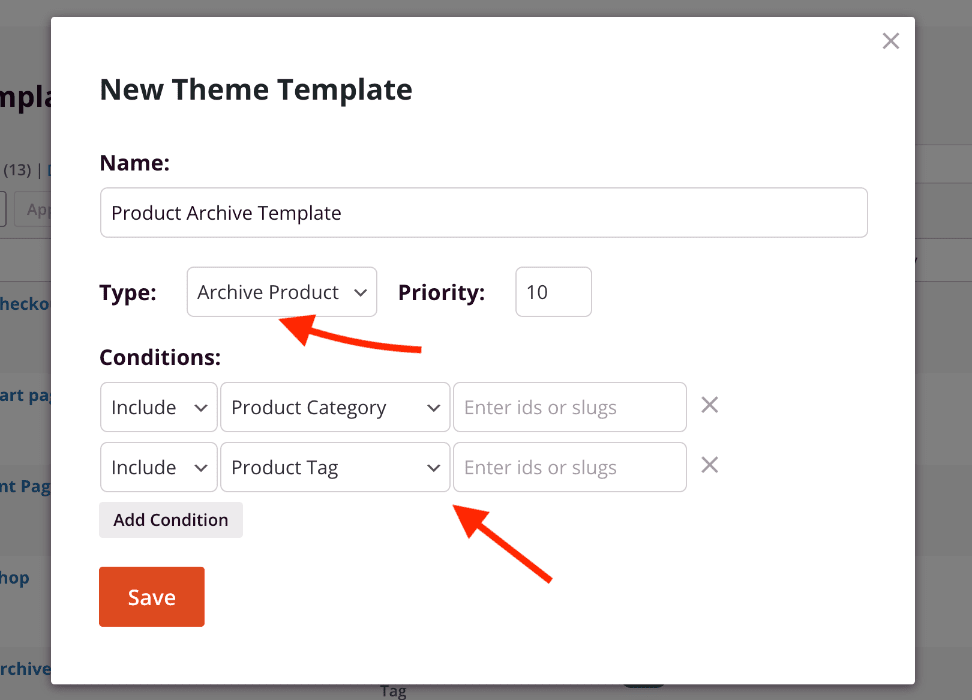
新しいテーマテンプレートモーダルでアーカイブ商品タイプを選択します。テンプレート条件を設定してから、保存をクリックして商品アーカイブレイアウトをデザインします。
ショップページ
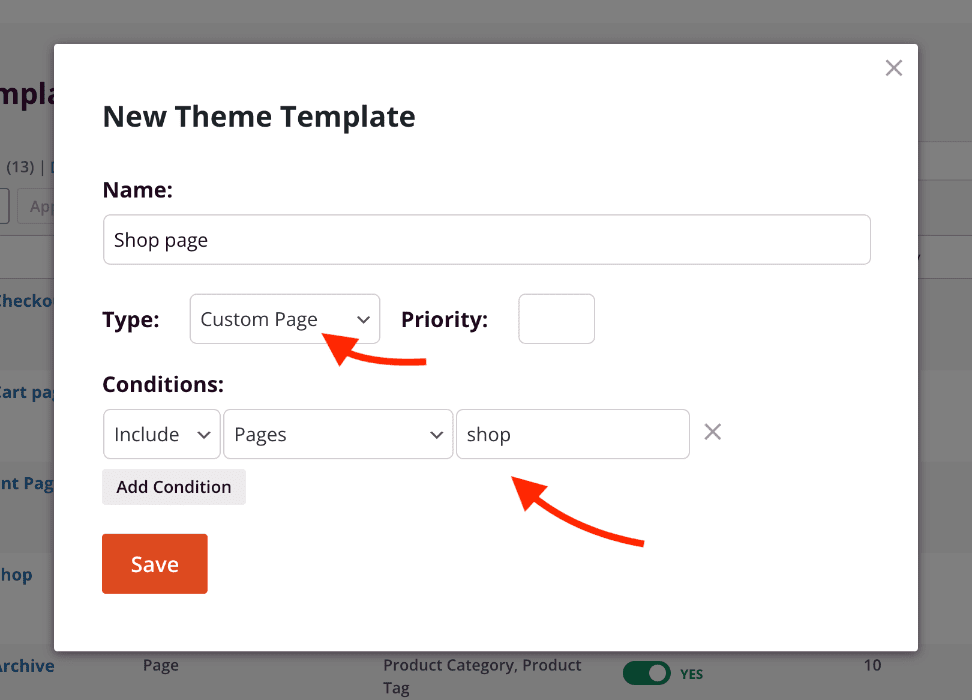
WooCommerceショップページは、ストア内のすべての商品を表示する特別な商品アーカイブです。ショップページテンプレートを作成するには、新しいカスタムページテンプレートを作成し、条件を含める | ページ | shopに設定します(WooCommerceショップページとして割り当てられたページのスラッグを使用)。保存をクリックしてデザインを開始します。
カートページ
新しいカスタムページテンプレートを作成し、条件を含める | ページ | cart(WooCommerceカートページのスラッグを使用)に設定します。保存をクリックしてデザインを開始してください。
チェックアウトページ
新しいカスタムページテンプレートを作成し、条件を含める | ページ | checkout(WooCommerceチェックアウトページのスラッグを使用)に設定します。保存をクリックしてデザインを開始してください。
テンプレート条件
テンプレート条件は、各テーマテンプレートがサイトのどこにいつ表示されるかを制御します。各条件は、投稿タイプ、アーカイブタイプ、個々の投稿またはページ、またはカテゴリやタグなどのタクソノミータームに基づいてテンプレートを含めるか除外することができます。階層レベルに基づいて子投稿やページをターゲットにすることもできます。
テンプレートの優先度
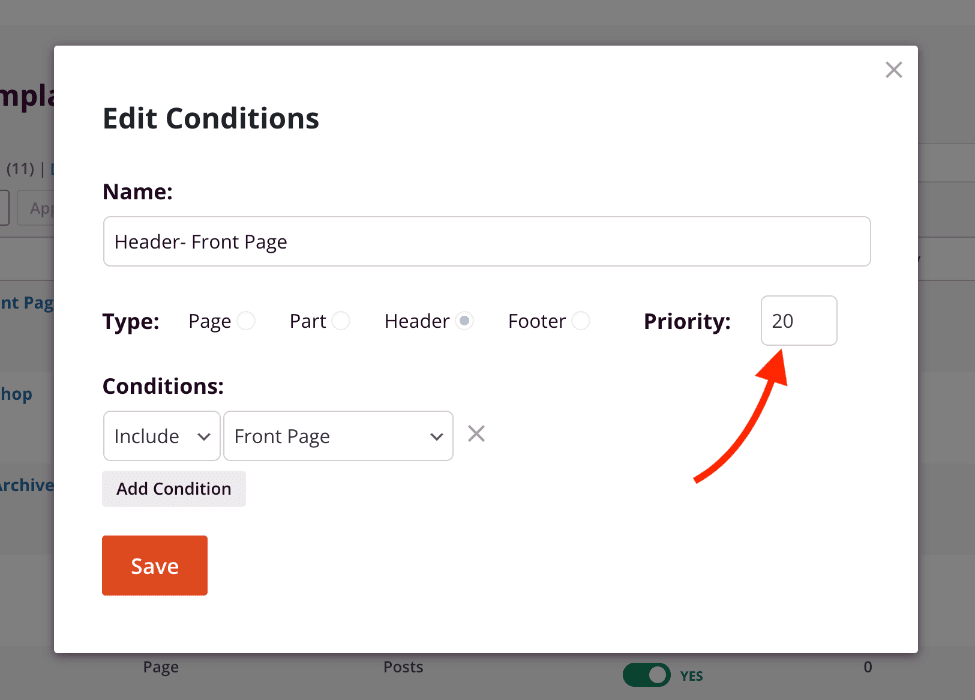
2つ以上のテンプレートの条件が重複する場合、優先度フィールドがどちらのテンプレートが優先されるかを決定します。優先度番号が低いほどテンプレートは先に読み込まれ、番号が高いほどそれを上書きします。デフォルトの優先度値は10です。
たとえば、すべてのページに一般的なヘッダーテンプレートがあり、フロントページに別のヘッダーテンプレートがある場合、フロントページヘッダーに高い優先度(例:20)を設定して、一般的なページテンプレートを上書きするようにします。
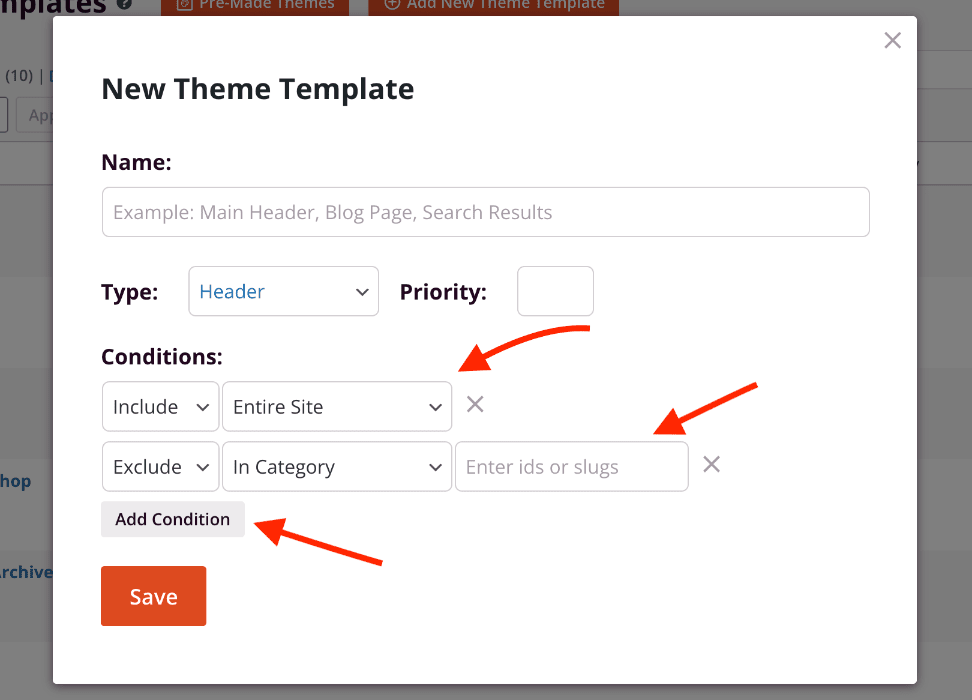
新しいテンプレートの条件設定
テンプレート条件は、テンプレート作成時の新しいテーマテンプレートモーダルで直接設定できます。条件セクションを使用して、投稿タイプ、アーカイブタイプ、または特定の投稿、ページ、タクソノミータームに基づいて含めるか除外するかのルールを定義します。スラッグまたはIDを使用して特定のコンテンツをターゲットにすることができます。
既存のテンプレートの条件の編集
既に作成されたテンプレートの条件を更新するには、次の手順に従います。
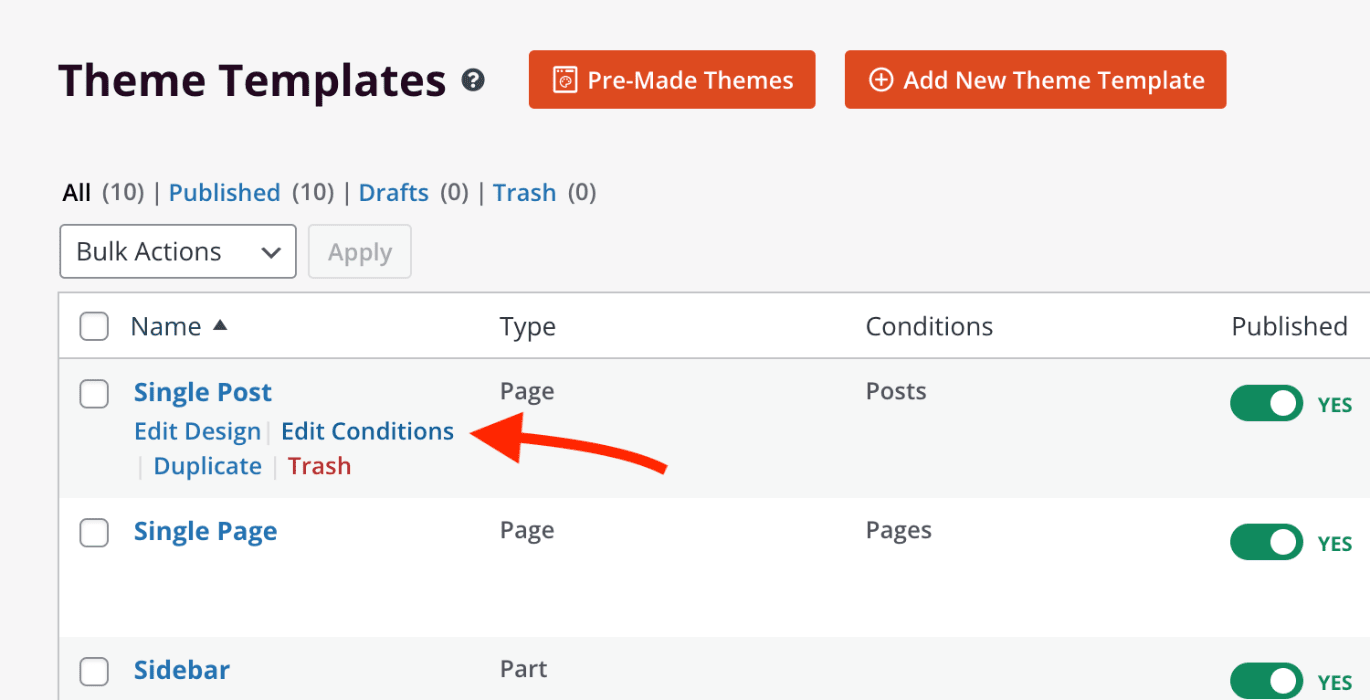
- SeedProd > Website Builder に移動し、更新したいテンプレートのタイトルにカーソルを合わせます。Edit Conditions リンクをクリックします。
- Edit Conditions モーダルで、必要に応じて条件を更新します。完了したら Save をクリックします。
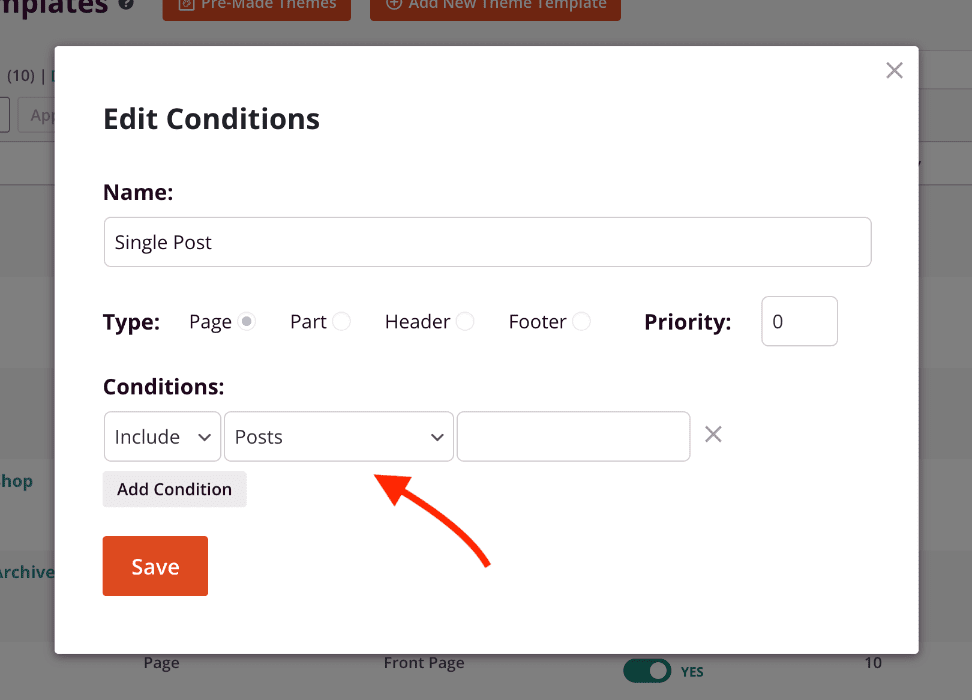
更新された条件は、サイトに即座に適用されます。
現在の条件の確認
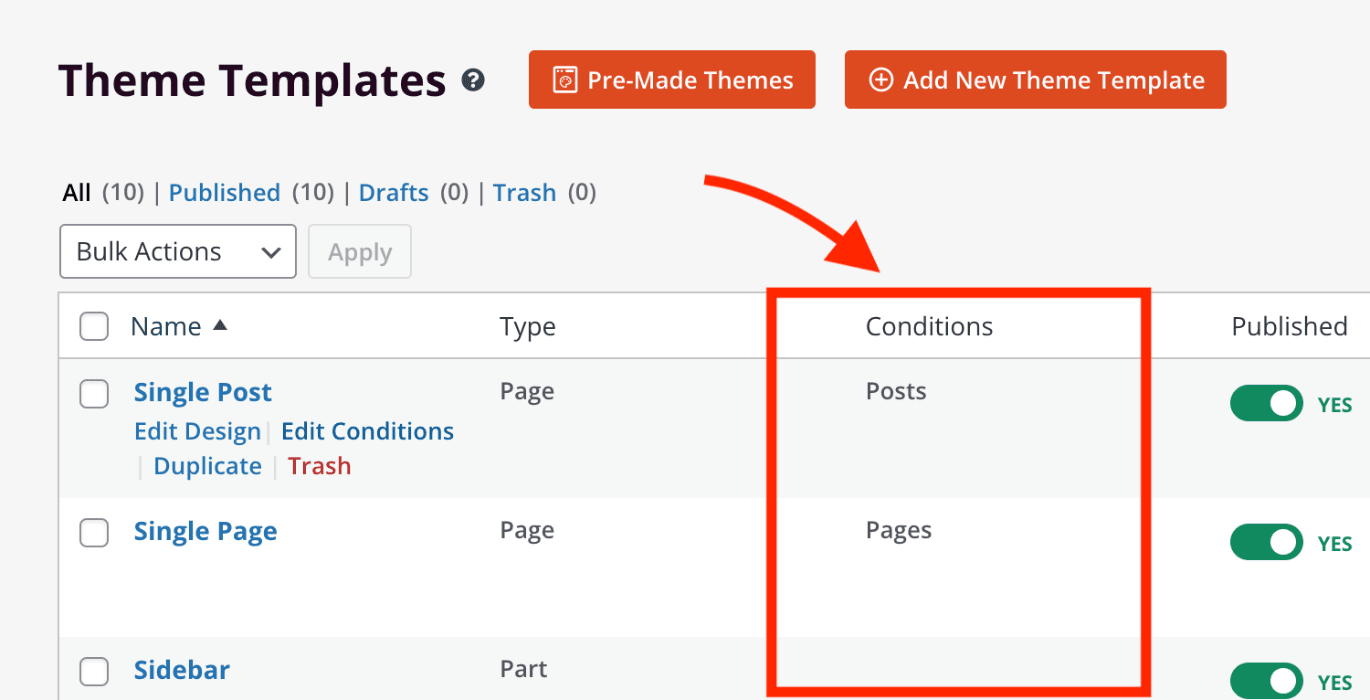
任意のテンプレートのアクティブな条件は、SeedProd > Website Builder管理ページで条件列に表示されます。
これで、SeedProdでWordPressテーマの構築を開始する準備が整いました!既製のテーマから始めるか、ゼロからテンプレートを構築するかに関わらず、Website Builderはサイトのすべての部分のデザインを完全に制御できます。メールマーケティングプラットフォームを接続するには、メール統合ドキュメントを参照してください。