SeedProd Documentation

Documentation, Reference Materials, and Tutorials for SeedProd

Checkout Block (Easy Digital Downloads)

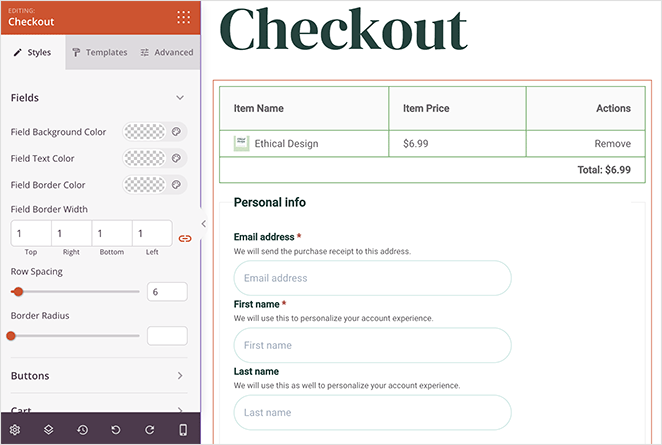
The EDD Checkout block allows you to create a fully customized checkout page for your Easy Digital Downloads store. This block displays all checkout elements including billing information forms, cart summary, and payment options with complete control over styling and layout.

A well-designed checkout page is the final step in converting browsers into buyers. With this block, you can create a checkout experience that builds trust, reduces friction, and matches your brand perfectly. Customize form fields, buttons, cart displays, and payment sections to create a seamless path from cart to completed purchase.

Requirements: The EDD Checkout block is available in our Elite license plan. Before you get started, ensure Easy Digital Downloads is installed on your website and some download products are published.

EDD Checkout block showing custom checkout page

Adding the EDD Checkout Block to Your Pages

Follow these steps to add an EDD Checkout block to your SeedProd page:

Step 1: Add the Block

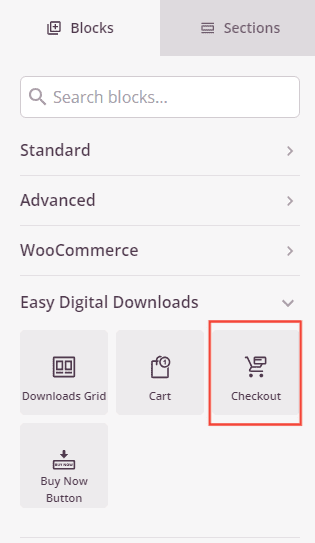
Under Design > Blocks > Easy Digital Downloads, drag and drop the Checkout block into the desired section of your page.

Dragging EDD Checkout block to page

The EDD Checkout block is located under Easy Digital Downloads and can be added to create a custom checkout page.

Step 2: Customize the Design

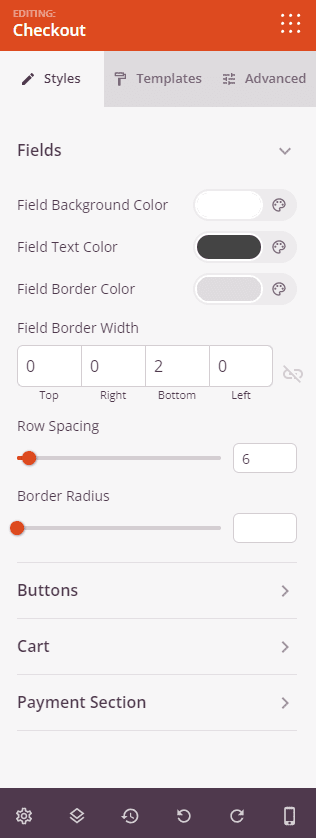
Once added, click on the EDD Checkout block to open its settings. In the Styles tab, you can customize every aspect of your checkout page appearance.

Fields:

  • Field Background Color: Set the background color for form input fields like name, email, and address
  • Field Text Color: Choose the color for text entered into form fields
  • Field Border Color: Set the color for borders around input fields
  • Field Border Width: Adjust the thickness of field borders (Top, Right, Bottom, Left)
  • Row Spacing: Control the vertical spacing between form field rows
  • Border Radius: Adjust the roundness of field corners. Higher values create more rounded fields

Buttons:

  • Button Style: Choose the visual treatment for checkout buttons like “Complete Purchase”. Options include Flat (modern flat design), 2D (subtle depth), Vintage (classic look), Ghost (transparent with border), or Link (plain text link)
  • Button Color: Set the background color for the purchase button
  • Border Radius: Adjust the roundness of button corners

Cart:

  • Cart Border Color: Set the color for borders around the cart summary section
  • Cart Border Width: Adjust the thickness of cart borders (Top, Right, Bottom, Left)
  • Background Color: Set the background color for the cart summary area
  • Header Typography: Control the font properties for cart section headers like “Order Summary”
  • Header Color: Set the color for cart header text
  • Item Typography: Customize the font properties for product names in the cart
  • Cart Item Color: Choose the color for cart item text
  • Link Typography: Control the font properties for cart links
  • Cart Links Color: Set the color for clickable links in the cart section

Payment Section:

  • Background Color: Set the background color for the payment methods section
  • Payments Border Color: Choose the color for borders around payment options
  • Payments Border Width: Adjust the thickness of payment section borders (Top, Right, Bottom, Left)
  • Payments Border Radius: Control the roundness of payment section corners
  • Label Color: Set the color for payment field labels
  • Label Typography: Customize the font properties for payment labels
  • Title Color: Choose the color for payment method titles (like “Credit Card” or “PayPal”)
  • Title Typography: Control the font properties for payment titles
  • Description Color: Set the color for payment method descriptions
  • Description Typography: Customize the font properties for payment descriptions
  • Total Color: Choose the color for the order total display
  • Total Typography: Control the font properties for the total amount
EDD Checkout Styles Settings

The Styles tab provides comprehensive customization options for form fields, buttons, cart display, and payment sections.

Step 2a: Choose a Template Style

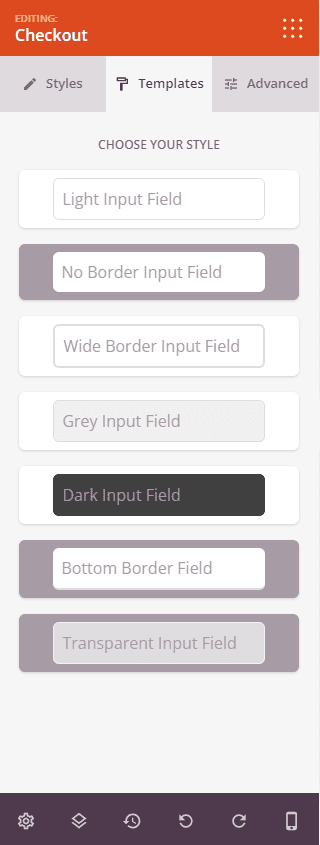
In the Templates tab, you can select from pre-designed field styles to quickly change the overall appearance of your checkout form.

  • Light Input Field, No Border Input Field, Wide Border Input Field, Grey Input Field, Dark Input Field, Bottom Border Field, Transparent Input Field: Choose from seven different template designs for your form fields, each with unique styling approaches. Preview each style to find the one that best matches your page design
EDD Checkout template styles

The Templates tab provides seven pre-designed field styles to quickly customize your checkout form appearance.

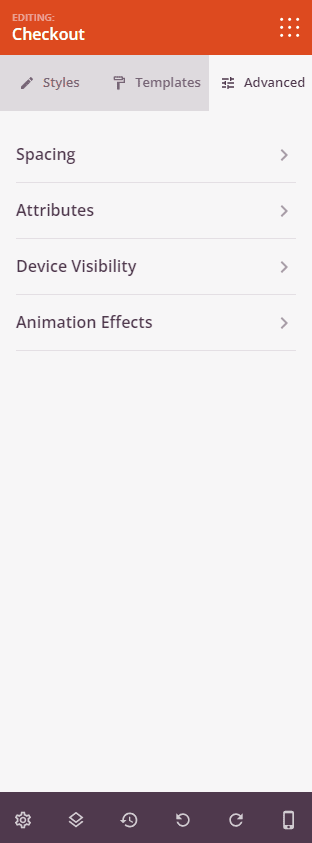
Step 3: Configure Advanced Options

In the Advanced tab, you can further customize your EDD Checkout block:

Spacing:

  • Margin: Control the outer spacing around your checkout block (Top, Right, Bottom, Left). This determines how much space appears between the checkout form and surrounding elements
  • Padding: Adjust the inner spacing within your checkout block (Top, Right, Bottom, Left). This creates breathing room between the checkout content and its edges

Attributes:

  • CSS ID: Displays the auto-generated unique identifier for your checkout block. This ID is created automatically by SeedProd for custom styling or JavaScript targeting
  • Custom Class: Add custom CSS classes to apply specific styles from your theme or custom CSS
  • Custom Attributes: Add any HTML attributes to the checkout wrapper element. Enter each attribute on a new line using the format: attribute-name|value (e.g., data-checkout|edd-checkout)

Device Visibility:

  • Hide on Desktop: Hide the checkout block on desktop screens
  • Hide on Tablet: Hide the checkout block on tablet devices
  • Hide on Mobile: Hide the checkout block on mobile devices

Animation Effects:

  • Entrance Animation: Choose from various animation effects that play when the checkout form scrolls into view. Options include Bounce, Fade In, Zoom In, Rotate In, and many more
EDD Checkout Advanced Settings

The Advanced tab provides options for spacing, custom attributes, device visibility, and animation effects.

Step 4: Save Your Changes

Once you have finished configuring the EDD Checkout block and customizing its appearance, make sure to save your work.


You’ve successfully added an EDD Checkout block to your page! This comprehensive checkout solution helps you create a professional, branded checkout experience that builds customer confidence and streamlines the purchase process. Experiment with different field styles, colors, and layout options to create a checkout page that converts browsers into buyers and maximizes your digital product sales.

Related Articles