
カスタムHTMLブロックを使用すると、SeedProdのページに任意のHTMLマークアップを直接埋め込むことができます。サードパーティのウィジェット、カスタム埋め込みコード、生のHTML出力、またはSeedProdに専用ブロックがないスニペットを挿入する必要がある場合でも、このブロックを使用すると直接挿入できます。
これにより、外部ツール、カスタムスクリプト、またはページのレイアウト内に正確に配置したいHTMLベースのコンテンツの統合に最適です。
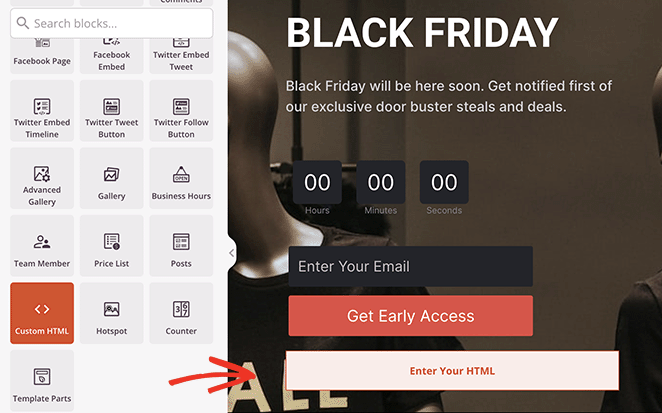
カスタムHTMLブロックをページに追加する
SeedProdページにカスタムHTMLブロックを追加するには、次の手順に従ってください。
ステップ1:ブロックを追加する
デザイン > ブロックの下で、カスタムHTMLブロックをページの目的のセクションにドラッグアンドドロップします。
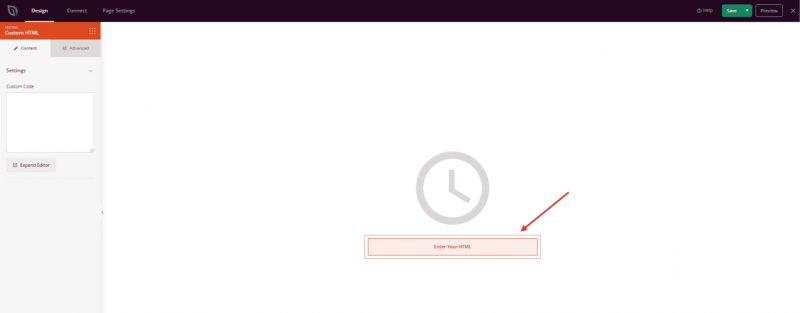
ブロックパネルからカスタムHTMLブロックをドラッグし、目的のページセクションにドロップします。
ステップ2:コンテンツ設定を構成する
追加したら、カスタムHTMLブロックをクリックして設定を開きます。コンテンツタブで、HTMLコードを入力し、全画面エディターにアクセスできます。
- カスタムコード:テキストエリアにHTMLマークアップを直接貼り付けるか入力します。これは、埋め込みコード、iframe、カスタム要素、スクリプトタグを含む、有効なHTMLであれば何でも構いません。
- エディターを展開:このボタンをクリックすると、より大きな全画面コードエディターが開きます。これにより、長くて複雑なHTMLスニペットを簡単に操作できます。
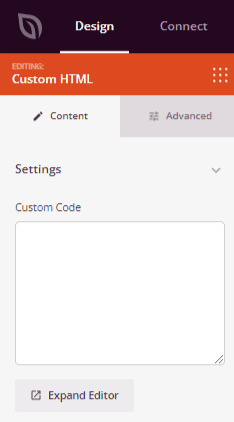
コンテンツタブにHTMLコードを入力します。エディターを展開ボタンを使用して、より大きな編集ワークスペースを使用します。
ステップ3:デザインをカスタマイズする
高度な設定タブでは、カスタムHTMLブロックのレイアウトと表示を制御できます。
間隔:
- マージン:カスタムHTMLブロックの周囲の余白(上、右、下、左)を制御します。これにより、ブロックと周囲の要素の間にどれだけのスペースが表示されるかが決まります。
- パディング:カスタムHTMLブロック内の余白(上、右、下、左)を調整します。これにより、HTMLコンテンツとブロックの境界線の間に十分なスペースが生まれます。
属性:
- CSS ID:カスタムHTMLブロックの自動生成された一意の識別子を表示します。このIDは、カスタムスタイリングまたはJavaScriptターゲティングのためにSeedProdによって自動的に作成されます。
- カスタムクラス: テーマまたはカスタムCSSから特定のスタイルを適用するために、カスタムCSSクラスを追加します。
- カスタム属性:ブロックのラッパー要素に任意のHTML属性を追加します。各属性を新しい行に、属性名|値の形式(例:data-section|html-embed)で入力します。
デバイス表示:
- デスクトップで非表示:デスクトップ画面でカスタムHTMLブロックを非表示にします。
- タブレットで非表示:タブレットデバイスでカスタムHTMLブロックを非表示にします。
- モバイルで非表示:モバイルデバイスでカスタムHTMLブロックを非表示にします。
アニメーション効果:
- 表示アニメーション:カスタムHTMLブロックが表示領域に入ったときに再生されるさまざまなアニメーション効果から選択します。オプションには、バウンス、フェードイン、ズームイン、回転インなどがあります。
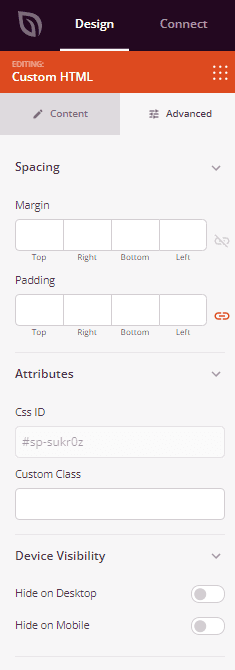
高度な設定タブを使用して、カスタムHTMLブロックのスペーシング、属性、デバイス表示、表示アニメーションを制御します。
ステップ4:変更を保存
カスタムHTMLブロックの設定が完了したら、必ず作業を保存してください。
カスタムHTMLブロックをページに正常に追加しました!サードパーティのウィジェット、カスタムフォーム、またはサイトに必要なHTMLスニペットを埋め込んでいる場合でも、カスタムHTMLブロックを使用すると、SeedProdページ上の任意の場所にマークアップを正確に配置する柔軟性が得られます。