SeedProd Documentation

Documentation, Reference Materials, and Tutorials for SeedProd

Counter Block

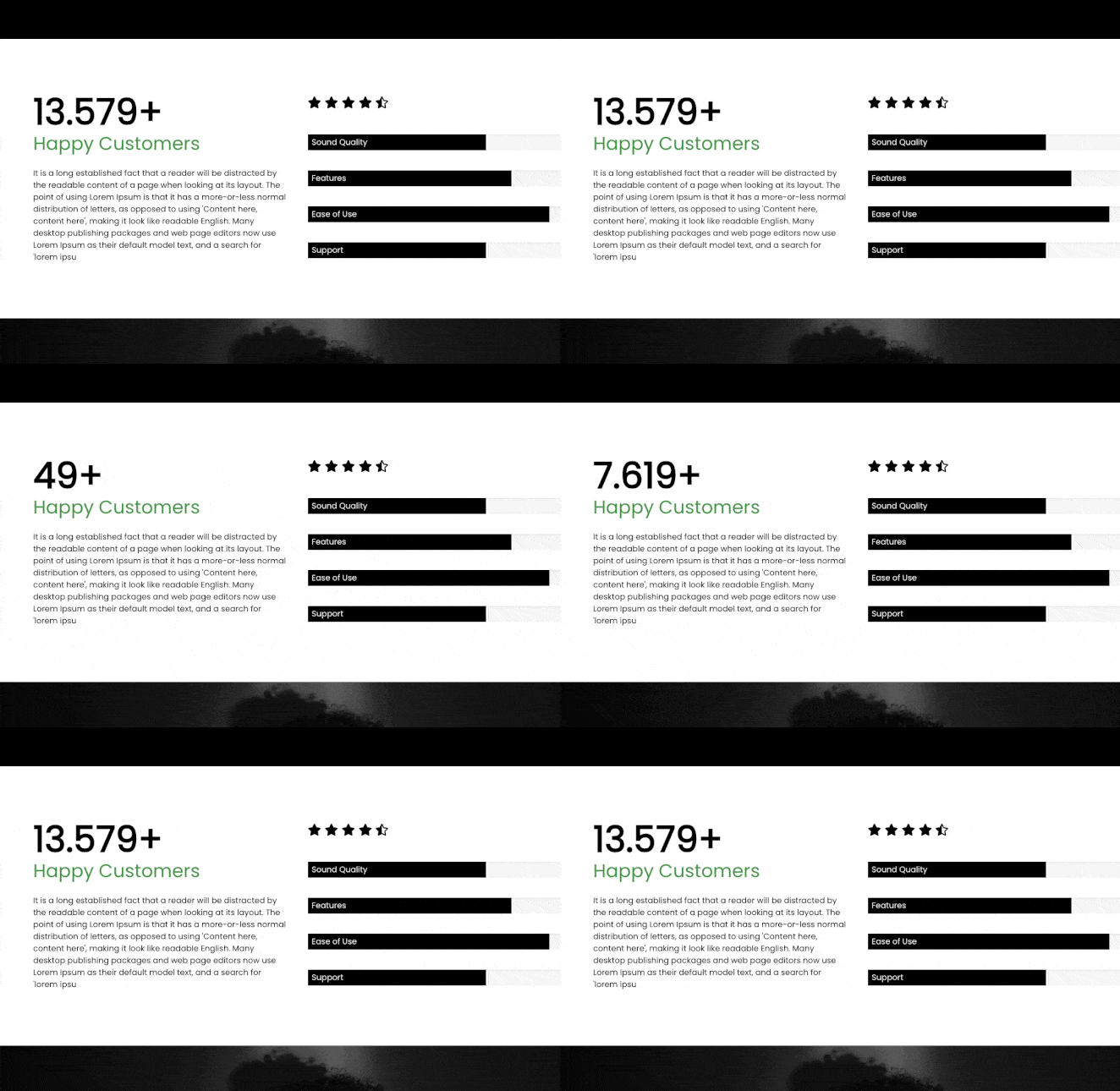
The Counter block allows you to display animated number counters that count up from a starting value to a final number. This block is perfect for showcasing impressive statistics, milestones, and achievements in an eye-catching way that captures visitor attention.

Whether you want to highlight years in business, customers served, projects completed, or any other metric, the Counter block brings your numbers to life with a smooth counting animation that plays when visitors scroll the block into view.

Counter block animated number counters example

Requirements: The Counter block is available in all our license plans.


Adding the Counter Block to Your Pages

Follow these steps to add a Counter block to your SeedProd page:

Step 1: Add the Block

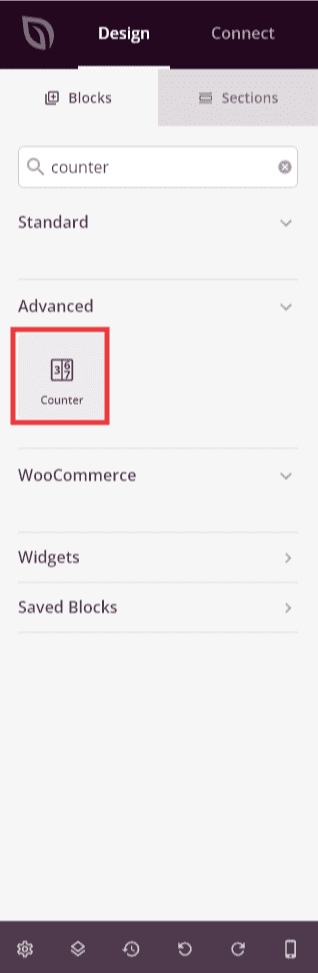
Under Design > Blocks, drag and drop the Counter block into the desired section of your page.

Dragging Counter block to page

Drag the Counter block from the Blocks panel and drop it into your desired page section.

Step 2: Configure Content Settings

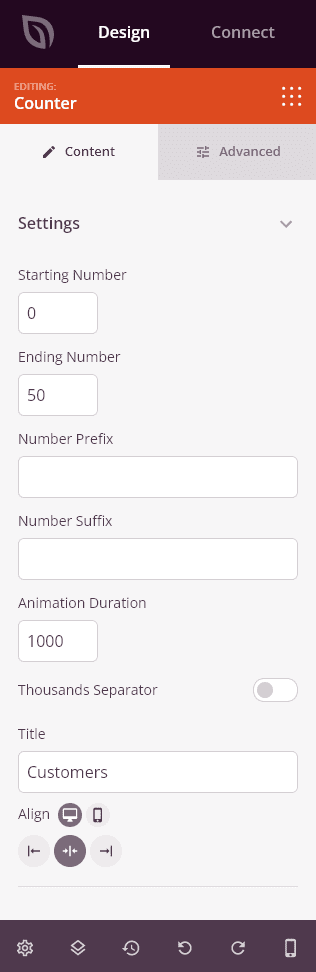
Once added, click on the Counter block to open its settings. In the Content tab, you can configure the counter values, animation behavior, and label.

Counter Values:

  • Start Number: Set the number the counter begins counting from when the animation triggers. Typically set to 0, but you can start from any value to create a partial counting effect
  • End Number: Set the final number the counter will count up to. This is the main statistic or achievement you want to display
  • Number Prefix: Add text or a symbol that appears before the number, such as a currency symbol (e.g., $) or a plus sign
  • Number Suffix: Add text or a symbol that appears after the number, such as a percent sign (%), a plus sign (+), or a unit like “K”

Animation Settings:

  • Animation Duration: Control how long (in milliseconds) the counting animation takes to complete. A longer duration creates a slower, more dramatic count-up effect
  • Thousands Separator: Choose whether to display a thousands separator in the number (e.g., 1,000 instead of 1000) for improved readability
  • Separator: Select the character used as the thousands separator, such as a comma or period, to match your regional formatting preferences

Label:

  • Title: Add a descriptive label that appears below the number to explain what the statistic represents (e.g., “Happy Customers”, “Projects Completed”, “Years of Experience”)
Counter block Content tab settings

Configure your counter values, animation duration, thousands separator, and title label in the Content tab.

Step 3: Customize the Design

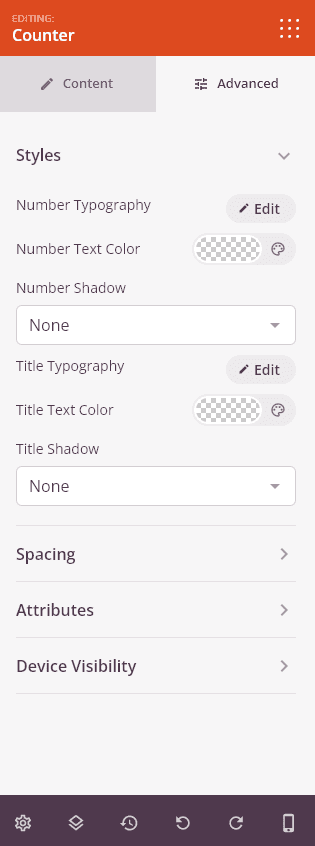
In the Advanced tab, you can customize the visual appearance of your Counter block.

Number Typography:

  • Number Color: Set the color of the counter number to match your brand or page design
  • Font: Choose the font family for the counter number
  • Font Size: Set the size of the number on desktop, tablet, and mobile devices
  • Font Weight: Control whether the number appears bold or in a lighter weight
  • Line Height: Adjust the vertical spacing of the number text
  • Letter Spacing: Fine-tune the horizontal spacing between characters in the number
  • Number Alignment: Align the counter number to the left, center, or right
  • Number Shadow: Add a text shadow to the number with controls for color, horizontal/vertical offset, blur, and spread

Title Typography:

  • Title Color: Set the color of the descriptive label below the counter
  • Font: Choose the font family for the title label
  • Font Size: Set the title size across desktop, tablet, and mobile breakpoints
  • Font Weight: Control the weight of the title text
  • Line Height: Adjust the spacing of the title text
  • Letter Spacing: Fine-tune character spacing in the title
  • Title Alignment: Align the title label to the left, center, or right
  • Title Shadow: Add a text shadow to the title with controls for color, offset, blur, and spread

Spacing:

  • Margin: Control the outer spacing around your Counter block (Top, Right, Bottom, Left). This determines how much space appears between the counter and surrounding elements
  • Padding: Adjust the inner spacing within your Counter block (Top, Right, Bottom, Left). This creates breathing room between the counter content and the block edges

Attributes:

  • CSS ID: Displays the auto-generated unique identifier for your Counter block. This ID is created automatically by SeedProd for custom styling or JavaScript targeting
  • Custom Class: Add custom CSS classes to apply specific styles from your theme or custom CSS
  • Custom Attributes: Add any HTML attributes to the counter wrapper element. Enter each attribute on a new line using the format: attribute-name|value (e.g., data-counter|true)

Device Visibility:

  • Hide on Desktop: Hide the Counter block on desktop screens
  • Hide on Tablet: Hide the Counter block on tablet devices
  • Hide on Mobile: Hide the Counter block on mobile devices

Animation Effects:

  • Entrance Animation: Choose from various animation effects that play when the Counter block scrolls into view. Options include Bounce, Fade In, Zoom In, Rotate In, and many more. Pairing an entrance animation with the count-up effect creates a highly engaging experience for visitors
Counter block Advanced tab settings

Use the Advanced tab to control typography, colors, shadows, spacing, and visibility for your Counter block.

Step 4: Save Your Changes

Once you have finished configuring the Counter block and customizing its appearance, make sure to save your work.


You’ve successfully added a Counter block to your page! Animated counters are a proven way to build trust and credibility by putting your most impressive numbers front and center. Experiment with different number formats, prefixes, suffixes, and typography styles to create counters that perfectly reflect your brand and make your statistics impossible to ignore.

Related Articles