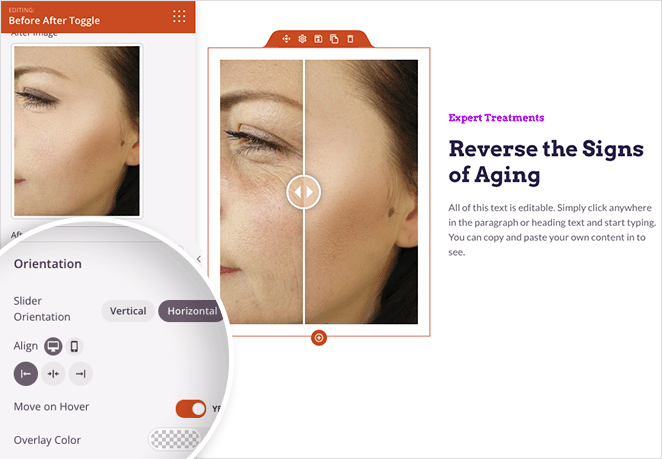
The Before After Toggle block allows you to create interactive image comparisons on your SeedProd pages. This block displays two images side by side with a customizable slider handle that visitors can drag to reveal the before and after states, creating an engaging visual comparison experience.
Before and After comparisons are perfect for showcasing transformations, product improvements, design changes, weight loss results, home renovations, photo editing effects, or any scenario where you want to visually demonstrate the impact of change. The interactive slider makes it easy for visitors to explore the differences at their own pace.

Adding the Before After Toggle Block to Your Pages
Follow these steps to add a Before After Toggle block to your SeedProd page:
Step 1: Add the Block
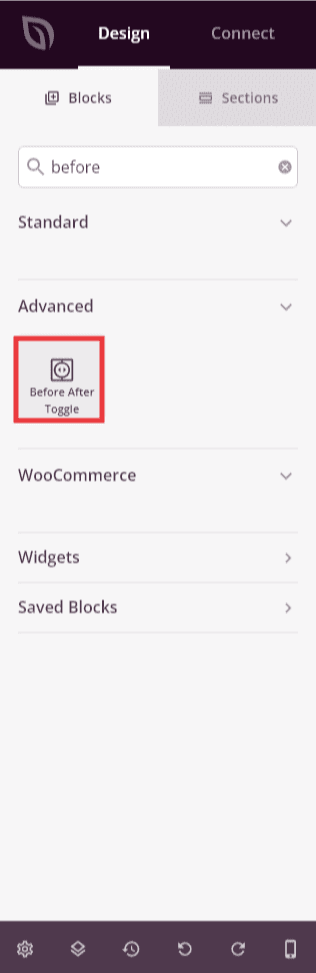
Under Design > Blocks, drag and drop the Before After Toggle block into the desired section of your page.

The Before After Toggle block is located under Design > Advanced and can be dragged into any section of your page.
Step 2: Configure Content Settings
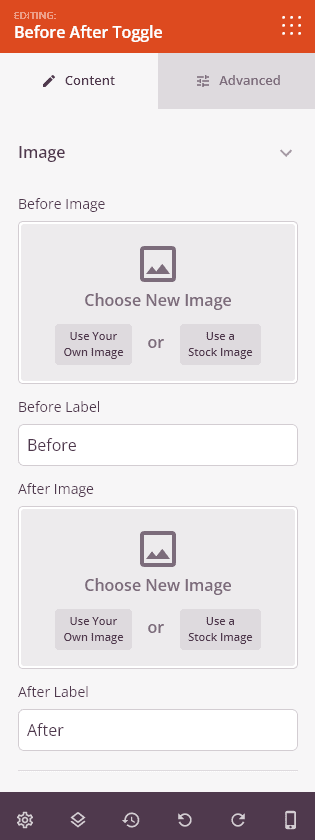
Once added, click on the Before After Toggle block to open its settings. In the Content tab, you can upload your comparison images and configure the slider behavior.
Image:
- Before Image: Click Choose New Image to upload or select the “before” image that appears on the left (or top) side of the comparison
- Use Your Own Image or Use a Stock Image: Choose whether to upload your own image from your computer or select from stock image libraries
- Image Src: Displays the source URL of your selected before image
- Before Label: Enter custom text that appears over the before image (e.g., “Before”, “Original”, “2023”). This helps visitors understand what they’re viewing
- After Image: Click Choose New Image to upload or select the “after” image that appears on the right (or bottom) side of the comparison
- Use Your Own Image or Use a Stock Image: Choose whether to upload your own image or select from stock libraries for the after image
- Image Src: Displays the source URL of your selected after image
- After Label: Enter custom text that appears over the after image (e.g., “After”, “Enhanced”, “2024”)
Orientation:
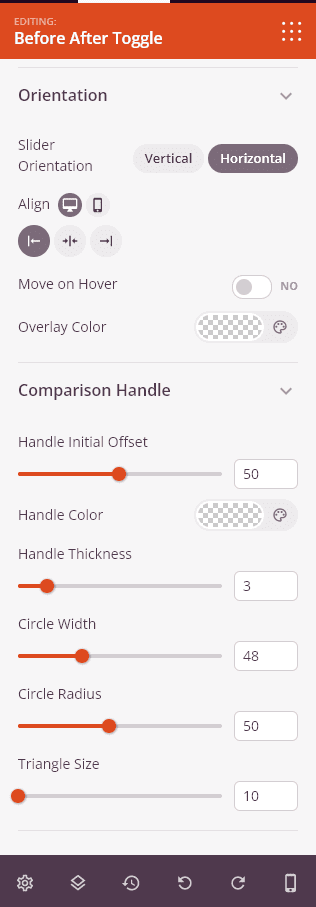
- Slider Orientation: Choose between Vertical (slider moves up and down) or Horizontal (slider moves left and right). Horizontal is most common for side-by-side comparisons
- Align: Set the alignment of the entire comparison block within its container
- Move on Hover: Toggle to enable automatic slider movement when visitors hover their mouse over the comparison. When enabled, the slider follows the cursor without requiring clicks or dragging
- Overlay Color: Add a semi-transparent color overlay to your images for a unique visual effect or to help labels stand out

Upload your before and after images, add labels, and configure the slider orientation and behavior.
Comparison Handle:
- Handle Initial Offset: Set where the slider starts when the page loads, as a percentage (e.g., 50 starts in the middle, 25 shows more of the before image)
- Handle Color: Choose the color for the slider handle and dividing line between images
- Handle Thickness: Adjust the width of the dividing line that separates the two images
- Circle Width: Control the size of the circular handle that visitors drag to move the slider
- Circle Radius: Adjust the roundness of the handle circle. Higher values create a more circular handle
- Triangle Size: Set the size of the directional arrows that appear on the handle, indicating which way to drag

Customize the comparison handle’s appearance, including its color, size, and starting position.
Step 3: Customize the Design
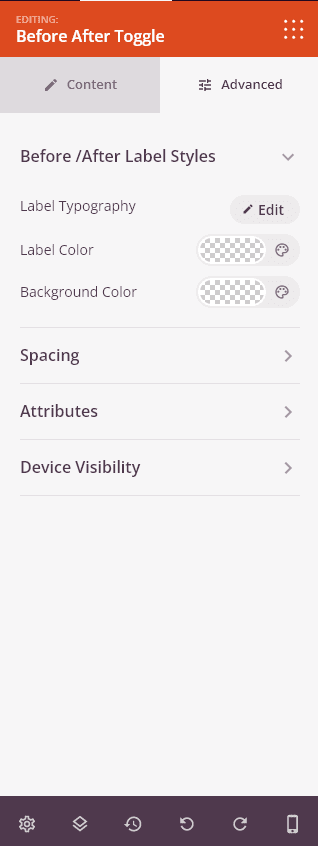
In the Advanced tab, you can customize the visual appearance of your Before After Toggle block:
Before / After Label Styles:
- Label Typography: Control the font properties for the before and after labels, including font family, size, weight, and style
- Label Color: Set the text color for the before and after labels to ensure they’re visible against your images
- Background Color: Add a background color behind the labels to improve readability, especially if your images have varying brightness
Spacing:
- Margin: Control the outer spacing around your Before After Toggle block (Top, Right, Bottom, Left). This determines how much space appears between the comparison and surrounding elements
- Padding: Adjust the inner spacing within your Before After Toggle block (Top, Right, Bottom, Left). This creates breathing room between the images and the block edges
Attributes:
- CSS ID: Displays the auto-generated unique identifier for your Before After Toggle block. This ID is created automatically by SeedProd for custom styling or JavaScript targeting
- Custom Class: Add custom CSS classes to apply specific styles from your theme or custom CSS
- Custom Attributes: Add any HTML attributes to the block wrapper element. Enter each attribute on a new line using the format: attribute-name|value (e.g., data-comparison|before-after)
Device Visibility:
- Hide on Desktop: Hide the Before After Toggle block on desktop screens
- Hide on Tablet: Hide the Before After Toggle block on tablet devices
- Hide on Mobile: Hide the Before After Toggle block on mobile devices
Animation Effects:
- Entrance Animation: Choose from various animation effects that play when the comparison block scrolls into view. Options include Bounce, Fade In, Zoom In, Rotate In, and many more. This draws attention to your interactive comparison

The Advanced tab provides options for styling labels, adjusting spacing, and configuring device visibility and animations.
Step 4: Save Your Changes
Once you have finished configuring the Before After Toggle block and customizing its appearance, make sure to save your work.
You’ve successfully added a Before After Toggle block to your page! This interactive block creates engaging visual comparisons that let visitors explore the differences between two images at their own pace. Experiment with different handle colors, slider orientations, and hover effects to create a comparison experience that captivates your audience and effectively demonstrates transformations or improvements.