
The Video Pop Up block allows you to embed video content from YouTube, Vimeo, or a self-hosted source on any SeedProd page. Unlike a standard embedded player, the block supports a lightbox mode, a sticky video that follows visitors as they scroll, and an image overlay that acts as a custom thumbnail — giving you full control over how visitors discover and interact with your video.
Whether you’re showcasing a product demo, a testimonial, or an explainer video, the Video Pop Up block offers advanced playback options — including autoplay, mute, loop, privacy mode, and a teaser video feature — so you can tailor the viewing experience to match your page goals and audience preferences.
Adding the Video Pop Up Block to Your Pages
Follow these steps to add a Video Pop Up block to your SeedProd page:
Paso 1: Añadir el Bloque
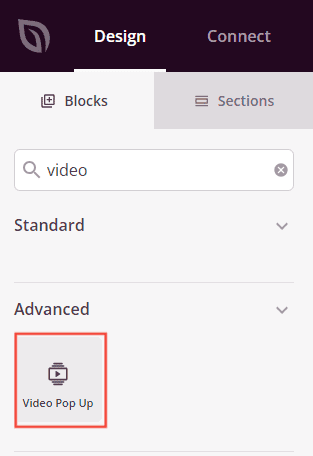
Under Design > Blocks, drag and drop the Video Pop Up block into the desired section of your page.
Paso 2: Configurar los Ajustes de Contenido
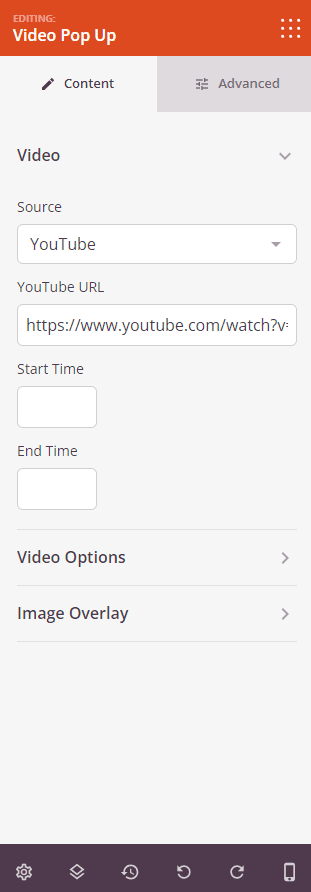
Once added, click on the Video Pop Up block to open its settings. In the Content tab, settings are organized into four sections.
Video:
- Source: Choose your video source — YouTube, Vimeo, or Custom (for self-hosted or externally hosted video files).
- YouTube URL (YouTube only): Enter the full URL of the YouTube video.
- Vimeo URL (Vimeo only): Enter the full URL of the Vimeo video. Note: Sticky Video requires a Starter, Standard, Advanced, Plus, Pro, Business, Premium, or Enterprise Vimeo account.
- External URL / Custom Video URL (Custom only): Toggle External URL to link to a hosted video file, or enter the direct URL to your video. You can also use Select Custom Video to choose a file from your media library.
- Start Time: Specify a time (in seconds) where the video should begin playing.
- End Time: Specify a time (in seconds) where the video should stop playing.
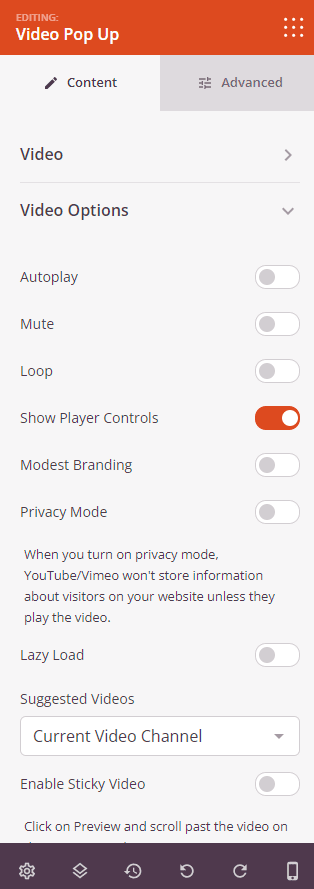
Video Options:
- Autoplay: Automatically start the video when the page loads.
- Play on Mobile: Play the video inline on mobile devices instead of automatically entering fullscreen mode.
- Mute: Start the video muted to avoid disrupting the visitor’s experience.
- Loop: Continuously loop the video when it reaches the end.
- Show Player Controls: Show or hide the video player’s playback controls.
- Privacy Mode: When enabled, YouTube and Vimeo will not store visitor information unless they actively play the video.
- Lazy Load: Defer loading the video until it becomes visible in the viewport to improve page load speed.
- Intro Title / Intro Portrait / Intro Byline (Vimeo only): Toggle the display of the video title, author portrait, and author byline shown in the Vimeo intro.
- Controls Color (Vimeo only): Set the color of the Vimeo player controls.
- Suggested Videos (YouTube only): Choose what appears after the video ends — Current Video Channel (related videos from the same channel) or Any Video.
- Show Download Button (Custom only): Show a download button on the custom video player.
- Preload (Custom only): Set how the video loads on page load — Metadata (loads video info only), Auto (loads the full video), or None.
- Poster: Set a poster image that displays before the video begins playing.
- Enable Sticky Video: When enabled, the video player docks to a corner of the screen as visitors scroll past it, keeping the video visible throughout the page.
Teaser Video:
- Enable Teaser Video: Replace the static thumbnail with a short looping teaser video that plays silently on the page. When a visitor clicks it, the full video opens. Note: Enabling this option disables the Image Overlay feature.
- Teaser Video Play Icon: Choose the icon displayed over the teaser video to indicate it is clickable.
- Icon Font Size: Set the size of the teaser play icon.
- Show Banner: Display a banner over the teaser video (for example, a “Click to hear audio” prompt). Configure the banner text, background color, text color, typography, and icon.
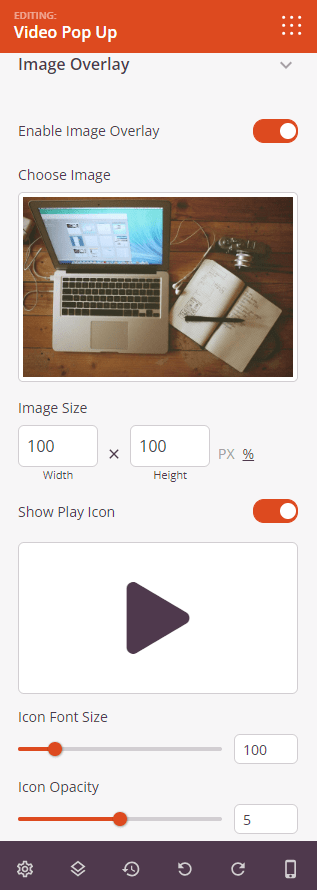
Image Overlay:
- Enable Image Overlay: Replace the default video thumbnail with a custom image. Visitors click the image to open the video. Note: Enabling this option disables the Teaser Video feature.
- Choose Image: Select or upload the overlay image from your media library.
- Image Size: Set the width and height of the overlay image in pixels or as a percentage.
- Show Play Icon: Toggle the play icon that appears over the overlay image.
- Icon Font Size: Set the size of the play icon displayed on the overlay image.
- Icon Opacity: Set the transparency of the play icon (0–10 scale).
- Icon Color: Set the color of the play icon on the overlay image.
- Enable Lightbox: When enabled, clicking the overlay image opens the video in a lightbox overlay instead of playing it inline.
Paso 3: Personaliza el Diseño
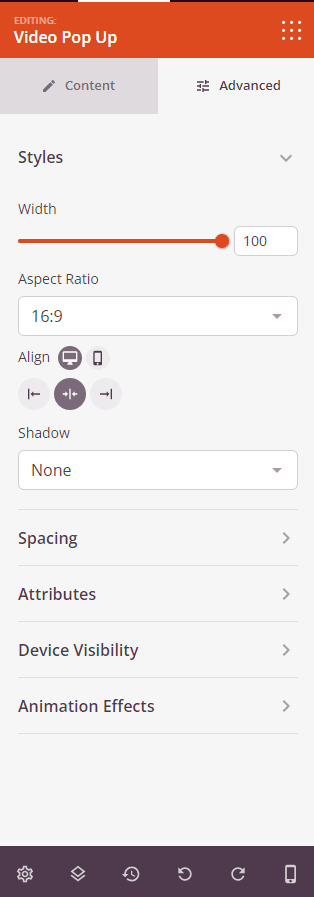
In the Advanced tab, you can customize the visual appearance of your Video Pop Up block.
Estilos:
- Width: Set the width of the video player as a percentage of its container using a slider.
- Aspect Ratio: Choose the aspect ratio of the video player — 1:1, 3:2, 4:3, 9:16, 16:9, or 21:9.
- Alignment: Set the horizontal alignment of the video player — Left, Center, or Right — with per-device controls for desktop, tablet, and mobile.
- Shadow: Apply a box shadow to the video player using preset sizes — None, Hairline, Small, Medium, Large, X Large, or 2X Large.
Espaciado:
- Margen: Establece el espaciado exterior alrededor del bloque en los cuatro lados, con controles independientes para escritorio, tableta y móvil.
- Relleno: Establece el espaciado interior dentro del contenedor del bloque en los cuatro lados, con controles por dispositivo.
Atributos:
- Clase personalizada: Añade una o más clases CSS personalizadas al contenedor del bloque para una estilización específica.
- ID CSS: SeedProd genera automáticamente un ID CSS único para este bloque. Puedes usarlo para referenciar el bloque en CSS o JavaScript personalizado.
- Atributos personalizados: Añade atributos HTML personalizados al elemento contenedor del bloque. Introduce cada atributo en una línea nueva usando el formato clave|valor.
Visibilidad del Dispositivo:
- Ocultar en escritorio: Activa para ocultar el bloque cuando se ve en pantallas de escritorio.
- Ocultar en tableta: Activa para ocultar el bloque cuando se ve en pantallas de tableta.
- Ocultar en móvil: Activa para ocultar el bloque cuando se ve en pantallas móviles.
Efectos de Animación:
- Efecto de desplazamiento: Aplica una animación activada por desplazamiento al bloque, incluyendo opciones de Desplazamiento Vertical y Desplazamiento Horizontal con controles de dirección, velocidad y desplazamiento de la ventana gráfica.
- Efecto del ratón: Aplica un efecto de paralaje impulsado por el movimiento del ratón al bloque.
Paso 4: Guarde sus Cambios
Once you have finished configuring the Video Pop Up block and customizing its appearance, make sure to save your work.
You’ve successfully added a Video Pop Up block to your page! With support for YouTube, Vimeo, and self-hosted video along with image overlays, teaser previews, sticky playback, and lightbox modes, this block gives you everything you need to create a compelling video experience. Experiment with the playback options and overlay settings to find the combination that best captures your visitors’ attention.