
El bloque Precio de Producto muestra el precio de cada producto de WooCommerce en tus Plantillas de Producto Único. Extrae dinámicamente el precio actual de WooCommerce, incluyendo los precios en oferta, para que los compradores siempre vean precios precisos sin necesidad de actualizaciones manuales por tu parte.
Este bloque está diseñado exclusivamente para su uso en Plantillas de Producto Único. Más allá de simplemente mostrar un precio, tienes control total sobre la tipografía, el color y la alineación tanto del precio normal como del precio en oferta, incluida la opción de apilar el precio original y el precio en oferta verticalmente para que los clientes vean el descuento de inmediato.
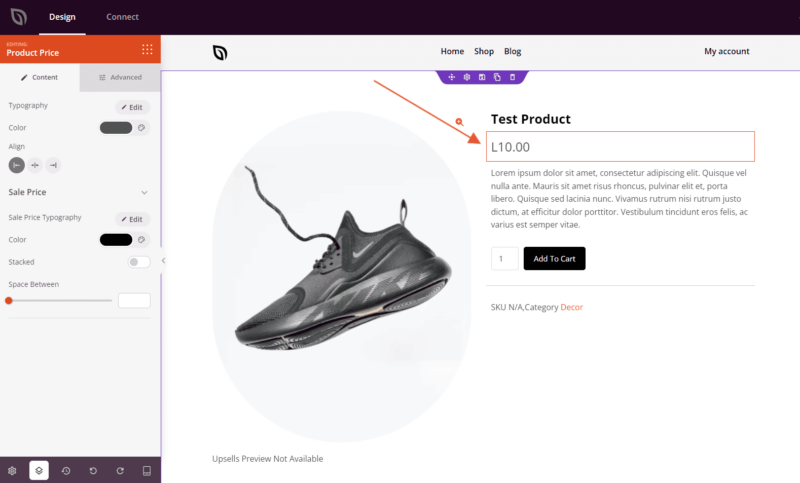
Añadir el Bloque de Precio de Producto a tus Páginas
Sigue estos pasos para añadir un bloque de Precio de Producto a tu Plantilla de Producto Único de SeedProd:
Paso 1: Añadir el Bloque
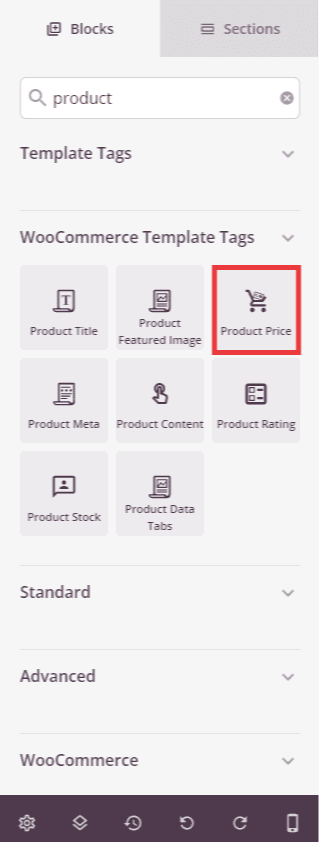
En Diseño > Bloques > Etiquetas de Plantilla de WooCommerce, arrastra y suelta el bloque Precio de Producto en la sección deseada de tu Plantilla de Producto Único.
Paso 2: Configurar los Ajustes de Contenido
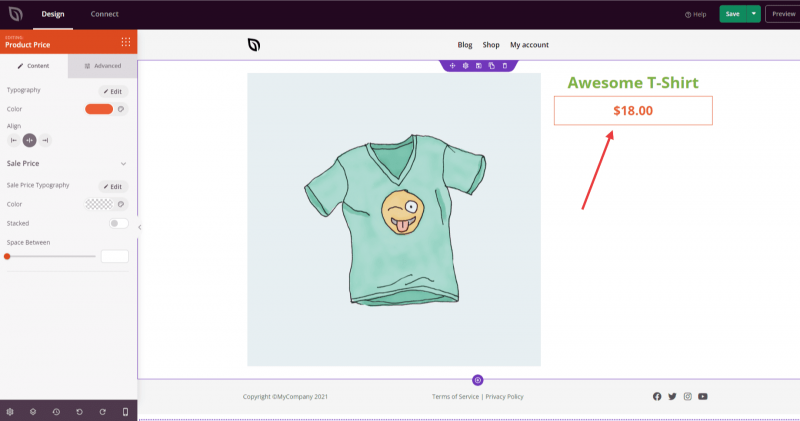
Una vez añadido, haz clic en el bloque Precio de Producto para abrir su configuración. La pestaña Contenido te permite estilizar la visualización del precio normal en la parte superior, y luego expandir la sección Precio en Oferta para configurar cómo aparecen los precios con descuento.
Precio Normal:
- Tipografía: Establece la familia de fuentes, el tamaño, el peso, la altura de línea y el espaciado entre letras para el texto del precio del producto.
- Color: Establece el color del texto del precio normal.
- Alineación: Establece la alineación horizontal del precio: Izquierda, Centro o Derecha. Admite alineación por dispositivo para escritorio, tableta y móvil.
Precio en Oferta:
- Tipografía del Precio en Oferta: Establece la familia de fuentes, el tamaño, el peso y el estilo específicamente para el texto del precio en oferta, permitiendo que se vea distinto del precio normal; por ejemplo, haciéndolo más grande o más negrita para enfatizar la oferta.
- Color: Establece el color del texto del precio en oferta. Usa un color contrastante como rojo o verde para llamar la atención sobre el importe con descuento.
- Apilado: Activa esta opción para mostrar el precio en oferta debajo del precio original (tachado) en una pila vertical en lugar de uno al lado del otro. Este diseño facilita que los compradores comparen el precio original y el precio con descuento de un vistazo.
- Espacio entre: Establece el espaciado (1–100px) entre el precio original y el precio en oferta cuando la opción Apilado está activada.
Paso 3: Personaliza el Diseño
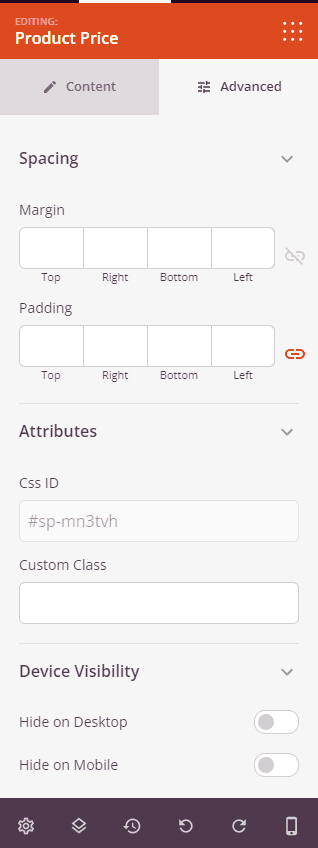
En la pestaña Avanzado, puedes controlar el espaciado, los atributos y la visibilidad de tu bloque de Precio de Producto.
Espaciado:
- Margen: Controla el espaciado exterior alrededor de tu bloque de Precio de Producto (Superior, Derecho, Inferior, Izquierdo). Esto determina cuánto espacio aparece entre el precio y los elementos circundantes en la página del producto.
- Relleno: Ajusta el espaciado interior de tu bloque de precio de producto (Superior, Derecho, Inferior, Izquierdo). Esto crea espacio entre el texto del precio y los bordes del bloque.
Atributos:
- ID CSS: Muestra el identificador único autogenerado para tu bloque de precio de producto. Este ID es creado automáticamente por SeedProd para estilos personalizados o para apuntar con JavaScript.
- Clase Personalizada: Agregue clases CSS personalizadas para aplicar estilos específicos de su tema o CSS personalizado.
- Atributos personalizados: Añade cualquier atributo HTML al elemento contenedor del bloque. Introduce cada atributo en una nueva línea usando el formato: nombre-atributo|valor (ej. data-precio|producto).
Visibilidad del Dispositivo:
- Ocultar en escritorio: Oculta el bloque de precio de producto en pantallas de escritorio.
- Ocultar en tableta: Oculta el bloque de precio de producto en dispositivos tableta.
- Ocultar en móvil: Oculta el bloque de precio de producto en dispositivos móviles.
Efectos de Animación:
- Animación de entrada: Elige entre varios efectos de animación que se reproducen cuando el bloque de precio de producto entra en la vista. Las opciones incluyen Bounce, Fade In, Zoom In, Rotate In y muchas más.
Paso 4: Guarde sus Cambios
Una vez que hayas terminado de configurar el bloque de precio de producto y personalizar su apariencia, asegúrate de guardar tu trabajo.
¡Has añadido con éxito un bloque de precio de producto a tu Plantilla de Producto Único! El bloque muestra automáticamente el precio correcto para cada producto, incluyendo el precio en oferta cuando está activo. Experimenta con el color del precio en oferta, el diseño apilado y la configuración de tipografía para crear una visualización de precios que resalte tus ofertas e impulse más conversiones en tu tienda WooCommerce.