
A Single Post template in the SeedProd Website Builder lets you design a custom layout for your WordPress blog posts. Because it is a dynamic template, it pulls each post’s content from the database automatically — displaying the correct title, content, and metadata for whichever post a visitor is viewing. You can also create multiple Single Post templates with different display conditions to apply different designs to different posts or categories.
Step 1: Add a New Single Post Template
En tu administrador de WordPress, ve a SeedProd > Creador de Sitios Web y haz clic en Añadir Nueva Plantilla.
Paso 2: Configurar los Ajustes de la Plantilla
En la ventana emergente Nueva Plantilla de Tema, configura los siguientes ajustes antes de crear la plantilla:
- Type: Select Single Post from the dropdown.
- Nombre: Introduce un nombre para identificar esta plantilla.
- Conditions: Set the display conditions to control which posts this template applies to — for example, all posts, posts in a specific category, or an individual post.
- Prioridad: Establece un número de prioridad para gestionar qué plantilla se aplica cuando las condiciones se superponen. Un número mayor tiene precedencia sobre uno menor.
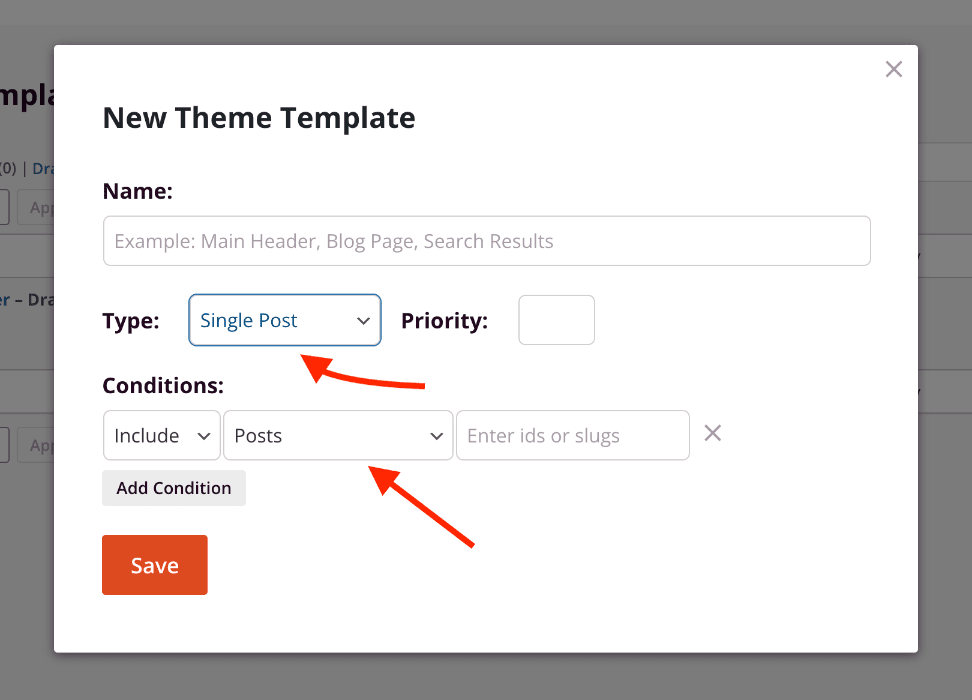
Haz clic en Guardar para abrir la plantilla en el constructor de SeedProd.
Step 3: Design Your Single Post Template
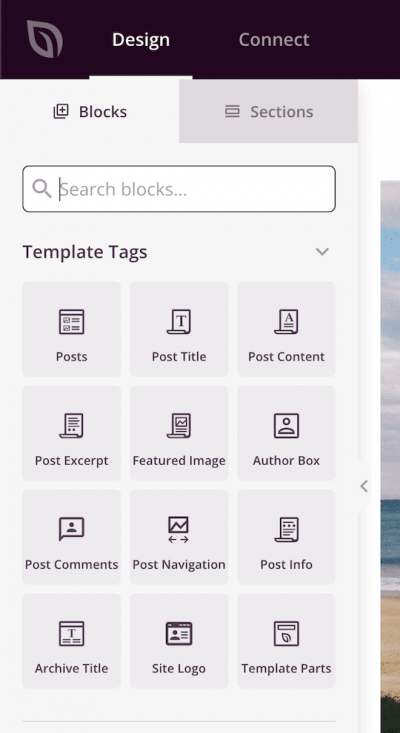
Design your post layout in the builder. Use Template Tag blocks to pull in dynamic post data. The most commonly used template tags for a single post layout include:
- Post Title — displays the post’s title
- Post Content — displays the post’s body content (required)
- Post Info — displays metadata such as the author, date, and categories
- Featured Image — displays the post’s featured image
- Post Navigation — adds previous/next post links
Paso 4: Publicar la Plantilla
When your design is complete, click the dropdown arrow on the Save button and select Publish. Your Single Post template will immediately begin applying to the posts that match its display conditions.
Your Single Post template is now live. You can return to SeedProd > Website Builder at any time to edit the template, adjust its conditions, or create additional Single Post templates for different post types or categories. For more on available template tags, see the Dynamic Tags documentation.