
Cuando creas tu sitio con el Creador de Sitios Web de SeedProd, también necesitarás páginas de contenido estándar — como una página Acerca de, una página de Características o una Política de Privacidad — que hereden la cabecera, el pie de página y el diseño general de tu sitio. Esta guía explica cómo funcionan esas páginas y cómo personalizarlas aún más usando SeedProd.
Cómo funcionan las páginas de contenido con el Creador de Sitios Web
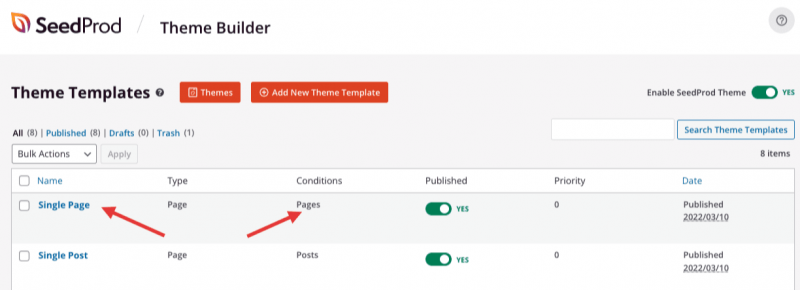
Las páginas de contenido en SeedProd funcionan a través de tu plantilla de Página Única. En el Creador de Sitios Web, deberías tener una plantilla asignada a la condición Páginas. Esta plantilla se aplica automáticamente cada vez que se crea una nueva página de WordPress.
La configuración típica para esta plantilla de página utiliza dos bloques de Etiqueta de Plantilla — Título de la Entrada y Contenido de la Entrada — para extraer dinámicamente el título y el contenido de la página.
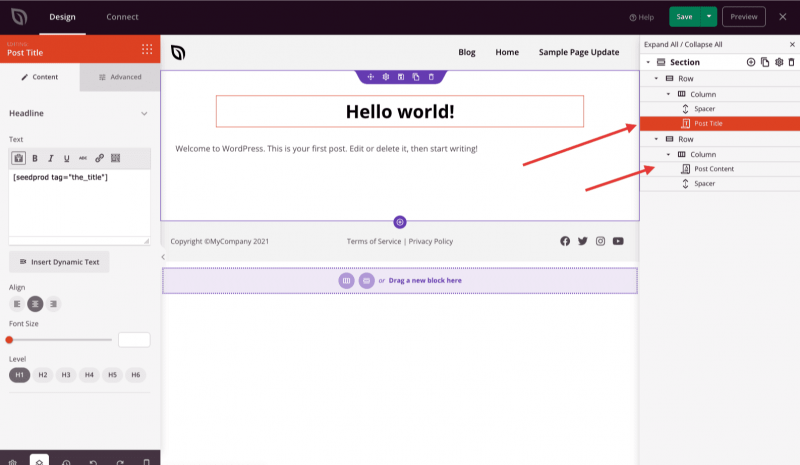
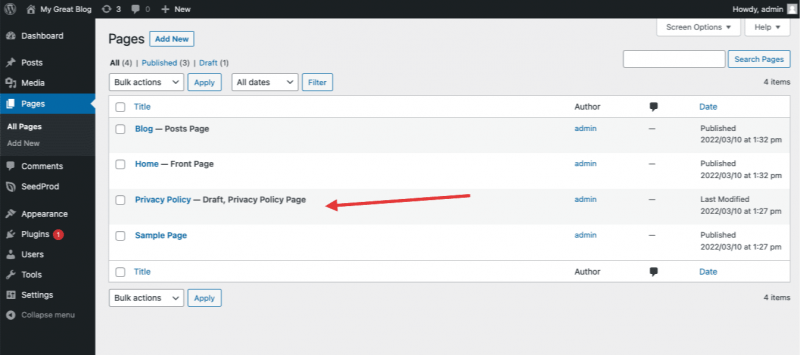
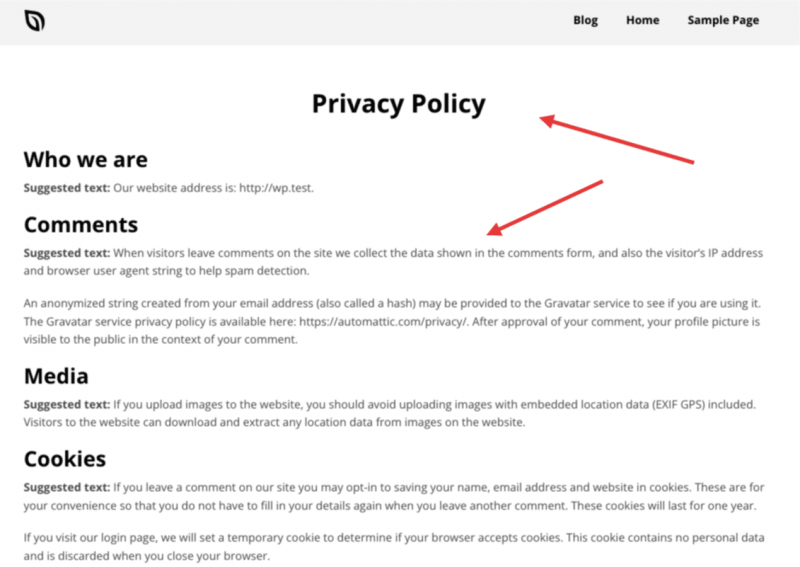
Esto significa que cualquier página que crees en WordPress usará automáticamente esta plantilla. El título y el contenido de la página se muestran dondequiera que se coloquen los bloques Título de la Entrada y Contenido de la Entrada en la plantilla. El siguiente ejemplo muestra la página de Política de Privacidad predeterminada de WordPress siendo renderizada a través de la plantilla.
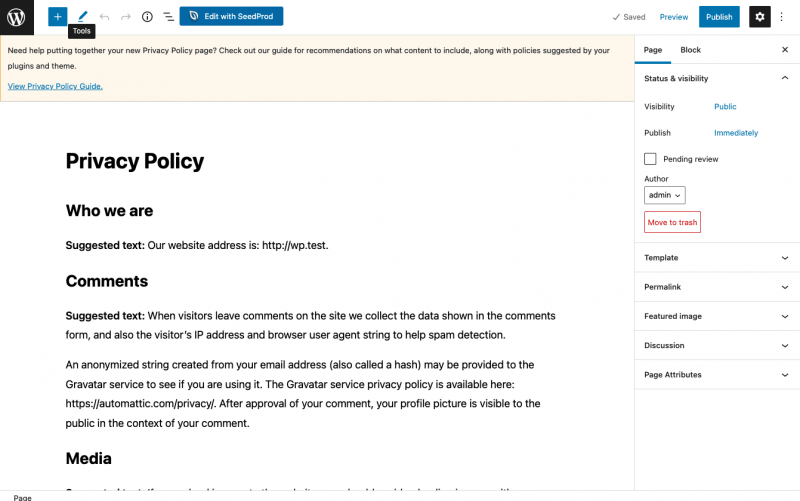
Este es el contenido de la página tal como se introdujo en el editor de WordPress:
Y así es como aparece en el frontend cuando se renderiza a través de la plantilla de SeedProd, con el Título de la Entrada y el Contenido de la Entrada mostrándose correctamente:
Personalización de una página de contenido con SeedProd
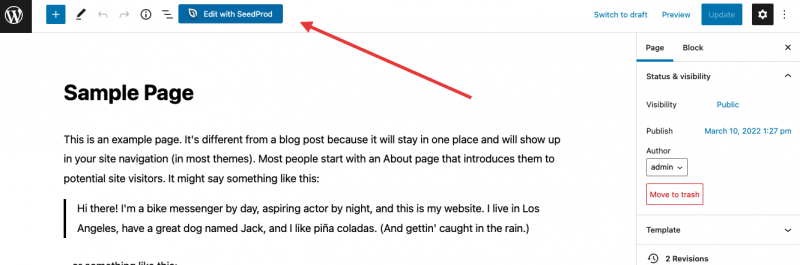
Si deseas personalizar el diseño y la apariencia de una página individual más allá de lo que ofrece la plantilla, puedes editarla directamente en el constructor de SeedProd. Abre la página en WordPress y haz clic en el botón Editar con SeedProd en la parte superior de la página.
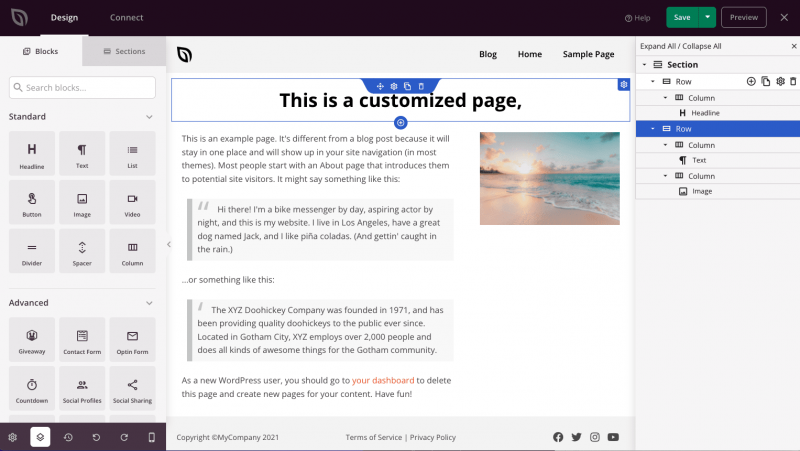
SeedProd copiará el contenido existente de la página al constructor, donde podrás personalizar el diseño, añadir bloques y ajustar la apariencia como desees.
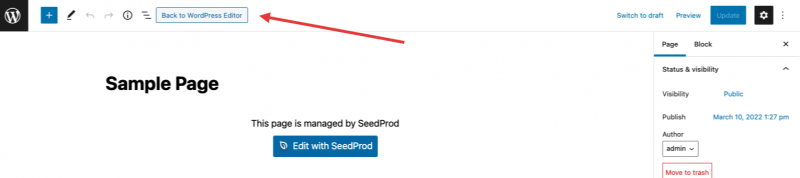
Si deseas volver al contenido estándar de la página de WordPress y dejar de usar el constructor de SeedProd para esa página, haz clic en el botón Volver a WordPress en la página.
Las páginas de contenido son una parte integral de la creación de un sitio completo con SeedProd. Configura tu plantilla de Página Única una vez y cada página que crees en WordPress heredará automáticamente el diseño de tu sitio, con la opción de personalizar cualquier página individual adicionalmente en el constructor de SeedProd cuando lo necesites.