
El bloque de Formulario de contacto te permite agregar fácilmente formularios de contacto a tus páginas de SeedProd. Este bloque se integra perfectamente con WPForms, uno de los constructores de formularios de WordPress más populares, lo que te permite crear y administrar formularios de contacto profesionales sin necesidad de codificación.
Con el bloque de Formulario de contacto, puedes incrustar cualquier formulario de contacto de WPForms directamente en tus páginas de destino, páginas de "próximamente" o páginas en modo de mantenimiento. Esto facilita que los visitantes se pongan en contacto contigo, manteniendo al mismo tiempo el hermoso diseño de tus páginas de SeedProd.
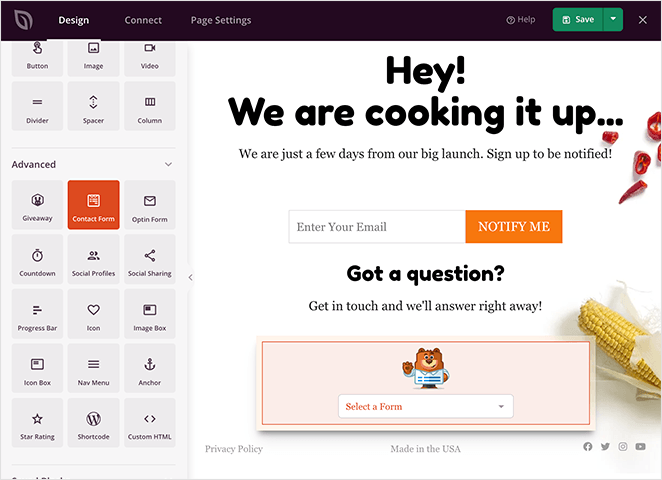
Añadir el bloque de Formulario de contacto a tus páginas
Sigue estos pasos para añadir un bloque de Formulario de contacto a tu página de SeedProd:
Paso 1: Añadir el Bloque
En Diseño > Bloques, arrastra y suelta el bloque Formulario de contacto en la sección deseada de tu página.
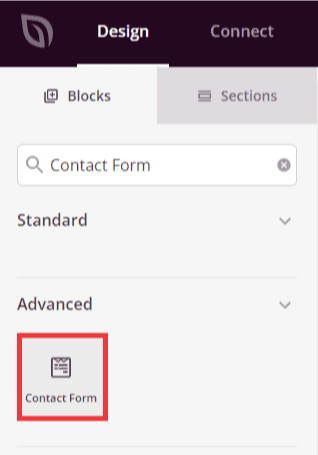
Localiza el bloque de Formulario de contacto en el panel de bloques y arrástralo a la ubicación deseada en la página.
Paso 2: Configurar los Ajustes de Contenido
Una vez añadido, haz clic en el bloque de Formulario de contacto para abrir su configuración. En la pestaña Contenido, puedes seleccionar qué formulario de contacto de WPForms mostrar.
Formulario:
- Seleccionar un formulario: Elige entre cualquier formulario de contacto que hayas creado previamente en WPForms. El menú desplegable muestra todos los formularios disponibles de tu biblioteca de WPForms.
- + Nuevo formulario: Crea un nuevo formulario de contacto de WPForms directamente desde el constructor de SeedProd. Esto abre el editor de WPForms donde puedes diseñar tu formulario y luego regresar para seleccionarlo.
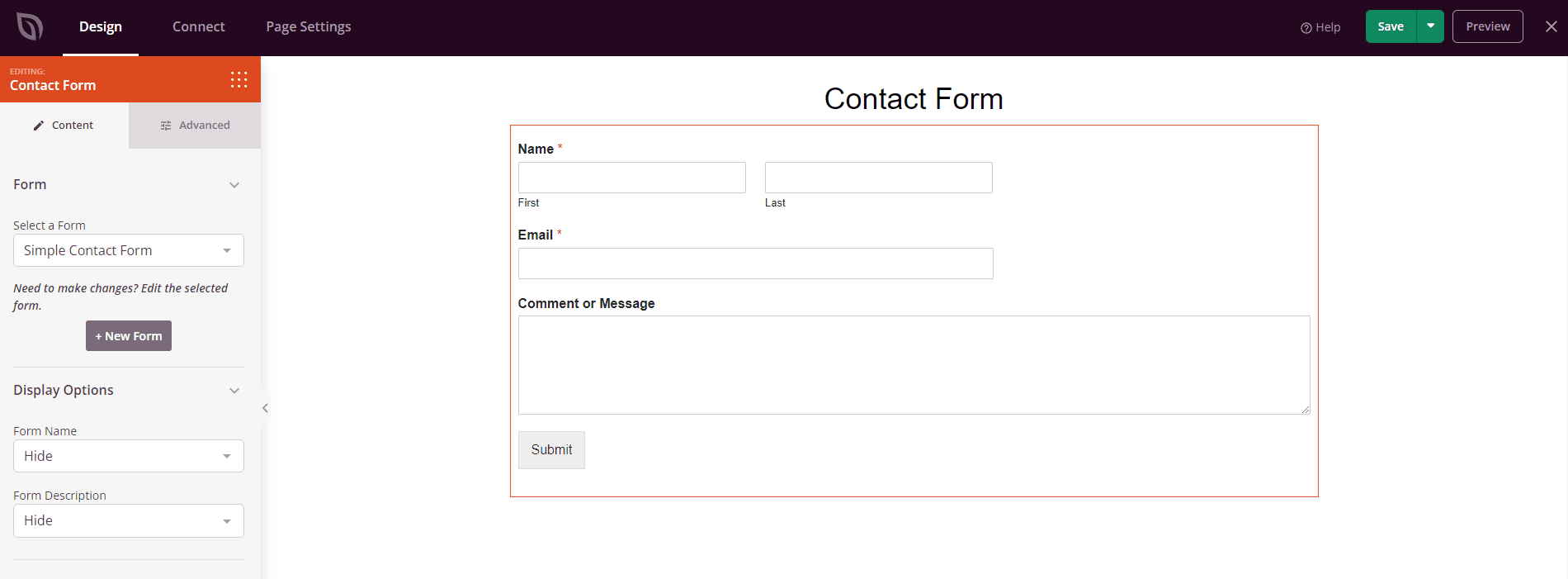
Selecciona tu formulario de contacto de WPForms del menú desplegable o crea uno nuevo.
Paso 3: Personaliza el Diseño
En la pestaña Avanzado, puedes personalizar la apariencia visual de tu bloque de Formulario de contacto:
Estilos Avanzados:
- Tipografía: Personaliza la familia de fuentes, tamaño, grosor, altura de línea y espaciado entre letras para el texto del formulario. Haz clic en Editar para acceder a los controles detallados de tipografía para las etiquetas del formulario y el texto de entrada.
- Color del texto: Establece el color de las etiquetas del formulario y el texto para que coincida con el diseño de tu página.
Espaciado:
- Margen: Controla el espaciado exterior alrededor de tu bloque de Formulario de contacto (Superior, Derecho, Inferior, Izquierdo). Esto determina cuánto espacio aparece entre el formulario y los elementos circundantes.
- Relleno: Ajusta el espaciado interior dentro de tu bloque de Formulario de contacto (Superior, Derecho, Inferior, Izquierdo). Esto crea espacio entre el contenido del formulario y los bordes del bloque.
Atributos:
- ID de CSS: Muestra el identificador único generado automáticamente para tu bloque de Formulario de contacto. Este ID es creado automáticamente por SeedProd para estilos personalizados o para la selección mediante JavaScript.
- Clase personalizada: Agrega clases CSS personalizadas para aplicar estilos específicos de tu tema o CSS personalizado.
- Atributos personalizados: Añade cualquier atributo HTML al elemento contenedor del formulario. Introduce cada atributo en una nueva línea usando el formato: nombre-del-atributo|valor (ej. data-tracking|formulario-contacto)
Visibilidad del Dispositivo:
- Ocultar en escritorio: Oculta el bloque de formulario de contacto en pantallas de escritorio
- Ocultar en tableta: Oculta el bloque de formulario de contacto en dispositivos tableta
- Ocultar en móvil: Oculta el bloque de formulario de contacto en dispositivos móviles
Efectos de Animación:
- Animación de entrada: Elige entre varios efectos de animación que se reproducen cuando el formulario de contacto entra en la vista. Las opciones incluyen Rebote, Fundido de entrada, Zoom de entrada, Girar de entrada y muchas más. Esto ayuda a atraer la atención a tu formulario de contacto y crea interés visual
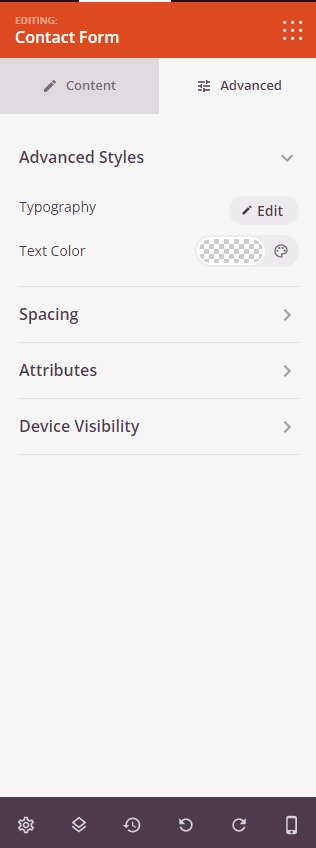
Personaliza la tipografía, el espaciado y la configuración de visualización en la pestaña Avanzado.
Paso 4: Guarde sus Cambios
Una vez que hayas terminado de configurar el bloque de formulario de contacto y personalizar su apariencia, asegúrate de guardar tu trabajo.
¡Has añadido con éxito un bloque de formulario de contacto a tu página! El bloque de formulario de contacto facilita la recopilación de información de los visitantes, la respuesta a preguntas y la construcción de relaciones con tu audiencia. Experimenta con diferentes diseños y opciones de estilo de WPForms para crear un formulario de contacto que coincida con tu marca y fomente la interacción de los visitantes.