
El bloque Carrito de EDD te permite crear una página de carrito de la compra personalizada para tu tienda Easy Digital Downloads. Este bloque muestra el contenido del carrito con control total sobre el estilo, la disposición y la presentación visual, ayudándote a crear una experiencia de carrito profesional que coincida con tu marca.
Una página de carrito bien diseñada es crucial para completar ventas y reducir el abandono del carrito. Con este bloque, puedes personalizar cada aspecto de la apariencia de tu carrito, desde la tipografía del encabezado y los estilos de los botones hasta las listas de productos y las pantallas de precios. Crea una página de carrito que inspire confianza y guíe a los clientes sin problemas hacia el pago.
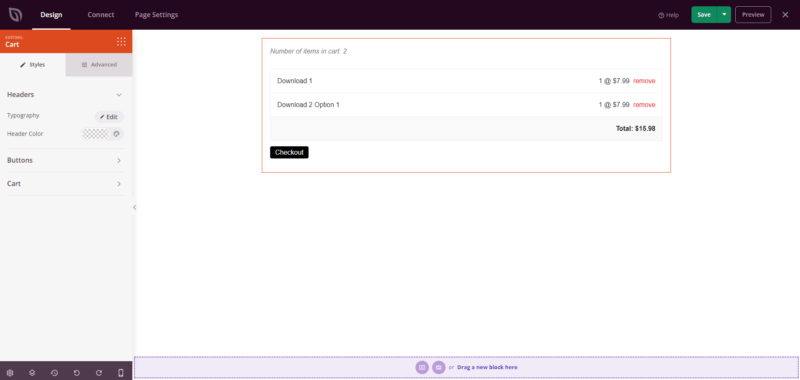
Añadir el bloque Carrito de EDD a tus páginas
Sigue estos pasos para añadir un bloque Carrito de EDD a tu página de SeedProd:
Paso 1: Añadir el Bloque
En Diseño > Bloques > Easy Digital Downloads, arrastra y suelta el bloque Carrito en la sección deseada de tu página.
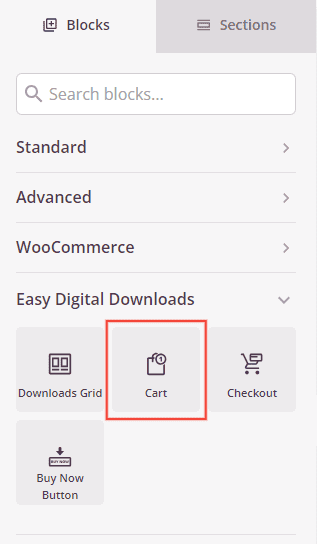
El bloque Carrito de EDD se encuentra en Easy Digital Downloads y se puede añadir para crear una página de carrito personalizada.
Paso 2: Personalizar el Diseño
Una vez añadido, haz clic en el bloque Carrito de EDD para abrir su configuración. En la pestaña Estilos, puedes personalizar la apariencia visual de tu carrito.
Encabezados:
- Tipografía: Controla las propiedades de la fuente para los encabezados del carrito como "Tu carrito" o los títulos de sección, incluyendo familia de fuentes, tamaño, peso y estilo.
- Color del Encabezado: Establece el color del texto del encabezado para que coincida con tu marca.
Botones:
- Estilo del Botón: Elige el tratamiento visual para los botones del carrito como "Actualizar Carrito" o "Proceder al Pago". Las opciones incluyen Plano (diseño plano moderno), 2D (profundidad sutil), Vintage (aspecto clásico), Fantasma (transparente con borde) o Enlace (enlace de texto simple).
- Color del Botón: Establece el color de fondo para los botones de acción del carrito.
- Radio del Borde: Ajusta la redondez de las esquinas de los botones. Valores más altos crean botones más redondeados, mientras que cero crea esquinas afiladas.
Carrito:
- Color del Borde del Carrito: Establece el color de los bordes alrededor de la tabla y los elementos del carrito.
- Ancho del Borde del Carrito: Ajusta el grosor de los bordes (Superior, Derecho, Inferior, Izquierdo) alrededor de los elementos del carrito.
- Color de Fondo: Establece el color de fondo de la tabla o el contenedor del carrito.
- Color del Texto del Producto: Elige el color de los nombres y descripciones de los productos en el carrito.
- Tipografía del Producto: Controla las propiedades de la fuente para los nombres y descripciones de los productos.
- Color del Texto del Precio: Establece el color de las pantallas de precios en el carrito.
- Tipografía del Precio: Personaliza las propiedades de la fuente para los precios.
- Color del Texto del Total: Elige el color de los importes totales del carrito.
- Tipografía del Total: Controla las propiedades de la fuente para los importes totales, incluyendo subtotales y totales generales.
- Color de enlaces: Establece el color de los enlaces clickables dentro del carrito (como "Eliminar" o enlaces de productos)
- Tipografía de enlaces: Personaliza las propiedades de la fuente para los enlaces del carrito
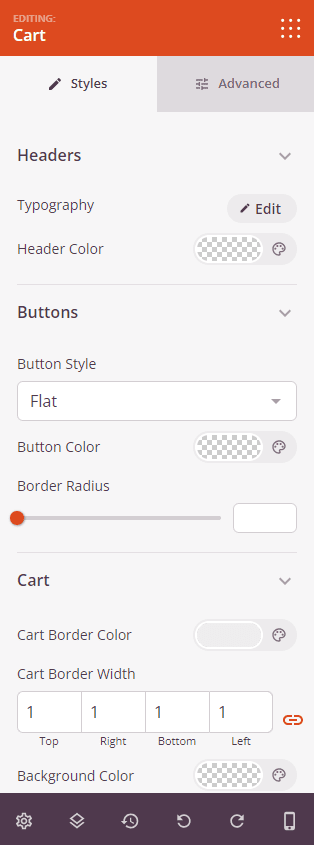
La pestaña Estilos proporciona opciones completas para personalizar encabezados, botones y todos los elementos de visualización del carrito.
Paso 3: Configurar Opciones Avanzadas
En la pestaña Avanzado, puedes personalizar aún más tu bloque de Carrito EDD:
Espaciado:
- Margen: Controla el espaciado exterior alrededor de tu bloque de carrito (Superior, Derecho, Inferior, Izquierdo). Esto determina cuánto espacio aparece entre el carrito y los elementos circundantes.
- Relleno: Ajusta el espaciado interior dentro de tu bloque de carrito (Superior, Derecho, Inferior, Izquierdo). Esto crea espacio entre el contenido del carrito y sus bordes.
Atributos:
- ID de CSS: Muestra el identificador único autogenerado para tu bloque de carrito. Esta ID es creada automáticamente por SeedProd para estilos personalizados o para apuntar con JavaScript.
- Clase personalizada: Agrega clases CSS personalizadas para aplicar estilos específicos de tu tema o CSS personalizado.
- Atributos personalizados: Añade cualquier atributo HTML al elemento contenedor del carrito. Introduce cada atributo en una nueva línea usando el formato: nombre-atributo|valor (ej. data-cart|edd-cart)
Visibilidad del Dispositivo:
- Ocultar en escritorio: Oculta el bloque del carrito en pantallas de escritorio.
- Ocultar en tableta: Oculta el bloque del carrito en dispositivos tableta.
- Ocultar en móvil: Oculta el bloque del carrito en dispositivos móviles.
Efectos de Animación:
- Animación de entrada: Elige entre varios efectos de animación que se reproducen cuando el carrito entra en la vista. Las opciones incluyen Rebote, Fundido de entrada, Zoom de entrada, Girar de entrada y muchas más.
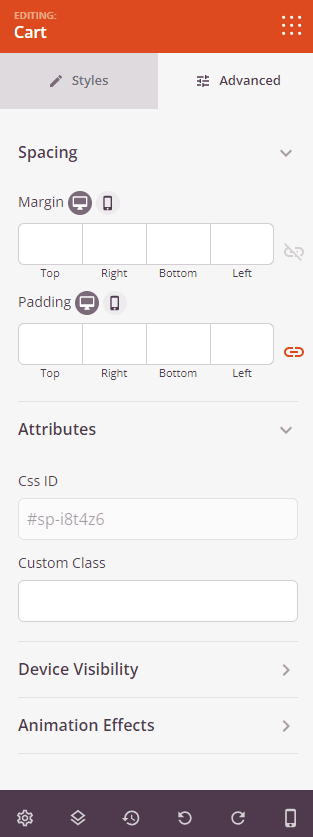
La pestaña Avanzado proporciona opciones para espaciado, atributos personalizados, visibilidad del dispositivo y efectos de animación.
Paso 4: Guarde sus Cambios
Una vez que hayas terminado de configurar el bloque Carrito EDD y personalizar su apariencia, asegúrate de guardar tu trabajo.
¡Has añadido con éxito un bloque de Carrito EDD a tu página! Esta visualización personalizable del carrito te ayuda a crear una experiencia de compra profesional que coincide con tu marca y guía a los clientes sin problemas hacia el pago. Experimenta con diferentes colores, tipografía y estilos de botones para crear una página de carrito que genere confianza y reduzca el abandono del carrito.