
The Anchor block allows you to create links that navigate users to specific sections within a page. This block helps you build seamless, one-click navigation that enhances user experience by letting visitors jump directly to the content they need.
Anchor links are perfect for long-form content, FAQ sections, table of contents navigation, or any page where you want to help visitors quickly reach specific sections without scrolling. By setting up anchor points throughout your page, you create a more accessible and user-friendly experience.
Adding the Anchor Block to Your Pages
Follow these steps to add an Anchor block to your SeedProd page:
Step 1: Add the Block
Under Design > Blocks, drag and drop the Anchor block into the desired section of your page where you want visitors to be able to jump to.
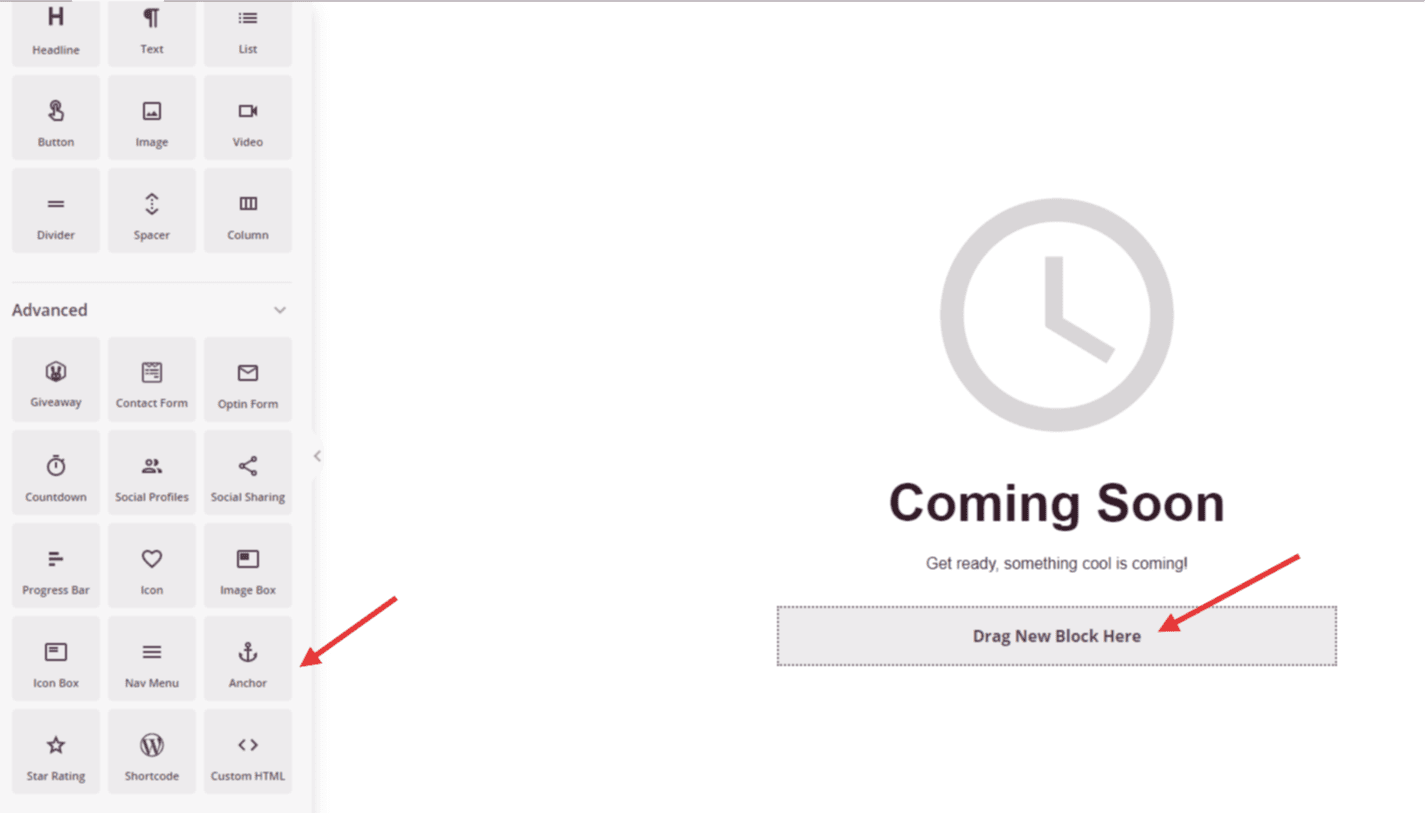
The Anchor block can be placed at any location on your page where you want to create a jump-to destination.
Step 2: Configure the Anchor Name
Once added, click on the Anchor block to open its settings. You’ll see a single field where you can set the anchor name.
- Anchor Name: Enter a unique, descriptive name for this anchor point. Use lowercase letters and hyphens instead of spaces (e.g., “about-section”, “pricing-details”, “contact-form”). This name becomes the identifier you’ll use to link to this section
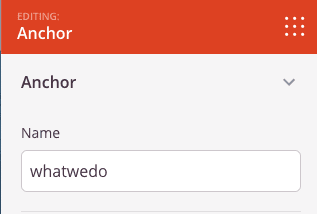
Set a unique name for your anchor. For example, if you name it “whatwedo”, you’ll link to it using “#whatwedo”.
Step 3: Link to Your Anchor
To create a link that jumps to your anchor, add a hash symbol (#) followed by your anchor name to any button, text link, or navigation menu item.
For example, if you named your anchor “whatwedo”, use “#whatwedo” as the URL in your button or link settings. When visitors click this link, the page will automatically scroll to the section where you placed the Anchor block.
You can create multiple anchor blocks on the same page, each with a unique name, allowing you to build comprehensive jump-to navigation throughout your content.
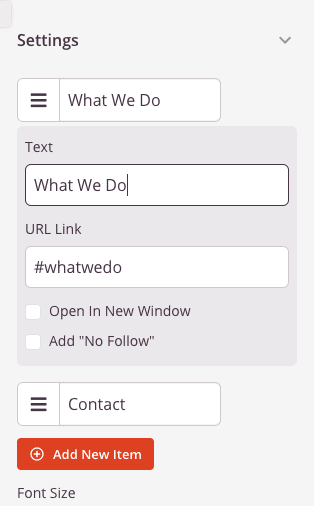
Create multiple anchors on the same page to build a complete jump navigation system.
Step 4: Save Your Changes
Once you have finished configuring the Anchor block and setting up your anchor name, make sure to save your work.
You’ve successfully added an Anchor block to your page! This simple but powerful block creates seamless navigation that helps visitors jump directly to the content they need. Experiment with multiple anchors throughout your page to build intuitive, user-friendly navigation that enhances the overall browsing experience.