
Le bloc de description courte récupère et affiche dynamiquement la description courte de chaque produit WooCommerce sur vos modèles de produit unique. Au lieu d'écrire une description statique, ce bloc utilise un shortcode pour récupérer automatiquement la description courte correcte pour chaque produit de votre catalogue, en gardant vos modèles précis sans aucun effort manuel.
Ce bloc est conçu exclusivement pour être utilisé sur les modèles de produit unique. La description courte apparaît généralement près du titre et du prix du produit, offrant aux acheteurs un aperçu concis du produit avant qu'ils ne lisent davantage. Vous pouvez compléter le shortcode avec du texte personnalisé, ajuster l'alignement et la taille de la police par appareil, et appliquer des styles de typographie et de couleur pour que la description corresponde parfaitement à votre marque.
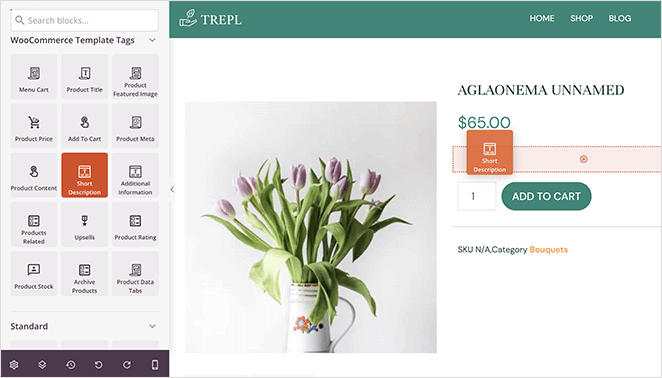
Ajout du bloc de description courte à vos pages
Suivez ces étapes pour ajouter un bloc de description courte à votre modèle de produit unique SeedProd :
Étape 1 : Ajouter le bloc
Sous Design > Blocs > Balises de modèle WooCommerce, faites glisser et déposez le bloc Description courte dans la section souhaitée de votre modèle de produit unique.
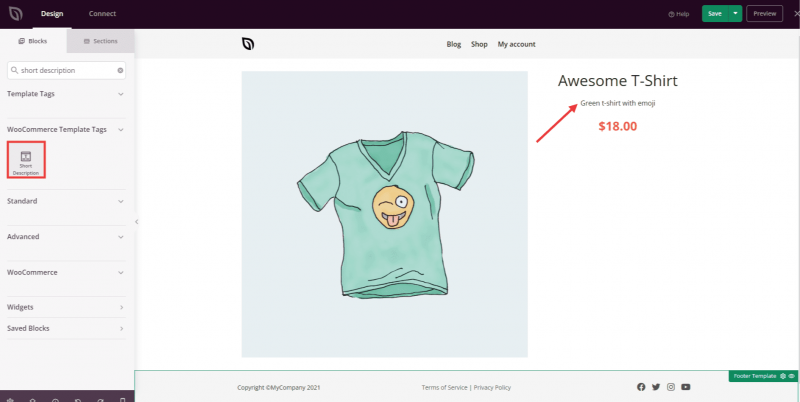
Étape 2 : Configurer les paramètres de contenu
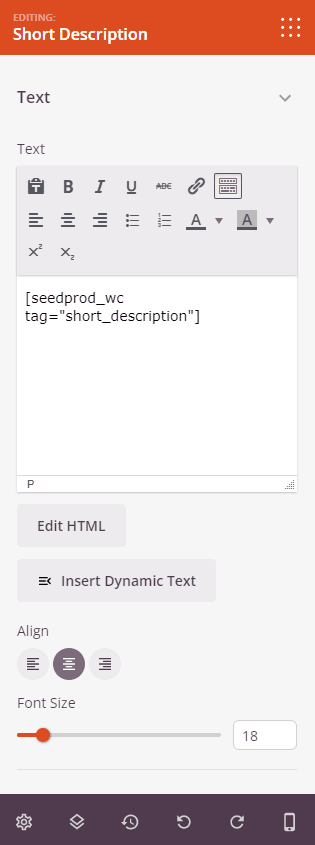
Une fois ajouté, cliquez sur le bloc de description courte pour ouvrir ses paramètres. Dans l'onglet Contenu, la section Texte contient le champ shortcode et les options d'affichage pour la description courte du produit.
- Texte : Le champ de contenu est pré-rempli avec le shortcode
, qui récupère automatiquement la description courte de WooCommerce pour chaque produit. Vous pouvez ajouter du texte personnalisé avant ou après le shortcode si nécessaire. Basculez entre l'Éditeur visuel (texte enrichi) et le mode Modifier le HTML (code) à l'aide du bouton sous le champ. - Alignement : Définissez l'alignement horizontal du texte de la description — Gauche, Centre ou Droite. Prend en charge l'alignement par appareil pour ordinateur, tablette et mobile.
- Taille de la police : Définissez la taille de la police du texte de la description à l'aide du curseur (10–72px). Prend en charge la taille par appareil pour ordinateur, tablette et mobile.
Étape 3 : Personnaliser le design
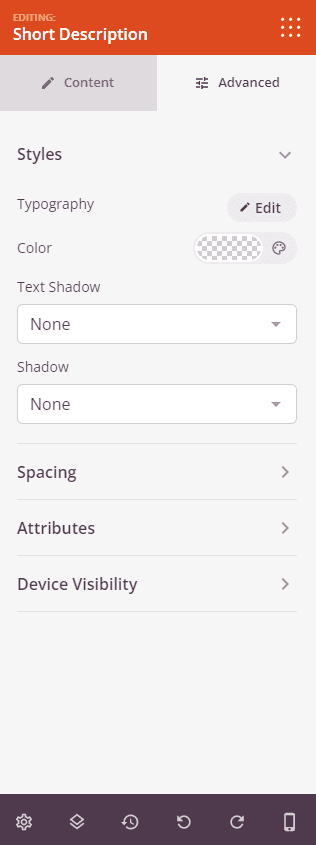
Dans l'onglet Avancé, vous pouvez styliser l'apparence du texte de la description et contrôler sa visibilité sur les différents appareils.
Styles :
- Typographie : Définissez la famille de polices, le poids, la hauteur de ligne, l'espacement des lettres et la transformation du texte pour le texte de la description courte, vous offrant un contrôle granulaire au-delà du curseur de taille de police de l'onglet Contenu.
- Couleur : Définissez la couleur du texte de la description courte.
- Ombre du texte : Ajoutez un effet d'ombre directement au texte de la description. Choisissez parmi des tailles prédéfinies (Aucune, Cheveux, Petite, Moyenne, Grande, Très grande, 2X grande) pour ajouter de la profondeur ou de l'emphase à la copie.
- Ombre : Ajoutez une ombre portée au bloc entier pour le faire ressortir visuellement du contenu de la page environnante.
Espacement :
- Marge : Contrôlez l'espacement extérieur autour de votre bloc de description courte (Haut, Droite, Bas, Gauche). Cela détermine l'espace qui apparaît entre la description et les éléments environnants tels que le titre du produit ou le bouton d'ajout au panier.
- Rembourrage : Ajustez l'espacement intérieur de votre bloc de description courte (Haut, Droite, Bas, Gauche). Cela crée un espace entre le texte de la description et les bords du bloc.
Attributs :
- ID CSS : Affiche l'identifiant unique généré automatiquement pour votre bloc de description courte. Cet ID est créé automatiquement par SeedProd pour un style personnalisé ou un ciblage JavaScript.
- Classe personnalisée : Ajoutez des classes CSS personnalisées pour appliquer des styles spécifiques de votre thème ou de votre CSS personnalisé.
- Attributs personnalisés : Ajoutez tous les attributs HTML à l'élément enveloppant du bloc. Entrez chaque attribut sur une nouvelle ligne en utilisant le format : nom-attribut|valeur (par exemple, data-description|court).
Visibilité de l'appareil :
- Masquer sur ordinateur : Masquez le bloc de description courte sur les écrans d'ordinateur.
- Masquer sur tablette : Masquez le bloc de description courte sur les appareils tablettes.
- Masquer sur mobile : Masquez le bloc de description courte sur les appareils mobiles.
Effets d'animation :
- Animation d'entrée : Choisissez parmi divers effets d'animation qui se jouent lorsque le bloc de description courte défile dans la vue. Les options incluent Rebond, Fondu, Zoom, Rotation, et bien d'autres.
Étape 4 : Enregistrez vos modifications
Une fois que vous avez terminé de configurer le bloc de description courte et de personnaliser son apparence, assurez-vous de sauvegarder votre travail.
Vous avez ajouté avec succès un bloc de description courte à votre modèle de produit unique ! Le bloc affiche automatiquement la description courte correcte pour chaque produit de votre boutique WooCommerce, vous faisant gagner du temps et assurant la cohérence de votre catalogue. Expérimentez avec la typographie, la couleur du texte et l'alignement par appareil pour présenter vos descriptions de produits d'une manière qui guide les acheteurs vers un achat.