
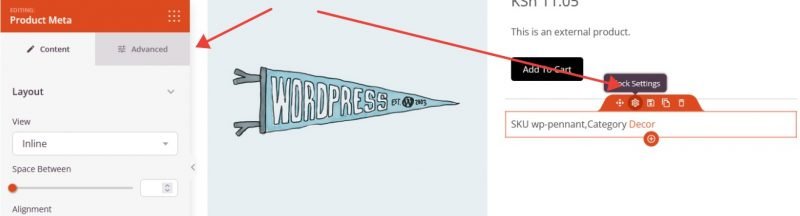
Le bloc Métadonnées Produit affiche les métadonnées associées à chaque produit WooCommerce sur vos modèles de produit unique. Cela inclut des informations telles que les catégories de produits, les tags et le SKU — les détails qui aident les clients à en savoir plus sur un produit et à trouver des articles similaires.
Ce bloc est conçu exclusivement pour être utilisé sur les modèles de produit unique et récupère dynamiquement les métadonnées correctes pour chaque produit. Vous pouvez choisir la façon dont les métadonnées sont présentées, contrôler l'espacement et l'alignement, personnaliser les couleurs du texte et des liens, et ajouter un caractère de séparation entre les éléments en ligne — vous donnant ainsi un contrôle total sur la présentation des détails du produit.
Ajouter le bloc Métadonnées Produit à vos pages
Suivez ces étapes pour ajouter un bloc Métadonnées Produit à votre modèle de produit unique SeedProd :
Étape 1 : Ajouter le bloc
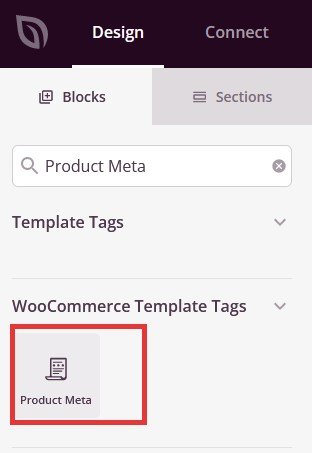
Sous Design > Blocs > Balises de modèle WooCommerce, faites glisser et déposez le bloc Métadonnées Produit dans la section souhaitée de votre modèle de produit unique.
Étape 2 : Configurer les paramètres de contenu
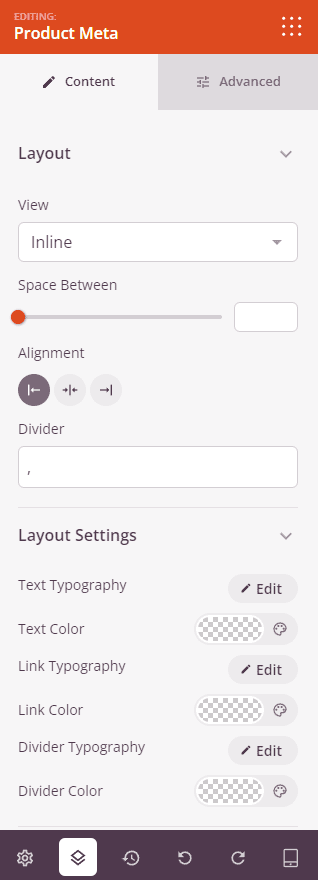
Une fois ajouté, cliquez sur le bloc Métadonnées Produit pour ouvrir ses paramètres. L'onglet Contenu est organisé en deux sections — Disposition pour contrôler la façon dont les métadonnées sont affichées, et Paramètres de disposition pour affiner la typographie et les couleurs.
Mise en page :
- Vue : Choisissez la façon dont les éléments de métadonnées sont organisés. Tableau affiche chaque élément dans une disposition à deux colonnes libellé/valeur. Empilé place le libellé au-dessus de la valeur dans une pile verticale. En ligne affiche tous les éléments côte à côte sur une seule ligne, séparés par le caractère de séparation.
- Espace entre : Définissez l'espacement vertical (1–100px) entre chaque ligne de métadonnées lorsque vous utilisez la vue Tableau ou Empilé.
- Alignement : Définissez l'alignement horizontal du contenu des métadonnées — Gauche, Centre ou Droite.
- Séparateur : Entrez un caractère ou un symbole qui sépare les éléments de métadonnées lorsqu'ils sont affichés en vue En ligne (par défaut, c'est une virgule). Vous pouvez utiliser n'importe quel caractère, tel qu'une barre verticale (|), un tiret (–) ou un point (•).
Paramètres de mise en page :
- Typographie du texte : Définissez la famille de polices, la taille, le poids, la hauteur de ligne et l'espacement des lettres pour les portions de texte brut des métadonnées (telles que les libellés comme « Catégorie : » ou « SKU : »).
- Couleur du texte : Définissez la couleur du texte brut des métadonnées.
- Typographie des liens : Définissez la typographie des valeurs de métadonnées qui sont affichées sous forme de liens cliquables (tels que les noms de catégories et de tags).
- Couleur des liens : Définissez la couleur du texte des liens de métadonnées, lui permettant de se démarquer visuellement du texte du libellé environnant.
- Typographie du séparateur : Définissez la taille et le style de la police du caractère de séparation utilisé entre les éléments de métadonnées en ligne.
- Couleur du séparateur : Définissez la couleur du caractère séparateur entre les éléments de métadonnées en ligne.
Étape 3 : Personnaliser le design
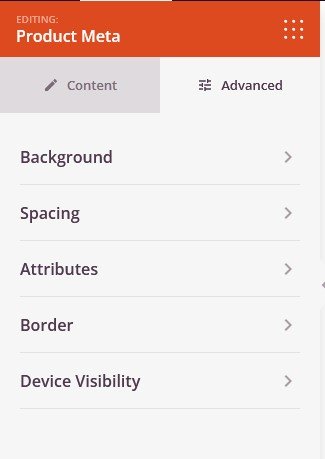
Dans l'onglet Avancé, vous pouvez styliser davantage le bloc avec des options d'arrière-plan, des bordures, des espacements et des contrôles de visibilité.
Arrière-plan :
- Arrière-plan : Définissez une couleur d'arrière-plan, un dégradé ou une image derrière l'ensemble du bloc Métadonnées produit. Ceci est utile pour séparer visuellement la zone des métadonnées du contenu environnant sur la page produit.
Espacement :
- Marge : Contrôlez l'espacement extérieur autour de votre bloc Métadonnées produit (Haut, Droite, Bas, Gauche). Ceci détermine l'espace qui apparaît entre les métadonnées et les éléments environnants sur la page.
- Rembourrage : Ajustez l'espacement intérieur de votre bloc Métadonnées produit (Haut, Droite, Bas, Gauche). Ceci crée un espace de respiration entre le contenu des métadonnées et les bords du bloc.
Attributs :
- ID CSS : Affiche l'identifiant unique généré automatiquement pour votre bloc Métadonnées produit. Cet ID est créé automatiquement par SeedProd pour un style personnalisé ou un ciblage JavaScript.
- Classe personnalisée : Ajoutez des classes CSS personnalisées pour appliquer des styles spécifiques de votre thème ou de votre CSS personnalisé.
- Attributs personnalisés : Ajoutez des attributs HTML à l'élément conteneur du bloc. Entrez chaque attribut sur une nouvelle ligne en utilisant le format : nom-attribut|valeur (par exemple, data-meta|produit).
Bordure :
- Rayon de bordure : Définissez l'arrondi des coins du bloc Métadonnées produit.
- Style de bordure : Choisissez un style de bordure — Pleine, Pointillée ou Tirets.
- Couleur de bordure : Définissez la couleur de bordure du bloc.
- Épaisseur de bordure : Définissez l'épaisseur de la bordure par côté (Haut, Droite, Bas, Gauche).
Visibilité de l'appareil :
- Masquer sur ordinateur : Masquez le bloc Métadonnées produit sur les écrans d'ordinateur.
- Masquer sur tablette : Masquez le bloc Métadonnées produit sur les appareils tablettes.
- Masquer sur mobile : Masquez le bloc Métadonnées produit sur les appareils mobiles.
Effets d'animation :
- Animation d'entrée : Choisissez parmi divers effets d'animation qui se jouent lorsque le bloc Métadonnées produit défile dans la vue. Les options incluent Rebond, Fondu, Zoom avant, Rotation avant, et bien d'autres.
Étape 4 : Enregistrez vos modifications
Une fois que vous avez terminé de configurer le bloc Métadonnées produit et de personnaliser son apparence, assurez-vous de sauvegarder votre travail.
Vous avez ajouté avec succès un bloc Métadonnées produit à votre modèle de produit unique ! Le bloc récupère automatiquement les catégories, les tags, le SKU et d'autres métadonnées produit directement de WooCommerce pour chaque produit. Expérimentez avec la disposition de la vue, les couleurs des liens et les paramètres du séparateur pour présenter les métadonnées produit d'une manière qui complète la conception de votre boutique et aide les acheteurs à trouver rapidement des produits connexes.