
Ce guide vous explique comment créer votre première page de destination dans SeedProd. Les pages de destination sont des pages autonomes qui fonctionnent indépendamment de votre thème WordPress — elles n'incluent pas l'en-tête ni le pied de page de votre site.
Étape 1 : Ouvrir l'écran des pages de destination
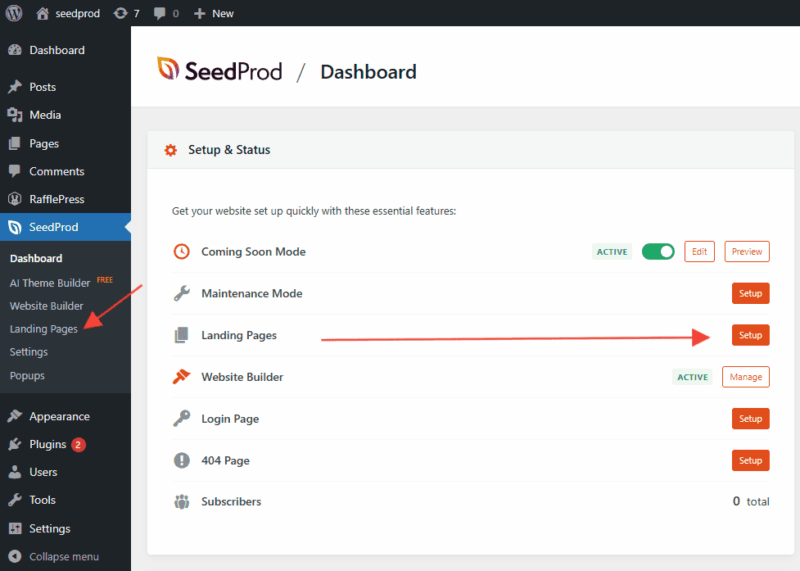
Dans la barre latérale d'administration de WordPress, allez à SeedProd > Pages de destination. Vous pouvez également créer votre première page de destination directement depuis le tableau de bord SeedProd.
Étape 2 : Choisir un type de page
SeedProd propose quatre types de pages spéciales, chacune conçue pour un objectif spécifique :
- Page "Bientôt disponible" : Affichez une page "bientôt disponible" aux visiteurs pendant que votre site est en cours de construction. Les utilisateurs connectés verront le site Web normal.
- Page de maintenance : Affichez une page de maintenance lorsque votre site doit être temporairement masqué. Les utilisateurs connectés verront toujours le site Web normal.
- Page de connexion : Remplacez la page de connexion WordPress par défaut par un design entièrement personnalisé.
- Page 404 personnalisée : Créez une page 404 personnalisée pour les visiteurs qui arrivent sur une URL manquante. Vous pouvez également l'utiliser pour collecter des prospects avec un formulaire d'inscription.
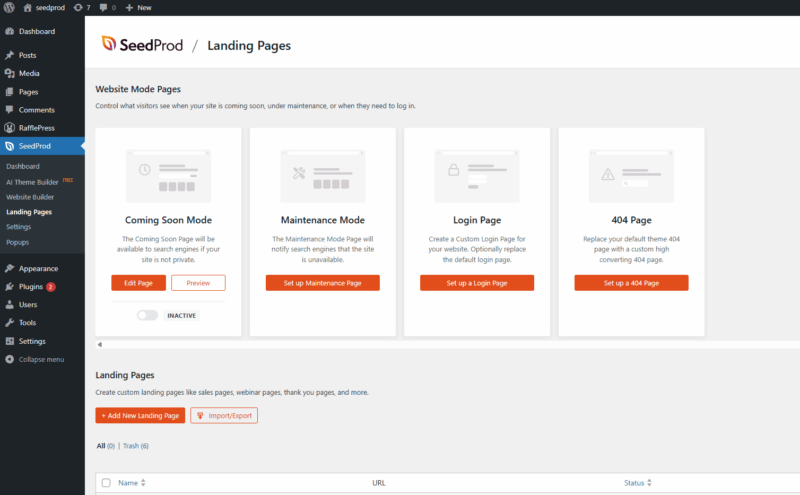
Vous pouvez également créer une Page de destination standard — telle qu'une page d'inscription, de vente, de webinaire, de prospect, de remerciement ou une page de capture — toute page ayant un objectif de conversion spécifique. Les pages de destination ont leur propre URL (par exemple : http://example.com/ma-page-de-destination/).
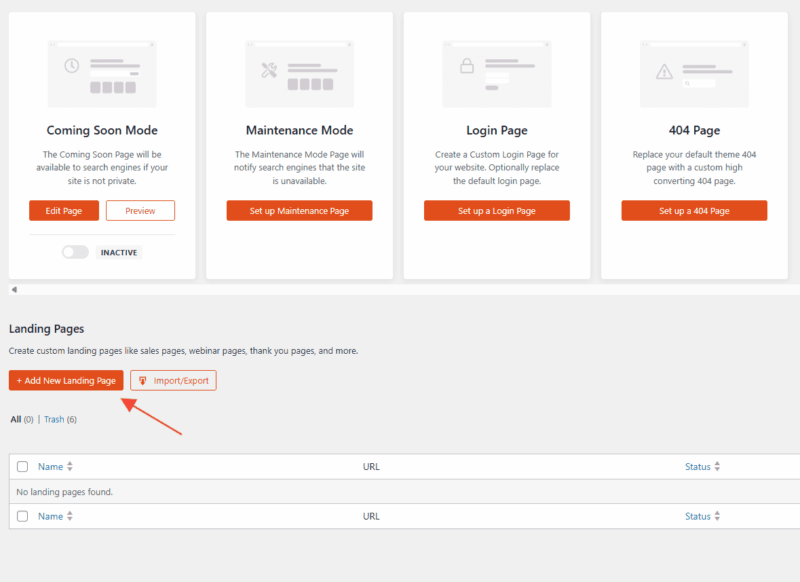
Pour commencer, cliquez sur Ajouter une nouvelle page de destination.
Étape 3 : Nommer votre page
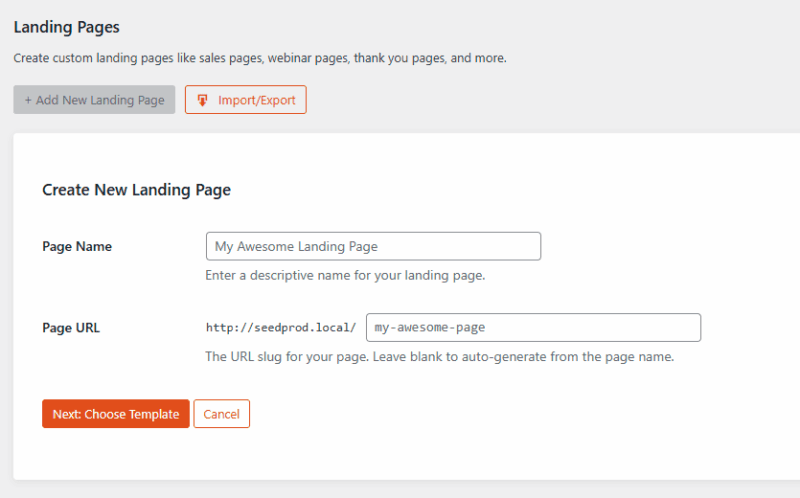
Entrez un Nom de page. SeedProd générera automatiquement un aperçu de l'URL de la page en fonction du nom que vous saisissez. Vous pouvez modifier l'URL à tout moment dans les paramètres de la page après sa création.
Une fois que vous avez entré le nom de votre page, cliquez sur Suivant : Choisir un modèle pour continuer.
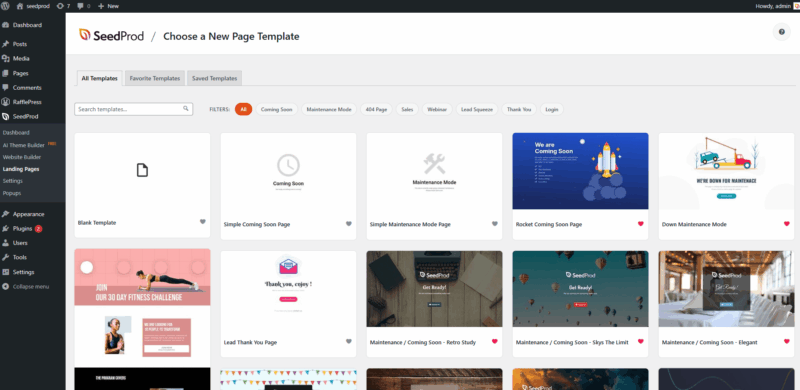
Étape 4 : Choisir un modèle
Parcourez les modèles prédéfinis disponibles et cliquez sur l'un d'eux pour l'importer. Si vous préférez construire à partir de zéro, sélectionnez l'option Modèle vierge.
Étape 5 : Modifier votre page
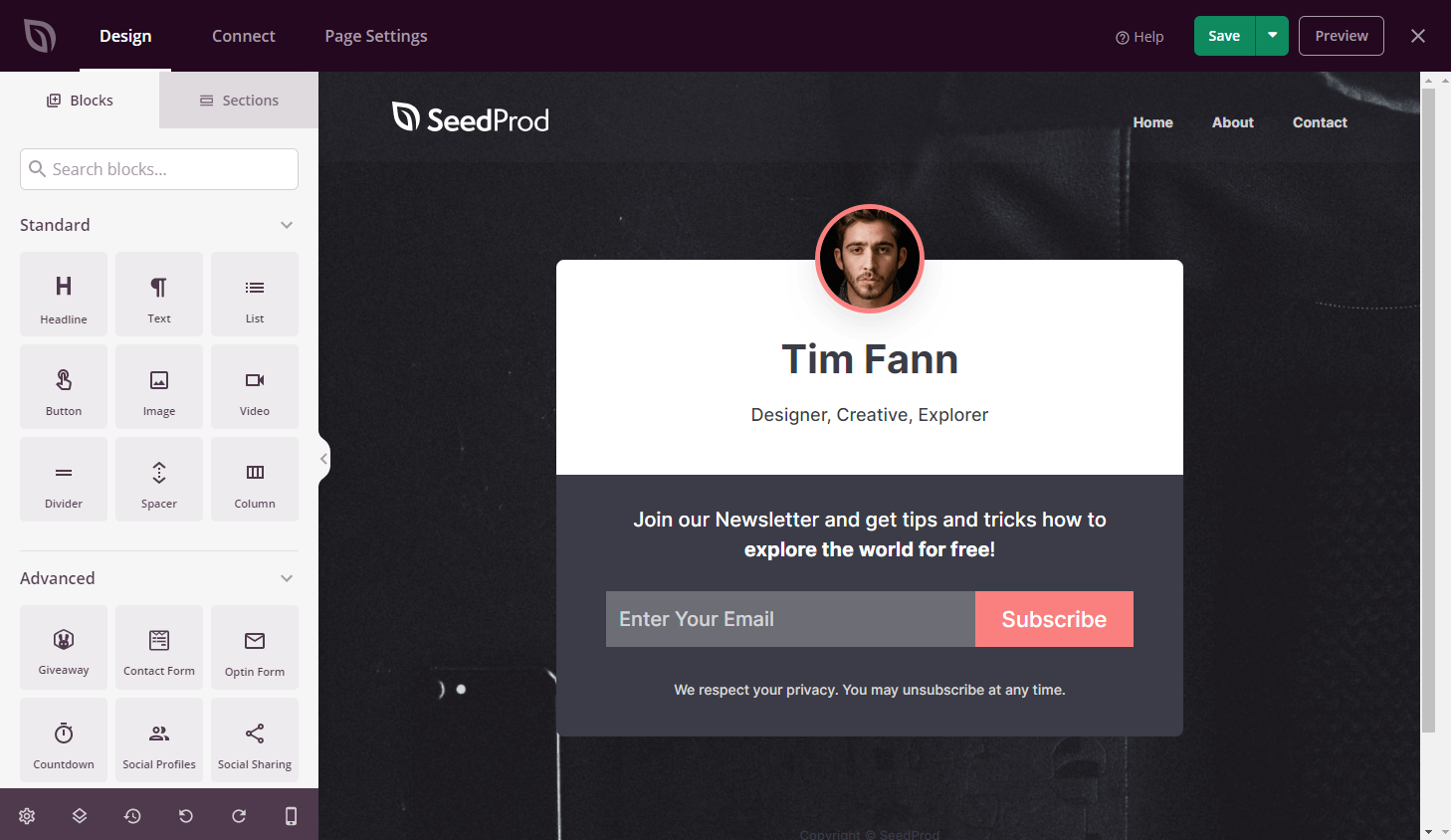
Après avoir importé un modèle, SeedProd ouvre le constructeur de page visuel. Le panneau de gauche contient tous les blocs disponibles — faites glisser et déposez n'importe quel bloc sur la toile de droite pour commencer à construire votre page.
Votre première page de destination est prête à être construite ! Utilisez le constructeur par glisser-déposer pour ajouter du contenu, personnaliser le design et configurer les paramètres de votre page. Lorsque vous avez terminé, enregistrez et publiez votre page pour la rendre visible. Pour des tutoriels vidéo, visitez la chaîne YouTube de SeedProd.