
Le bloc Titre Animé vous permet d'afficher des titres animés captivants sur vos pages SeedProd. Ce bloc vous aide à créer du texte accrocheur qui change, met en surbrillance ou tourne pour attirer l'attention des visiteurs et souligner les messages clés.
Les titres animés sont parfaits pour les sections d'en-tête, les pages de destination, les bannières promotionnelles, ou partout où vous souhaitez présenter plusieurs propositions de valeur ou messages clés d'une manière dynamique et engageante. Avec une variété de styles d'animation et d'effets visuels, vous pouvez créer des titres qui se démarquent et maintiennent l'engagement des visiteurs.
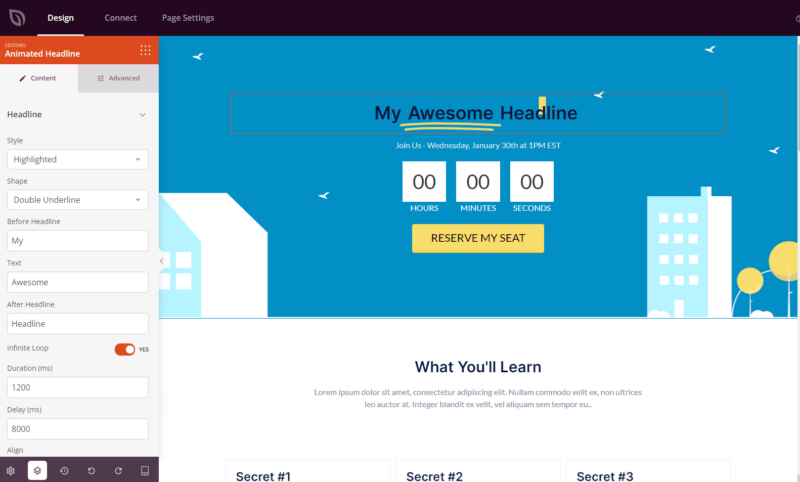
Ajouter le bloc Titre Animé à vos pages
Suivez ces étapes pour ajouter un bloc Titre Animé à votre page SeedProd :
Étape 1 : Ajouter le bloc
Sous Design > Blocs, faites glisser le bloc Titre Animé dans la section souhaitée de votre page.
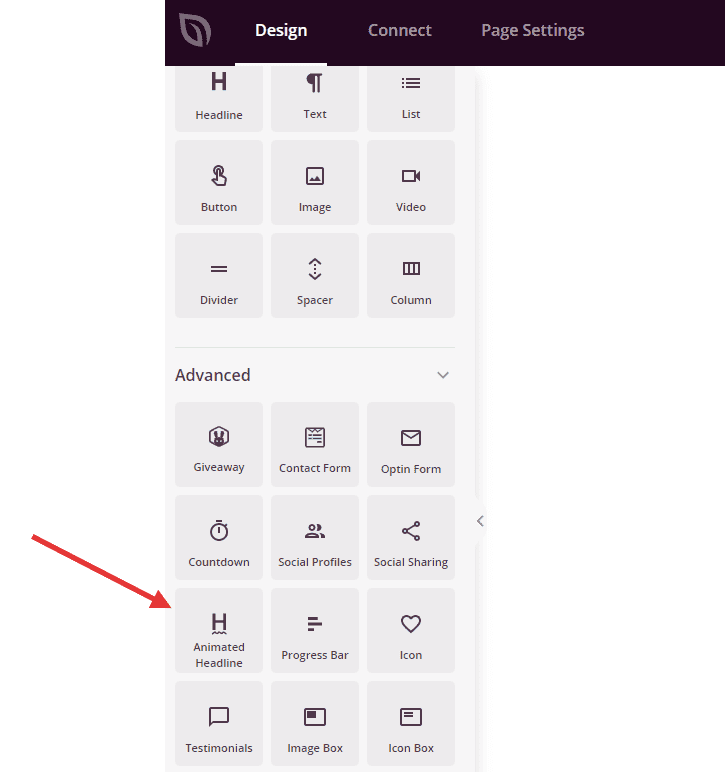
Le bloc Titre Animé apparaît dans le panneau Blocs et peut être glissé dans n'importe quelle section de votre page.
Étape 2 : Configurer les paramètres de contenu
Une fois ajouté, cliquez sur le bloc Titre Animé pour ouvrir ses paramètres. Dans l'onglet Contenu, vous pouvez personnaliser le style d'animation, le contenu textuel et le timing.
Titre :
- Style : Choisissez entre deux styles d'animation – Mise en surbrillance (met en évidence le texte avec des formes visuelles ou des soulignements) ou Rotation (fait défiler plusieurs variations de texte)
- Forme : Lors de l'utilisation du style Mise en surbrillance, sélectionnez la forme qui apparaît autour de votre texte. Les options incluent Cercle, Boucle, Soulignement, Double, Double Soulignement, Soulignement Zigzag, Diagonal, Barré et X. Chacune crée une mise en évidence visuelle unique.
- Texte avant le titre : Entrez le texte statique qui apparaît avant votre partie animée. Ce texte reste constant et prépare la partie animée (par exemple, « Nous sommes »)
- Après le titre : Entrez le texte qui sera animé ou mis en surbrillance. Pour le style Rotation, vous pouvez ajouter plusieurs mots ou phrases séparés par des virgules qui défileront (par exemple, « experts, professionnels, innovateurs »)
- Boucle infinie : Activez ou désactivez l'animation continue. Lorsqu'elle est activée, l'animation se répète indéfiniment. Lorsqu'elle est désactivée, elle se joue une fois et s'arrête.
- Durée (ms) : Définissez la durée pendant laquelle chaque mot ou effet d'animation s'affiche, mesurée en millisecondes. Des valeurs plus élevées ralentissent l'animation, tandis que des valeurs plus faibles l'accélèrent (par exemple, 2000 ms = 2 secondes).
- Délai (ms) : Contrôlez la pause entre les cycles d'animation, mesurée en millisecondes. Cela crée un espace de respiration entre les changements de texte.
- Alignement : Définissez l'alignement horizontal de votre titre entier (gauche, centre ou droite).
- Taille de la police : Ajustez la taille du texte de votre titre pour vous assurer qu'il est proéminent et lisible.
- Niveau : Choisissez la balise de titre HTML pour votre titre animé (h1, h2, h3 ou h4). Cela affecte à la fois le référencement et la hiérarchie visuelle de votre page.
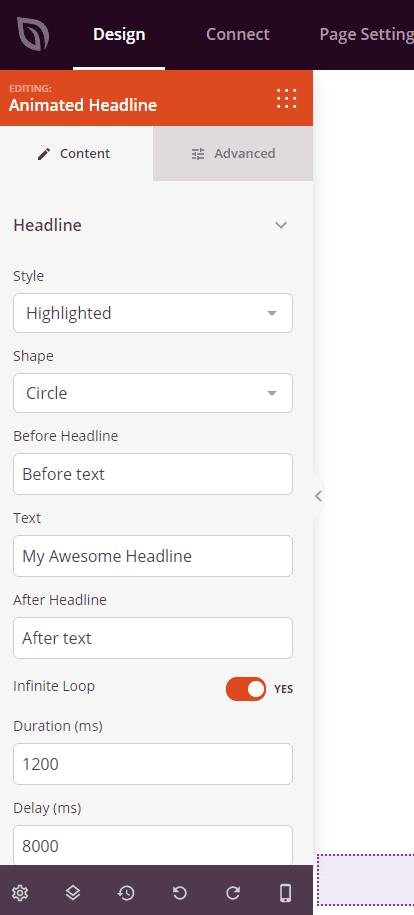
L'onglet Contenu fournit des options pour choisir les styles d'animation, personnaliser le texte et contrôler la synchronisation et le comportement de l'animation.
Étape 3 : Personnaliser le design
Dans l'onglet Avancé, vous pouvez personnaliser l'apparence visuelle de votre bloc Titre animé :
Styles :
- Typographie : Contrôlez la famille de polices, le poids, le style et d'autres propriétés de texte pour votre titre
- Couleur du contour : Définissez la couleur de la forme animée ou de la surbrillance qui apparaît autour ou derrière votre texte (lors de l'utilisation du style Surbrillance)
- Couleur : Choisissez la couleur du texte de votre titre pour assurer un bon contraste et une bonne lisibilité
- Ombre portée du texte : Ajoutez des effets d'ombre à votre texte de titre pour plus de profondeur et d'emphase. Choisissez parmi Aucune, Cheveu, Petite, Moyenne, Grande, Très grande, 2x Très grande ou Personnalisée
Espacement :
- Marge : Contrôlez l'espacement extérieur autour de votre bloc de titre (Haut, Droite, Bas, Gauche). Cela détermine l'espace qui apparaît entre le titre et les éléments environnants
- Rembourrage : Ajustez l'espacement intérieur de votre bloc de titre (Haut, Droite, Bas, Gauche). Cela crée un espace de respiration entre le texte et les bords du bloc
Attributs :
- ID CSS : Affiche l'identifiant unique généré automatiquement pour votre bloc de titre. Cet ID est créé automatiquement par SeedProd pour un style personnalisé ou un ciblage JavaScript
- Classe personnalisée : Ajoutez des classes CSS personnalisées pour appliquer des styles spécifiques de votre thème ou de votre CSS personnalisé
- Attributs personnalisés : Ajoutez des attributs HTML à l'élément conteneur du titre. Entrez chaque attribut sur une nouvelle ligne en utilisant le format : nom-attribut|valeur (par exemple, data-animation|headline)
Visibilité de l'appareil :
- Masquer sur ordinateur : Masquez le bloc de titre sur les écrans d'ordinateur
- Masquer sur tablette : Masquez le bloc de titre sur les appareils tablettes
- Masquer sur mobile : Masquez le bloc de titre sur les appareils mobiles
Effets d'animation :
- Animation d'entrée : Choisissez parmi divers effets d'animation qui se jouent lorsque le titre apparaît à l'écran. Les options incluent Rebondir, Fondu, Zoom avant, Rotation avant, et bien d'autres. Cela crée un effet d'animation superposé où l'animation d'entrée du bloc se joue d'abord, suivie de l'animation du texte du titre lui-même
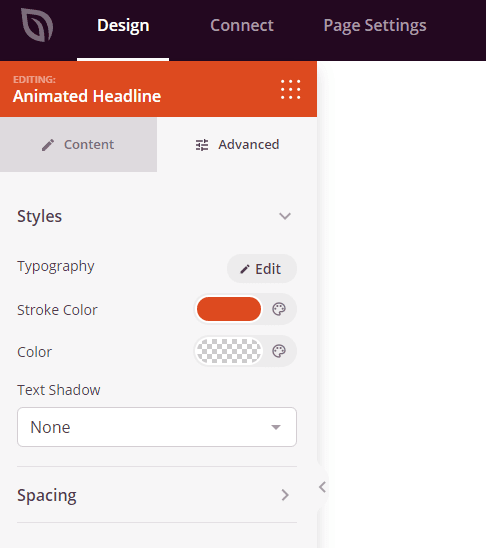
L'onglet Avancé offre des options de style, notamment la typographie, les couleurs, les ombres de texte, l'espacement et les animations d'entrée.
Étape 4 : Enregistrez vos modifications
Une fois que vous avez terminé de configurer le bloc Titre animé et de personnaliser son apparence, assurez-vous de sauvegarder votre travail.
Vous avez ajouté avec succès un bloc Titre animé à votre page ! Ce bloc dynamique vous aide à créer des titres accrocheurs qui présentent plusieurs messages ou soulignent des points clés avec des animations engageantes. Expérimentez différents styles d'animation, formes et synchronisations pour créer des titres qui captivent votre public et communiquent efficacement votre message.