
Mailchimp is one of the most popular email marketing platforms for managing campaigns and staying connected with subscribers. This guide walks you through connecting Mailchimp to the SeedProd Optin Form block so new subscribers are automatically added to your Mailchimp list.
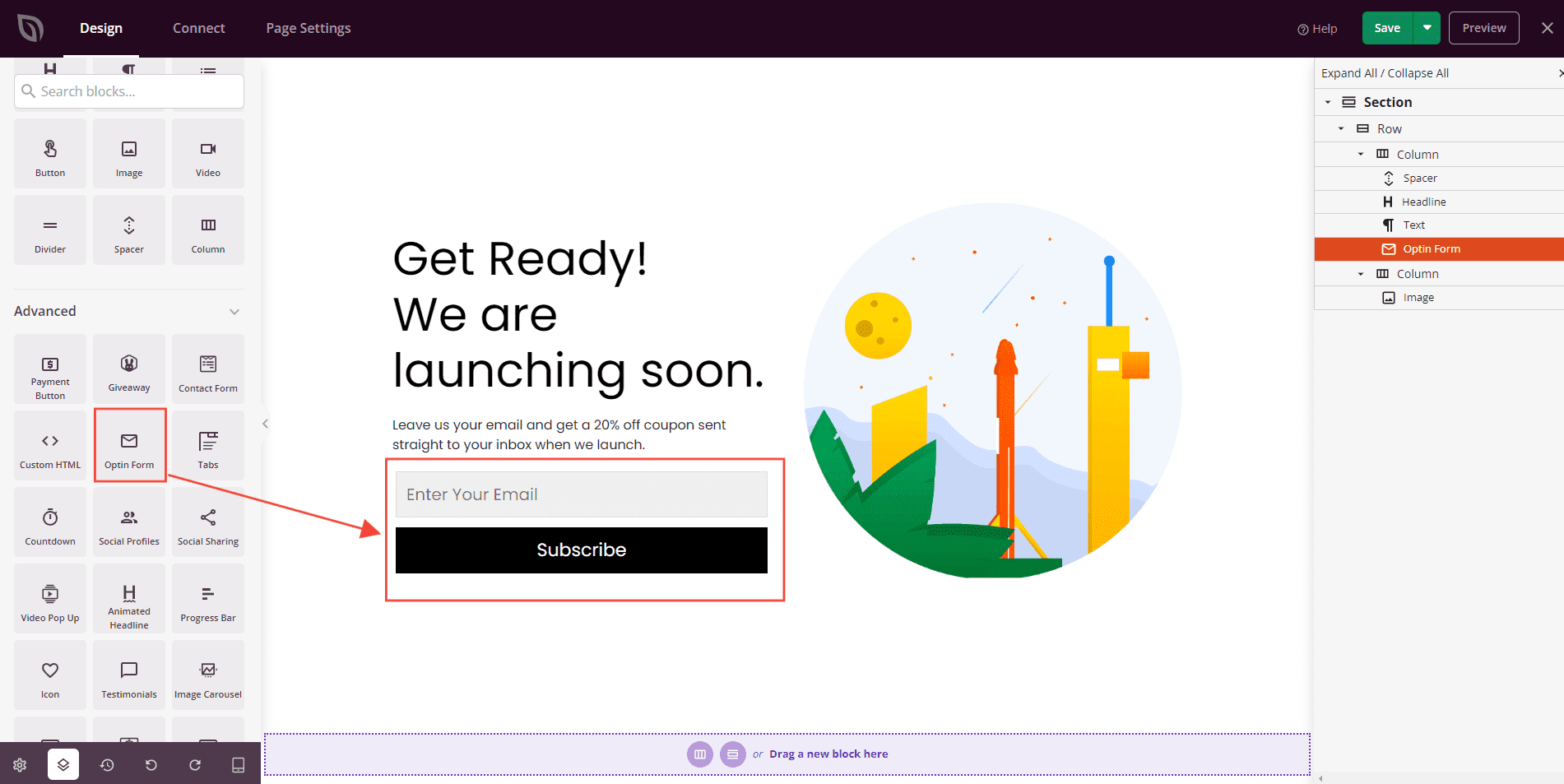
Step 1: Add the Optin Form Block
In the SeedProd editor, drag and drop the Optin Form block onto your desired page section and customize it to your preferences.
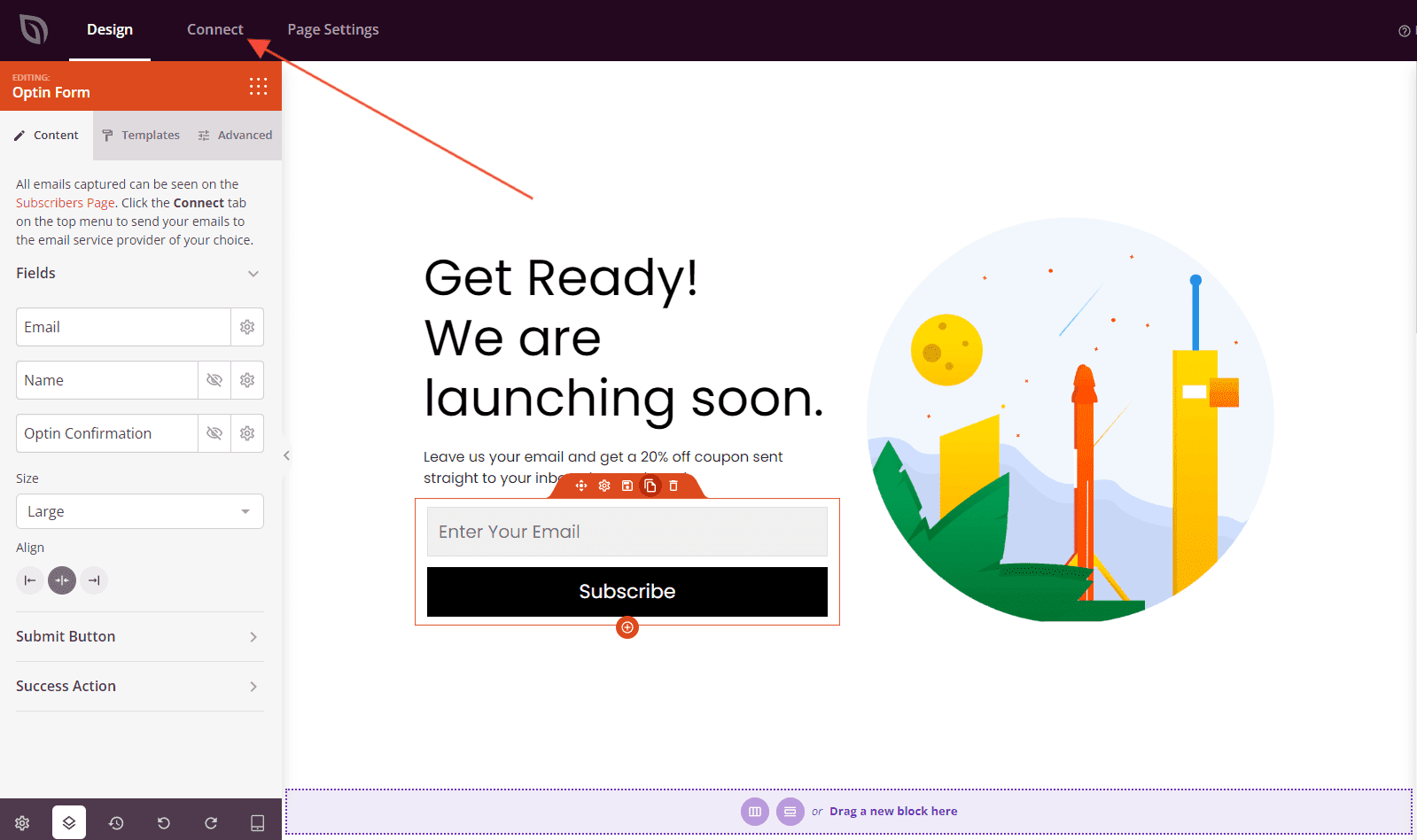
Step 2: Open the Connect Tab
Click the Connect link within the Optin Form block settings to navigate to the Email Integrations section.
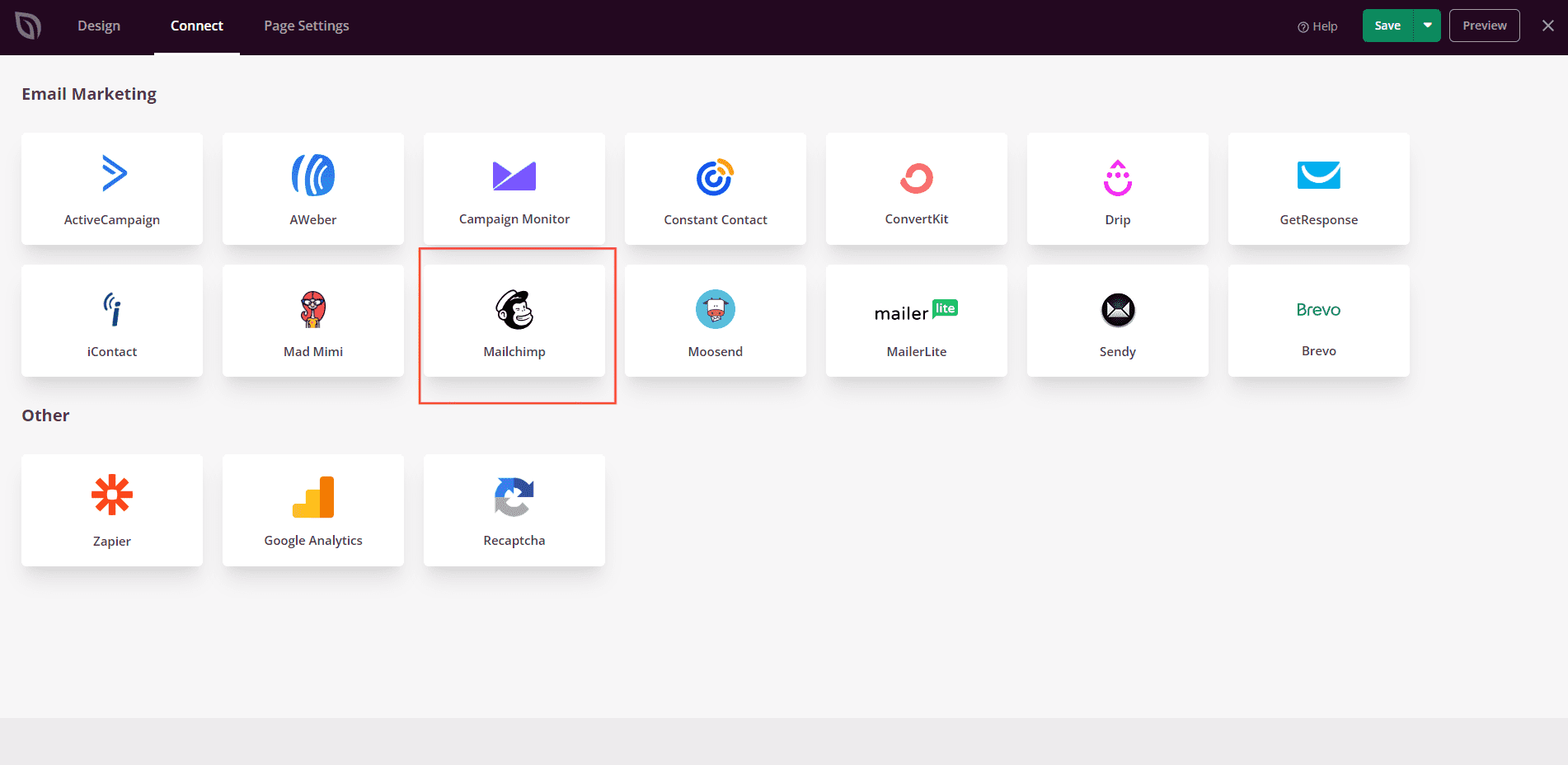
Step 3: Select Mailchimp
From the list of available email integrations, select Mailchimp.
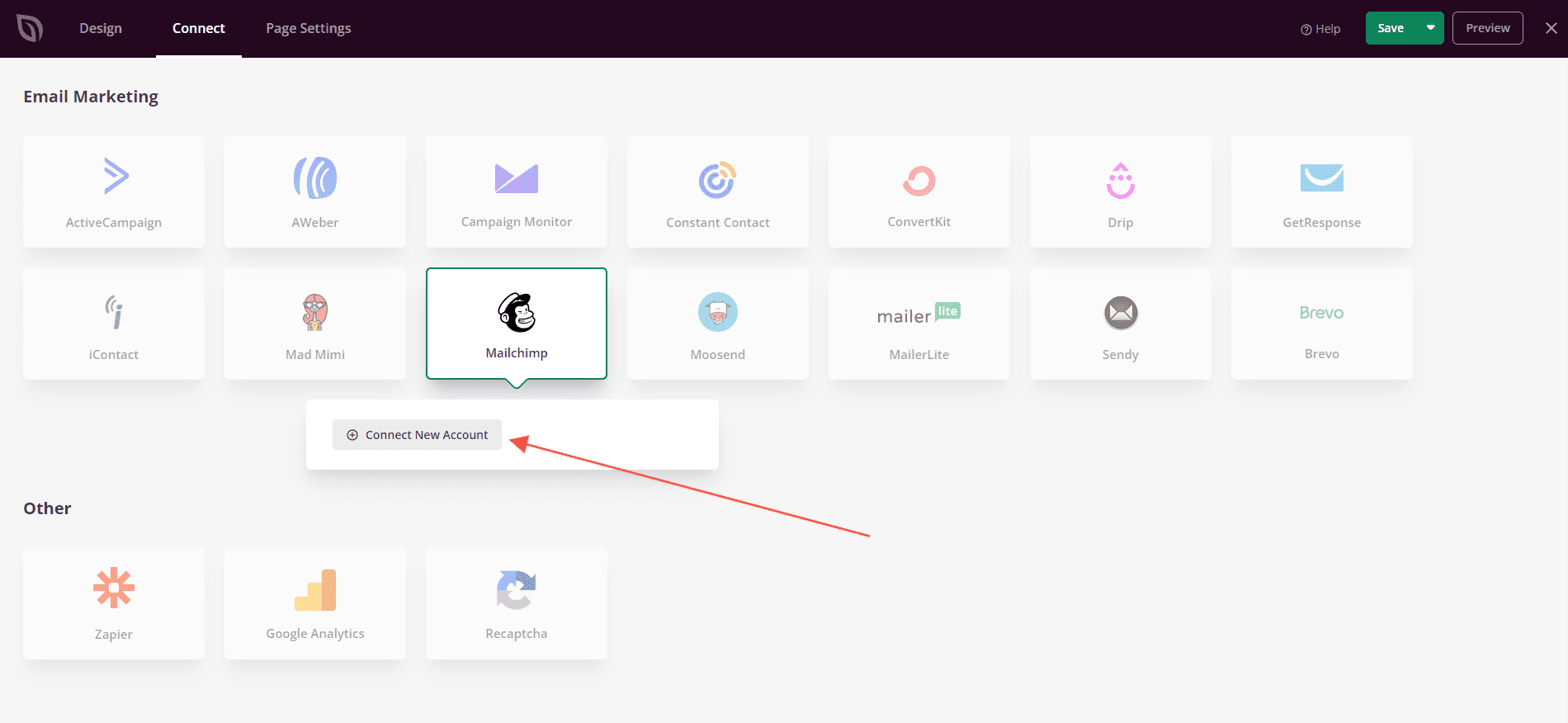
Step 4: Click Connect
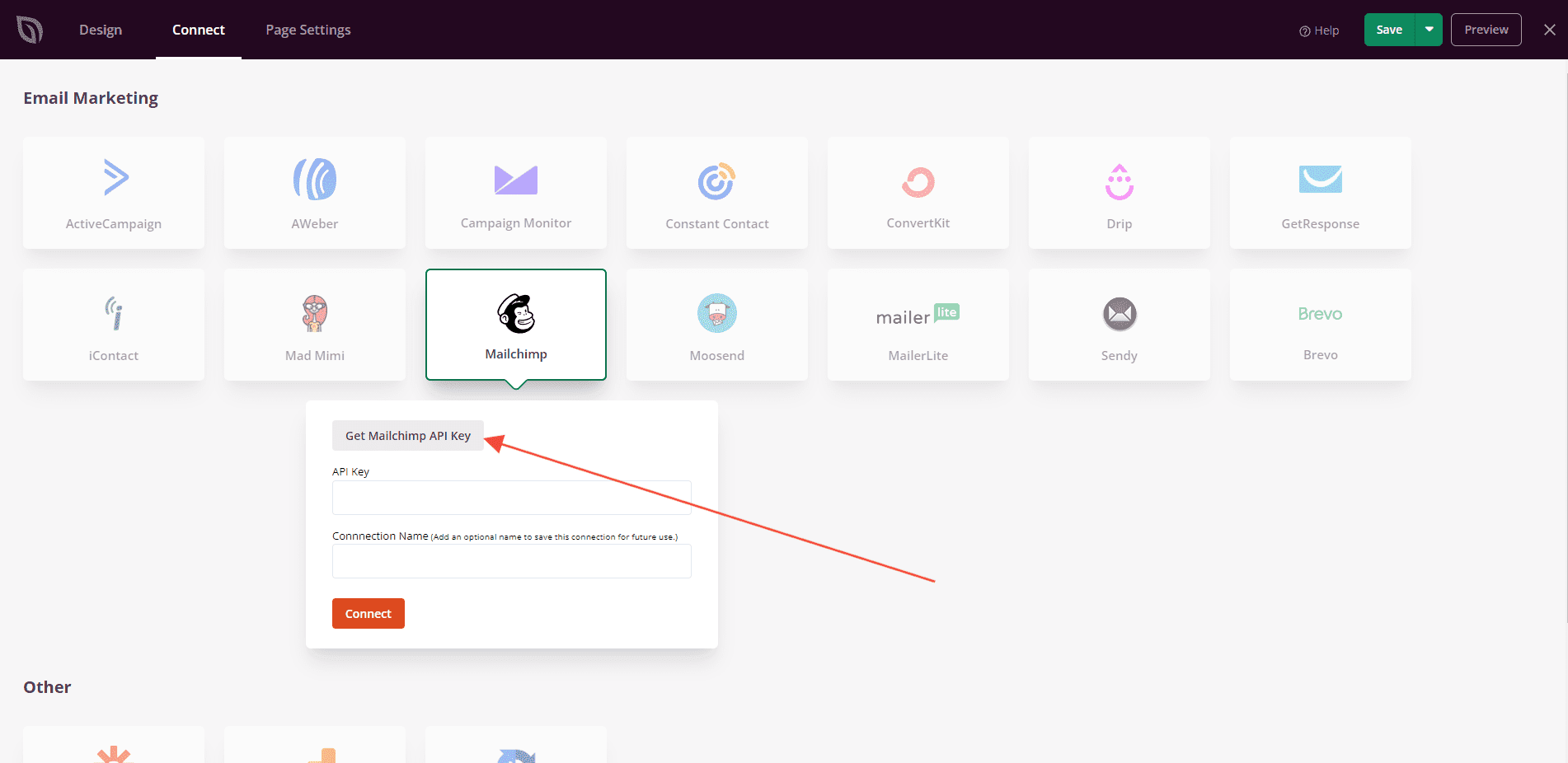
Click the Connect button to open the Mailchimp API key entry form.
Step 5: Retrieve Your Mailchimp API Key
Log in to your Mailchimp account and navigate to Account > Extras > API Keys to find or generate your API key. Copy it for use in the next step.
Step 6: Enter Your API Key and Connect
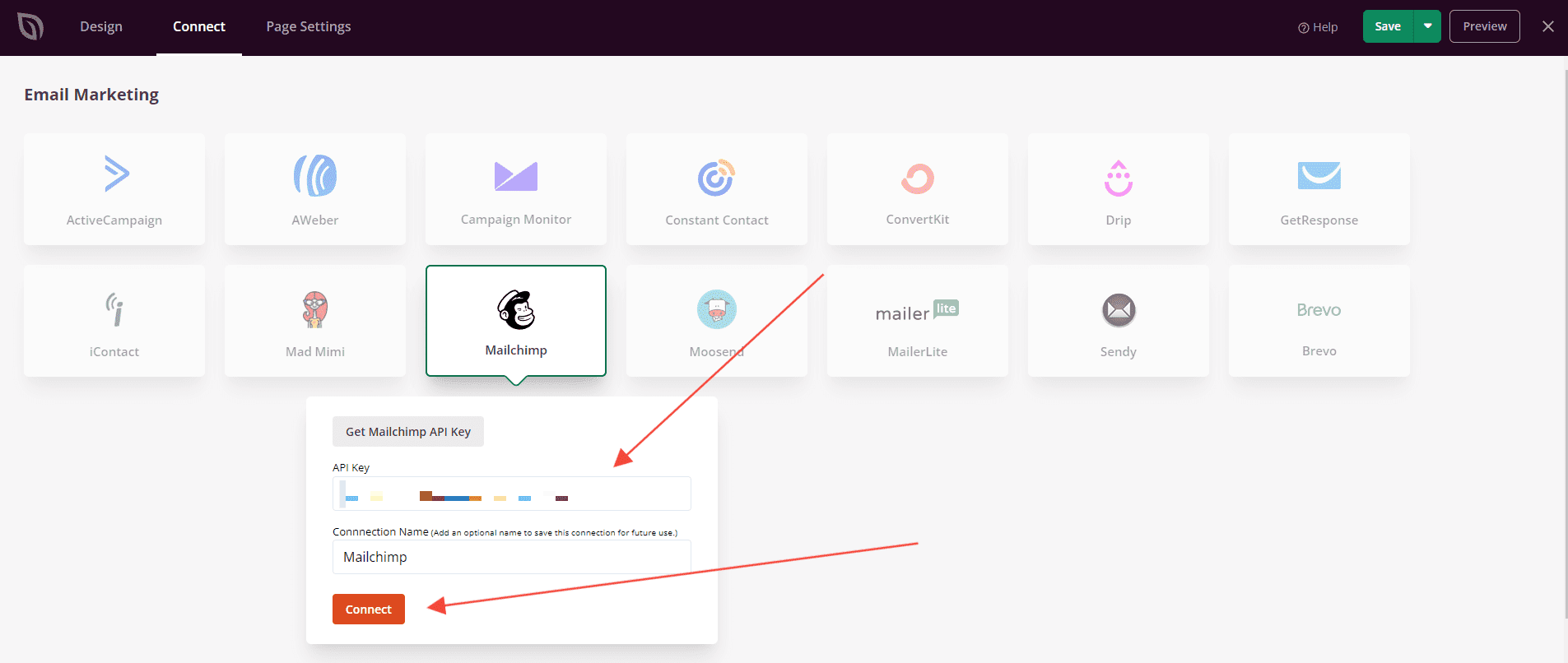
Back in SeedProd, paste your API Key into the field provided and click Connect.
Step 7: Choose Your Mailchimp List
Once connected, select the Mailchimp List you want subscribers added to from the dropdown that appears in the Optin Form block settings.
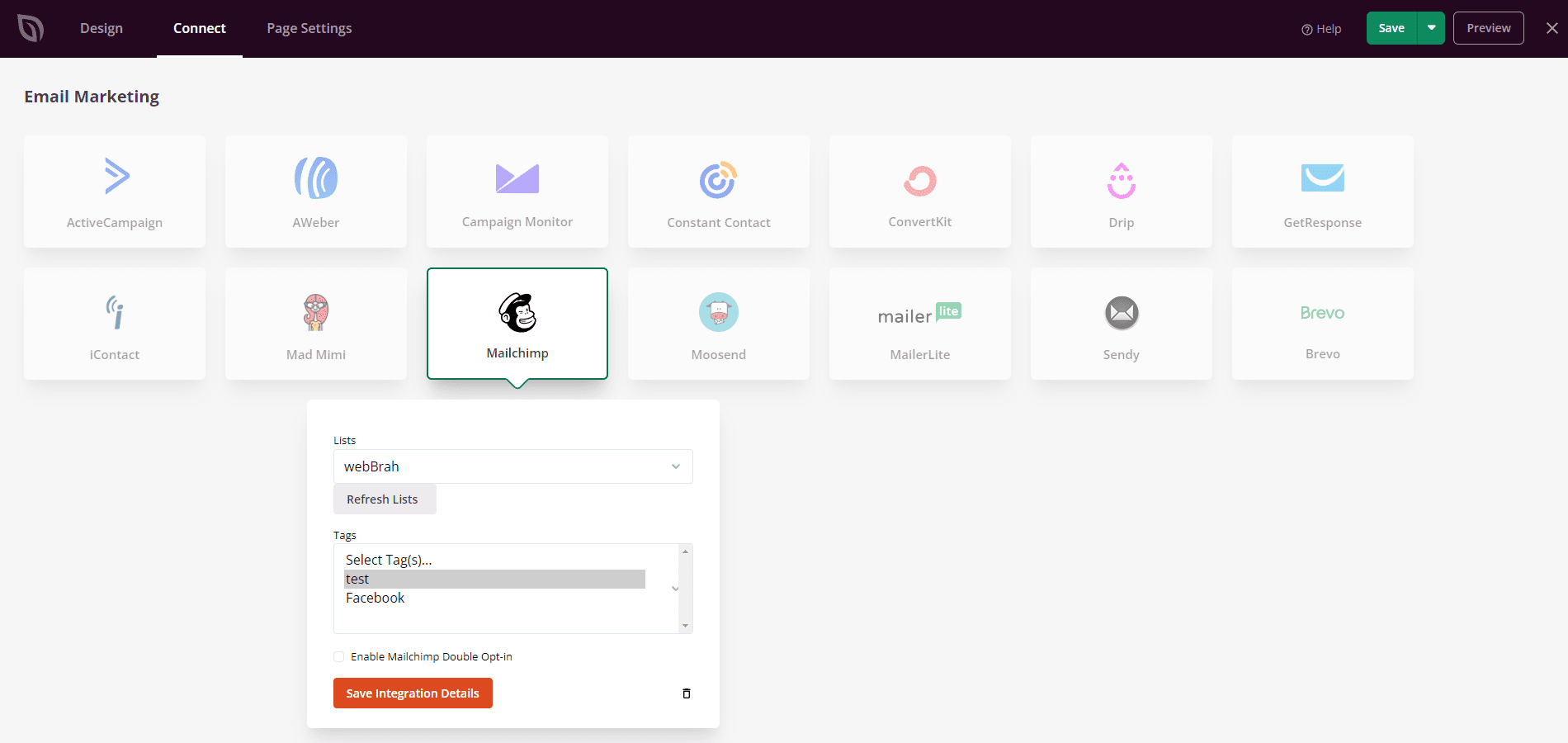
Mailchimp is now connected to SeedProd. New subscribers who submit the Optin Form block on your page will be automatically added to your selected Mailchimp list.