
iContact ist eine E-Mail-Marketing-Plattform, mit der Sie Kampagnen verwalten und mit Ihren Abonnenten in Verbindung bleiben können. Diese Anleitung führt Sie durch die Verbindung von iContact mit dem Optin Form-Block von SeedProd, damit neue Abonnenten automatisch zu Ihrem iContact-Konto hinzugefügt werden.
Schritt 1: Seite „Verbinden“ öffnen
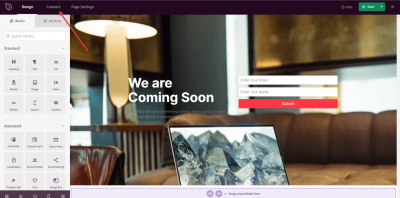
Gehen Sie in Ihrem WordPress-Adminbereich zum SeedProd Dashboard und klicken Sie auf Verbinden.
Schritt 2: iContact auswählen
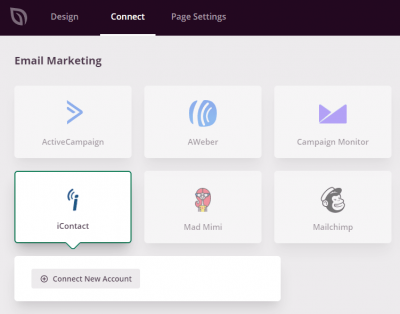
Wählen Sie aus der Liste der verfügbaren E-Mail-Integrationen iContact aus und klicken Sie auf Neues Konto verbinden.
Schritt 3: Mit iContact verbinden
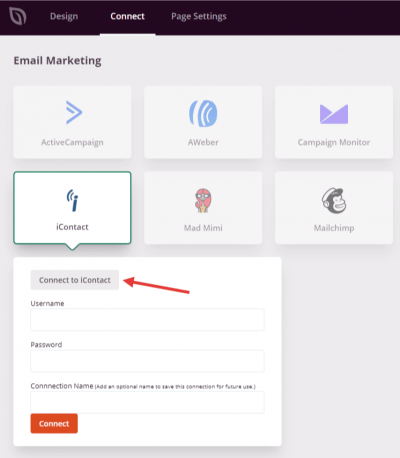
Klicken Sie auf die Schaltfläche Mit iContact verbinden, um Ihr iContact-Konto zu öffnen und die Verbindung zu autorisieren.
Schritt 4: App autorisieren
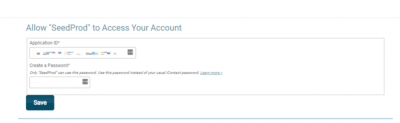
Autorisieren Sie in Ihrem iContact-Konto die App und erstellen Sie ein Passwort für das Plugin, wenn Sie dazu aufgefordert werden.
Schritt 5: Anmeldedaten eingeben und verbinden
Zurück in SeedProd geben Sie Ihren iContact-Benutzernamen (Ihren regulären iContact-Benutzernamen) und das im vorherigen Schritt erstellte Passwort ein und klicken Sie dann auf Verbinden.
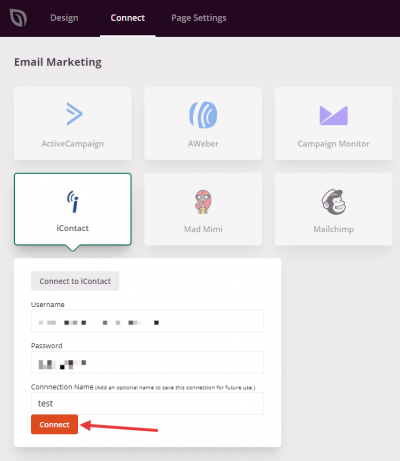
iContact ist jetzt mit SeedProd verbunden. Sie können Ihre iContact-Liste in den Einstellungen des Optin Form-Blocks auswählen, damit Abonnenten automatisch hinzugefügt werden, wenn Besucher das Formular auf Ihrer Seite absenden.