
The Layout Navigation panel gives you a bird’s-eye view of your entire page structure. It lists every section, row, column, and block on the page so you can quickly jump to any element’s settings or rearrange elements by dragging and dropping — without having to scroll through the canvas to find what you need.
Opening Layout Navigation
To open the Layout Navigation panel, click the Layout Navigation icon in the SeedProd builder toolbar. The panel will open on the left side, showing the full hierarchy of your page layout.
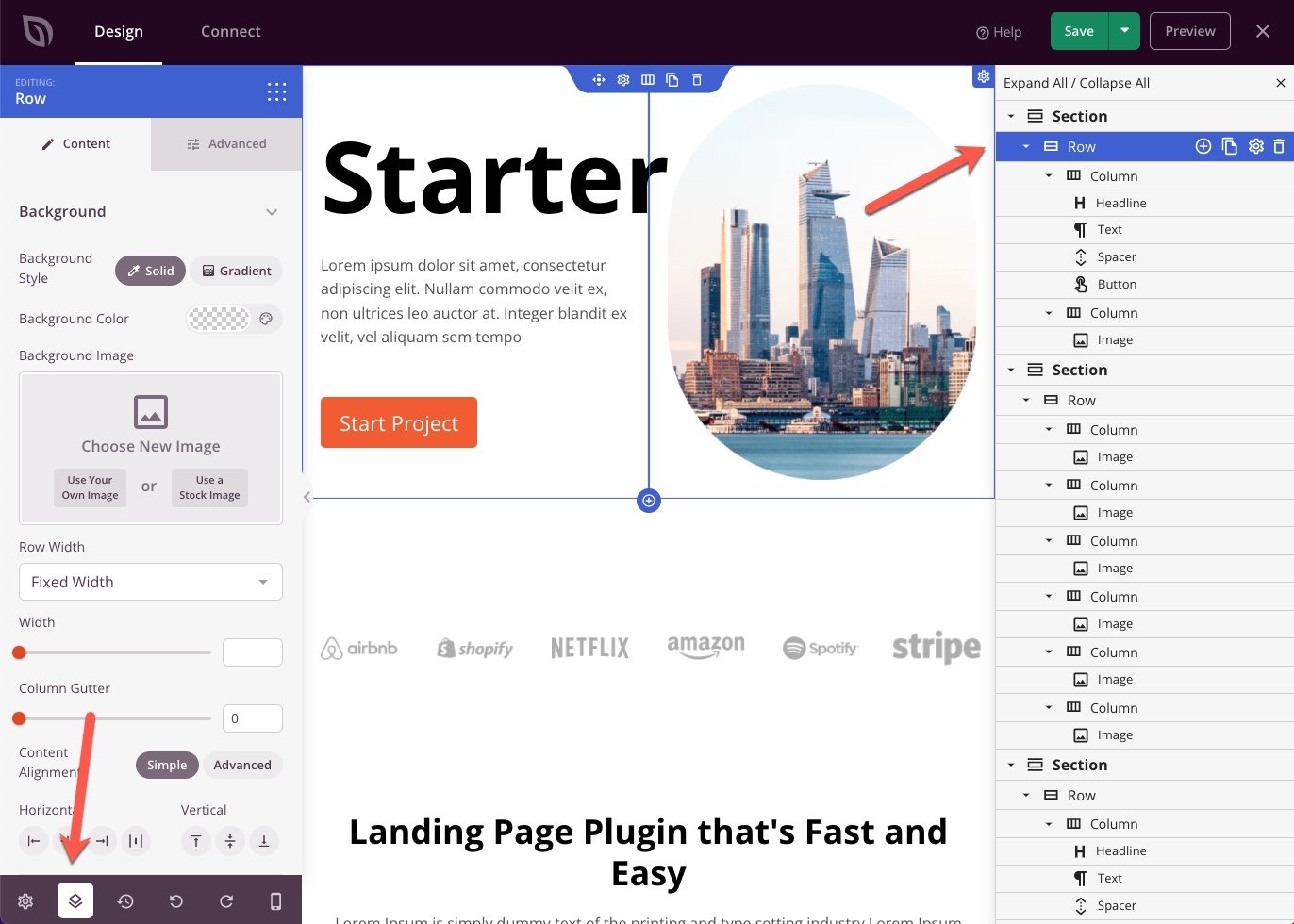
What You Can Do in Layout Navigation
- Jump to any element: Click any section, row, column, or block in the panel to immediately select it and open its settings — no need to scroll through the canvas to find it.
- Rearrange elements: Drag and drop items in the Layout Navigation panel to reorder sections, rows, or blocks on your page.
- View page structure at a glance: The nested hierarchy shows exactly how your layout is organized, making it easy to spot and select deeply nested elements.
Layout Navigation is especially useful on complex pages with many sections and nested columns. It gives you a structured alternative to clicking directly on the canvas when precise selection or reordering is needed.