
Un modèle de page unique dans le constructeur de sites Web SeedProd vous permet de concevoir une mise en page personnalisée pour vos pages WordPress. Parce que c'est un modèle dynamique, il extrait automatiquement le contenu de chaque page de la base de données, affichant le titre et le contenu corrects pour la page que le visiteur consulte. Vous pouvez également créer plusieurs modèles de page unique avec différentes conditions d'affichage pour appliquer différentes conceptions à différentes pages de votre site.
Étape 1 : Ajouter un nouveau modèle de page unique
Dans votre administration WordPress, allez dans SeedProd > Générateur de site et cliquez sur Ajouter un nouveau modèle.
Étape 2 : Configurer les paramètres du modèle
Dans la fenêtre contextuelle Nouveau modèle de thème, configurez les paramètres suivants avant de créer le modèle :
- Type : Sélectionnez Page unique dans le menu déroulant.
- Nom : Entrez un nom pour identifier ce modèle.
- Conditions : Définissez les conditions d'affichage pour contrôler à quelles pages ce modèle s'applique - par exemple, toutes les pages, une page parente spécifique ou une page individuelle par slug ou ID.
- Priorité : Définissez un numéro de priorité pour gérer quel modèle s'applique lorsque les conditions se chevauchent. Un nombre plus élevé a la priorité sur un nombre inférieur.
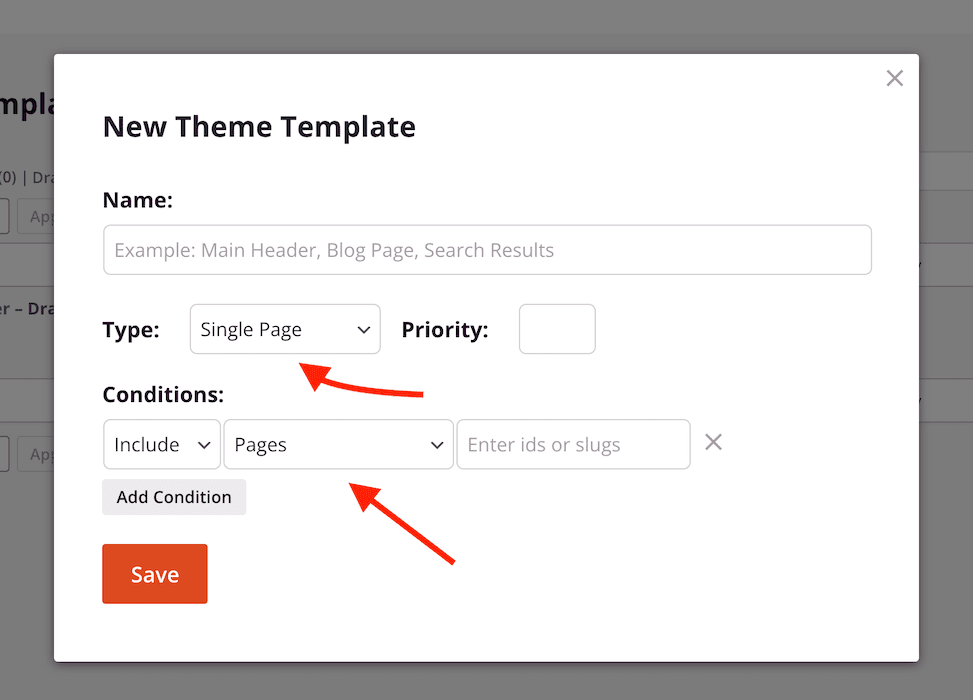
Cliquez sur Enregistrer pour ouvrir le modèle dans le constructeur SeedProd.
Étape 3 : Concevoir votre modèle de page unique
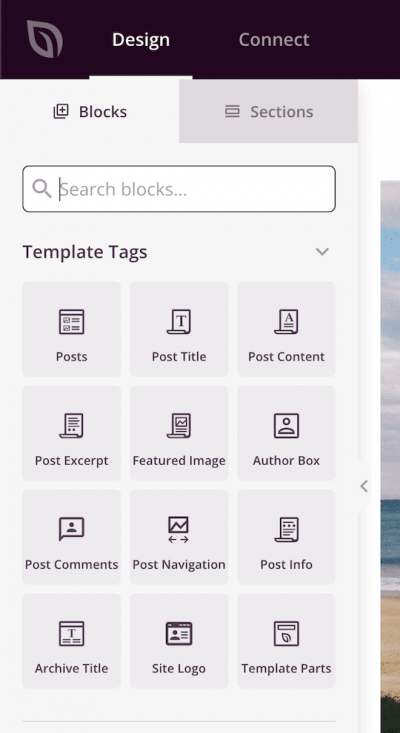
Concevez la mise en page de votre page dans le constructeur. Utilisez les blocs Balise de modèle pour extraire les données dynamiques de la page. Les balises de modèle les plus couramment utilisées pour une mise en page de page unique incluent :
- Titre de l'article — affiche le titre de la page
- Contenu de l'article — affiche le contenu du corps de la page (obligatoire)
- Informations sur l'article — affiche les métadonnées telles que l'auteur et la date
- Image mise en avant — affiche l'image mise en avant de la page
Étape 4 : Publier le modèle
Une fois votre conception terminée, cliquez sur la flèche déroulante du bouton Enregistrer et sélectionnez Publier. Votre modèle de page unique commencera immédiatement à s'appliquer aux pages qui correspondent à ses conditions d'affichage.
Votre modèle de page unique est maintenant en ligne. Vous pouvez revenir à SeedProd > Constructeur de sites Web à tout moment pour modifier le modèle, ajuster ses conditions ou créer des modèles de page unique supplémentaires pour différentes sections de votre site. Pour en savoir plus sur les balises de modèle disponibles, consultez la documentation sur les Balises dynamiques.