
AWeber est une plateforme de marketing par e-mail qui vous permet de gérer vos campagnes d'e-mails et de développer votre liste d'abonnés. Ce guide vous explique comment connecter AWeber au bloc Formulaire d'inscription de SeedProd afin que les nouveaux abonnés soient automatiquement ajoutés à votre compte AWeber.
Étape 1 : Ouvrir la page de connexion
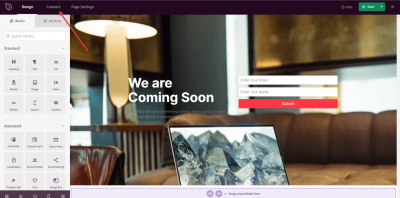
Dans votre administration WordPress, allez au Tableau de bord SeedProd et cliquez sur Connexion.
Étape 2 : Sélectionner AWeber
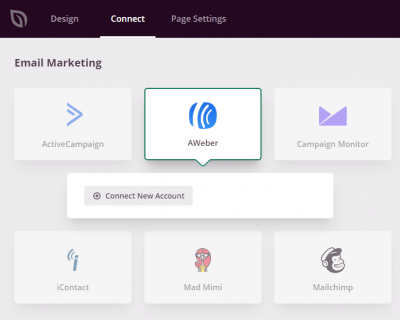
Dans la liste des intégrations d'e-mails disponibles, sélectionnez AWeber et cliquez sur Connecter un nouveau compte.
Étape 3 : Connexion à AWeber
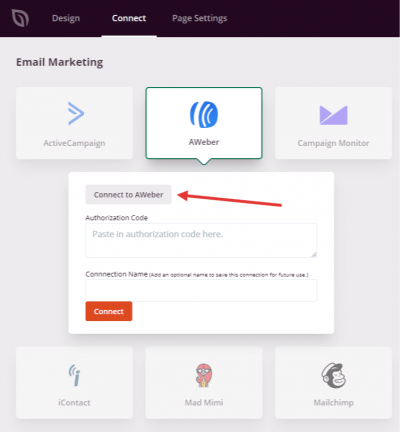
Cliquez sur le bouton Se connecter à AWeber pour ouvrir la page d'autorisation AWeber.
Étape 4 : Connexion et autorisation d'accès
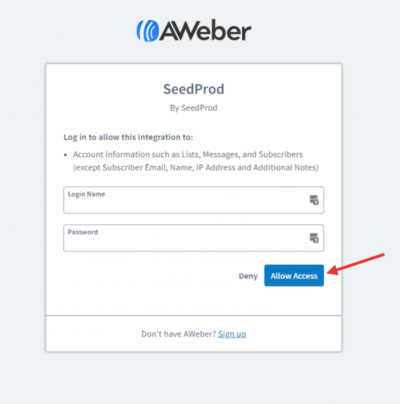
Connectez-vous à votre compte AWeber et cliquez sur Autoriser l'accès pour générer votre code d'autorisation.
Étape 5 : Copier le code d'autorisation
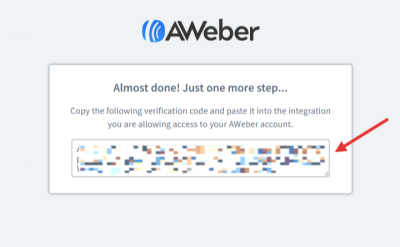
AWeber affichera un code d'autorisation après que vous aurez autorisé l'accès. Copiez ce code.
Étape 6 : Coller le code et se connecter
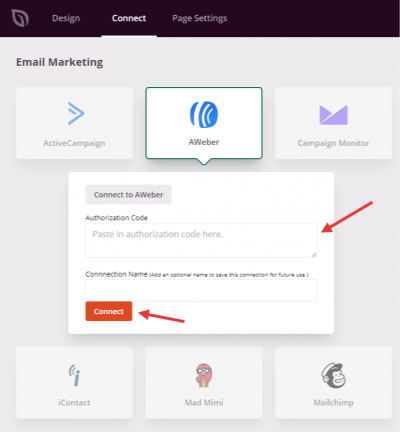
De retour dans SeedProd, collez le code d'autorisation dans le champ prévu à cet effet et cliquez sur Connecter.
AWeber est maintenant connecté à SeedProd. Vous pouvez sélectionner votre liste AWeber dans les paramètres du bloc Formulaire d'inscription afin que les abonnés soient automatiquement ajoutés lorsque les visiteurs soumettent le formulaire sur votre page.