
Eine Single Page-Vorlage im SeedProd Website Builder ermöglicht es Ihnen, ein benutzerdefiniertes Layout für Ihre WordPress-Seiten zu entwerfen. Da es sich um eine dynamische Vorlage handelt, zieht sie automatisch den Inhalt jeder Seite aus der Datenbank – und zeigt den richtigen Titel und Inhalt für jede Seite an, die ein Besucher gerade ansieht. Sie können auch mehrere Single Page-Vorlagen mit unterschiedlichen Anzeigebedingungen erstellen, um verschiedene Designs auf verschiedene Seiten Ihrer Website anzuwenden.
Schritt 1: Neue Single Page-Vorlage hinzufügen
Gehen Sie in Ihrem WordPress-Admin zu SeedProd > Website Builder und klicken Sie auf Neue Vorlage hinzufügen.
Schritt 2: Vorlageneinstellungen konfigurieren
Konfigurieren Sie im Popup Neue Theme-Vorlage die folgenden Einstellungen, bevor Sie die Vorlage erstellen:
- Typ: Wählen Sie Single Page aus dem Dropdown-Menü.
- Name: Geben Sie einen Namen ein, um diese Vorlage zu identifizieren.
- Bedingungen: Legen Sie die Anzeigebedingungen fest, um zu steuern, auf welche Seiten diese Vorlage angewendet wird – z. B. alle Seiten, eine bestimmte übergeordnete Seite oder eine einzelne Seite nach Slug oder ID.
- Priorität: Legen Sie eine Prioritätsnummer fest, um zu verwalten, welche Vorlage angewendet wird, wenn sich Bedingungen überschneiden. Eine höhere Zahl hat Vorrang vor einer niedrigeren.
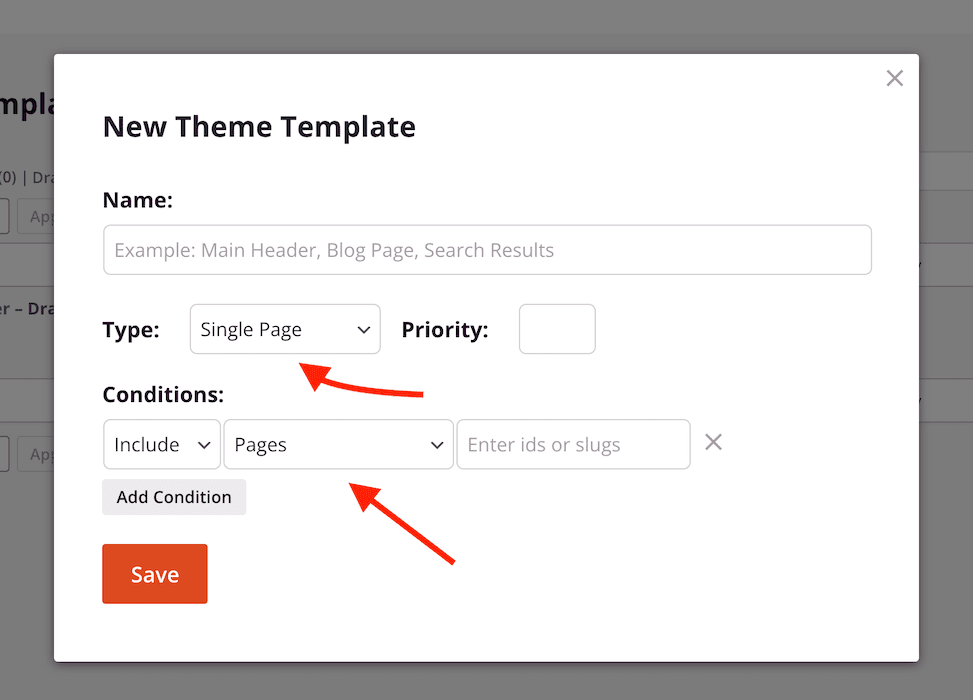
Klicken Sie auf Speichern, um die Vorlage im SeedProd-Builder zu öffnen.
Schritt 3: Entwerfen Sie Ihre Single Page-Vorlage
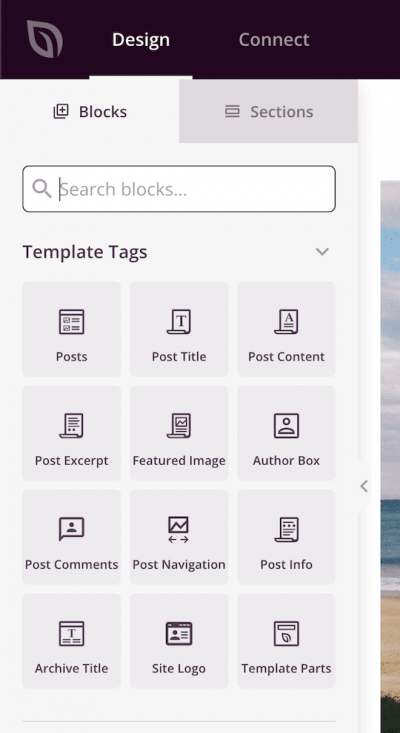
Entwerfen Sie Ihr Seitenlayout im Builder. Verwenden Sie Template Tag-Blöcke, um dynamische Seitendaten abzurufen. Die am häufigsten verwendeten Template-Tags für ein Single Page-Layout sind:
- Post-Titel – zeigt den Titel der Seite an
- Seiteninhalt – zeigt den Hauptinhalt der Seite an (erforderlich)
- Post-Infos – zeigt Metadaten wie Autor und Datum an
- Beitragsbild – zeigt das Beitragsbild der Seite an
Schritt 4: Veröffentlichen Sie die Vorlage
Wenn Ihr Design fertig ist, klicken Sie auf den Dropdown-Pfeil neben der Schaltfläche Speichern und wählen Sie Veröffentlichen. Ihre Single Page-Vorlage wird sofort auf die Seiten angewendet, die ihren Anzeigebedingungen entsprechen.
Ihre Single Page-Vorlage ist jetzt live. Sie können jederzeit zu SeedProd > Website Builder zurückkehren, um die Vorlage zu bearbeiten, ihre Bedingungen anzupassen oder zusätzliche Single Page-Vorlagen für verschiedene Bereiche Ihrer Website zu erstellen. Weitere Informationen zu verfügbaren Template-Tags finden Sie in der Dokumentation zu dynamischen Tags.