
When using the SeedProd Website Builder, you can create and edit individual WordPress pages directly in the SeedProd builder using the Edit with SeedProd button. This gives you full drag-and-drop control over a page’s layout and content, separate from the template applied to it.
Step 1: Create a New Page
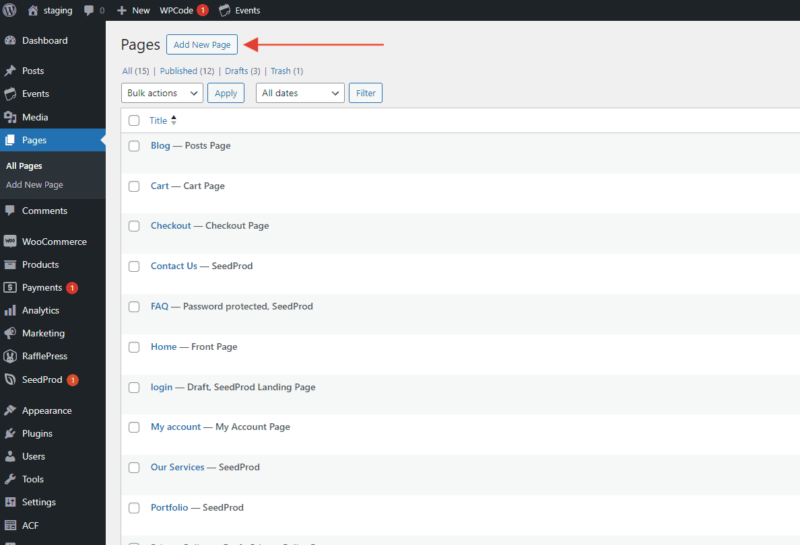
In your WordPress admin, go to Pages and click Add New Page.
Step 2: Name and Save the Page
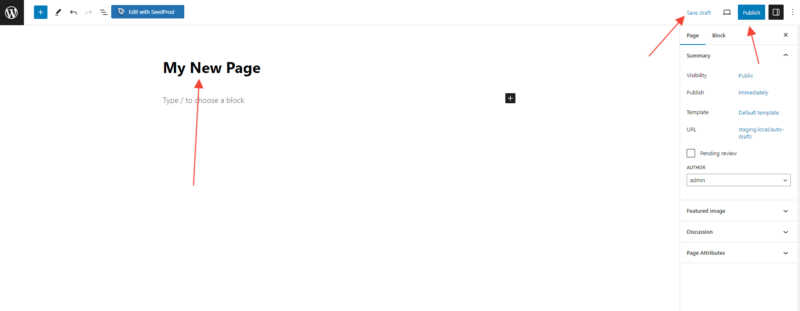
Enter a title for your page, then click Save Draft or Publish to save it. The page needs to be saved before you can open it in the SeedProd builder.
Step 3: Open the Page in SeedProd
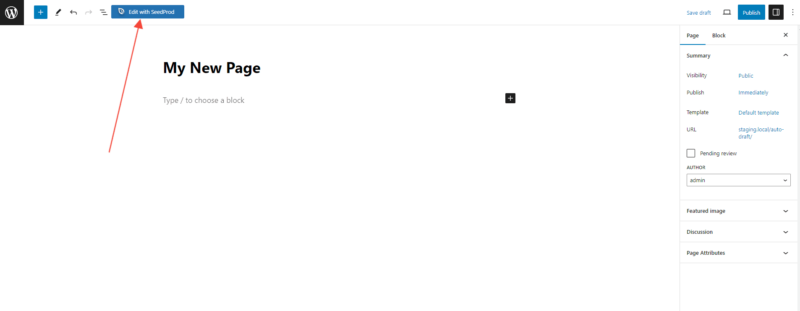
Click the blue Edit with SeedProd button that appears in the WordPress editor. This opens the page in the SeedProd drag-and-drop builder where you can customize its layout and content.
Step 4: Save Your Changes
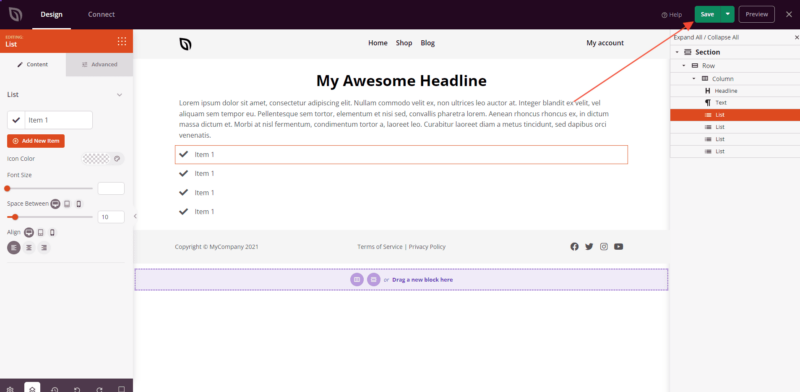
After editing your page in the SeedProd builder, click the Save button to apply and save your changes.
Your page is now live with your SeedProd design applied. You can return to the page at any time from Pages in your WordPress admin and click Edit with SeedProd to make further changes.